Give your WordPress site its first task.
Connect the site you already have, add your agent to Slack or Telegram, and tell it what you need.
Connect your siteStart with 500 free credits. No credit card needed.
Installing a WordPress theme takes minutes if you have the right file and a host that allows the upload. Most failures come from uploading the wrong ZIP or from a server limit, and the exact error message tells you which one. The real work comes after activation, when menus, widgets, demo content and checkout all need checking.
You bought a theme, downloaded the ZIP, and WordPress replied with “The package could not be installed.” Or the install worked and your site looks nothing like the demo. Both are common, and both have plain causes.
WordPress has three ways to install a theme: from the WordPress.org directory, by uploading a ZIP, or by copying the theme folder to the server. Each route ends the same way, with a valid theme folder inside /wp-content/themes/. This guide covers each route, what each error means, and what to check once the theme is live. If you are choosing between themes, start with how to choose WordPress templates for business.
Take a backup of the files and the database, and make sure you know how to restore it. A backup you have never restored is a hope, not a plan. Our explainer on what a backup plugin actually covers explains why “full backup” does not always mean full.
Then check four things:
Use this route for free themes listed on WordPress.org. You need an administrator account.
If you clicked Install and nothing changed, that is expected. Installing makes a theme available. Activating makes it live. You can leave a theme installed and inactive until it is ready.
Themes from marketplaces and independent developers arrive as a download. The catch is that the download is often a bundle: documentation, licence files, a child theme, and the real theme ZIP inside it.
Upload it under Themes, not Plugins. A theme ZIP uploaded at Plugins → Add New gets “No valid plugins were found.” If the theme needs companion plugins, such as a builder or a demo importer, install them after the theme. Our guide to installing a WordPress plugin safely covers that step.
Use this route when the dashboard upload is blocked by a size limit, or when you want to see the files yourself.
/wp-content/themes/. Do not use /wp-content/uploads/, which is for media./wp-content/themes/theme-name/style.css, not /wp-content/themes/theme-name/theme-name/style.css.The difference between the routes trips people up. The dashboard uploader wants the ZIP. SFTP wants the unzipped folder.
Developers and anyone managing several sites can use WP-CLI. It accepts a directory slug, a local ZIP or a URL, and --activate is optional:
wp theme install twentytwentyfive
wp theme install ../my-theme.zip --activateThe theme appears in Appearance → Themes with its screenshot and name. Inside its folder, WordPress’s Theme Handbook expects a style.css plus index.php for a classic theme, or style.css plus templates/index.html for a block theme. If those files are missing or sit one folder too deep, WordPress will not recognise the theme.
Read the exact error before you try again. Each message points at a different cause, and only the first is about the file itself.
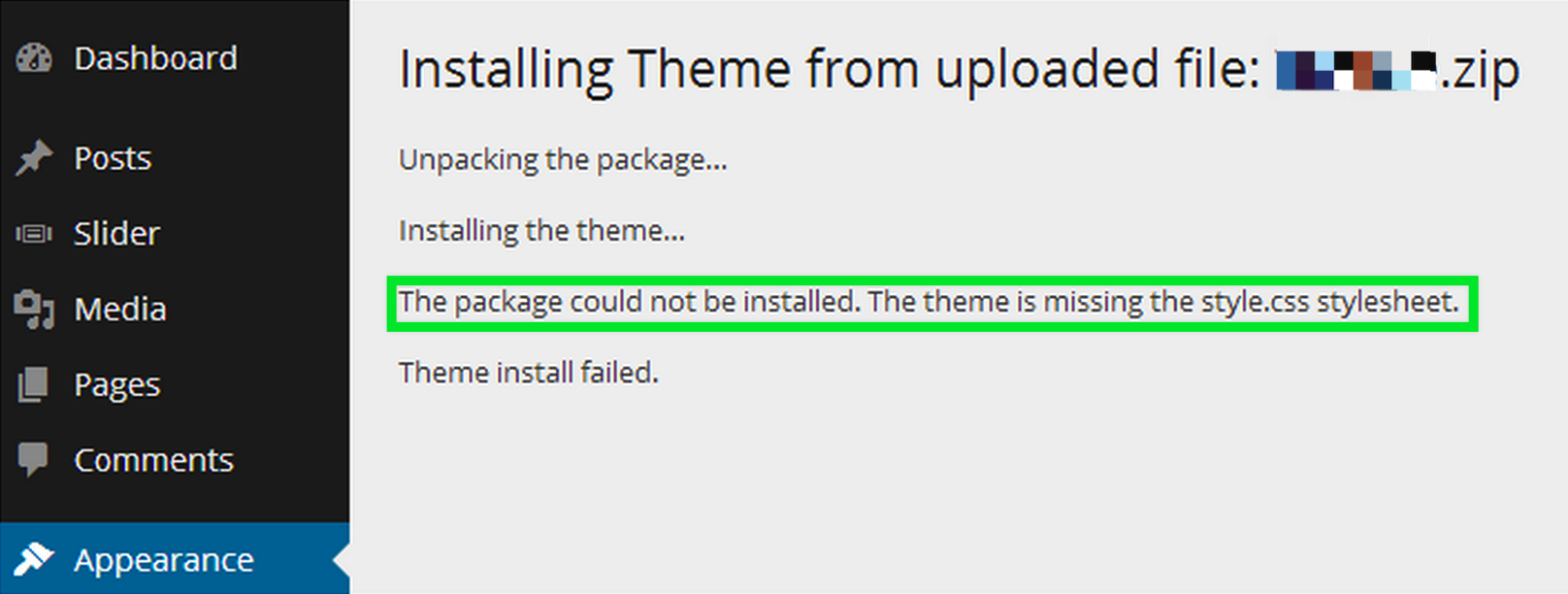
The full message is “The package could not be installed. The theme is missing the style.css stylesheet.” In practice this is almost always the outer marketplace bundle, not the theme. It can also be a plugin ZIP, a theme built for another platform, or a broken package. Upload the inner theme ZIP instead. Do not create a style.css by hand to get past the error. If the real theme ZIP still fails, ask the developer for a working copy.
Your host caps the upload size. First, make sure you are not uploading the whole bundle, which is often what makes the file too big. Then open Tools → Site Health → Info and look under Media handling and Server to see the limit. Ask your host to raise it, or install over SFTP, which skips the limit.
WordPress cannot write to /wp-content/themes/. Site Health → Info → Filesystem Permissions shows which directories are writable. WordPress’s handbook gives 755 for directories and 644 for files as a common setup, and notes that the right values depend on your host. It also warns against 777. World-writable files are a security risk, and wrong permissions can take a site offline. Ask your host to fix the ownership instead.
A folder with that name is already in /wp-content/themes/. Either the theme is already installed, or an earlier install failed halfway. Check Appearance → Themes first. If WordPress offers to replace the current version with the upload, that is the clean route. Otherwise, take a backup, then rename or remove the leftover folder over SFTP and reinstall. Make sure it is not the active theme, or the parent of your active child theme.
This is about your account, not your file. On Multisite, only the Super Admin has the install_themes capability, so ask whoever runs the network. Our Multisite installation guide explains how that split works. On WordPress.com, whether you can upload a theme depends on your plan. Some hosts also turn off uploads.
A child theme holds your custom code, so a parent theme update cannot overwrite it. The parent has to be installed but does not need to be active. Install the parent, install the child the same way, and activate only the child. The child’s style.css names its parent in a Template: line. If you delete the parent, the child stops working.
If you change theme code, do it in the child theme, never in the parent’s files. Our guide to theme customization that survives updates shows what belongs where.
The “New theme activated” notice means the switch happened. It does not mean the site works. Go through it the way a visitor would.
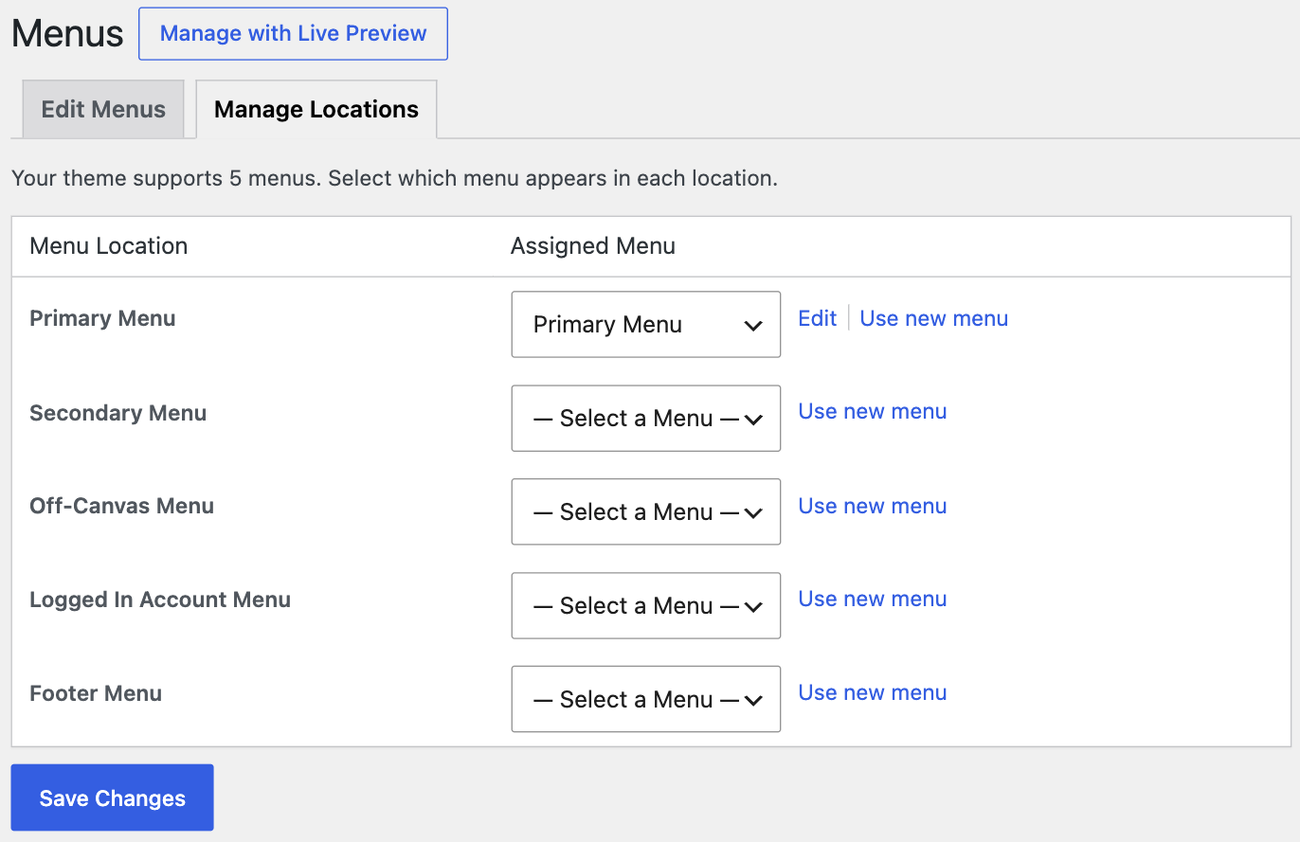
On a WooCommerce store, WooCommerce’s theme guide says to test My Account, cart and checkout rather than trusting the demo. WooCommerce → Status lists the theme’s template overrides and flags any that are out of date. If something breaks, switch to Storefront on staging. If the problem goes away, the theme is the cause.
Installing the theme is usually the smallest part of a redesign. Configuration, content and testing are the rest. If you would rather hand that part off, SiteSelf’s page on design changes to an existing site covers what the agent does with styles and templates.
If the site goes blank or shows a fatal error after activation, do not keep clicking. WordPress Recovery Mode, available since version 5.2, emails the site admin a link that can get you back into the dashboard. If that email never arrives, connect over SFTP and rename the new theme’s folder. WordPress then falls back to an installed default theme. The white screen guide walks through the rest.
Change one thing at a time, and write down the exact error before you contact the theme developer or your host. Hand the job over if the error names a server setting you cannot reach, the store’s checkout fails on the new theme, or the fix means editing the theme’s PHP and you do not have a staging copy to try it on.
Your posts and pages are stored in the database, so switching themes does not remove them. What can change is how they look: layouts, widget placement, menu locations and theme-specific shortcodes. A demo importer is different, because it writes content into your site. Run it on staging.
No. Appearance → Themes → Upload Theme only accepts a ZIP. If you have an unzipped folder, upload it to /wp-content/themes/ over SFTP or the host’s file manager. Some computers unzip downloads automatically, so check you still have the .zip file.
The demo is built from content, images and settings the theme does not install. Most premium themes ship a separate demo importer or starter-site plugin. Even after importing, you still have to replace the sample content with yours.
Yes, until the new one has passed your checks on the live site. Also keep one default theme, such as a recent Twenty-something theme, installed. WordPress falls back to it if the active theme breaks. Remove unused themes once you are settled, because each one is code that needs updating.
Premium themes often don’t update through WordPress.org, so the process depends on the developer. Our guide to updating a WordPress theme without losing work covers each case.
How-to Tutorials
Good coming soon text says what is launching, who it is for and what to do now. On WordPress the harder part is often finding who owns the message: WooCommerce, a plugin, your host, a stuck update or a cache can each show it. Before you edit or remove it, work out which one is showing it.
Read article ›How-to Tutorials
The most reliable place to find your WordPress version is Tools → Site Health → Info → WordPress, because it reports what is actually installed. If you can’t log in, read $wp_version in wp-includes/version.php or run wp core version. Public clues like the generator tag, readme.html and ?ver= strings are only hints, and they are often missing or wrong.
Read article ›How-to Tutorials
To find the WordPress version you actually run, check from inside: Site Health, WP-CLI or wp-includes/version.php. Page source, feeds, asset URLs and readme.html are only clues. They can be missing or stale, and they can belong to a plugin. If two tools disagree, look for a cache or the wrong installation before you change anything.
Read article ›Connect the site you already have, add your agent to Slack or Telegram, and tell it what you need.
Connect your siteStart with 500 free credits. No credit card needed.