Key takeaways
- The scope of the blank page is diagnostic. Site-wide, admin-only, front-end-only, one template or the editor each point at a different set of suspects, and noting it costs nothing.
- Since WordPress 5.2 a fatal error triggers recovery mode: an email to the administration address with a link that pauses the offending plugin or theme so you can log in. It pauses, it does not fix.
- Add WP_DEBUG and WP_DEBUG_LOG to wp-config.php with WP_DEBUG_DISPLAY set to false. The fatal error line in wp-content/debug.log names the file, and the path under wp-content/plugins/ or wp-content/themes/ is the answer.
- With no admin access, rename the suspect folder over SFTP: wp-content/plugins/slug to slug-off, or the active theme folder to force a default theme. Record what you renamed before you start.
- Raise WP_MEMORY_LIMIT only when the log actually says ‘Allowed memory size … exhausted’, and remember the value cannot exceed the host’s own PHP ceiling.
A white screen is a page that returned nothing. The server answered, the browser has a document, and the document is empty. No theme, no error, sometimes not even a login form.
That silence is the problem. WordPress suppresses PHP error output in production, so when a plugin, a theme or your own code throws a fatal error, execution stops before any HTML is printed. You get a blank page instead of the line that names the file. WordPress’s Advanced Administration Handbook lists the White Screen of Death first among common WordPress errors, which tells you how routine this is.
On modern installs you will often see “There has been a critical error on this website” instead of pure white. Same condition, friendlier wording. The recovery sequence below is identical, and it overlaps heavily with fixing plugins that stopped working.
What the scope of the blank page already tells you
Before you rename anything, work out exactly where the white screen appears and where it does not. This is free information and it removes most of the suspect list.
| What is blank | Look here first |
|---|---|
| Front end and admin, everywhere | Code that loads on every request: a plugin, the theme’s functions.php, an mu-plugin, an edit to wp-config.php, memory exhaustion, a PHP version change |
| Admin blank, front end fine | Admin-only plugins: security suites, capability and role managers, admin UI customisers, page builders. Also memory pressure on heavy admin screens |
| Front end blank, admin fine | Theme templates, or a cache layer serving a stored blank response to logged-out visitors while you bypass it |
| One page or one template | That template file (front-page.php, home.php), a broken shortcode, or a builder, SEO or cache plugin acting on that content |
| One admin screen only | The plugin that owns that screen. A role-management plugin white-screening the Users page is a real reported case |
| The block editor only | An editor integration. Open the browser network tab and look for failing /wp-json/ requests |
| Only for logged-out users or only on mobile | Caching plugin, host cache, CDN or reverse proxy |
Write one line before you touch anything: what is blank, when it started, what changed immediately before. “Front end loads, /wp-admin is white since the plugin auto-update last night” is a diagnosis. “Site is broken” is not.
Check for the recovery mode email first
Since WordPress 5.2, a fatal error puts the site into recovery mode instead of leaving you locked out. WordPress emails the administration address with a link that pauses the plugin or theme that failed and lets you into wp-admin for that session. The subject looks like “[your site name] Your Site is Experiencing a Technical Issue”, and the message usually names the extension. Core’s fatal error recovery mode announcement describes this as the answer to exactly the case where the backend would otherwise be unreachable.
Most people never see it. The address in Settings then General is an old inbox, the site’s outbound mail is broken, or it landed in spam. Check spam, check the address, and set RECOVERY_MODE_EMAIL in wp-config.php to something someone reads before you need it.
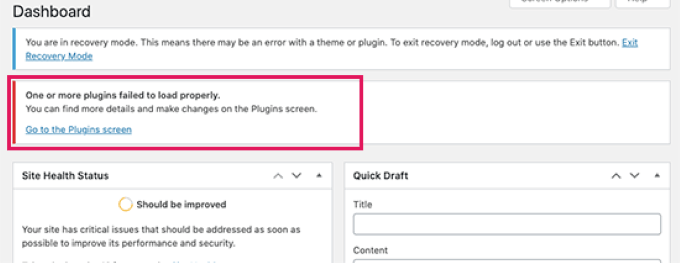
One thing to hold on to: recovery mode pauses, it does not fix. Reactivating the same broken version puts the white screen straight back.
Turn on logging before you change anything
This is the step people skip, and it is the one that ends the outage fastest. Edit wp-config.php over SFTP or the host’s file manager, above the line that says “That’s all, stop editing”, and set:
define( 'WP_DEBUG', true );
define( 'WP_DEBUG_LOG', true );
define( 'WP_DEBUG_DISPLAY', false );
WordPress’s debugging handbook documents this combination: errors go to wp-content/debug.log rather than to the page, which matters because visitors should not be reading your file paths. If a WP_DEBUG line already exists set to false, change that line rather than adding a second one.
Reload the blank page to reproduce the error, then open debug.log and read the end of it. Also open the host’s own PHP error log in cPanel, Plesk or the hosting dashboard and search near the bottom for “fatal error”. WordPress’s log does not capture everything: PHP-FPM failures, permission problems and server-level errors only show up there.
Two cautions. Editing wp-config.php in a plain text editor with a missing semicolon creates a second fatal error on top of the first, so keep an untouched copy of the original. And turn these lines off once you are done.
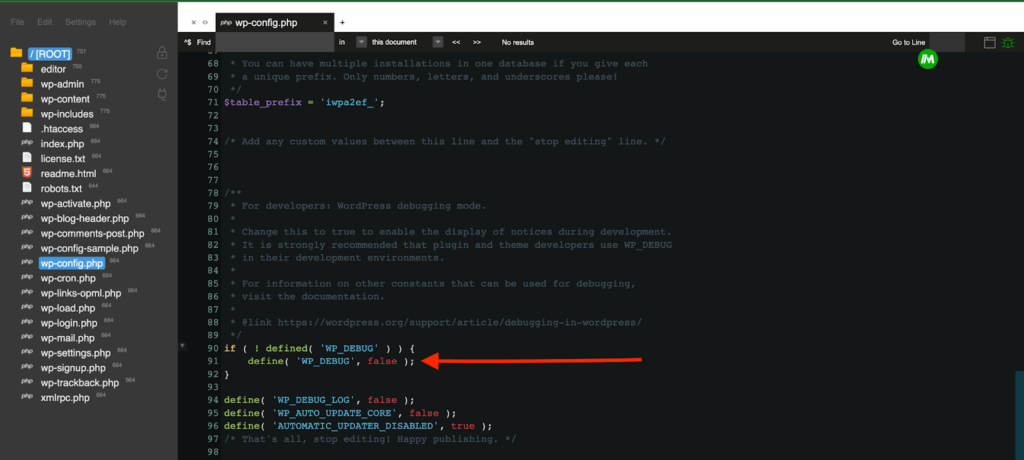
The file path in the error is the answer
Fatal errors are ugly but specific. What you are looking for is the path, not the wording:
PHP Fatal error: Uncaught Error: Call to undefined function ... in /wp-content/plugins/plugin-name/...
PHP Parse error: syntax error, unexpected ... in /wp-content/themes/theme-name/functions.php
PHP Fatal error: Uncaught Error: Class '...' not found
require(): Failed opening required '...' in /wp-content/mu-plugins/...
Fatal error: Allowed memory size of 134217728 bytes exhausted
A path under /wp-content/plugins/ names the plugin. A path under /wp-content/themes/ points at the theme or child theme, usually at code someone added to functions.php. A path under /wp-content/mu-plugins/ is a must-use plugin failing to load, which happens before normal plugins load and confuses people who have already deactivated everything. A path in wp-config.php is your own edit. And 134217728 bytes is 128M, so that last line is a resource limit, not a bug in the file it names.
Plugins: the most reported cause, and how to isolate one
Practitioner consensus across support forums and agency runbooks puts plugins first by a wide margin, usually within minutes of an update or a new activation. There is no measured dataset behind that ranking, but every source type reports the same order.
If the log named a plugin, act on that one. If you have no usable log and no admin access, isolate at the filesystem level over SFTP or the file manager:
- Write down the currently active plugins if you can, or run
wp plugin listover SSH. You need to be able to put the site back the way it was. - Rename the single suspect folder, for example
wp-content/plugins/plugin-slugtoplugin-slug-off. WordPress deactivates a plugin whose files have gone. - No obvious suspect? Rename
wp-content/pluginstoplugins.old, create an emptypluginsfolder, and move the plugins back one at a time, reloading the site after each. - When the white screen returns, the plugin you just moved back is the one.
With SSH available, wp plugin deactivate <slug> does the same thing without leaving renamed directories behind, and it is the cleaner option for an admin-only white screen.
Two traps. Deleting a plugin instead of renaming its folder can take its settings with it. And on a WooCommerce site, deactivating WooCommerce itself clears the white screen while breaking cart, checkout and account pages, so isolate the extensions around it, payment gateways and shipping plugins first, rather than the store.
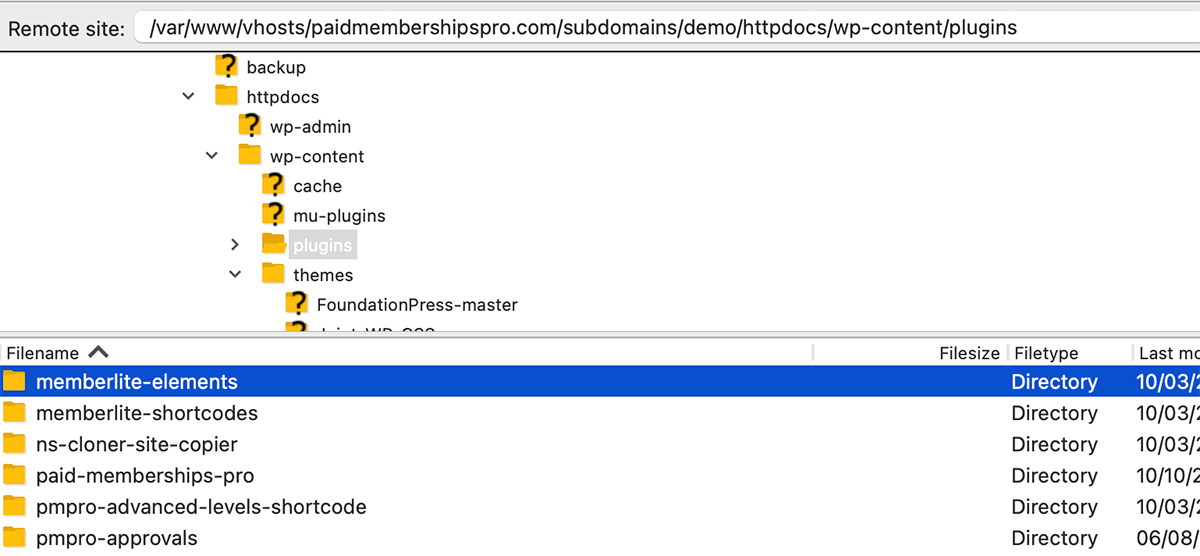
Once you know which plugin, the fix is a version decision: update it if a newer release fixes the fatal, roll it back to the previous version if the update caused it, or replace it if it has been abandoned. Leaving it paused is not a fix.
Themes: a syntax error in functions.php takes the whole site
Themes are the second most reported cause, and a hand-edited functions.php is the usual route. One missing semicolon typed into the built-in Theme File Editor on a live site produces a site-wide blank page and, because the editor is inside wp-admin, locks you out of the tool you used to break it.
Rename the active theme folder in wp-content/themes/. WordPress falls back to a default theme such as Twenty Twenty-Five, provided one is actually installed. If it is not, you will trade the white screen for a “theme directory does not exist” error, so check first. If the site returns on the default theme, the fault is in your theme files: revert the recent edit, restore from a backup of that file, or reinstall the theme. Keeping changes in a child theme and out of the live editor is what stops the repeat, and the same discipline applies when you are editing WordPress themes without losing work.
Memory exhaustion: a real cause and an over-applied fix
“Allowed memory size of X bytes exhausted” is the one white screen that tells you its own cause, when logging is on. The process died before printing anything, which is why it is often a pure blank rather than a critical error page. Typical triggers are imports, backups and restores, security scans, image processing and heavy page builders.
The fix in wp-config.php:
define( 'WP_MEMORY_LIMIT', '256M' );Three things people get wrong here. The M matters: '512' without it is not 512 megabytes. WP_MEMORY_LIMIT cannot exceed the host’s global PHP limit, so setting 512M on a plan capped at 128M changes nothing and you will wrongly conclude memory was not the issue. And raising the limit without finding out what consumed the memory just moves the failure to the next import. Community advice is consistent that 256MB is enough for an ordinary WordPress site, so a site that needs more has a specific consumer worth identifying.
PHP version changes, .htaccess and leftover update files
If the blank page appeared the day the host moved you from PHP 7.4 to 8.x, the code stopped being compatible, not the server. The fast recovery is rolling PHP back in the hosting control panel. The actual fix is updating core, plugins and themes for compatibility, testing on staging, then upgrading PHP again. Sitting on an old PHP version indefinitely trades one outage for a worse one later.
Where the white screen followed a migration, a restore or an interrupted update, look at files rather than code:
- A leftover
.maintenancefile in the WordPress root keeps the site in update mode. Delete it and reload. - A broken
.htaccesscan stop requests reaching WordPress. Rename it to.htaccess-old, test, and if that fixed it regenerate the rules by opening Settings then Permalinks and saving once admin access is back. Do not rewrite custom rules you do not understand; stores and membership plugins depend on them. - A failed core update can leave mismatched files. Re-uploading fresh core files from WordPress.org, excluding
wp-contentandwp-config.php, resolves that. Do this when there is evidence of corruption, not as a first move.
Fixed it and still seeing white? Clear every cache layer
A broken response gets cached like any other. The fix ships, you see the site, and visitors still get a blank page. Purge in this order: the caching plugin, the host’s page cache, the object cache, the CDN, then the browser. Clearing only your browser cache is the classic false negative.
On WooCommerce, caching the cart, checkout and account pages produces partial white screens and stale data even when nothing else is wrong. Confirm those exclusions are in place.
When to stop and get help
Escalate rather than keep testing when:
- You cannot get error output from either WordPress or the server.
- Renaming the whole plugins directory did not bring the site back, which points at core, the theme, an mu-plugin or the environment.
- The trigger was outside WordPress: a PHP upgrade, a database change, a host migration, altered file ownership.
- The same white screen returns after you reverse the change you believed caused it.
- The site earns money and you have a clean backup. Restoring and diagnosing afterwards on a copy beats a long live investigation.
Hand over the useful evidence: the scope line, the last confirmed change, what you already tested, and the first fatal error line from the log. If you would rather not work through folders and logs yourself, SiteSelf can run the same sequence on a connected site and report what it changed and what it checked, which is what getting a broken WordPress site working again looks like when you ask for it in chat; file-level and code work needs hosting access, not just the connector plugin.
What keeps it from coming back
Most repeat white screens come from the habits that produced the first one. Update risky extensions one at a time so the timeline stays readable. Take a backup before updates and check it restores. Point RECOVERY_MODE_EMAIL at a monitored inbox. Keep PHP edits out of the built-in Theme and Plugin File Editors on live sites. Replace plugins that have not been updated in six months rather than hoping. And know your host’s real PHP memory ceiling before the day you need it.