Key takeaways
- Check Plugins → Installed Plugins first. WordPress pauses a plugin that throws a fatal error and says so on that screen, which names the culprit before you start testing.
- Clear every cache layer, not just the browser: the caching plugin, the host cache and the CDN, and switch off minification, deferred JS and critical CSS while you debug.
- Locked out of wp-admin? Rename wp-content/plugins over SFTP or the host file manager to force everything off. WordPress.org documents this. Getting access back is step one, not the fix.
- Do not delete the plugin before you diagnose it. You lose its settings and the clean rollback path; WP Rollback restores a previous version from WordPress.org instead.
- A plugin that is active and doing nothing is often a template problem, not a plugin bug. Check the plugin’s output has somewhere to render before you go deeper.
A plugin that stopped working rarely stopped on its own. Something changed first: the plugin updated, WordPress core updated, the host moved you to a newer PHP version, someone added a caching rule, someone pasted a snippet into a theme file. The plugin is where the failure shows up. It is often not where the failure started.
That is why the first move is not deactivation. It is a two-minute pass to record what changed and what exactly is broken. If the break started right after an edit to functions.php, for example, the edit is your prime suspect, and there are safer ways to make theme changes that survive the next update. If it started right after a Tuesday morning update run, you already have a short list.
Write down what changed before you touch anything
Four things, in a note, before you start clicking:
- The last change on the site: plugin update, core update, theme switch, PHP version change, new caching or security rule.
- The exact failing surface: which page, which action, front end or admin, logged in or logged out, checkout or contact form.
- Whether it fails in a private window too. If it works there, you are looking at a cache or a logged-in-only difference, not a broken plugin.
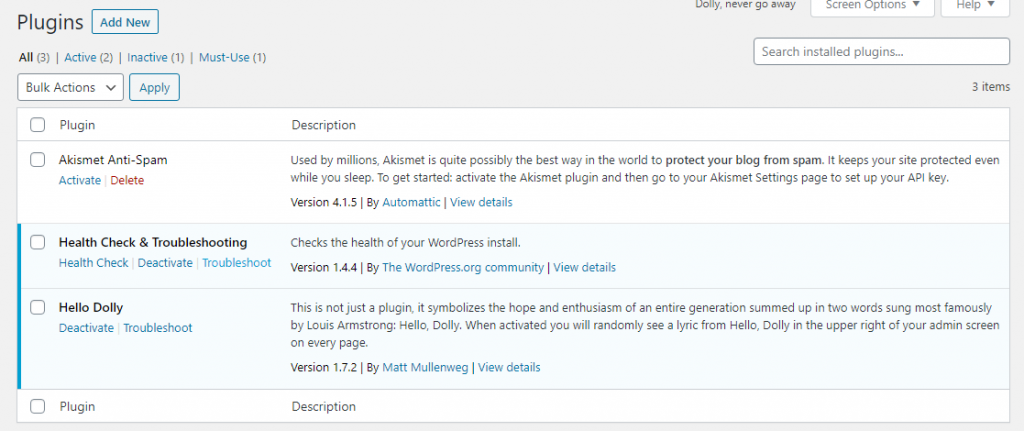
- Whether WordPress has already told you. Open Plugins → Installed Plugins and look for a plugin marked as paused with a notice that it was deactivated because of a fatal error. That notice names the file that crashed. People miss it constantly.
Then read the logs rather than guessing. WordPress’s debugging handbook documents WP_DEBUG, WP_DEBUG_LOG and WP_DEBUG_DISPLAY in wp-config.php. On a live site, turn logging on and display off, then read wp-content/debug.log and the server error log. A PHP failure leaves a file path pointing at the plugin or theme that caused it. A cache problem leaves no error at all, which is itself a clue.
The causes, roughly in the order they happen
A conflict introduced by an update
This is the most common one, and the trigger is usually an update that ran in the last day or two. Two plugins touch the same hook, one ships a new script that collides with another, or a plugin and the theme both try to control the same template. WooCommerce’s own self-service guide names the same three suspects for store problems: outdated software on the site, a conflict with the theme, and a conflict with another plugin.
Repeat offenders in practitioner reports are the big ones, because they are the ones doing the most work: WooCommerce on major versions that run database migrations, and Elementor plus its add-on packs, where an add-on lags a version behind the builder.
A cache serving the old version
The most under-diagnosed layer by a distance. You fix the problem, the page still looks broken, so you assume the fix failed and change something else. Clear the caching plugin, the host cache and the CDN, in that order, then retest in a private window. While you are debugging, switch off minification, deferred JavaScript, critical CSS and Cloudflare Rocket Loader. Combining and deferring scripts is exactly the sort of thing that hides a plugin’s JavaScript from logged-out visitors while it works fine for you.
The signature to recognise: it works when you are logged in and fails when you are not. That is almost always stale cached output, not a plugin bug.
The plugin works, the template has nowhere to put it
A plugin can be installed, active, licensed and running correctly while showing nothing on the page, because the theme template does not include the area or hook it renders into. This comes up constantly in WooCommerce and page-builder setups, where a custom product template replaced the standard one and dropped the hook the plugin attaches to.
Before you start a conflict test, ask the cheap question: does this plugin’s output have anywhere to appear? Switching to a default theme for thirty seconds answers it.
PHP version, memory, or a snippet with a typo
Three different problems that produce similar-looking breakage. Plugin code that does not run on the site’s PHP version. Memory exhaustion on a small hosting plan carrying WooCommerce plus a page builder plus a security scanner. Or a snippet copied off a blog into functions.php with a missing semicolon.
The errors are distinctive enough to sort quickly:
Parse error: syntax error, unexpected ...points at a code edit, usually the most recent one.Fatal error: Allowed memory size of X bytes exhaustedis a resource limit, not a bug.Fatal error: Uncaught Error: Call to undefined function ...orClass '...' not foundusually means a version mismatch or a half-installed plugin.
An update that stopped halfway
An auto-update that timed out leaves a plugin with a mix of old and new files. Symptoms include a site stuck on “Briefly unavailable for scheduled maintenance”, or database errors such as Table 'wp_xxx' doesn't exist and Unknown column ... in 'field list' after a plugin that migrates its own tables was interrupted mid-migration.
For the maintenance message, WordPress.org’s troubleshooting FAQ covers the fix: delete the .maintenance file in the site root. For a half-finished migration, restore the pre-update database backup. Re-running the update on a half-migrated database tends to make it worse.
The isolation test, run so the answer means something
Everyone knows the method. Most people run it in a way that cannot produce a reliable answer. The rule is one change, one test, on the exact surface that failed.
- Take a backup. The test is only aggressive enough to be useful if you can undo it.
- Deactivate all plugins. Test the failing action, not the homepage. If it still fails, plugins are not your cause and you can move to the theme.
- Reactivate one plugin. Clear the cache. Test again. Repeat, one at a time. Reactivating in batches to save time destroys the only thing the test produces.
- If plugins come back clean, switch to a default theme such as Twenty Twenty-Five and retest. Users blame plugins for theme faults more often than the reverse.
- Open the browser console on the failing page and look for
TypeError: ... is not a functionorReferenceError: ... is not defined. A JavaScript error names the file that failed to load.
On a live site you do not want to take the public offline while you do this. The Health Check & Troubleshooting plugin, published by WordPress.org, adds a troubleshooting mode that disables plugins for your session only, so visitors keep seeing the normal site. One honest caveat: its directory listing currently carries a notice that it has not been tested with the last three major WordPress releases, so read that before installing it on a store.
Two more cheap checks that solve a surprising share of cases. Resave Settings → Permalinks, which flushes rewrite rules and fixes plugin endpoints returning 404 or 500 after an update. And for any premium or connected plugin, confirm the licence is valid and the site can reach the vendor’s servers, because a plugin that cannot phone home fails silently and looks like a conflict.
Getting back in when wp-admin is gone
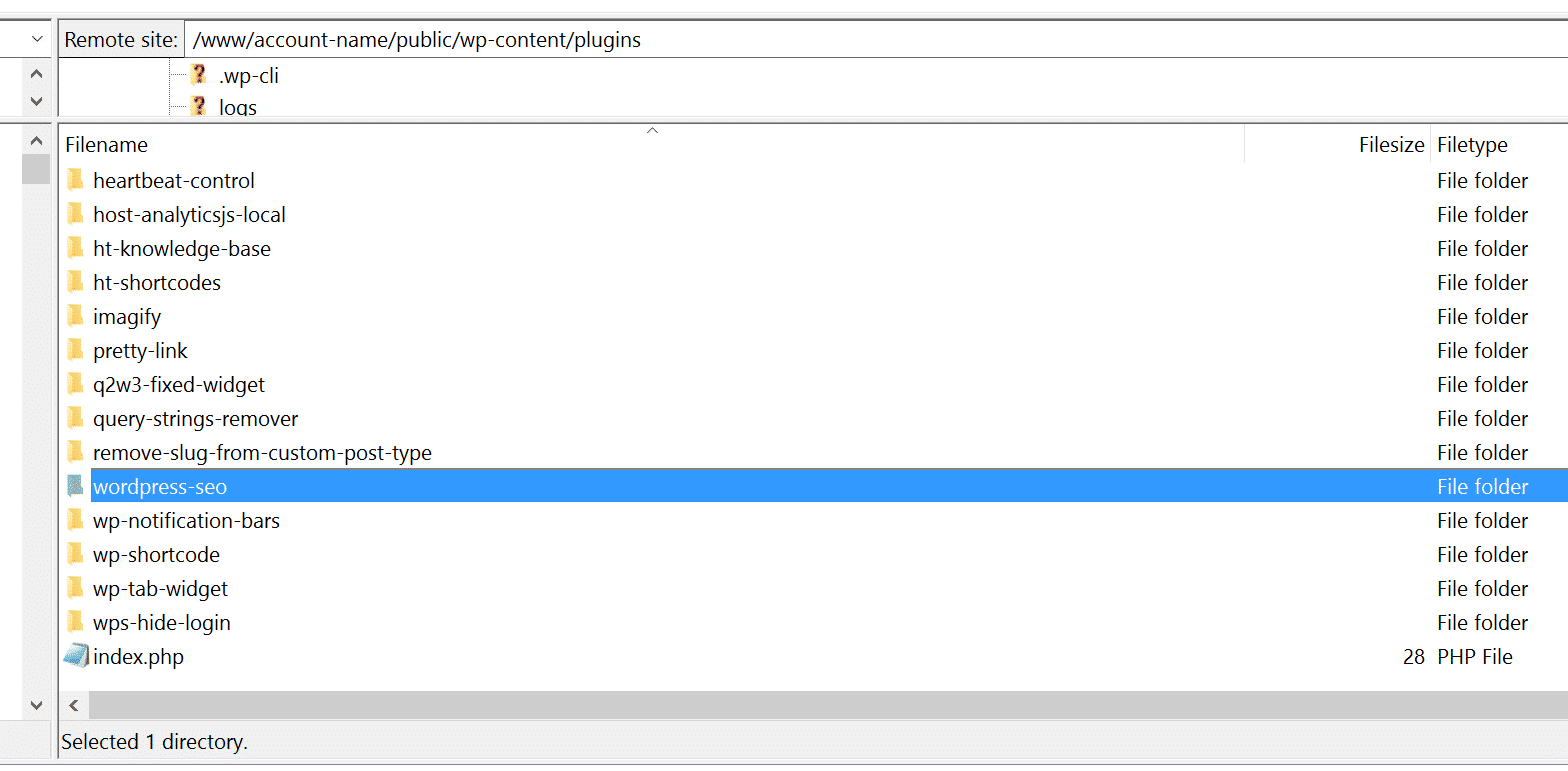
If a fatal error has taken the dashboard with it, stop trying to log in. Recovery happens at the file level, through SFTP, SSH or the host’s file manager.
Rename the folder of the plugin you suspect, from plugin-name to plugin-name.off. WordPress cannot load it, so it deactivates, and the settings in the database stay intact. If you do not know which one, rename the whole wp-content/plugins directory to plugins.deactivate to force everything off. WordPress.org’s troubleshooting FAQ documents this as the way to deactivate all plugins without admin access. Once you are back in, rename the folder back and reactivate one at a time.
Being able to log in again is a milestone, not a finished job. The site is now running without the plugins it needs, and the thing that caused the crash is still there. Do the isolation pass before you call it fixed, and retest the exact admin screen or checkout step that broke rather than the homepage.
Update, roll back, replace, or remove
Once you know which plugin is at fault, the next step is a judgment call, not more testing.
| What you are looking at | The usual answer |
|---|---|
| Maintained plugin, a newer version fixes the reported bug | Update, on staging first if you have one |
| Broke the moment it updated, previous version was stable | Roll back and wait for the vendor patch |
| Files look corrupt or an update was interrupted | Reinstall the same version so the files match |
| Not updated in years, not tested with recent WordPress, fails on PHP 8 | Replace it with something maintained |
| Known vulnerability, no patch, feature is business-critical | Remove it and solve the need another way |
Rollback is a normal first response, not a last resort. WP Rollback, by Devin Walker, restores any plugin or theme from the WordPress.org directory to a previous version through the familiar updater flow, so you do not have to hunt for an old zip. It only works if you did not delete the plugin, which is the argument for diagnosing before deleting.
On the “replace it” line, check the plugin’s directory page for the last-updated date and the “tested up to” version before you reinstall hope. Patchstack publishes an annual State of WordPress Security whitepaper analysing the previous year’s vulnerability data, and the pattern it tracks is a plugin ecosystem problem more than a core one. An abandoned plugin is a maintenance decision, not a bug report.
The fixes that make it worse
- Reactivating in batches. Saves five minutes, costs you the answer.
- Deleting the plugin before diagnosing. You lose its configuration and the clean rollback.
- Setting permissions to 777. It is a security risk, many hardened hosts refuse it anyway, and it rarely was the problem. WordPress’s hardening handbook has a file permissions section worth reading instead.
- Leaving
WP_DEBUG_DISPLAYon in production. It prints file paths and stack traces to visitors. - Downgrading PHP permanently. It hides the incompatibility and drops you off security support. Use it as a bridge for a day, not a policy.
- Editing plugin or parent-theme files in place. The next update overwrites your fix and the bug comes back with no record of why.
When to stop and hand it over
Three signals that the cheap path has run out: the conflict reappears after a clean isolation pass, the failure involves custom code or a bespoke integration, or the breakage is in the database rather than the files. At that point you are choosing between a long evening and someone with server access.
That is the shape of work SiteSelf handles: you describe the symptom through chat, the agent reads the logs on the connected site, runs the isolation, applies the fix, then fetches the page and reports what it changed and what it checked. Content and settings work needs the SiteSelf Connector plugin; reading logs, renaming folders and rolling back files needs hosting access over SSH. More on handing WordPress troubleshooting to an agent, including what it refuses, such as pages owned by a visual page builder.