Key takeaways
- The Site Editor only appears when a block theme is active. If you see Appearance → Customize instead, you have a classic theme and different instructions apply.
- Anything saved through the Customizer or the Site Editor is stored in the database and survives a theme update. Anything typed into a parent theme’s files does not.
- A working child theme needs two files: a style.css whose header includes a Template line naming the parent theme’s folder, and a functions.php that enqueues the stylesheet. Copy only the templates you actually change.
- WooCommerce overrides load only from a woocommerce folder inside the active theme, at the same relative path and filename the plugin uses.
- A missing semicolon in functions.php produces a white screen or the critical error page. The fix is reverting the file over SFTP or renaming the theme folder, not more editing in the dashboard.
A color change made directly in a theme’s stylesheet looks right all afternoon. Then the theme updates and it is gone, along with the spacing fix from last month. Nothing was wrong with the code. It was saved in a file that the update was allowed to replace.
That is one of two ways theme edits fail. The other is faster and louder: a stray character in functions.php and the site returns a blank page or the message “There has been a critical error on this website.” Both failures come from the same root cause, which is editing in the wrong place for the kind of change being made.
So the useful question is not “how do I open the theme editor”. It is “which layer does this change belong in”. There are three, and WordPress stores each one differently.
Check whether your theme is a block theme or a classic theme first
The instructions for every step below depend on this, and the dashboard tells you in one click. Open Appearance:
- Appearance → Editor means a block theme is active. WordPress.org’s Site Editor documentation states the Site Editor is only available when a block theme is installed and activated, so its presence is the test.
- Appearance → Customize means a classic theme, where design settings come from the Customizer and the theme’s own options screens.
- Appearance → Theme File Editor means file editing is switched on. Many hosts and security plugins remove it, which is not a fault.
- A builder screen such as Elementor, Divi or Beaver Builder on your pages means a fourth model sits on top of the theme. Edit those pages in the builder; theme templates may not control them at all.
Most confusing tutorials are confusing because they were written for the other model. A guide that says “go to Appearance → Customize” is describing a classic theme, and on a block theme that menu item does not exist.
Match the change to the layer that stores it
Three layers, in order of how safe they are to touch:
- Settings. Customizer options, theme option screens, Site Editor global Styles. Saved in the database. Survives theme updates. Limited to what the theme exposes.
- Templates. Block templates and template parts in the Site Editor, or PHP files such as
single.phpandheader.phpin a classic theme. This is where layout actually lives. Block template edits go to the database; PHP template edits belong in a child theme. - Code.
functions.php, hooks and filters. This is where sites break, and where a snippet plugin is usually the better home.
Before opening anything, write the change as an outcome: “make the mobile header shorter”, not “edit the header file”. Outcomes point at a layer. File names point at whichever file you happened to guess.
Block themes: Styles for global design, templates for layout
Open Appearance → Editor and pick the surface that matches the scope of the change.
- Styles for site-wide typography, colors, spacing and button styling. Changes here apply everywhere and are the first thing to try.
- Patterns and template parts for reusable pieces: the header, the footer, a call-to-action band. Editing the header template part changes every page that uses it.
- Templates for the structure of a view: single post, page, archive, search results, 404.
- Save, then load one real page in the browser at full width and at roughly 375px wide.
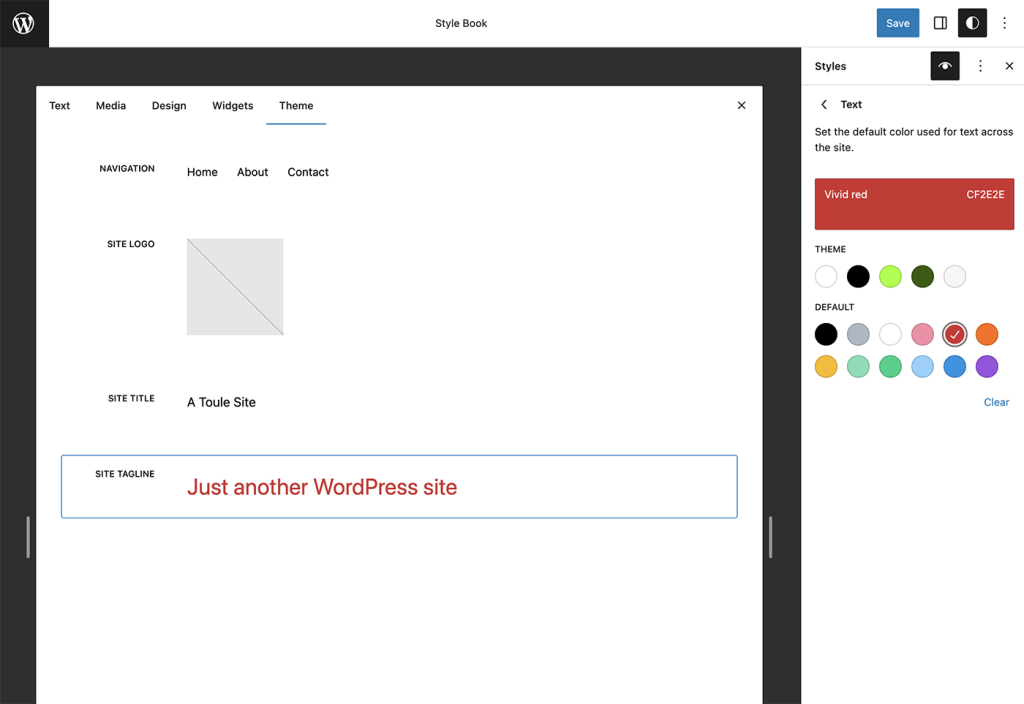
The most common block-theme mistake is a layer mismatch in the opposite direction: editing a page’s content when a template governs the output, then concluding the change “didn’t save”. If the element appears on many pages, it comes from a template part. If it appears on one page only, it is content.
A child theme of a block theme is usually a folder with a style.css header and a theme.json that overrides specific settings, rather than a pile of copied PHP.
Classic themes: the Customizer, then Additional CSS, then stop
Start at Appearance → Customize and look for the setting that matches the outcome: Site Identity for the logo, Colors, Menus, Widgets, Homepage Settings, plus whatever panels the theme adds. Anything you set here is update-safe.
Appearance → Customize → Additional CSS is the right home for presentation tweaks the markup already supports: a button color, a font size, tighter spacing. It is stored in the database, it is easy to remove, and for a handful of rules it beats building a child theme.
Additional CSS stops being the answer when you are fighting specificity to move things around. If you are stacking !important to rebuild a header, the markup cannot produce the layout you want. At that point the honest options are a child theme template, a different theme, or a developer. More CSS just makes the next person’s job harder.
If the change is clear but you would rather not be the person hunting for the template, design changes on an existing theme are the kind of work SiteSelf does through chat, using the SiteSelf Connector plugin for settings and hosting access for theme files.
How to build a child theme with two files
A child theme gives code-level changes a place to live that updates will not overwrite. WordPress loads the child’s version of a template or stylesheet in preference to the parent’s. The theme handbook’s steps come down to a folder and two files.
The two files
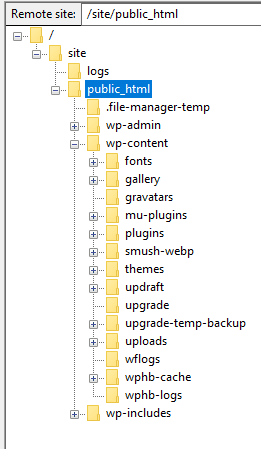
Create a folder in /wp-content/themes/, for example company-child. Inside it, create style.css:
/*
Theme Name: Company Child
Template: twentytwentyfive
Version: 1.0.0
*/
The Template value is the parent theme’s folder name, not its display name. “Kadence Pro” on screen might be kadence on disk. Check /wp-content/themes/ and copy the folder name exactly, including case.
Then functions.php, which loads the child stylesheet after the parent’s:
<?php
add_action( 'wp_enqueue_scripts', function() {
    wp_enqueue_style(
        'company-child-style',
        get_stylesheet_uri(),
        array( 'parent-style-handle' ),
        wp_get_theme()->get( 'Version' )
    );
} );
Replace parent-style-handle with the handle the parent uses; search the parent’s functions.php for wp_enqueue_style to find it. Declaring the dependency is more reliable than an @import in the stylesheet, because WordPress then controls load order. Some parent themes, Divi among the ones practitioners complain about most, will render badly if the child does not load parent assets correctly, so check the parent’s own child theme notes before assuming the snippet above is enough.
Copy only what you change, at the exact same path
Do not copy the parent’s entire functions.php into the child. It runs in addition to the parent’s, so duplicated function names produce a fatal error immediately. Copy only the code you need.
Template overrides work on path matching. If the output you want to change lives in template-parts/post/content.php, the child needs that same relative path, or WordPress keeps using the parent file and your edit does nothing. A misplaced override looks exactly like a caching problem.
Activate the child from Appearance → Themes, then load the homepage, a single post, an archive and a normal page. Any theme options set on the parent will need to be set again, which is a good reason to build the child theme before you spend an afternoon in the Customizer.
Put small features in a snippet plugin instead of functions.php
For hooks, filters and small behavior changes, a snippet plugin is safer than a theme file. Code Snippets, in the WordPress.org plugin directory, describes itself as a way to stop tweaking your theme’s functions.php and to add code as individual, manageable snippets.
The practical advantage is recovery. Each snippet can be switched off from the plugin’s own screen, or through recovery mode, without SFTP. Add one snippet at a time and load the site after each. The division most practitioners settle on: snippet plugin for functionality, child theme for structure and layout.
The limit is real. A bad snippet can still take the front end down, and a snippet plugin used as a dumping ground for hundreds of lines becomes its own unmaintainable mess. Database or environment-specific logic belongs in a small custom plugin, not in either place.
WooCommerce: the shop page is not a page
Editing the Shop page’s content and seeing nothing change is the single most common WooCommerce theme question. The shop layout comes from a product archive template, not from that page’s content.
Three routes, cheapest first:
- On a block theme, edit the Product Catalog or archive template in Appearance → Editor → Templates.
- On a classic theme with WooCommerce options, use the theme’s own settings. Astra, Blocksy and Kadence each expose product catalog controls in the Customizer.
- Override the template. WooCommerce’s developer docs describe copying the template into a
woocommercefolder inside your theme, keeping the same directory structure, and editing the copy.
Overrides fail on precision, not concept. The relative path and filename must match the plugin’s exactly, the theme holding the override must be the active theme, and the output you are chasing may come from several templates plus action hooks, so changing one file may not be enough. Removing markup or hooks that WooCommerce expects is how add-to-cart and checkout break, so test an actual purchase after any override. Store owners who want this handled without touching template files can read about WooCommerce work through chat.
If the screen goes white after a PHP edit
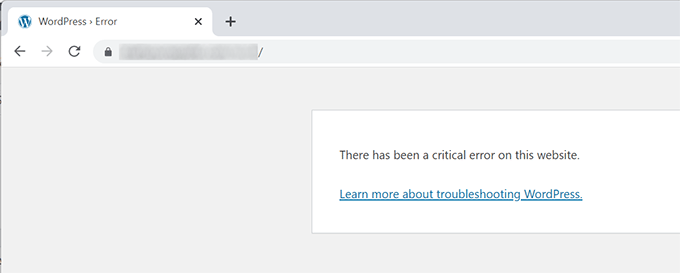
The white screen and the “critical error” page are both documented in WordPress’s Common WordPress errors handbook, and a PHP error in functions.php is the usual cause after theme editing. WordPress also emails the admin address with a recovery mode link, subject line “Your Site is Experiencing a Technical Issue”. Check that inbox first.
Work in this order and stop when the site returns:
- Revert the file. Over SFTP or your host’s file manager, remove the code you just added or restore your saved copy. Do not keep editing in the dashboard; if
/wp-admingoes down too, that route closes. - Rename the theme folder. Change
my-themetomy-theme-oldin/wp-content/themes/. WordPress falls back to a default theme such as Twenty Twenty-Five. If the site comes back, the fault is in the theme. - Read the error. Set
WP_DEBUGandWP_DEBUG_LOGto true inwp-config.phpand openwp-content/debug.log. It names the file and the line. - Reinstall the theme. If the file looks corrupted, upload a fresh copy of the parent theme. Your customizations are in the child theme, which is the point of having one.
Get help when the error persists after the theme is ruled out, when you have no SFTP or file manager access, or when the site takes orders and every minute of a blank checkout costs money. Guessing is more expensive than asking.
What to check before you call the edit done
“Saved” is not “working”. Run through this after any theme change:
- Clear the caching plugin, the host cache, the CDN and your browser, in that order, before believing the change did not apply.
- View the change at a narrow width. Headers, tables, long headings and forms are where mobile breaks.
- Load every view the edited template touches: post, page, archive, search results, pagination, and one page while logged out.
- On a store, load a product, add to cart and reach checkout.
- Note what you changed, where, and how to undo it. A one-line record beats memory three months later.
- Recheck after the next parent theme update, particularly if you overrode a template.
Visual settings in the visual tools, durable overrides in a child theme, functionality in a snippet plugin, nothing in the parent theme. That split is what keeps an update from erasing your work.