Give your WordPress site its first task.
Connect the site you already have, add your agent to Slack or Telegram, and tell it what you need.
Connect your siteStart with 500 free credits. No credit card needed.
A WordPress restore puts back two things together: the files and the database, both from the same moment. It also wipes out everything that happened after that moment. So before you click Restore, check what the backup actually contains and save anything newer, and after it finishes, check the site before you trust the “complete” message.
A plugin update went through, and now the site shows “There has been a critical error on this website.” Your host’s panel has a backup from last night, and the Restore button is right there. That button can get you back online in minutes. It can also delete this morning’s orders and bring back a version of the site that breaks in a new way.
Restoring is not an undo. It is a deliberate overwrite, and it works when three things are true. The backup is complete. The route you use still works with the site down. You check the result afterwards. This guide covers all three, using host tools, backup plugins and a manual restore.
If one change broke the site, undo that change first. When an update causes a fatal error, WordPress usually sends a recovery-mode email that names the plugin. If wp-admin is down, connect over SFTP and rename the plugin’s folder, for example plugin-name to plugin-name-off. WordPress deactivates a plugin when it can’t find its files. Our guide to fixing a WordPress fatal error covers this step by step.
This matters because a full restore replaces everything after the restore point: posts, comments, form entries, users, settings and orders. If someone just overwrote a paragraph, use that post’s revision history. Save the restore for damage that is spread across the site, or for when you can’t find the cause.
A working restore needs files and a database taken at the same moment. WordPress’s Advanced Administration Handbook on backups treats them as two separate parts:
wp-config.php and .htaccess..sql, .sql.gz or .zip file.If you restore only the files, you get the theme back but no content. If you restore only the database, you get pages and text without the theme, plugins or images. That second case comes up a lot in support threads: someone restores a database-only set and wonders why the design is gone. Mixing a database from one day with files from another causes quieter problems, such as missing images or settings pointing at plugins that aren’t there.
Before you rely on a backup, open the archive and look inside. Check that a database file is there and isn’t 0 KB, and that wp-content includes plugins and themes, not only uploads. A file named “full-backup” proves nothing. Our explainer on what a backup plugin leaves out covers the common gaps.
On most sites, the host panel is the quickest route. Open the backup list, check that you’re on the right site (agency accounts often list staging and production with similar names), pick the restore point and choose the scope. Pick files and database together unless you’re sure the current files match the older database. A plugin update can change database tables as well as files. Then let the restore finish without making other changes.
Backup plugins work the same way while wp-admin is up. If the dashboard is down, you can’t reach a restore screen inside it. The usual workaround is to install a fresh copy of WordPress, install the same backup plugin, and point it at your remote storage or upload the archives. For UpdraftPlus, put the archive files in wp-content/updraft, then click Rescan local folder so the plugin finds them.
If you can, restore into a fresh install or a staging copy rather than over the broken site. Restoring over an existing install can leave stray files and data behind. A staging copy also lets you test before you send live traffic to it.
A manual restore needs file access (SFTP or the host’s file manager) and database access (phpMyAdmin, or SSH for the command line). Follow the handbook’s order: files first, then the database.
public_html/public_html.wp-config.php, check DB_NAME, DB_USER, DB_PASSWORD and DB_HOST. Then check that $table_prefix matches the restored table names. If the tables are named wp7x_posts and the config says wp_, WordPress acts as if nothing is installed.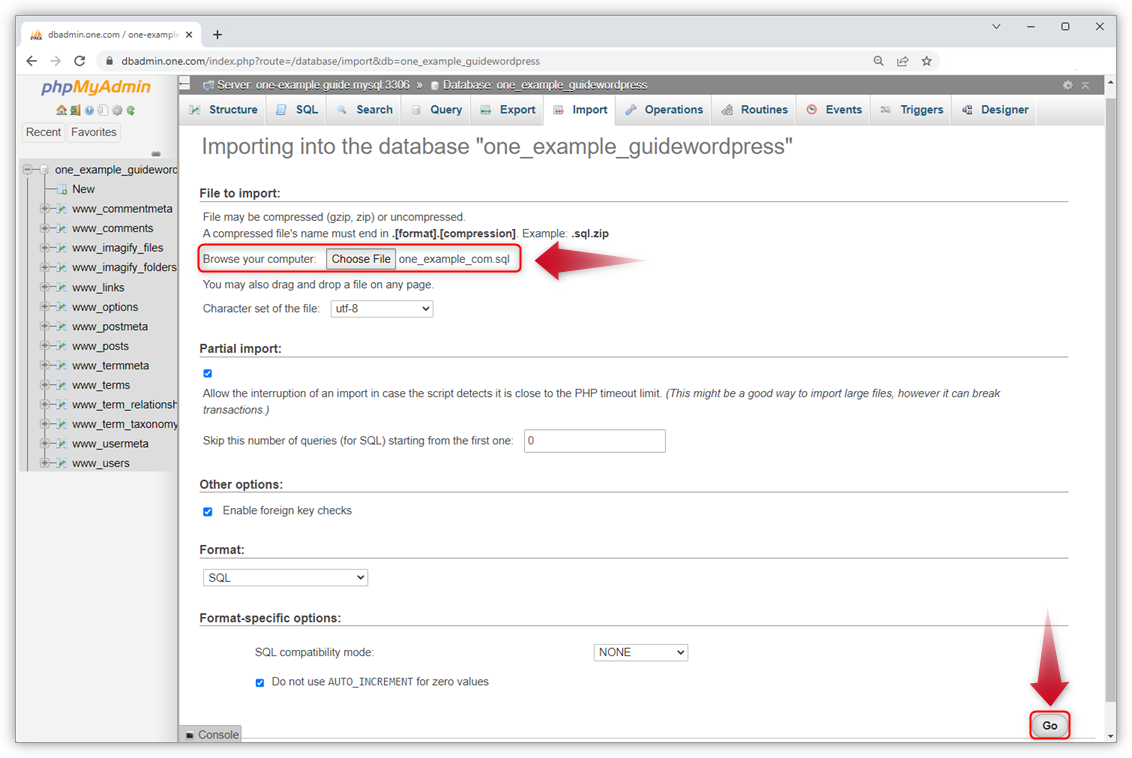
The command-line versions, over SSH:
mysql -u dbuser -p dbname < backup.sql
# or, with WP-CLI
wp db import backup.sqlRead the restore log before you try again. Running the same restore over and over seldom changes the result. UpdraftPlus’s documentation on restorations that don’t complete matches the common errors to their causes:
| Message in the log | Cause | What to do |
|---|---|---|
PCLZIP_ERR_BAD_FORMAT (-10) | Corrupt or incomplete archive | Download it again straight from storage, check it unzips, upload it and rescan. When you delete the bad local copy, leave the option to also delete it from remote storage unticked. |
| “Allowed memory size … exhausted” | PHP memory limit | Raise WP_MEMORY_LIMIT. If it already equals the server’s limit, ask the host. |
| “Disk quota exceeded” | No free space | Delete old backups or files, then retry. |
| “Could not move the files into place” | File permissions | Ask the host to fix ownership. Don’t set folders to 777. |
On large sites, restore one part at a time: database, then plugins, themes and uploads separately. Shared hosts often run out of resources on a single upload folder over 1 GB. If the plugin offers to continue an interrupted restore, use that option, then check the result. A half-finished restore can leave parts of the site from different dates.
Old backups bring their own problem. WordPress’s upgrading handbook warns that rolling back can fail when an update changed the database structure. A theme from 2018 on today’s PHP can throw fatal errors even after a clean restore. To get it running, temporarily match the PHP version, or rename the incompatible plugin or theme folder.
“Restore complete” means the tool finished. It doesn’t mean the site works. Check these in order:
wp-config.php.wp-content/uploads didn’t transfer, or the server can’t read it.If you restored to a different domain, don’t run a find-and-replace on the SQL file. WordPress’s migration handbook warns that a plain replace breaks serialized data, the format themes and widgets use to store settings. Use a tool that understands it, and do a dry run first:
wp search-replace 'https://old.example.com' 'https://new.example.com' --dry-run
Run the structural checks first: wp db check for table errors and wp core verify-checksums for changed core files. Then test what the business depends on:
If the restore followed a hack, the backup may already be infected, and the hole the attacker used is still open. Confirm the backup is from before the compromise. Then go through the admin users, plugins and scheduled tasks, update everything and change passwords. Our WordPress security issues guide covers the containment steps.
Stop when you’ve tried twice with the same error, when the log says the database is invalid, when subscription renewals fall in the gap period, or when you can’t tell whether the backup is clean. At that point, more attempts add risk without adding information. Ask your host for a newer copy, or ask the previous developer, before anyone quotes for a rebuild. Pages that look “missing” are sometimes sitting in a backup someone else holds.
If you’d rather hand over the diagnosis, SiteSelf works on the live site through chat, using hosting access for file and database work. Before it changes anything, it says what it’s about to change and whether that can be undone, and afterwards it reports what it checked. Here is how SiteSelf handles broken sites.
WP Engine’s support documentation says an automated restore takes “a few minutes to several hours,” depending on site size and file count. Small sites on a healthy host often finish in minutes. Large upload folders, big SQL files and repeated timeouts are what turn a restore into a day’s work.
Partly. The files give you the theme, plugins and images, but not posts, pages, users or settings, because those live in the database. Ask your host whether they kept database backups before you start rebuilding content by hand.
Only after asking your host or previous developer for something newer. An old backup loses every change since it was taken, and its plugins and theme are more likely to break on current PHP and WordPress versions. If it’s all you have, restore it to staging first.
No. The backup may already contain the malware, and the vulnerability the attacker used is still there after the restore. Use a backup from before the compromise, then check users, plugins and scheduled tasks, and close the hole.
Many host tools and plugins let you restore just the database, just the plugins or just the uploads. That keeps newer data you’d otherwise lose. The risk is a mismatch, such as theme files that expect database settings from a different date, so check the site carefully afterwards.
How-to Tutorials
WordPress has no single switch that password-protects a whole website. The built-in setting covers one post or page, a whole-site lock needs a plugin or your host’s password tool, and uploaded files usually stay public unless you protect them at the server. Pick the method that matches what you are protecting, then test it logged out with caching in mind.
Read article ›How-to Tutorials
To hide a WordPress page title, hide the heading the theme prints. Leave the title stored on the page alone. Which control does that depends on your theme, your template and whether a page builder or WooCommerce owns the page. So start by finding which element is actually showing, then use the most built-in control you have.
Read article ›How-to Tutorials
Adding a contact form to WordPress takes a plugin, a page and a few minutes. Making sure every message reaches you is the real job, because the form can say “sent” while your inbox never gets the email. Set the sender address correctly, send through authenticated SMTP, store every entry, and test from outside your own login.
Read article ›Connect the site you already have, add your agent to Slack or Telegram, and tell it what you need.
Connect your siteStart with 500 free credits. No credit card needed.