Give your WordPress site its first task.
Connect the site you already have, add your agent to Slack or Telegram, and tell it what you need.
Connect your siteStart with 500 free credits. No credit card needed.
Almost any backup plugin can make a backup. The hard part is making sure that backup is complete, stored off the server, still running on schedule and able to restore a working site. Pick a plugin by how you will need to recover, test the restore, and keep the plugin itself updated.
Most site owners find out whether their backups work on the worst possible day. An update white-screens the site, or the host account disappears, or a restore finishes and the site comes back empty. Only then do they check what the plugin had actually been saving, and where.
A website backup plugin copies your WordPress files and database on a schedule and sends the copy somewhere else. The copying is the easy part, and nearly every plugin in the WordPress.org directory does it. What sets a working setup apart is whether the backup is complete, stored off the server, still running months later, and restorable when the dashboard is gone. If you’re here because an update is coming up, our guide on updating a WordPress theme safely shows where the backup fits in that process.
It includes two things: the database and the files. WordPress’s Advanced Administration Handbook says a full backup needs both. The database holds your posts, pages, settings, users and, on a store, the orders. The files are your themes, plugins, uploads and the WordPress core install. A backup of only one half won’t rebuild the site. One WordPress.org support reply points out that a copy of the uploads folder alone won’t restore anything.
Two misunderstandings come up again and again. First, Tools → Export in WordPress is a content export, not a backup. It skips your settings, theme, plugins and most plugin data. Second, “full backup” in a plugin’s settings may still leave things out. Many plugins create their own database tables, and WooCommerce is the obvious example. In one WordPress.org support thread, a restore reported success and the site came back with default content. The backup had skipped the tables that weren’t part of core WordPress.
The handbook also gives an order: back up the database first, then the files. When you restore, put the files back first, then the database.
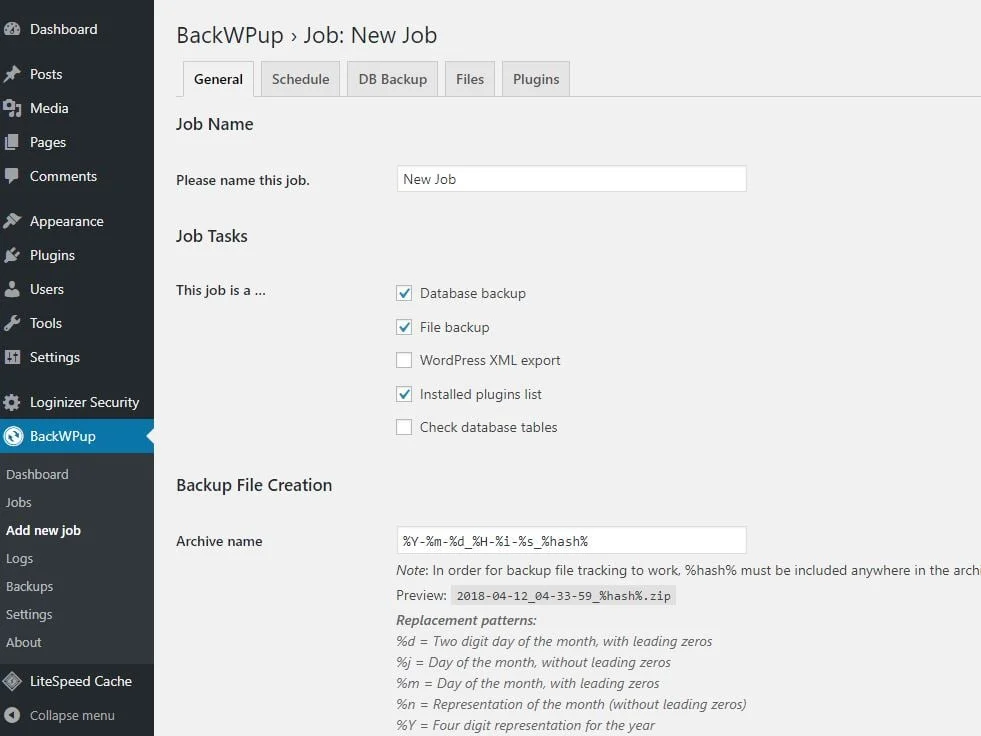
A backup kept on the same server as the site is lost along with the site. If the disk fails, the host suspends the account or an attacker gets in, the site and its only backup go together. The WordPress handbook recommends several copies in different places and on different media. Practitioners put it more bluntly: a backup on the same server isn’t a backup.
People who assume otherwise usually learn it from an account problem, not a technical one. One Reddit thread describes a client who lost their site and irreplaceable images after the host deleted the account over a missed payment. The host kept backups, but they sat inside the same account. The practical setup is simple. Keep your host’s backups, and add at least one copy in storage you control, such as Google Drive, Dropbox or an S3 bucket in your own name. Keep weeks of copies, not one night’s, so you can go back past a problem that stayed hidden for a while.
Usually because of the hosting environment, not a bug in the plugin. Duplicator analysed more than 1,400 of its own support tickets. About 1 in 4 backup tickets were a host or server limit stopping the archive build partway through. Compression failures on constrained hosts, sites too large for the host, PHP timeouts, file permissions and memory exhaustion made up most of the rest. These are one vendor’s tickets, not a failure rate for all sites, but the pattern matches what the support forums show.
| Where it broke | What you see | What usually fixes it |
|---|---|---|
| Building the archive | 504 Gateway Timeout, “Maximum execution time exceeded”, “Allowed memory size … exhausted” | Split the archive into smaller parts in the plugin’s settings, exclude cache folders, or ask the host to raise PHP limits |
| Writing it to disk | “permission denied”, “failed to open”, a disabled Backup Now button | Delete old local backups, set a retention limit, and have the host correct the folder permissions |
| Running on schedule | The last backup is weeks old and nothing reported an error | Replace WP-Cron with a real server cron and turn on failure alerts |
| Uploading off-site | Local copies exist but the remote folder is empty or stale | Re-authorise the storage connection and check the storage isn’t full |
Memory errors trip people up because of one setting. You can raise WP_MEMORY_LIMIT in wp-config.php, but UpdraftPlus’s restoration documentation says that only helps up to the limit the server allows. Past that, only the host can change it. Our white screen troubleshooting guide covers the same limit from the other side.
This failure is the hardest to spot because nothing looks wrong. WordPress’s built-in scheduler, WP-Cron, runs only when someone loads a page. On a low-traffic site, behind password protection, in maintenance mode or on a host that blocks the site from sending requests to itself, scheduled jobs just don’t run. A manual Backup Now works fine, because your click started it, not the scheduler. So a successful manual run tells you nothing about the schedule.
The fix is to stop depending on visitors. Disable WP-Cron’s page-load trigger and have the server call it on a timer:
// wp-config.php
define( 'DISABLE_WP_CRON', true );

# server crontab, every 15 minutes
*/15 * * * * wget -q -O - https://example.com/wp-cron.php?doing_wp_cron >/dev/null 2>&1
Your host’s control panel usually has a cron screen if you don’t have shell access. Turn on the plugin’s failure notifications too. One small-business thread made a fair point: owners miss emails, so send the alert somewhere they’ll actually see it.
Remote storage causes the same kind of quiet failure. Duplicator puts about 4 in 10 of its storage-connection tickets down to cloud authorisation or connection breaks. Google Drive, Dropbox and OneDrive connections run on tokens that expire or get revoked. When that happens, the backups keep running and pile up on the server’s disk. In Duplicator’s data, old local backups filling the disk caused about 1 in 7 scheduled-backup failures.
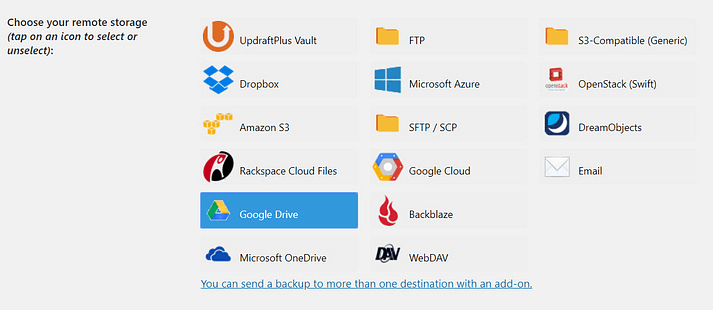
The message only means the plugin ran its steps. It doesn’t mean the result is a working site. You find that out by restoring a copy somewhere safe before you need to. The WordPress handbook recommends periodic manual backups to check that the automated ones are working. The test that settles it is restoring the backup to a staging site or a local environment like LocalWP and clicking around. One Reddit practitioner puts a local test restore at about 20 minutes. A test on a small local machine won’t catch every problem a large production site would hit, but it catches missing tables, corrupt archives and missing files.
UpdraftPlus’s restoration documentation maps the common restore errors to fixes, and most of it applies to any plugin:
WP_MEMORY_LIMIT up to the server’s ceiling, then ask the host.If the site was hacked, restoring a backup that already contains the malware brings the problem back. Restore to a clone first and check it. Our guide to malware removal that holds covers what to check.
On WooCommerce, restoring an older backup over the live site also removes everything that happened since that backup was taken. WooCommerce’s Subscriptions documentation warns that it can lose orders, customer accounts, payment tokens and subscriptions created after the backup, and can run renewals again that were already processed. Restore to staging, find what you need, and bring it across selectively. Back up more often too. A daily backup still means a day of orders at risk.
Only if you set that up in advance. Most backup plugins live inside WordPress, so a white screen or a hacked admin can lock you out of the restore button along with everything else. Before you need it, find out whether your setup can restore from outside the dashboard. That could be a standalone installer you upload over FTP, your host’s own restore tool, or a service with its own interface. Write the steps down where someone other than you can find them.
Choose by how you will need to recover, not by feature count. Ask these questions of any plugin, and ask them about the edition you’ll actually pay for:
Popularity is a weak signal. WordPress.org shows install counts in rounded tiers. All-in-One WP Migration and Backup shows 5+ million, and UpdraftPlus’s badge shows 4+ million while its own description still says “more than 3 million.” WordPress.org’s backup tag also lists migration, staging and site-management tools, so it isn’t a ranking of backup plugins.
A backup plugin can read your whole database, write to your files and unpack archives on your server. That makes it one of the most privileged plugins on the site. Its updates fix both reliability problems and security holes. UpdraftPlus’s 1.26.8 release, for example, fixed backups failing on PHP-FPM servers and on WebDAV storage. Updating it belongs in your regular update cycle, not only when something breaks. After an update, run a backup and read the log.
The link works in both directions. WooCommerce’s update guide tells store owners to back up before updating and to test updates on staging. The backup exists so updates are safe, and the plugin that makes it needs updates of its own. If you’d rather not run that cycle yourself, SiteSelf handles plugin updates on request through chat.
Remove it or put it behind a password. An archive in a public web folder contains your whole database, including user emails and password hashes. Google Search Central says noindex doesn’t control access and robots.txt isn’t a security measure. Once the file is secured, you can ask Google to remove it from search results.
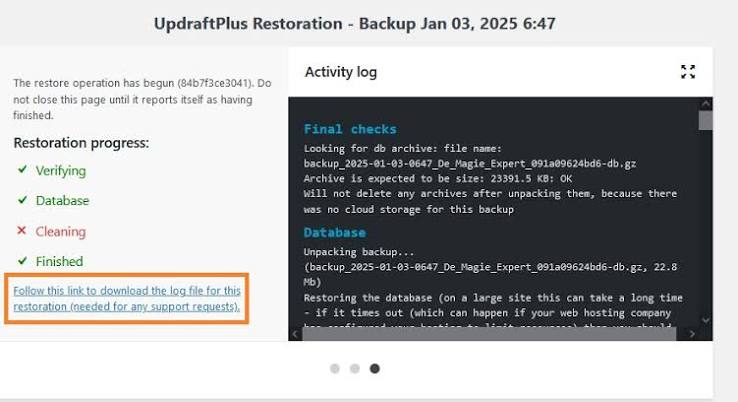
No. WordPress core has no full-site backup. The Export tool saves content as an XML file, and the WordPress handbook is clear that a real backup needs the files and the database. Most hosts offer backups, but how often they run, how long they’re kept and whether you can restore them yourself all vary.
You need at least one copy that doesn’t depend on the host account. Host backups are fine as one layer, but if the account is suspended or deleted, they usually go with it. A plugin sending copies to storage you own gives you that second copy.
As often as you can afford to lose data. A brochure site that changes monthly is fine with daily or weekly backups. A store taking orders all day needs backups every few hours or continuously. The answer comes from how fast the site changes, not from a standard.
Check three things: the log shows recent scheduled runs, not just manual ones; the files are actually in the remote folder; and a test restore to staging or a local copy produces a working site. Turn on failure notifications so a stopped schedule doesn’t stay hidden.
It can on weak hosting, because building an archive takes CPU, memory and disk. Practitioners schedule heavy backups overnight, exclude cache folders and back up less often if jobs overlap. Plugins that back up only what changed put less load on the server per run.
Whoever the contract says, and vague contracts cause disputes. “Install a backup plugin” doesn’t cover how often, how long copies are kept, where they’re stored, who watches for failures or who does the restore. Write all of that down, including whose storage account holds the copies.
Explainers
A WordPress case study tells you how one problem was fixed on one site at one moment. It doesn’t tell you what is wrong with your site. Before you borrow its fix, check the date, the versions and the cause it names, and don’t take one story as a sign of how common a problem is.
Read article ›Explainers
A WP autoblogging plugin creates WordPress posts on a schedule, from a feed, an API or an AI model. When one stops publishing, the cause is usually cron, a bad feed or a timeout, not the plugin you picked. Google does not care that a post was automated. It cares whether the post is worth reading.
Read article ›Explainers
JPG and JPEG are the same image format. .jpg and .jpeg are two spellings of one extension, and both mean the MIME type image/jpeg. If one spelling uploads and the other doesn’t, the cause is a plugin setting, a validator, a fake file or a server limit. The name at the end of the file is not the problem.
Read article ›Connect the site you already have, add your agent to Slack or Telegram, and tell it what you need.
Connect your siteStart with 500 free credits. No credit card needed.