Give your WordPress site its first task.
Connect the site you already have, add your agent to Slack or Telegram, and tell it what you need.
Connect your siteStart with 500 free credits. No credit card needed.
Updating a WordPress theme takes one click under Dashboard, then Updates. Nearly everything that goes wrong comes from the site around that click: custom code edited into the parent theme, a license tied to the wrong domain, file permissions, or no way back. Answer three questions before you update and most failures never happen.
The update button is the easy part. WordPress’s own Updates screen warns that any changes made to theme files will be lost, and that warning covers most of the damage people see afterward: a header gone, a mobile menu that stops opening, a custom template back to the theme author’s version. The site still loads, so nobody notices until a customer does.
This guide covers the dashboard update, the manual route, premium themes, what to check afterward, and how to read the error when an update fails.
A theme update is low risk when nobody has edited the theme and the site is simple. It carries more risk when the theme has been customized, when it is a premium theme with a license, or when the site is a store. Three questions tell you which case you are in.
Where do your customizations live? If someone edited style.css, functions.php or a template file inside the parent theme, including through Appearance > Theme File Editor, the update overwrites those edits without warning you. Before you update, move them into a child theme (for PHP and templates), a small site-specific plugin (for code snippets) or Appearance > Customize > Additional CSS (for styling). Setting up a child theme does not move existing edits into it. You have to find each edit, copy it across and test it. Our guide to theme customization that survives updates covers where each kind of change belongs.
Where does this theme get its updates? Free themes from the WordPress.org directory update through the dashboard. Themes bought on the WooCommerce Marketplace update through the WooCommerce.com Update Manager. Other premium themes update through their vendor’s license, which is usually tied to one domain.
Can you get back? Take a backup of the database and the whole wp-content folder. WooCommerce’s update guide gives the same scope for a manual store backup. Then confirm you can actually restore it. A backup you have never restored is a guess.
For a store or a heavily customized site, run the update on a staging copy first. If your host offers one-click staging, use that. Otherwise a staging plugin will do the job.
You need an administrator login. No hosting access is needed unless WordPress asks for FTP credentials, which is covered in the errors table below.
You do not need to deactivate a child theme to update its parent. Leave the child theme active and update the parent.
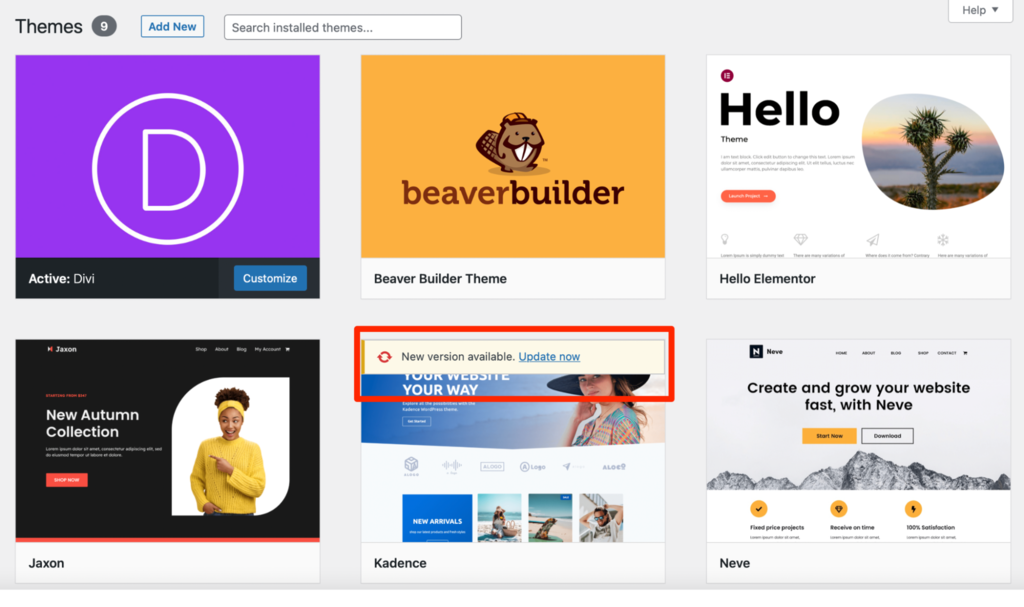
Theme updates and plugin updates share most of their mechanics: the same Updates screen, the same maintenance file, the same permission failures and rollback tools. If you would rather not run this cycle yourself, SiteSelf handles WordPress plugin and theme updates on request through chat, and anything that touches theme files needs hosting access.
A premium theme that shows no update usually has a license or connection problem. The theme itself is rarely at fault. For WooCommerce Marketplace themes, WooCommerce’s troubleshooting page lists the usual causes: an expired subscription, the wrong or disconnected WooCommerce.com account, a key assigned to another site, a missing Update Manager, a blocked REST API (load yourdomain.com/wp-json/ and you should see JSON), Plain permalinks, WP-Cron not running, a firewall or security plugin, or restrictive file permissions.
Other vendors bind the license to a domain. After a migration, or on a staging copy, updates can fail with “Download failed. Unauthorized.” until you register the license again for the current URL.
The manual route is fine when the dashboard update is not offered, for example with a premium theme you downloaded from the vendor. Go to Appearance > Themes > Add New > Upload Theme and upload the ZIP. When WordPress recognizes the theme is already installed, choose Replace current with uploaded.
Three mistakes cause most manual failures. The first is uploading the vendor’s full package (theme plus documentation) instead of the installable theme ZIP, which returns “No valid themes found” or a missing style.css error. The second is extracting the ZIP first. The third is deleting the old theme before you upload, which WooCommerce’s theme update guide warns loses your customizations.
Uploading the theme folder over FTP into /wp-content/themes/ also works. Treat it as a workaround: if the dashboard update failed, the reason it failed is still there.
A finished update shows the new version number on the theme’s card under Appearance > Themes. On the site itself, check the pages that earn money or leads, not just the homepage:
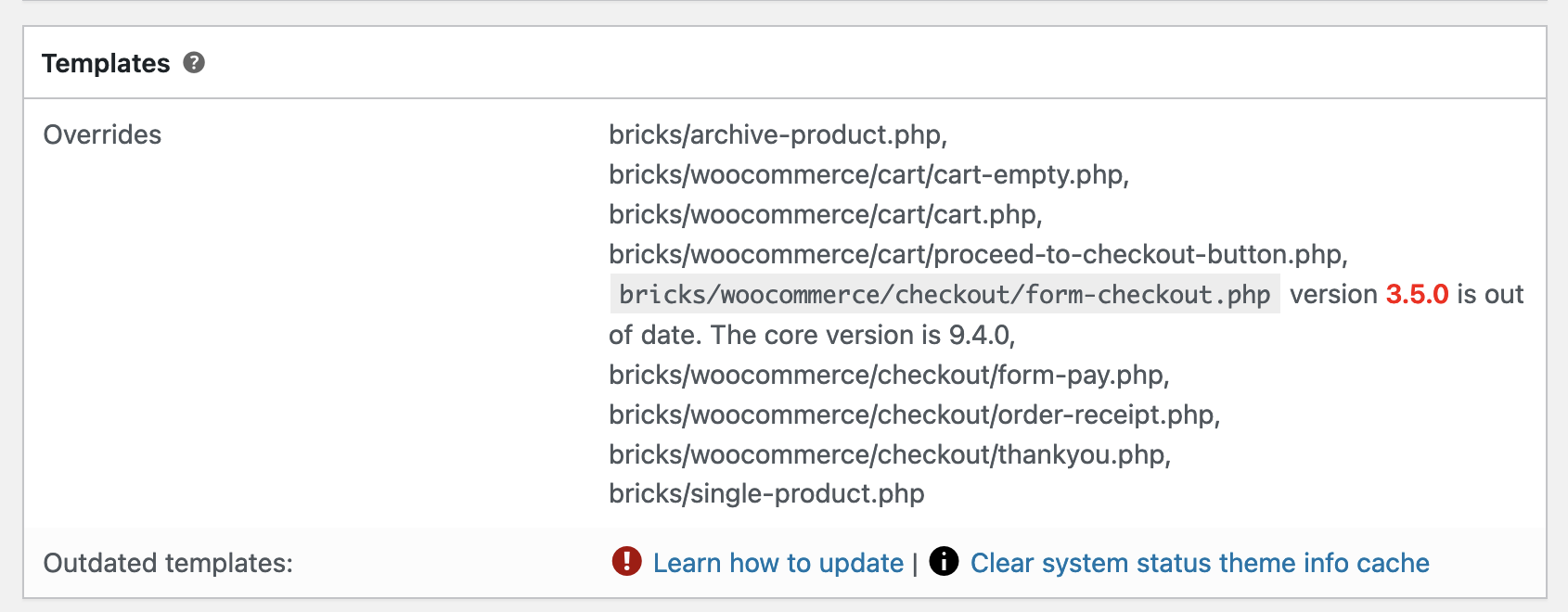
Stores need more. WooCommerce’s update guide lists product pages, cart, checkout, payments, shipping, taxes and emails. Then open WooCommerce > Status > System Status and scroll to Templates. If your theme overrides WooCommerce templates and those copies are now outdated, they are flagged there. Update the override to match the current template, or remove or rename it so WooCommerce falls back to its default.
Some breakage stays invisible. In one project’s GitHub issue, an Avada site came through an update with “nothing visibly broken,” yet its pages grew to about 1.46 MB of raw HTML, up from about 0.3 MB. A quick page-weight or speed check after the update catches this kind of regression.
WordPress lets you enable auto-updates per theme from Appearance > Themes. That makes sense for an unedited theme on a simple site with working backups. It makes less sense for a store, a site with template overrides or a page builder, or any site where a broken checkout costs revenue before anyone notices.
Professionals are split. In MelaPress’s 2025 survey of 264 professionals, 32% of web designers and 33% of web developers used automatic updates. Agencies commonly stage risky updates (page builders, WooCommerce, major versions), batch the low-risk ones and keep a 24 to 48 hour rollback window. Waiting forever carries its own risk: a site several major versions behind is much harder to bring up to date than one that has been updated regularly.
Read the exact message before you retry anything. Each message points to a different cause.
| What you see | Likely cause | Fix |
|---|---|---|
| “Could not create directory”, or WordPress asks for FTP details | File ownership or permissions on wp-content/themes and wp-content/upgrade, or a full disk | Ask your host to correct ownership and check disk space. Don’t open permissions across the whole site. |
| “There has been a critical error on this website.” | A PHP, plugin or page-builder conflict with the new version | Use the recovery-mode email link, read wp-content/debug.log, test on a default theme, then deactivate plugins one at a time. |
| No error, but custom layout or features are gone | Edits in the parent theme were overwritten | Restore the old theme files from backup, move the edits into a child theme, then update again. |
| “Download failed. Unauthorized.” | License expired or registered to another domain | Renew, or register the license again for this URL. |
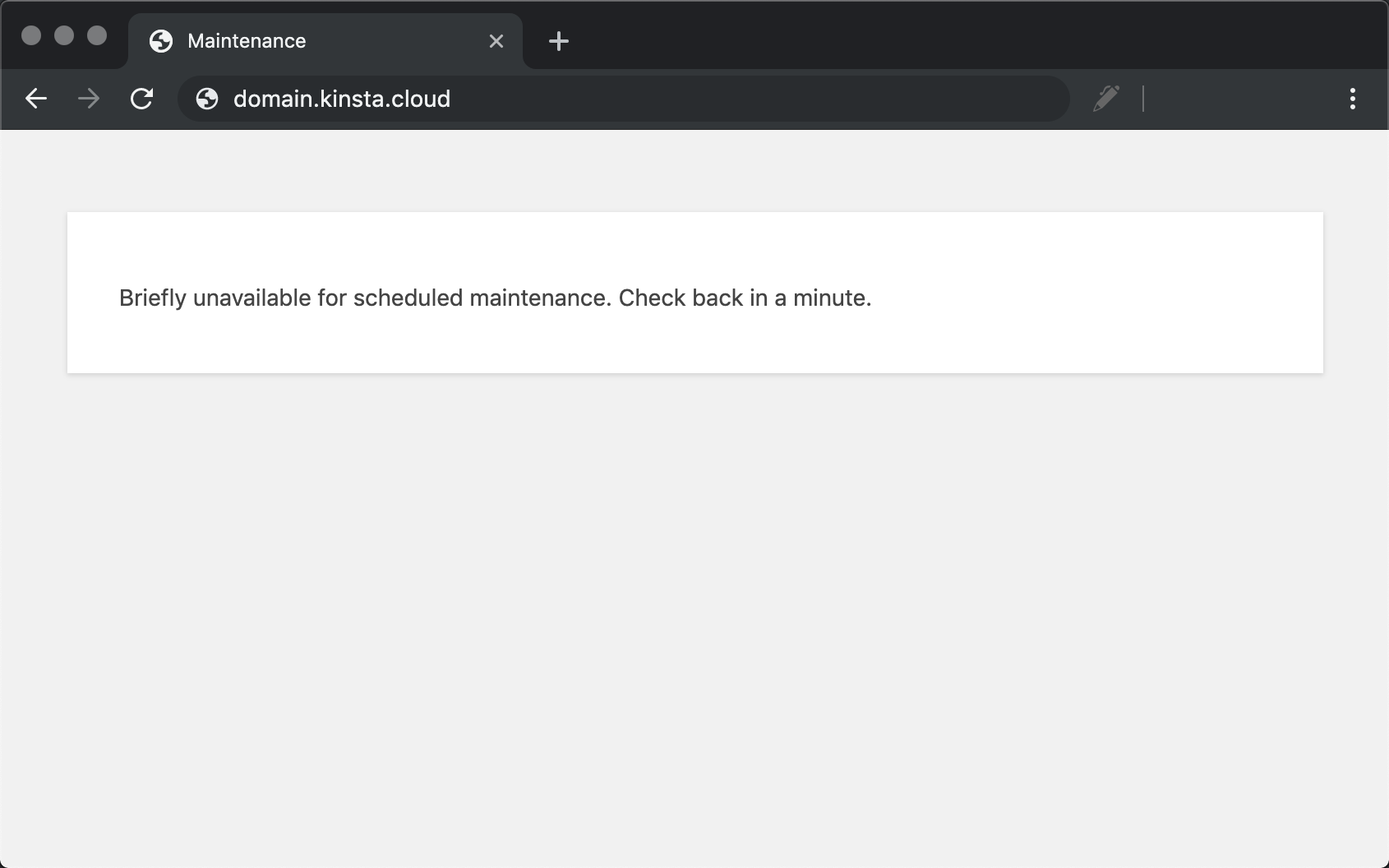
| “Briefly unavailable for scheduled maintenance. Please check back in a minute.” | An interrupted update left a .maintenance file behind | Delete .maintenance from the WordPress root (not the theme folder), then run the update again. |
| “Destination folder already exists” or “No valid themes found” | Wrong ZIP, or the upload collided with the existing folder | Upload the installable ZIP and choose Replace current with uploaded. |
| Site looks unchanged, or oddly styled | Cache | Purge the plugin, server and CDN caches, then check in a private window. |
Deleting .maintenance brings the site back but does not finish the update. Confirm the version number afterward. For a white screen or critical error, our guide to fixing a WordPress white screen walks through the isolation steps.
Stop and get help when the error log names the theme and you cannot tell what changed, when a restore fails, or when checkout is affected on a live store. Stacking more changes on top of a failure you don’t understand makes the cause harder to find.
Since WordPress 6.3, if a manual theme update fails partway through, WordPress restores the previous version, which it keeps temporarily in wp-content/upgrade-temp-backup/themes/. That covers a broken install. It does nothing when the update installs cleanly and the new version is the problem.
For that case you have two options. WP Rollback reverts any theme from the WordPress.org directory to an earlier version. It does not cover premium themes. For everything else, restore the backup you took before updating. Once the site is back, reproduce the problem on staging and fix the cause before you try the update again.
No. Posts, pages and media are stored in the database and uploads folder, not in the theme. The update puts code edits inside the theme’s folder at risk, and it can change how the site looks. Customizer settings are stored separately from theme files.
Not if it only holds small CSS or function tweaks. If it contains copied template files, or code that depends on the parent’s class names, compare those files against the new parent after a major release. The ColorMag threads on wordpress.org show child-theme sites breaking after a major update that changed classes.
The edits were never moved into the child theme. Creating and activating a child theme does not copy anything across from the parent. Restore the old parent files from backup, find the edits, and move them over by hand.
People disagree, and there is no official order. What matters more is updating risky items one at a time (the theme’s major releases, page builders, WooCommerce), so a failure points to one cause. Batch the low-risk updates.
Don’t push the staging database back to live, because orders keep arriving on production while you test. Test the update set on staging, then apply the same updates on production and run your checkout checks there.
How-to Tutorials
For one “find us” location, a Google Maps embed pasted into a Custom HTML block needs no plugin and no API key. Plugins earn their place when you need several markers, a store locator or a map in a classic widget area. When a Google-powered plugin map shows a grey box, the cause is almost always the API key, the Google Cloud project, billing or the referrer settings. The theme is rarely the problem.
Read article ›How-to Tutorials
A WordPress homepage can be a static page, a feed of your latest posts, a block theme template, a classic theme file or a page builder layout. Each one is edited in a different place. Find out which one your site uses first and the edit itself is quick. Skip that step and you can spend an hour changing something visitors never see.
Read article ›How-to Tutorials
SEO on WordPress comes down to a short list of settings you get right once, a check that those settings reached the live site, and then the slow work of making pages people want. A plugin handles the configuration. It does not rank anything for you, and a green score is not proof that Google can see your pages.
Read article ›Connect the site you already have, add your agent to Slack or Telegram, and tell it what you need.
Connect your siteStart with 500 free credits. No credit card needed.