Give your WordPress site its first task.
Connect the site you already have, add your agent to Slack or Telegram, and tell it what you need.
Connect your siteStart with 500 free credits. No credit card needed.
Removing WordPress malware means removing the compromise, not just the file a scanner flagged. That includes backdoors, rogue admins, database payloads, cron jobs, stolen credentials and the vulnerable plugin that let the attacker in. If you skip any of these, the site gets reinfected.
Most WordPress hacks don’t show up as a crash. You find a redirect to a pharmacy site on mobile, an admin account nobody created, or an email from your host saying your account is suspended. The urge is to open the file manager and delete whatever looks strange. That usually removes the symptom and leaves the way back in.
Removing malware properly is a short incident response job. You measure success by two things: the site doesn’t get reinfected, and the entry point is closed. The tool you use matters much less than whether you handled all of it: files, database, users, credentials, scheduled tasks, the hosting account and the vulnerable component.
These signs point to a compromise:
site:yourdomain.com searchwp-content/uploadsA critical error, a white screen, a 500 error or a database connection error is usually not malware. Those come from plugin conflicts, memory limits and bad updates. Our guide to fixing a WordPress white screen covers them. If a single plugin misbehaves after an update, work through WordPress plugins that are not working first. If you would rather hand that kind of broken-site diagnosis to someone, SiteSelf takes WordPress bug fixes on request.
Test while logged out. Some redirect malware only fires for mobile visitors, first-time visitors or people arriving from Google. Some SEO spam is shown only to crawlers. Open a private window on your phone, search for your brand, and click through from the results.
Attackers leave more than one way back in. In its 2023 threat report, Sucuri says it found a backdoor on 49.21% of the sites it remediated and cleaned an average of 610 files per request. The same report counts more than 1.1 million malicious database entries removed. These numbers come from Sucuri’s own clients, not the whole web. The pattern still holds: the visible payload is a small part of the job.
Scanners work within a scope. By default they look at the WordPress directory. They can miss database-only payloads, dormant backdoors, neighbouring sites on the same account, and code that only runs under certain conditions. Wordfence is the most installed security plugin in the directory, and its WordPress.org listing says security after a hack cannot be assured without a full reinstall. Use scanners for triage. Don’t use them as proof the site is clean.
Doing this by hand takes hosting access: SFTP or SSH, the hosting panel, and phpMyAdmin or database access. Dashboard access alone is not enough, because some of the malware may be hiding from the dashboard.
Back up the files and the database as they are now, and keep one copy off the server. Export access logs and error logs before your host rotates them. Write down the symptoms, the affected URLs and the times you noticed them. You will need all of this to find the entry point, and to compare against later.
Take the site offline at the server level, or restrict it to your IP address. A maintenance-mode plugin changes what visitors see, but malicious PHP and cron jobs keep running behind it.
WordPress.org’s hacked-site FAQ recommends a global password reset and new secret keys. It also warns that a trojan on your own computer can steal FTP and wp-admin credentials. Scan your computer first, then change all of these:
wp-config.php to match)wp-config.php. New salts log out every session, including the attacker’s.Then turn on two-factor authentication for every admin account.
The WordPress.org FAQ warns that reinstalling over the top can leave the attacker’s new files in place. Delete wp-admin, wp-includes and the root core files except wp-config.php. Then upload the same WordPress version from wordpress.org. Do the same for every plugin and theme, using original packages. Remove any nulled, pirated or unused component instead of reinstalling it.
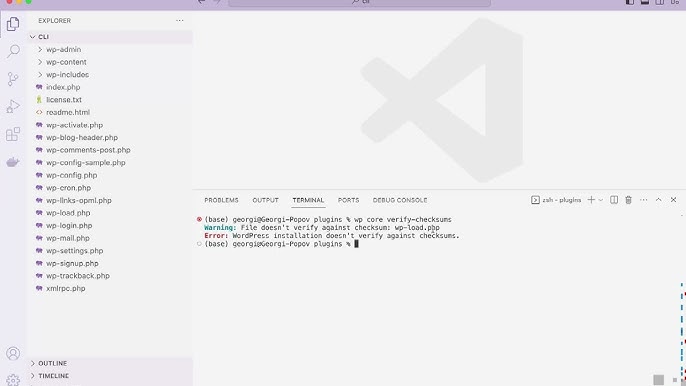
With SSH access, WP-CLI can check core and directory plugins against WordPress.org’s checksums:
wp core verify-checksums
wp plugin verify-checksums --all
Premium plugins, custom themes and a modified parent theme have no public checksums, so compare them file by file against a clean download. Don’t let a scanner’s “repair” button replace a customised functions.php. Replacing a file with the original wipes your custom code along with the injected code.
Replacing core, plugins and themes leaves several places untouched. These are the places reinfections usually come from:
find wp-content/uploads -name "*.php" and look for PHP disguised as images too.wp-content/mu-plugins load on every request and can’t be deactivated from the Plugins screen. wp plugin list --status=must-use shows them. Our guide to listing plugins with wp plugin list covers the other statuses. Look for unfamiliar folders beside it as well.wp-config.php, the root index.php and every .htaccess, including nested copies in subfolders.wp_ prefix to match yours):SELECT u.ID, u.user_login, u.user_registered
FROM wp_users u
JOIN wp_usermeta m ON u.ID = m.user_id
WHERE m.meta_key = 'wp_capabilities'
AND m.meta_value LIKE '%administrator%';crontab -l, and WordPress cron with wp cron event list. A single cron job can reinstall everything you just deleted.Search for eval, base64_decode and gzinflate, but treat hits as clues. Legitimate plugins use them too. Check where the file came from and compare it against the original before you delete anything.
The most common way in is an outdated, abandoned or vulnerable plugin or theme. Stolen or weak credentials come next. Core itself is rarely the cause. Use the logs you exported to find the first bad request. Update the vulnerable component, or remove it if it’s abandoned. If you can’t find the entry point, changing every credential and updating everything is your best partial answer, but keep watching the site closely.
The WordPress.org FAQ notes that a hack on shared hosting can affect more than one site. Every other site, the old /old/ or /staging/ copy and any exposed backup on the same account is a second way in. Ask your host for an account-wide scan. Delete installs you no longer use.
Browse in a private window, on mobile, and from Google results. Run site: searches for spam pages. View the page source for hidden links. Run an external scanner alongside the one on the server, because each sees different things. Keep checking logs, users and cron events for several days, since that is when a missed backdoor shows itself.
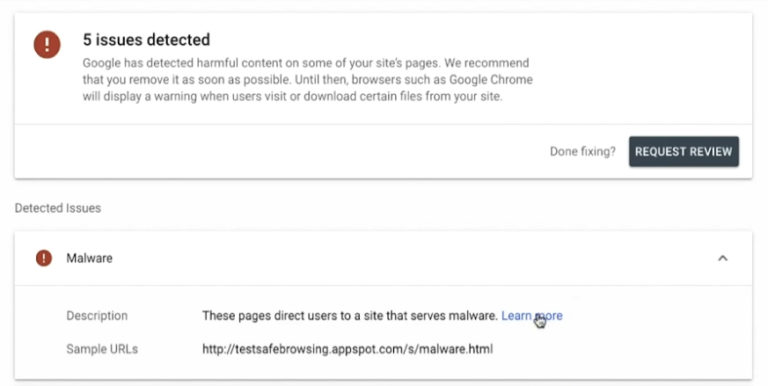
If you had a Chrome warning, check the Security Issues report in Search Console. Wait until every affected page is fixed before you request a review. Then explain what you removed and which vulnerability you closed. If the site is still infected when Google checks, the review fails and you wait again. Rankings and ad approvals can take longer to recover than the warning itself.
A backup is the fastest route when you can show it predates the infection. Restore it to staging first. Then change every credential and patch the entry point before it goes live. Otherwise the attacker gets back in the same way. A long-dormant infection may already be inside the backup, so an undated restore point proves nothing.
For sites whose data changes, such as orders, comments and new posts, a hybrid often works better. Keep the current database and uploads, replace all code with clean copies, then inspect the database as in step 5. For a small brochure site, rebuilding from clean code is often the most dependable option. For a large store or a heavily customised build, careful cleaning keeps content and custom code that a rebuild would put at risk. Either way, none of it holds if credentials, the vulnerability or a backdoor remain.
WooCommerce’s security guidance recommends auditing admin and shop-manager accounts, REST API keys, WooCommerce logs and site traffic, and removing keys you don’t use or that have more access than they need. After a compromise, treat every payment and API key as exposed and rotate it. Check the checkout, cart, login and account templates for injected scripts, and contact your payment provider. A gateway that keeps card data off your server greatly reduces what an attacker can reach.
Watch for false alarms, too. URLs ending in ?v= are a normal WooCommerce feature. Unknown admins and obfuscated code are the real warning signs.
If malware returns within hours or days, something from this list was missed:
Treat a reinfection as a new incident and start again from the snapshot, not from where you stopped.
Stop and bring in a professional in these cases:
Ask anyone you hire for a written report: the entry point, the files and tables affected, and the credentials changed. A cleanup with no named cause is the kind that comes back.
Afterwards, keep everything updated. WordPress’s security handbook calls this the most important measure. Also remove plugins you don’t use, keep off-site backups with enough history to go back before an infection, and disable PHP execution in uploads.
Partly. Scanners compare core and WordPress.org plugin files against the originals and flag files that don’t belong, which is a good first pass. They can miss database payloads, cron jobs and code outside the WordPress folder. Wordfence’s own listing says security after a hack needs a full reinstall.
Not as your only step. A dashboard reinstall overwrites core files but leaves files the attacker added. It also doesn’t touch plugins, uploads, mu-plugins, the database or cron. Delete and replace over SFTP with the same version instead.
No. Legitimate plugins use both. Treat them as reasons to look closer, then compare the file against a clean copy from its original source before you delete it.
Usually not. Most hosts treat the application as your responsibility, and some refer you to a paid partner. Ask your host for what only they can provide: an account-wide scan, logs, and help with server-level cron or panel compromise.
If payment or personal data may have been exposed, possibly. The rules depend on your jurisdiction and your payment provider’s terms. Speak to your payment provider and a legal adviser early, and keep the infected-state snapshot as evidence.
No. It sees public output: redirects, visible injections and blocklist status. It can’t see dormant backdoors, database-only payloads or files on the server, so use it together with a scanner on the server and a manual check.
Troubleshooting
A saved font change that still shows the old typeface is usually one of five things: a cache you did not clear, a setting changed at the wrong scope, theme CSS that outranks yours, a font registered but never loaded on the front end, or a font file that never arrives. Each has a different check. Two minutes in your browser’s developer tools tells you which one you have.
Read article ›Troubleshooting
A white screen is not an error. It is a fatal PHP error with the message switched off, which is why guessing at fixes takes longer than reading a log. Work the sequence instead: note what is blank, check for the recovery email, turn on logging, read the file path in the error, then isolate the plugin or theme it names.
Read article ›Troubleshooting
A plugin that stopped working almost never stopped on its own. Something changed first: an update, a PHP version, a cache rule, a snippet pasted into a theme file. The fastest route back is to find what changed, test one variable at a time, and resist the urge to fix three things at once.
Read article ›Connect the site you already have, add your agent to Slack or Telegram, and tell it what you need.
Connect your siteStart with 500 free credits. No credit card needed.