Key takeaways
- The command is wp plugin list. There is no wp list plugin alias, and the transposed form returns a usage error rather than a list.
- wp plugin list –field=name –format=csv gives you an audit spreadsheet without installing anything on the site.
- “This does not seem to be a WordPress installation” means you are in the wrong directory. Pass –path with your own document root, never the example path from a tutorial.
- –update=available is only as accurate as the site’s outbound connection to the WordPress update API. A blocking firewall makes a stale site look patched.
- Run WP-CLI as the user that owns the files, not root, because sibling commands like wp plugin update rewrite file ownership.
WP-CLI names the object first and the action second. The command is wp plugin list. Type wp list plugin into a terminal and you get a usage error, not a list, and that single transposition explains a good share of the searches for the phrase.
The other group of people typing it want something else entirely: a list of posts, categories, headings or products rendered on a page. That is a front-end job, usually done with a block or a list plugin. This page is about the terminal command and the inventory it produces.
What wp plugin list prints, and what it needs to run
WP-CLI’s reference page for wp plugin list says it displays the plugins installed on the site along with activation status and whether an update is available. In practice that is four columns: name (the plugin folder slug, not the pretty title), status, update, and version.
Two things have to be true before it works. WP-CLI has to be installed on the server, and you need SSH access with a shell user that can read wp-content/plugins. Shared hosting without SSH rules this out; skip to the admin-screen method further down.
cd /var/www/example.com/htdocs
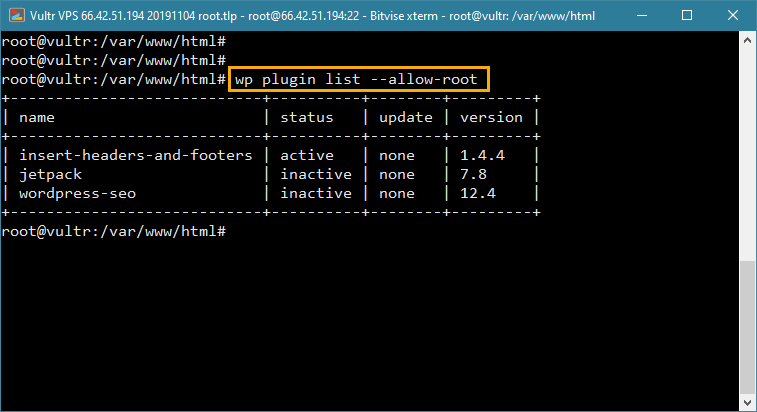
wp plugin list
Output looks like this:
+--------------------+----------+-----------+---------+
| name               | status   | update    | version |
+--------------------+----------+-----------+---------+
| akismet            | active   | none      | 5.3.3   |
| classic-editor     | inactive | none      | 1.6.5   |
| contact-form-7     | active   | available | 5.9.8   |
+--------------------+----------+-----------+---------+
The status column is the one people misread. inactive means installed but switched off, and an inactive plugin still has its PHP files sitting on disk where a known vulnerability can be reached in some configurations. Inactive is not removed.
The flags that turn output into an audit
The bare command is a glance. The flags are what make it useful on a Monday morning when someone asks which of forty sites is running the plugin that just got a CVE.
--status=activeor--status=inactivenarrows the list to one state.--update=availableshows only plugins with a pending update.--field=namereturns a single column, one value per line, ready to pipe.--fields=name,version,statuspicks the columns you want, in order.--format=csvor--format=jsonchanges the output shape for spreadsheets and scripts.--path=/var/www/example.com/htdocstells WP-CLI where WordPress lives if you cannot change directory first.--url=example.comtargets one site in a multisite network.
The combination worth memorising is the CSV export:
wp plugin list --field=name --format=csv > plugins.csv
wp plugin list --fields=name,version,status --format=csv > inventory.csv
That is the whole answer to “how do I get a spreadsheet of every plugin on this site”. You do not need to install a plugin to list your plugins. Adding a single-purpose utility to export something the command line already prints adds code, an update obligation and one more thing that can go unmaintained.
For a network, loop the sites and tag each row with its URL so the rows stay distinguishable after you merge them:
for site in $(wp site list --field=url); do
  echo "$site"
  wp plugin list --url="$site" --fields=name,status,version --format=csv
done
What each error message actually means
“Error: This does not seem to be a WordPress installation”
You are not in the WordPress root. Either cd into the directory that holds wp-config.php and wp-content, or pass --path.
The version of this that bites hardest is pasting the example path from a tutorial. --path=/var/www/html/wordpress exists on a lot of demo servers and almost no real ones. If it happens to match a stale copy or a staging clone, the command runs, prints a clean list, and you walk away from a security audit with a false all-clear. Confirm the path with pwd or your host’s document root setting before you trust the output.
“wp: command not found”
WP-CLI is not installed, or the wp Phar is not in your $PATH. Managed hosts usually document their own install path or alias; some require you to call a versioned binary such as wp-cli or a PHP-specific wrapper. Check the host’s SSH documentation before installing your own copy into a home directory.
Permission errors, and the root habit that causes them later
The shell user needs read access to wp-content/plugins. Run as the user that owns the WordPress files:
sudo -u www-data wp plugin listwp plugin list is read-only, so root does no damage here. The problem is the muscle memory. The same session usually continues into wp plugin update, which writes files as whoever ran it, and now PHP-FPM owns nothing and updates from the dashboard start failing with permission errors nobody connects to last week’s terminal session.
Plugins that look missing on multisite
Network-activated plugins and per-site-activated plugins are different states. Run the command against one site with --url=example.com and you see that site’s picture, which is not the network’s picture. Administrators regularly conclude a plugin has vanished when they are simply asking the wrong context. Decide which scope you want before you read the list, and label the export accordingly.
An update list that is short but wrong
This is the failure worth being paranoid about. --update=available depends on WordPress being able to reach the WordPress.org update API. If a host firewall, a security plugin or an outbound proxy blocks that request, the command returns a short list of updates and everything else looks current. Nothing errors. The site reads as patched.
Cross-check when the result looks suspiciously clean: open Dashboard then Updates in wp-admin, or compare against the version numbers on the plugins’ own WordPress.org pages. A network of sites that all report zero pending updates on the same day is a connectivity story, not a maintenance achievement.
A list is not an audit until you act on it
Producing the inventory is step one. The failure that managed hosts keep writing about is owners who run the list, see an unpatched or closed plugin, and leave it active. The sequence that finishes the job:
wp plugin list --update=availableto see what has a fix waiting.- Update what is patched.
wp plugin update --allfor bulk, on staging first if the site earns money. - Check anything with no update against its WordPress.org page. A plugin whose listing has been closed will not get a patch.
- Deactivate and then delete what cannot be fixed.
wp plugin deactivate slugfollowed bywp plugin delete slugremoves the files rather than parking them. - Re-run the list and keep the CSV. That file is your evidence of what the site looked like on that date.
Step four is where people stall, because deleting a plugin means replacing whatever it did. Budget for that rather than postponing it, and if a broken plugin is the reason you are running the audit in the first place, work through fixing WordPress plugins that are not working before you start deleting things.
If the running and the reading and the replacing is the part that never gets scheduled, SiteSelf handles WordPress plugin updates and removals through chat: you describe the audit you want, the agent does the work on the site with the access you have given it, and reports what changed and what it checked.
Listing your plugins without SSH
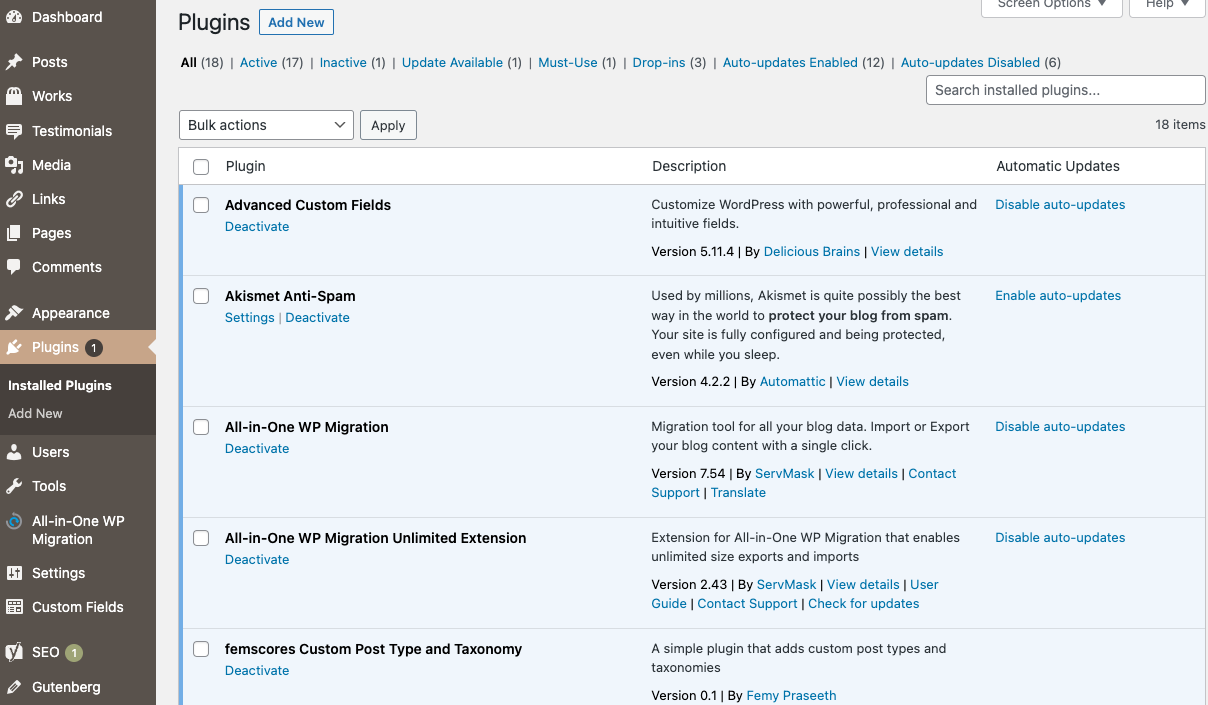
The Plugins screen in wp-admin carries the same information with a worse export story. The filter links above the table split the list into All, Active, Inactive, Update available and, when relevant, Recently Active and Drop-in. Set the screen to show all plugins per page from Screen Options, then copy the table into a spreadsheet by hand.
FTP or the host’s file manager is the last resort. Browsing wp-content/plugins shows you folder names and nothing else: no versions, no activation status, no update state. It answers “what is installed” and none of the questions that matter for security.
If you wanted a list on the page, not in the terminal
Half the traffic to this phrase wants output a visitor can see. The command has nothing to do with that. Name the list type first, because it decides the tool:
- Headings in a long article. A table of contents plugin builds the list from the content. Easy Table of Contents, in the WordPress.org directory, generates one automatically from the headings in posts, pages and custom post types.
- Posts from a category. List Category Posts lists posts by category in a post or page using the
[catlist]shortcode, with options such as[catlist name="news"]. - A queried list inside a block theme. Try the core Query Loop block before installing anything. It covers most recent-posts and category-feed layouts.
- Tabular data you maintain by hand. A table plugin, not a post-query plugin. Asking a query tool to behave like a spreadsheet ends badly.
- Your installed plugins shown publicly. Possible with a shortcode plugin, and rarely a good idea. A published list of your plugins and versions is a map for anyone scanning for known vulnerabilities.
When one of these goes wrong, the cause is almost always setup rather than code. A shortcode rendering as literal [catlist] text on the page means the plugin is not activated, the shortcode has a typo, or it sits in a context that does not run shortcodes. A blank list usually means the plugin has nothing to list yet because its items or categories were never created.