Key takeaways
- Check the live page in a private window after purging caches in order: caching plugin, host cache, CDN, page builder CSS, then a hard browser refresh. The editor preview proves nothing.
- Five causes cover nearly every report: stale caches, a setting changed at the wrong scope, theme or builder CSS winning on specificity, a font registered but never loaded on the front end, and a font file returning 404 or refused cross-origin.
- Two developer tools checks split the problem in half: the computed font-family on the element says whether your rule applied, the Network panel says whether the file downloaded.
- Do not load fonts with @import in Additional CSS. It often fails to render on the front end. Use @font-face in a child theme or enqueue the stylesheet.
- Give typography one owner (theme styles, builder global fonts, or your own CSS) and leave the other layers empty, or the next update reintroduces the old font.
You picked the font, you saved, and the live site still shows the old one. Or half of it changed: headings updated, buttons did not, and product titles are doing something else entirely.
That is not one bug. It is five, and from the outside they look the same. Work through them in order of how often they turn out to be the answer, and stop at the first one that explains what you see. If you are still deciding where the font should be set in the first place, start with the next section.
Where to change fonts in WordPress
Where you set a font depends on the theme. Set it in one place, at the widest scope that fits, and only go narrower when one part of the site needs to differ.
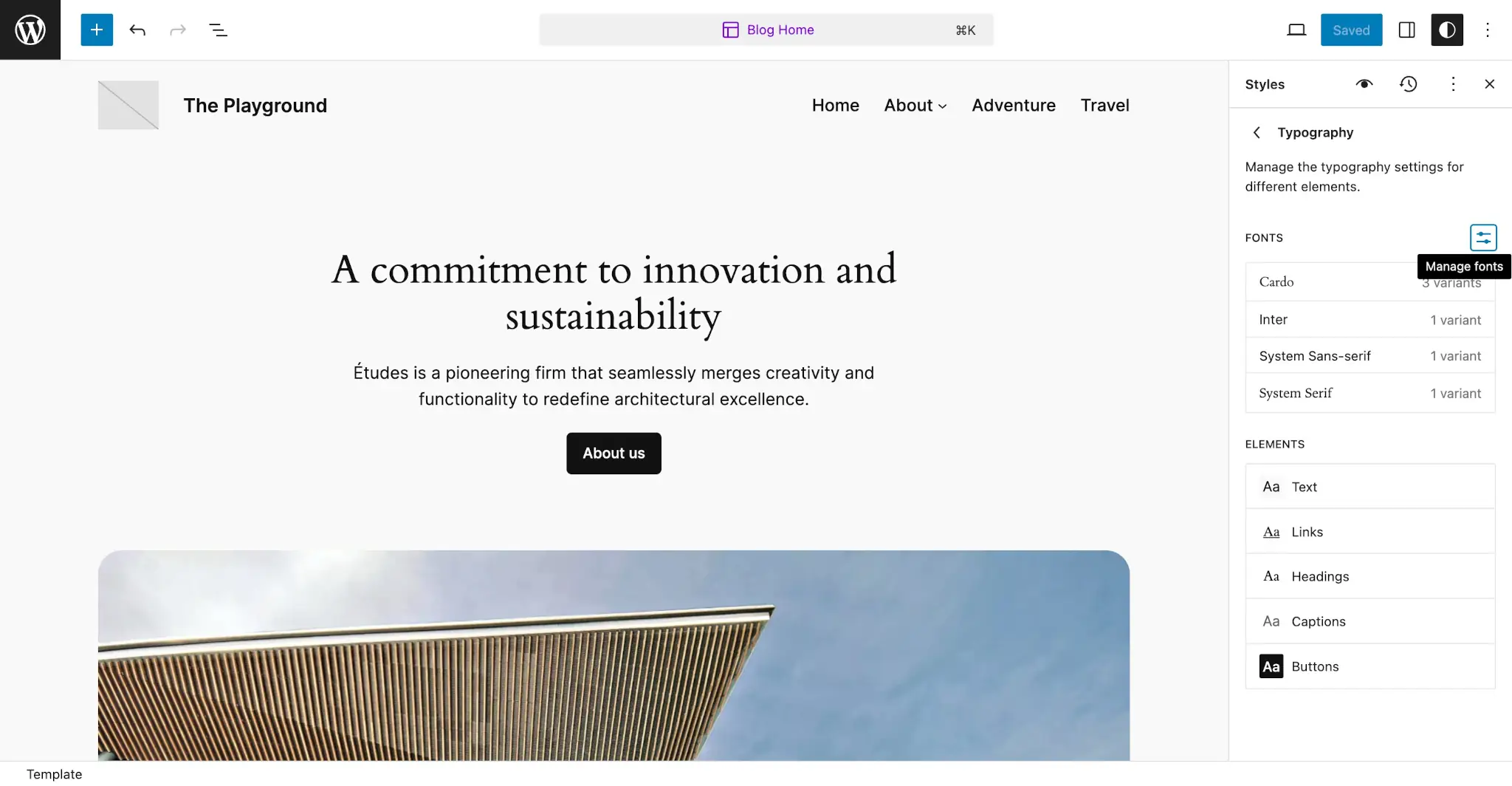
- Block theme, whole site. Go to Appearance, then Editor, then Styles, and open Typography. Pick an element (Text, Links, Headings, Captions or Buttons) and set its font, size and weight. To add a font that is not listed, use Manage fonts in the same panel to install one from Google Fonts or upload a font file. The font library arrived in WordPress 6.5.
- Block theme, one block. Select the block and find Typography in the block settings sidebar. Some options, including the font family, stay hidden until you turn them on from that panel’s options menu. The change overrides the site-wide style for that block only.
- Classic theme. Go to Appearance, then Customize, and look for a Typography or Fonts panel. It exists only if the theme provides one, so the options vary from theme to theme.
- Page builder. If Elementor or another builder made the page, set fonts in the builder’s global settings. They usually override the theme.
- No setting anywhere. Use CSS: Additional CSS for a small rule, or a child theme’s stylesheet for anything larger. CSS can only name a font that is already loaded, so load the file with @font-face, as cause 4 explains.
Before anything else: check the live page, not the editor
The block editor and the Site Editor preview render with their own stylesheet. They are close to the front end, not identical to it, so neither a correct preview nor a wrong one is evidence.
Do this first, in this order:
- Confirm the change was actually committed. Site Editor styles need Save. Customizer changes need Publish. Builder changes need Update and often a separate global settings save.
- Open the live URL in a private window, or hard refresh with Ctrl+Shift+R (Cmd+Shift+R on a Mac).
- Right-click the text that is wrong and choose Inspect. In the Styles or Computed panel, read the font-family the browser actually applied, and look for your rule with a line through it.
- Switch to the Network panel, filter by Font, and reload. Either the font file downloads with status 200 or it does not.
Those two panels split the problem cleanly. If the computed font-family is not your font, the CSS never won. If it is your font but the file did not download, the CSS won and the asset failed. Everything below sits on one side of that line.
Cause 1: a cache layer is still serving the old stylesheet
This is the most common answer by a wide margin, and the reason people retry the change three times in three different places and make the site worse. A typical WordPress site has four or five independent caches, and clearing one does nothing to the others.
Purge in this order, testing after each step so you learn which layer was holding the file:
- The caching plugin, including any minified or combined CSS it generates.
- The host’s own server cache, which is often separate from the plugin and sometimes only clearable from the hosting panel.
- The CDN in front of the site.
- The page builder’s generated CSS. Builders such as Elementor write their styles to their own files and keep serving the old ones until you regenerate from the builder’s tools screen.
- The browser, with a hard refresh or a private window.
Two details save repeat visits. Turn off CSS minification and combining while you debug, because an aggregated stylesheet can be cached under a filename that never changes. And if the builder offers a choice between printing CSS inline and writing it to an external file, the external file is easier to reason about, because you can open it and see whether your font is in it.
The signature of a caching problem: the editor is right, the live page is wrong, and it is right in a private window or on your phone over mobile data.
Cause 2: you changed the font at the wrong scope
WordPress applies typography at several levels, and the narrower level wins. A font set on one heading block beats the global heading style. A style set on Links beats the size you set on body text for anything that is a link.
That last one catches people regularly: a header menu that refuses to change size until it is changed under Styles, Typography, Links. WordPress’s Styles overview documentation describes the Styles panel as setting the overall look of the site at a global level, with separate typography sections inside it, so global is the default place to work and per-element settings are the exceptions.
Walk the scopes from narrow to wide:
- The individual block. Select it, open Typography in the sidebar, and clear any font family or size set there.
- The template or template part, if the wrong text lives in a header, footer or archive.
- Global styles for that element: Text, Headings, Links, Buttons, Captions.
On WooCommerce stores the same problem wears a different costume. Product titles, prices, breadcrumbs and Add to cart buttons each carry their own classes, and a store theme usually styles them directly. Changing global body text leaves them untouched. Inspect the element, read the class the theme is styling (something like .woocommerce-loop-product__title), and target that.
Cause 3: theme or builder CSS outranks your rule
If the Styles panel shows your font-family with a line through it, the rule loaded and lost. A more specific selector, a rule loaded later, or an inline style from a builder beat it.
Read the winning rule in the Styles panel. It names the file and the selector, which tells you who owns the font on that element: the parent theme, a child theme, the builder, a design plugin, or your own snippet. Then either change the font where the winner sets it, which is almost always the better fix, or write a selector at least as specific as theirs. Prefer .site-content p over a bare p. Keep !important for the case where you have read the winning rule, cannot edit it, and have written down why.
Never fix this by editing the parent theme’s style.css or functions.php. The next theme update overwrites both. Use Additional CSS for small overrides, or a child theme when the change involves template or function code. The guide to editing themes without losing work covers when Additional CSS is enough and when you need the child theme.
Cause 4: the font is registered but never loaded on the front end
Here the CSS applies correctly and the browser still renders something else, because the font it was asked for was never delivered. Three versions of this are common.
@import in Additional CSS. Pasting a Google Fonts @import line into Appearance, Customize, Additional CSS frequently fails to take effect on the front end. Load the font properly instead: register the font family in a block theme’s theme.json, or declare @font-face in a child theme, or enqueue the stylesheet with wp_enqueue_style. The WordPress theme handbook’s typography page covers custom font families and registering web fonts as font faces in theme.json, which keeps the editor preview and the front end in agreement.
Registered in the Font Library, not printed on the front end. A font can appear in the font picker and still fall back to a system font on the live site, because registration and front-end loading are separate steps and the integration between a theme, a font plugin and core is not always complete. Update the plugin, then check the page source for a @font-face rule naming your font. If there is none, nothing was ever loaded.
The weight is missing. You applied a family that ships 400 and 700 and asked for 300. The browser substitutes or synthesises, and the text looks subtly wrong rather than obviously wrong. Confirm the weights and styles you use are among the faces you actually loaded.
Cause 5: the font file does not arrive
When the Network panel shows the font request failing, read the status and the console message. Each one points at a specific fix.
| What you see | What it means | Fix |
|---|---|---|
404 (Not Found) on a font URL | The path in src is wrong, or the file is not in that directory | Open the font URL directly, correct the path, re-upload the file |
| A CORS message about a font on another domain | The CDN or other domain is not sending an Access-Control-Allow-Origin header for fonts | Add the header at the CDN or server, or self-host the font on the same domain |
| A mixed content warning | An http:// font URL on an https:// page | Change the URL to https or a protocol-relative path |
| The file downloads but nothing renders | The server sends the wrong MIME type, or the file is corrupt | Re-export as woff2, confirm the server serves font types correctly |
Site migrations and domain changes cause a burst of these, because absolute font URLs in CSS still point at the old host. The durable setup is self-hosting: put .woff2 files in a folder inside your child theme, declare each weight in @font-face with font-display: swap;, and reference the family by name.
Still unclear? Isolate the layer that owns typography
If none of the five explains it, stop changing settings and start removing variables. Switch to a recent bundled theme such as Twenty Twenty-Five and reload the page. If the font behaves, the problem is in your theme or its options. Then deactivate design-related plugins one at a time: builders and styling suites ship their own typography presets and overwrite theme styles by design. The isolation method in the guide to fixing WordPress plugins that are not working applies here unchanged.
Then fix the structural cause, not just the symptom. Decide which layer owns typography on this site: theme global styles, the builder’s global fonts, or your own CSS. Set it there, clear the settings in the other layers, and write down the decision somewhere the next person will find it. Sites where three layers all set a font are the ones where the old typeface comes back after an update.
If you would rather hand the tracing over, SiteSelf works on your connected WordPress site through chat and can track down and fix a change that is not taking effect, then report what it changed and what it checked. Content and settings work needs the SiteSelf Connector plugin from the WordPress.org directory; theme files, font assets and server configuration need hosting access over SSH. Pages owned by a visual page builder are refused at the moment of work, with the reason.
The font loads, and now the page jumps
A font that finally works can introduce a new problem: text renders in the fallback, the web font arrives, and the layout shifts. Three things reduce it.
Load less. Every extra family, weight and italic is another file. Two or three weights of one or two families covers most sites, and the hierarchy you wanted usually comes from size, weight and colour rather than a third typeface.
Preload the fonts that appear above the fold and let the rest wait. web.dev’s best practices for fonts is written around optimising web fonts for Core Web Vitals and is the reference worth reading before you add a second family.
Match the fallback’s metrics to the web font so the swap does not move anything. MDN describes the size-adjust descriptor as a multiplier for the glyph outlines and metrics of a font, and alongside ascent-override, descent-override and line-gap-override it lets a local fallback occupy the same space as the real font:
@font-face {
  font-family: "brand-fallback";
  src: local("Verdana");
  size-adjust: 87.6%;
  ascent-override: 95.2%;
  descent-override: 24.1%;
  line-gap-override: 0%;
}

h1 { font-family: "Brand Sans", "brand-fallback", sans-serif; }
The percentages are specific to that pair of fonts. Compute yours for your own font and fallback rather than copying these.
When to stop and get help
Stop and bring in a developer when the fix requires editing server configuration you do not control, when the font is licensed and the licence restricts self-hosting, or when the only rule that works is a page-wide !important and you cannot tell what it is fighting. Stop sooner on a store: if product pages are rendering inconsistently across browsers, the cost of guessing is orders, not tidiness.
Also stop if you have changed the same font in three places. At that point the site has accumulated overrides rather than a font setting, and the work is to remove two of them, not to add a fourth.