Give your WordPress site its first task.
Connect the site you already have, add your agent to Slack or Telegram, and tell it what you need.
Connect your siteStart with 500 free credits. No credit card needed.
A WordPress case study tells you how one problem was fixed on one site at one moment. It doesn’t tell you what is wrong with your site. Before you borrow its fix, check the date, the versions and the cause it names, and don’t take one story as a sign of how common a problem is.
WooCommerce released Stripe Payment Gateway 9.4.0 on April 16, 2025. Within days, some stores found payment methods missing at checkout. The fix was version 9.4.1, and a lot of threads and agency write-ups from that week say so, correctly. Read one of them today, apply it to a store whose payment methods have vanished, and you have borrowed the right fix for somebody else’s problem.
That is the hard part of using case studies for research. Most WordPress knowledge travels this way: a support thread, an agency’s incident page, a host’s write-up, a vendor’s report. Each one describes a single site at a single moment. Read well, a case study is the fastest route to a cause. Read carelessly, it sends you down the wrong path while the checkout stays broken. Our guide to fixing plugins that stop working covers the general diagnosis. This article covers how to judge the stories you find along the way, and how to write your own so someone else can use them.
A usable case study lets you check whether its situation matches yours. For that it needs six things, and most published WordPress case studies leave out at least half of them.
| Element | Why you need it |
|---|---|
| Date and versions | WordPress, PHP and plugin versions change what a fix does. An undated fix can’t be scoped. |
| The symptom, exactly | “Critical error on every page” and “checkout hangs” point to different causes. You need the error text. |
| The named root cause | “A plugin conflict” is a category. “Broken Link Checker retrying a failed schema update” is a cause. |
| The exact fix | Which setting, file or version, and in what order. |
| How the fix goes wrong | A fix applied to the wrong cause often looks like it worked, or hides the real problem. |
| How success was checked | “The site loads” and “a test order went through” are different results. |
WordPress.org’s own documentation shows what this looks like. The Recovery Mode article says when the feature triggers (a fatal error during a regular page load, not during cron or background tasks), what to do (deactivate the faulty plugin or theme) and where it stops working. Deactivating is typically a temporary fix, and the recovery email may never arrive if the server can’t send mail. That is a cause, a fix and a warning on one page.
Provider case studies usually give you the story and leave out the specifics. You get “a plugin update broke checkout” with no plugin name, no host and no error text. Such a case can show you a sensible process. It can’t tell you whether its fix applies to your site.
The same symptom can come from very different causes, and the cause in someone else’s story is only one of them. Migrations show this clearly, because the post-move symptoms look far worse than what usually causes them.
Duplicator, which makes a migration and backup plugin, published an analysis of more than 8,000 support tickets. Migration and restore problems were the largest technical category. The patterns in it cut against the usual reading of the symptoms:
If a case study jumps from a symptom straight to a dramatic cause, such as corruption, malware or a failed migration, look for the ordinary explanation first. Our guide to the WordPress white screen works through the same order for fatal errors.
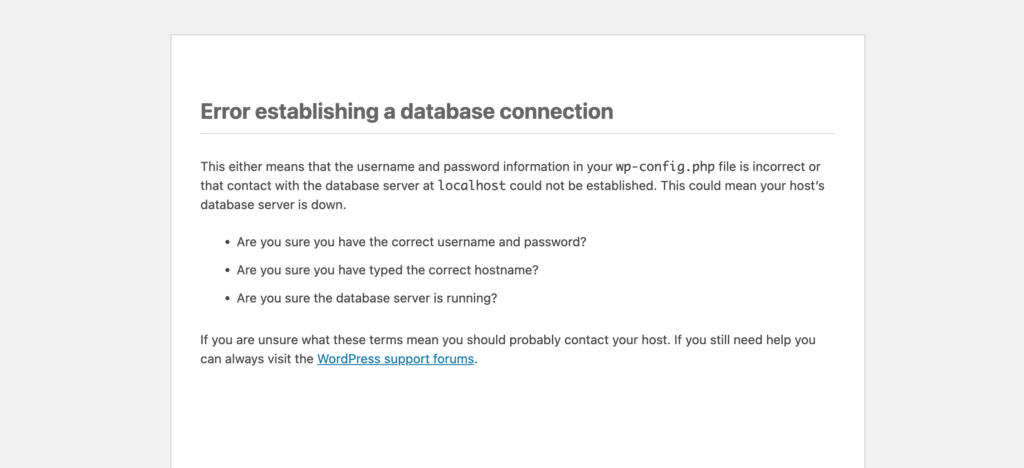
A case study records one moment, and plugins, hosts and WordPress keep changing after it. The Stripe incident is the clearest example. WooCommerce’s developer advisory explains that 9.4.0 added a sync between plugin and Stripe dashboard settings that made more calls to Stripe’s Payment Configuration API than expected. Some stores were rate-limited, which caused slow admin dashboards and payment methods that disappeared for a while. Updating to 9.4.1 was the fix for that incident. It was never general advice about which version to run.
WooCommerce’s general page on Stripe methods missing at checkout lists other causes: the payment-method cache, outdated checkout templates, SSL and HTTPS problems, and plugin conflicts. It also points you to the Stripe logs. It notes that clearing the cache doesn’t fix rate limiting. So the two most common forum fixes, “update” and “clear the cache”, each fix one cause and do nothing for the others.
Before you apply a fix from a case study, compare its date and version numbers with your site. If the case is about a specific release, check that release’s changelog to confirm the problem, and the fix, belong to that version.
A single case study tells you that something can happen. It can’t tell you how often. Frequency needs a denominator, meaning the total number of cases the share refers to, and almost no WordPress case study has one.
The Duplicator report is the exception, and it comes with limits. The publisher sells a migration tool. The data covers only migrations that led to a support ticket, so a quick fix that nobody reported isn’t counted. The shares overlap and don’t add up to a total. Use it to decide what to check first during a migration. Don’t use it to rank WordPress problems in general.
Practitioner incident pages work the opposite way. They are thin on frequency but sometimes strong on mechanism. One maintenance provider, Gaurish, describes a site that went down when MySQL’s per-user connection limit ran out. It traces the cause to Broken Link Checker repeatedly retrying a schema update that kept failing, and says the site was back in 1 hour 30 minutes. It names the plugin and gives the time taken, which is more than most such pages do. What you can take from it: a plugin you barely use can take a site down from the database side. It tells you nothing about how likely that is on your site.
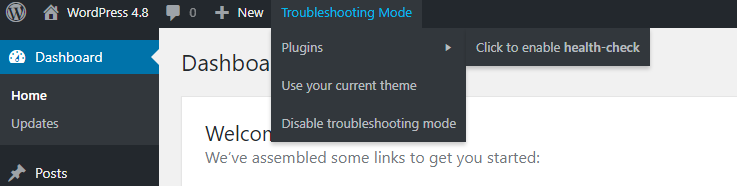
Treat a fix from a case study as a guess to test, not as an answer. This order keeps the risk low:
Caching deserves a separate check, because case studies often assume their host’s defaults. Kinsta’s technical FAQ says it excludes cart, account and checkout pages from caching by default and skips the cache when certain WooCommerce cart cookies are present. Your host may use different rules. If personal pages are being cached, clearing the cache hides the problem until the next visitor. You fix it by adding the exclusion.
If you’d rather not work through this list yourself, SiteSelf’s WordPress bug fixes start from the symptom you describe in chat, and the agent reports what it changed and what it checked.
A sales case study is evidence that the provider has solved a problem like yours before. It is not proof they will solve yours. Read it with a few questions in mind:
Use the case study to start the conversation. Ask the agency to walk you through one engagement, including what went wrong.
Write your own with the same rigour you want from others, because that is also what makes it persuasive. A prospect or a colleague trusts a case study that admits what failed.
For marketing, a few deep write-ups aimed at the clients you want usually beat a long portfolio of thin ones. Give every other project a short summary in the same format so readers can skim. Clients are more likely to take part if you offer a short interview and a draft they can approve than if you ask them to write or record something.
Most sites give case studies their own post type, so they get their own archive, URL and categories. The usual setup registers the post type with a rewrite slug:
add_action( 'init', function () {
    register_post_type( 'case_study', array(
        'label'        => 'Case studies',
        'public'       => true,
        'has_archive'  => true,
        'show_in_rest' => true,
        'rewrite'      => array( 'slug' => 'case-studies' ),
        'supports'     => array( 'title', 'editor', 'thumbnail', 'excerpt' ),
    ) );
} );
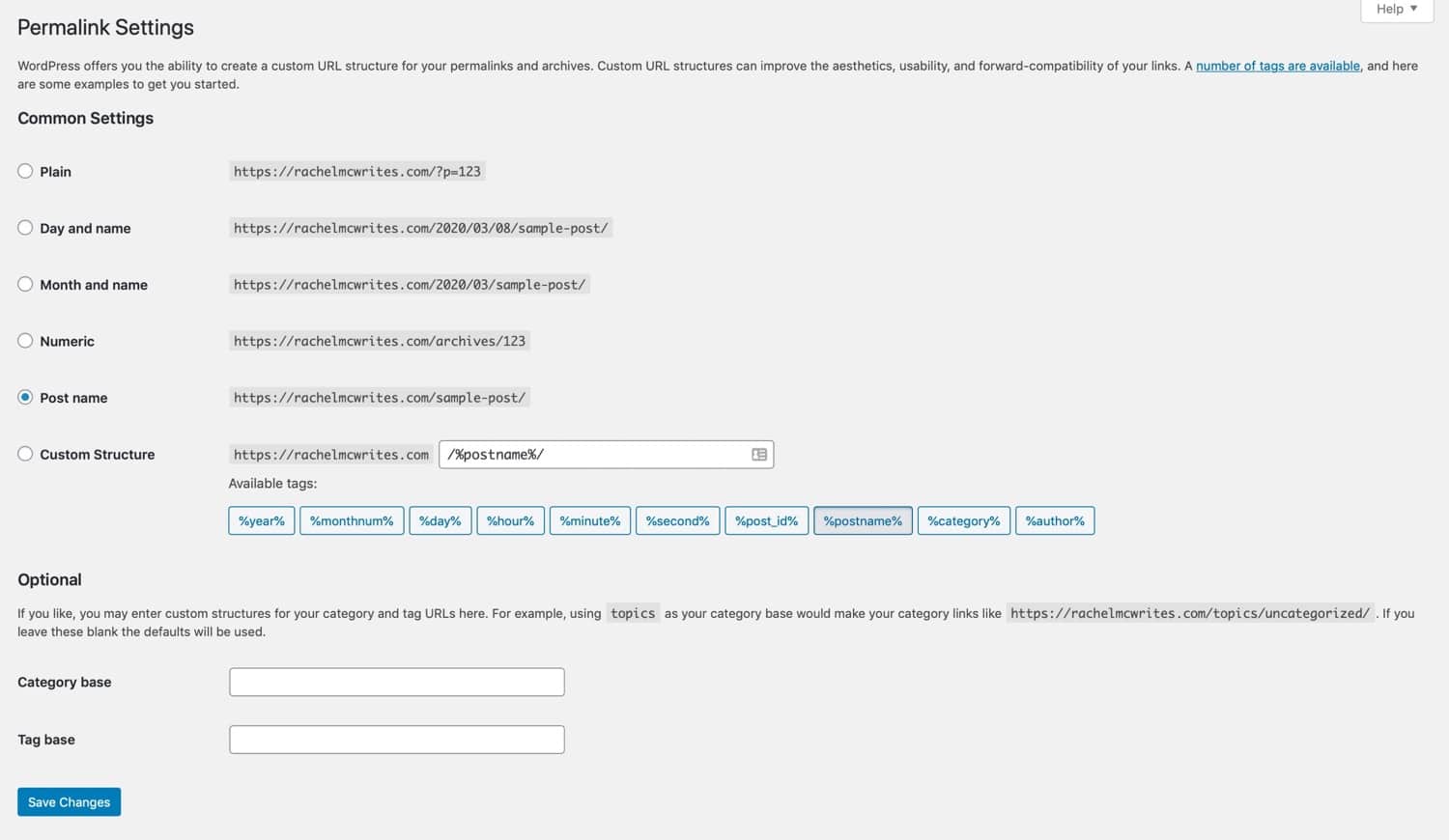
After adding it or changing the slug, save Settings, then Permalinks, so WordPress rebuilds its rewrite rules. A WordPress.org support thread from a nonprofit moving its “Case Studies” post type to Twenty Twenty-Four went through exactly this. If the archive returns a 404 afterwards, the rewrite rules or the registration are wrong, not the content. It’s the same Permalinks save that fixes the post-migration 500 error above.
The core idea is the same: study one case in depth, in its real setting, using more than one kind of evidence. This article is about the practical version that WordPress site owners, agencies and developers run into every day. If you are designing a formal study, follow your field’s methods guidance for sampling and analysis.
Only once you’ve confirmed your symptom, versions and cause match the thread. Try it in Troubleshooting Mode or on a staging copy first, and take a backup before changing files or the database. Afterwards, check the journey that matters, such as checkout or a form submission.
Usually client confidentiality, sometimes to avoid naming a vendor, and sometimes because the write-up is meant to impress rather than inform. Whatever the reason, you can’t check whether its fix applies to you. Ask the agency for those details in a call.
There is no reliable ranking across all WordPress problems. The best narrow data is Duplicator’s migration ticket analysis, where host PHP limits and post-move login problems lead. Treat any wider “most common problems” list as opinion unless it states what its percentages are out of.
Yes, briefly. They show the reader you diagnosed the problem instead of guessing, and they save the next person time. Leave out anything that would expose a client’s security details.
Explainers
Almost any backup plugin can make a backup. The hard part is making sure that backup is complete, stored off the server, still running on schedule and able to restore a working site. Pick a plugin by how you will need to recover, test the restore, and keep the plugin itself updated.
Read article ›Explainers
A WP autoblogging plugin creates WordPress posts on a schedule, from a feed, an API or an AI model. When one stops publishing, the cause is usually cron, a bad feed or a timeout, not the plugin you picked. Google does not care that a post was automated. It cares whether the post is worth reading.
Read article ›Explainers
JPG and JPEG are the same image format. .jpg and .jpeg are two spellings of one extension, and both mean the MIME type image/jpeg. If one spelling uploads and the other doesn’t, the cause is a plugin setting, a validator, a fake file or a server limit. The name at the end of the file is not the problem.
Read article ›Connect the site you already have, add your agent to Slack or Telegram, and tell it what you need.
Connect your siteStart with 500 free credits. No credit card needed.