Give your WordPress site its first task.
Connect the site you already have, add your agent to Slack or Telegram, and tell it what you need.
Connect your siteStart with 500 free credits. No credit card needed.
To hide a WordPress page title, hide the heading the theme prints. Leave the title stored on the page alone. Which control does that depends on your theme, your template and whether a page builder or WooCommerce owns the page. So start by finding which element is actually showing, then use the most built-in control you have.
You design a hero section with its own headline, publish the page, and WordPress prints “About” or “Home” in large type above it. Removing that word looks like a two-minute job. Often it is. It goes wrong when the method doesn’t match the page. Titles disappear from every blog post, a menu item goes blank, or the title comes back after the next theme update.
The fix depends on three things: whether you run a block theme or a classic theme, whether a page builder renders the page, and whether WooCommerce owns the template. This guide covers each case. It starts with the step most failed attempts skip: working out which “title” you are looking at.
In WordPress, “title” can mean any of four things, and each has its own control. Most “it didn’t work” support threads come from changing the wrong one.
the_title().<title> tag in the page head, shown in browser tabs. SEO plugins such as Yoast or Rank Math usually control it. Hiding the visible heading doesn’t change it.To check which one you’re looking at, open the page on the front end, right-click the text and choose Inspect. The highlighted element shows the tag and its classes. One OceanWP owner on WordPress.org couldn’t get “Hide Page Title” to work because the text sat inside the header’s logo area, not the content. The theme prints the site title there when no logo is set. No page-title setting would ever have touched it.
If you change classic theme files, put those changes in a child theme. Our guide to theme customization that survives updates explains why.
Clearing the title field does make the heading disappear. It also breaks other things. WordPress.com’s support page on hiding titles says that without a title, the slug can fall back to the content ID and the page becomes hard to find in stats, where it shows as untitled. Menu items that take their label from the page name lose that label too.
So keep a real, descriptive title on every page and hide only how it displays. The WordPress slug explainer covers why a numeric URL is worth avoiding.
In a block theme such as Twenty Twenty-Four or Twenty Twenty-Five, the heading is a Title block inside a template, not part of your page content. WordPress’s own documentation says templates control the layout and one template can serve many pages. That is the part to plan around.
That change applies to every page on the template. If only your homepage or one landing page should lose its title, follow WordPress.com’s advice and use a separate template without the Title block. Assign it to those pages from the Template setting in the page’s sidebar. Some default themes include a “No title” page template. One Reddit user reported that picking it in Twenty Twenty-Four did not hide the title, and no cause was found. So check the result on the front end, not in the editor preview.
The page then needs a heading of its own, usually the headline in your hero. Our guide to customizing a WordPress template safely covers duplicating and assigning templates in more detail.
Many classic themes have their own switch, and it beats CSS when it exists. The theme knows its own markup, so the setting keeps working when the markup changes in an update. Look in three places: a panel under the page editor, the page’s sidebar settings, or Appearance > Customize. Themes call it things like Disable Title, Page Header or Hide Title. Some only offer it in a paid version.
Check how far a global setting reaches. One WordPress.org thread describes a Customizer “Hide Page Title” option that also hid every post title. Turn it on, then look at a page, a blog post and an archive before you move on.
CSS is the fix people use most, and the one that breaks most easily. It works when it is scoped to the right page and uses your theme’s actual class. Add it under Appearance > Customize > Additional CSS. On WordPress.com, custom CSS needs a paid plan.
WordPress.com’s examples use .entry-title, which many themes use and many don’t. Swap in the class the inspector showed you.
/* every page, but not posts */
.page .entry-title { display: none; }

/* one page: replace 123 with the page ID */
.page-id-123 .entry-title { display: none; }

/* one post */
.postid-123 .entry-title { display: none; }
The page ID is the number after post= in the editor’s address bar. Don’t use a bare .entry-title rule. It hides post titles and archive headings too. A stray comma between selectors does the same: .page-id-123, .entry-title applies the rule to every title on the site.
Expect three side effects:
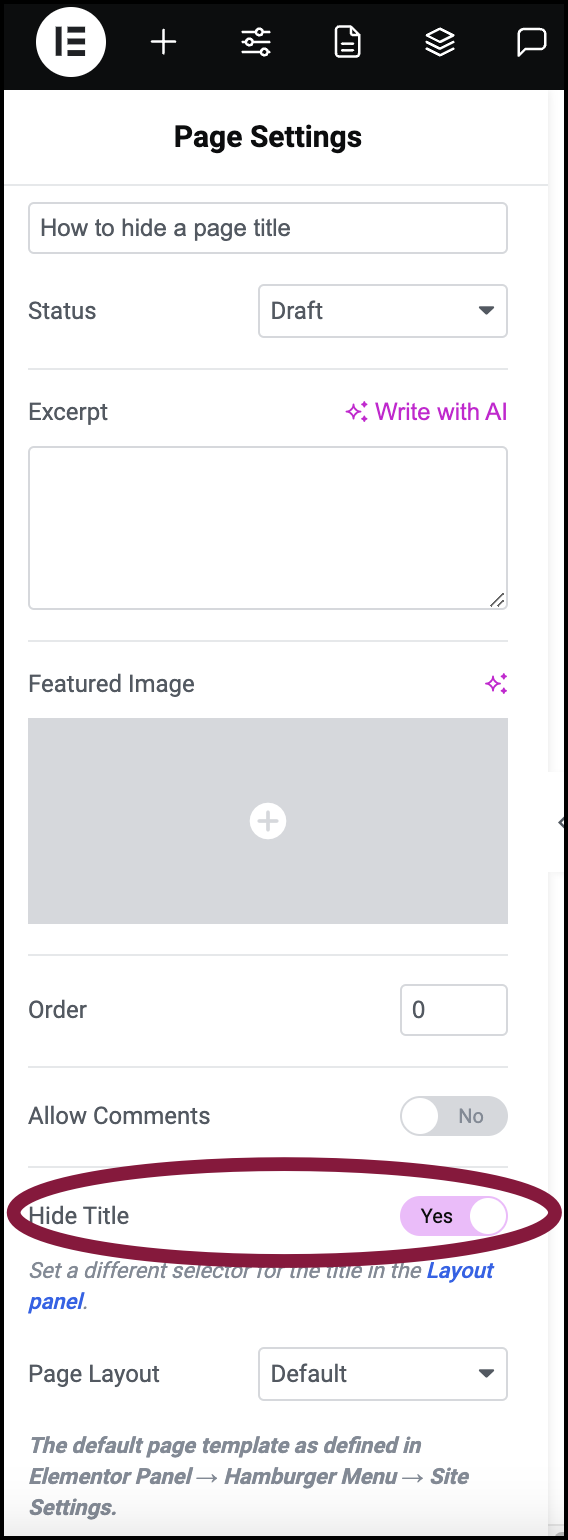
display: none removes the heading but not the margin or padding on the box around it. Inspect that wrapper and adjust only its spacing, scoped to the same page.Open the page in Elementor, go to Page Settings and set Hide Title to Yes. That switch hides an element by selector, so it only works if Elementor targets the element your theme actually prints. Elementor’s help page says the default selector is generally h1.entry-title, and its settings say “If your theme’s selector is different, please enter it above.” The field is Site Settings > Layout > Page Title Selector. Enter the class you found in the inspector.
After changing it, clear Elementor’s generated CSS and your caches. One known bug, GitHub issue 24852 from January 2024, showed that this selector setting produced invalid CSS, and the reporter said it could upset WP Rocket’s CSS optimization. If the toggle does nothing, check the selector first.
On a block theme, editing the Shop page itself often changes nothing. WooCommerce’s documentation says the Product Catalog template controls the main Shop page. To remove the “Shop” heading, go to Appearance > Editor > Templates, open Product Catalog and remove or edit the Archive Title block.
On the Storefront theme, WooCommerce’s setup guide says the Template dropdown doesn’t appear for the page set as the Shop page. If the option seems to be missing, check which page is set as the Shop page under WooCommerce > Settings > Products. For a Storefront homepage, the guide uses the Full Width template.
If your theme has no switch and you don’t want to maintain CSS, a plugin adds a checkbox to each page. Hide Page And Post Title, from the WordPress.org directory, adds a “Hide the title” option when you edit a page, post or public custom post type. Its listing says later versions support block themes. Its docs say it leaves the stored title and SEO metadata alone, and that you should add a heading if the hidden title was the page’s only H1.
The tradeoff is one more plugin to keep updated. After plugin updates, check that hidden titles are still hidden.
Hiding the title can remove the page’s only main heading. W3C’s accessibility tutorials say headings show how a page is organized and let screen-reader users jump through it. A separate W3C tutorial notes that display: none and visibility: hidden hide content from assistive technology as well as from sight.
So after you hide the theme’s title, make sure the page has one meaningful heading set as an H1, usually the headline in your hero. Check that it isn’t just a paragraph styled to look big. Also check you haven’t ended up with two H1s, which happens when a builder adds its own. Our article on building a landing page in WordPress covers how headings should sit on a designed page.
On search: Google’s documentation on title links lists several sources it uses, including the <title> element, the main visible title, headings and other prominent text. Hiding the theme heading doesn’t change your SEO plugin’s title. No source in our research shows ordinary title hiding hurting rankings. What matters is that the page still makes its subject clear.
A finished change passes four checks:
If the title still shows, work through the causes in this order:
Several of the threads we read ended without a fix, often where a theme and a builder both printed a heading. If you have checked all five and the title is still there, the snippet isn’t the problem. Finding which layer prints the heading is the real work, and that is the point to hand it to whoever maintains the theme. If you would rather describe the change in chat than trace it yourself, see how SiteSelf handles design changes on an existing site.
Yes. Use your theme’s own setting, a block template without the Title block, or CSS in Additional CSS. A plugin only helps when none of those fit how your site is built.
Hiding the heading leaves menus alone, because the stored title doesn’t change. Deleting the title is what breaks menu labels, so hide it rather than clearing the field.
Not directly. Google builds title links from several sources, including the <title> element your SEO plugin controls. Keep that title accurate and keep a clear main heading on the page.
Usually caching or CSS minification. Clear your plugin, server, CDN and browser caches and regenerate any builder CSS before you rewrite the rule.
In a block theme, edit the template for that post type. In a classic theme, use the body class WordPress adds for that type, which you can see in the inspector. Hide Page And Post Title also supports public custom post types.
If the theme’s heading says what the page is about, restyling it to fit the design keeps the structure intact with no extra work. Hide it when your design already has its own heading, and make that heading the H1.
How-to Tutorials
Adding a contact form to WordPress takes a plugin, a page and a few minutes. Making sure every message reaches you is the real job, because the form can say “sent” while your inbox never gets the email. Set the sender address correctly, send through authenticated SMTP, store every entry, and test from outside your own login.
Read article ›How-to Tutorials
The Update button is the easy part of upgrading a WordPress theme. Sites break because of what sits around it: code edited into the theme’s own files, a child theme that no longer fits the new parent, an old WooCommerce template, or a server that can’t write files. Find where your customizations live, take a fresh backup, test on a copy, and let the error message decide the fix.
Read article ›How-to Tutorials
Your WordPress homepage might come from a Page, a theme template, a page builder layout or your latest posts. To change it, first find out which one is in charge, then edit it with the tool that built it. Most “my edit didn’t show” problems happen because someone edited the wrong one or a cache is still serving the old page.
Read article ›Connect the site you already have, add your agent to Slack or Telegram, and tell it what you need.
Connect your siteStart with 500 free credits. No credit card needed.