Give your WordPress site its first task.
Connect the site you already have, add your agent to Slack or Telegram, and tell it what you need.
Connect your siteStart with 500 free credits. No credit card needed.
How you customize a WordPress template depends on which kind of template is drawing the page: a block template in the Site Editor, a PHP file in a classic theme, a WooCommerce override or a page builder layout. Find out which one you have before you edit anything. Then make the change in a layer that theme updates won’t overwrite, and check the result as a logged-out visitor.
In WordPress, “template” can mean five different things. It can be a block template in the Site Editor, a PHP file in a classic theme, a WooCommerce template override, a page builder layout, or a demo design you imported when you set the site up. Most failed template edits happen in the wrong one of these.
So the job is not “edit the template”. It’s finding the layer that actually draws the page, making the change there, and checking that the change shows up, affects only what you meant, and survives the next update. This guide covers each route. If you want the broader picture of theme work first, see our guide to editing themes without losing work.
Start at Appearance in the dashboard. If you see an Editor item, you have a block theme. If you see Customize and no Editor, you have a classic theme. WordPress.org’s documentation says the Site Editor only appears when a block theme is active. If you’ve been looking for a template editor and can’t find one, this is usually why.
| What you see | Theme type | Where templates live |
|---|---|---|
| Appearance > Editor | Block theme | Site Editor (saved in the database), plus HTML files in /templates and /parts |
| Appearance > Customize, no Editor | Classic or hybrid theme | PHP files such as single.php, page.php, header.php |
| A builder’s own template or theme-building menu | Either type | The builder’s own templates, with display rules |
| A woocommerce folder in your theme | Either type, store only | Override files that replace WooCommerce’s defaults |
Next, work out whether your change is to content, to style or to structure. Six words in a hero is content: edit the page. A new button color everywhere is style: use Styles or Additional CSS. An author box on every post is structure: edit the template.
On a block theme, you can change templates without writing code. Every template is shared, though, so check what else uses it before you save.
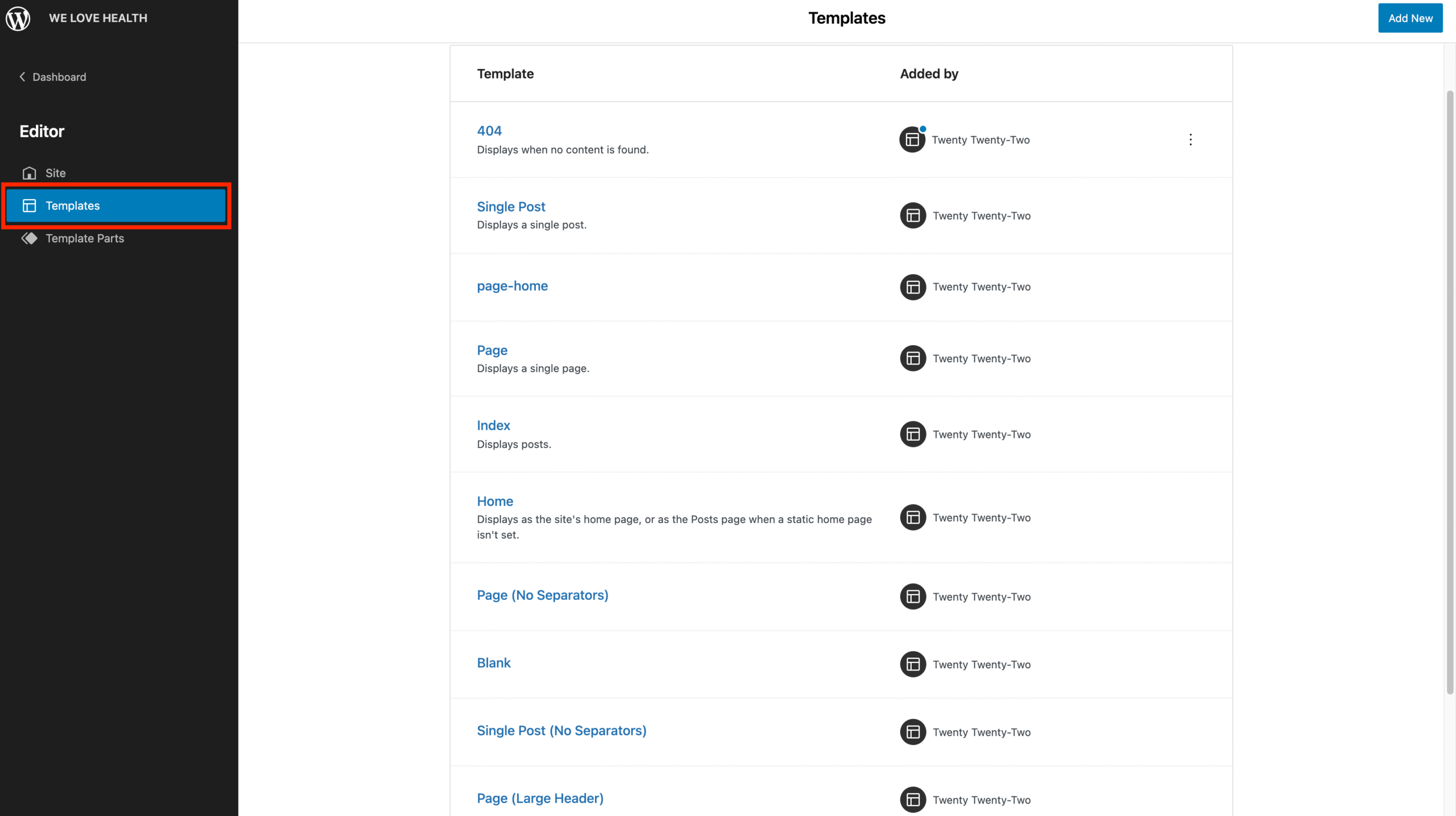
Leave the shared template alone. Someone on the WordPress.org forums edited a template they used for every page, trying to change just one of them, and lost earlier work. The advice they got applies to everyone. Edit that page’s content instead. Or create a new template, assign it to that page in the page’s settings sidebar, and build it from a non-synced pattern. A non-synced pattern is a plain copy, so editing it on one page leaves the others alone.
WordPress’s Theme Handbook sets the order. WordPress first looks for a template saved in the database through the Site Editor. Then it checks the child theme’s /templates folder, then the parent theme’s. It uses the first one it finds. So if anyone has ever saved that template in the Site Editor, nothing you change in the file over FTP will show.
To make the file count again, reset that template in the Site Editor. A reset deletes the saved version, so export or copy its block markup first. The handbook also notes that templates saved in the database never turn into theme files on their own. If you want a template to ship with the theme, copy its markup into the matching file yourself.
On a classic theme, templates are PHP files. WordPress picks the most specific file that matches each request. A page with the slug “about”, for example, uses page-about.php if it exists, and page.php if it doesn’t. Never edit the parent theme’s files. The next theme update replaces them, and your changes go with them. Put your changes in a child theme, which a parent update leaves alone. Practitioners report losing work to this mistake more than any other.
/*
Theme Name: Astra Child
Template: astra
*/
Your child theme’s stylesheet won’t always load on its own. The handbook says that depends on how the parent theme loads its styles. If your CSS isn’t applying, add this enqueue to the child theme’s functions.php:
add_action( 'wp_enqueue_scripts', function () {
    wp_enqueue_style( 'child-style', get_stylesheet_uri() );
} );
To give one page its own layout, create a file in the child theme that starts with <?php /* Template Name: Landing */ ?>. Then pick it from the Template field when you edit the page.
Child themes have limits. A child theme still depends on the parent, and some themes load their files with get_template_directory(). That function always points at the parent theme, so a copy in the child is ignored. The handbook also says a child theme isn’t always the right tool. If your design differs a lot from the parent’s, building a separate theme may be the better choice.
A lot of “template” requests are really styling: padding, a font size, a button color. On the WordPress.org forums, a non-coder who took over a site built by an agency had been installing plugins to adjust spacing. The fix was simpler. They right-clicked the element, chose Inspect to find the CSS rule, and pasted an override into Appearance > Customize > Additional CSS. As support pointed out in that thread, plugins are for adding features, not for CSS tweaks.
Theme updates don’t touch Additional CSS. It can’t change the HTML structure, though. If the element you want doesn’t exist in the page’s markup, you need the template layer. For block themes, the Styles panel is the equivalent place. We cover choosing between these layers in more detail in theme customization that survives updates.
To override a WooCommerce template on a classic theme, copy the file from wp-content/plugins/woocommerce/templates/ into a woocommerce folder in your child theme. Keep the same path, minus the templates folder. WooCommerce’s template documentation adds two traps. If your theme has a woocommerce.php file, WooCommerce uses that file instead of woocommerce/archive-product.php. And themes with custom templates have to declare WooCommerce support.
Overrides go stale. WooCommerce’s developer docs say your copies don’t update when WooCommerce updates its own templates. WooCommerce > Status > System Status lists your overridden templates and flags outdated ones. The fix is manual: back up your copy, copy the new default into its place, then redo your changes. WooCommerce says a one-click update isn’t practical, because themes are coded too differently. Our guide to updating a theme without losing work adds this check to the update routine.
Some parts of a product page are added by hooks rather than by a template file being loaded directly. In one WordPress.org support thread, copied overrides of price.php and product-image.php did nothing. WooCommerce support suggested removing the woocommerce_template_single_price action and adding a replacement that loads the template with wc_get_template(). Experienced store developers go further: use hooks where you can, and keep your overrides few and small.
On block themes, WooCommerce 10.2 moved its product block templates into the Site Editor, under All Templates > Add Template. Instructions written before September 2025 may point you to the wrong screen.
Page builders keep a template layer of their own. If a builder’s theme-building feature controls your shop or product pages, editing the WooCommerce page or a theme file won’t change them. Edit the builder’s template and check its display conditions.
Work through these in order. The first two cause most cases.
If the site shows “There has been a critical error on this website,” the change broke PHP. WordPress’s handbook says to check the admin email inbox, turn on debugging and read wp-content/debug.log. The file path in the error message tells you which file to fix or restore.
Visual changes in the right editor are well within reach for most site owners. Stop when the work moves into PHP and you don’t have a working backup or a staging copy. Stop too when a WooCommerce override is outdated on a store that’s taking orders, when a hooked template needs replacing, or when you’re switching themes or builders. A switch means rebuilding every post, archive and product template, not reskinning them. If you’d rather describe the change and have it done on your existing site, here is how SiteSelf handles design and template changes.
After any structural change, check two things the old template may have done for you. Can you still tab through the menus with a keyboard, and does every form field still have a label? And does each page still output exactly one canonical tag?
You need one for code changes to a parent theme that still gets updates. For style-only changes, Additional CSS or the Site Editor’s Styles is usually enough. For block template changes made in the Site Editor, the database copy already survives theme updates.
It’s risky. One PHP typo can take the site down, and the editor doesn’t keep a copy of the previous version. If you use it at all, use it on a child theme and keep FTP or hosting file access ready so you can undo the change.
Open the template in Appearance > Editor > Templates and use its reset or “clear customizations” option. That deletes your saved version and goes back to the theme’s file, so export or copy the markup first if you might want it again.
On a classic theme, the Template field only appears if the theme or child theme includes at least one custom page template. On a block theme, you may need to create the template in the Site Editor before you can assign it to a page.
Mostly not. Child theme files belong to the old parent theme. Block templates saved in the Site Editor belong to the old theme. Builder templates go with their builder. Plan a theme switch as a rebuild, on a staging copy.
Use the template hierarchy: WordPress chooses the most specific matching file, such as single-product.php before single.php. To confirm, make a visible test change to the file you think is responsible and load the page.
How-to Tutorials
To add an internal link in WordPress, select the words, press Ctrl+K and pick the page. Most links fail for other reasons: a URL copied from the admin screen, a slug that changed later, an anchor that doesn’t match. Get the destination right and test the link on the live page. That is most of the job.
Read article ›How-to Tutorials
For one “find us” location, a Google Maps embed pasted into a Custom HTML block needs no plugin and no API key. Plugins earn their place when you need several markers, a store locator or a map in a classic widget area. When a Google-powered plugin map shows a grey box, the cause is almost always the API key, the Google Cloud project, billing or the referrer settings. The theme is rarely the problem.
Read article ›How-to Tutorials
A WordPress homepage can be a static page, a feed of your latest posts, a block theme template, a classic theme file or a page builder layout. Each one is edited in a different place. Find out which one your site uses first and the edit itself is quick. Skip that step and you can spend an hour changing something visitors never see.
Read article ›Connect the site you already have, add your agent to Slack or Telegram, and tell it what you need.
Connect your siteStart with 500 free credits. No credit card needed.