Key takeaways
- A landing page in WordPress is a Page plus four decisions: template, slug, index setting, and what loads on the page. Nearly every failure traces back to one of them, or to a cache sitting in front of them.
- Block themes: build a Landing page template in the Site Editor with the header and footer removed, then assign it in the page’s Settings sidebar. Classic themes: pick the full-width or canvas template, or add a template file in a child theme.
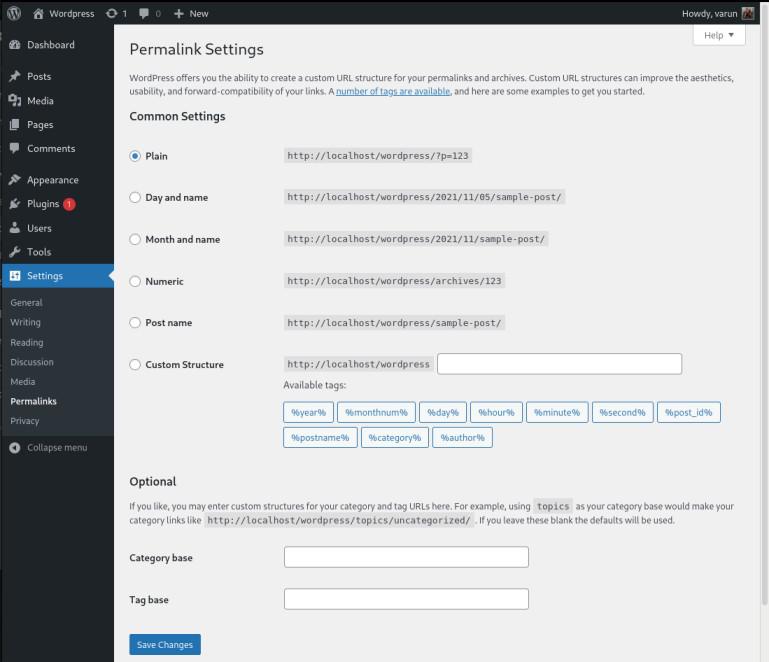
- After you change a slug, open Settings and then Permalinks and press Save Changes to flush rewrite rules, then check that no live ad or menu item still points at the old URL.
- A per-page Index setting does nothing while the SEO plugin still has a site-wide noindex rule on Pages. Check both.
- Test the form on the published URL in a logged-out browser. A form that fails silently looks exactly like traffic that did not convert.
WordPress has no landing page object. There is no dedicated post type, no setting to switch on, no feature to install. A landing page is an ordinary Page, and four decisions make it act like a landing page: the template that renders it, its slug, its indexing settings, and what CSS and JavaScript load on it.
That framing is worth holding onto, because it also describes every way the page fails. Blank page, wrong layout, 404, missing from Google, form that does nothing: each one is a template problem, a permalink problem, an indexing problem, an asset problem, or a cache sitting in front of one of those. Fix the category and the symptom goes away.
Decide what renders the page before you place a single block
This is the decision that sets the ceiling on everything else. A landing page built with the block editor and a stripped template loads the theme’s stylesheet and whatever the blocks need. The same page built in a full page builder also loads the builder’s own CSS and JavaScript, on every request, whether the page uses three of its widgets or thirty.
That overhead is not fatal. It is a real cost that shows up on the metric advertisers care about. web.dev’s Largest Contentful Paint guidance puts the “good” threshold at 2.5 seconds, measured at the 75th percentile of page loads, which is a low bar to clear on a laptop and a high one on a phone on mobile data.
Three honest options:
- Block editor plus a custom template. Free, lightest, no extra plugin. You need to be comfortable in the Site Editor, and you get no prebuilt campaign templates and no built-in split testing.
- A page builder you already use across the site. Fastest to produce, easiest to hand to a marketer, and the standard choice if you publish campaign pages regularly. Adds page weight and one more thing that can conflict after an update.
- A second builder, just for landing pages. Usually the worst of both. Two builders on one site means two asset stacks, two sets of update risk, and two ways to edit the same page.
Pick one and stay with it. Overlapping tools doing the same job is the most reliable way to create a conflict you will spend an afternoon isolating.
Build the page: block theme, classic theme, or a template file
Block theme (Twenty Twenty-Four and similar)
The Site Editor is only available when a block theme is active, according to WordPress.org’s Site Editor documentation. If Appearance shows an Editor item, you have one.
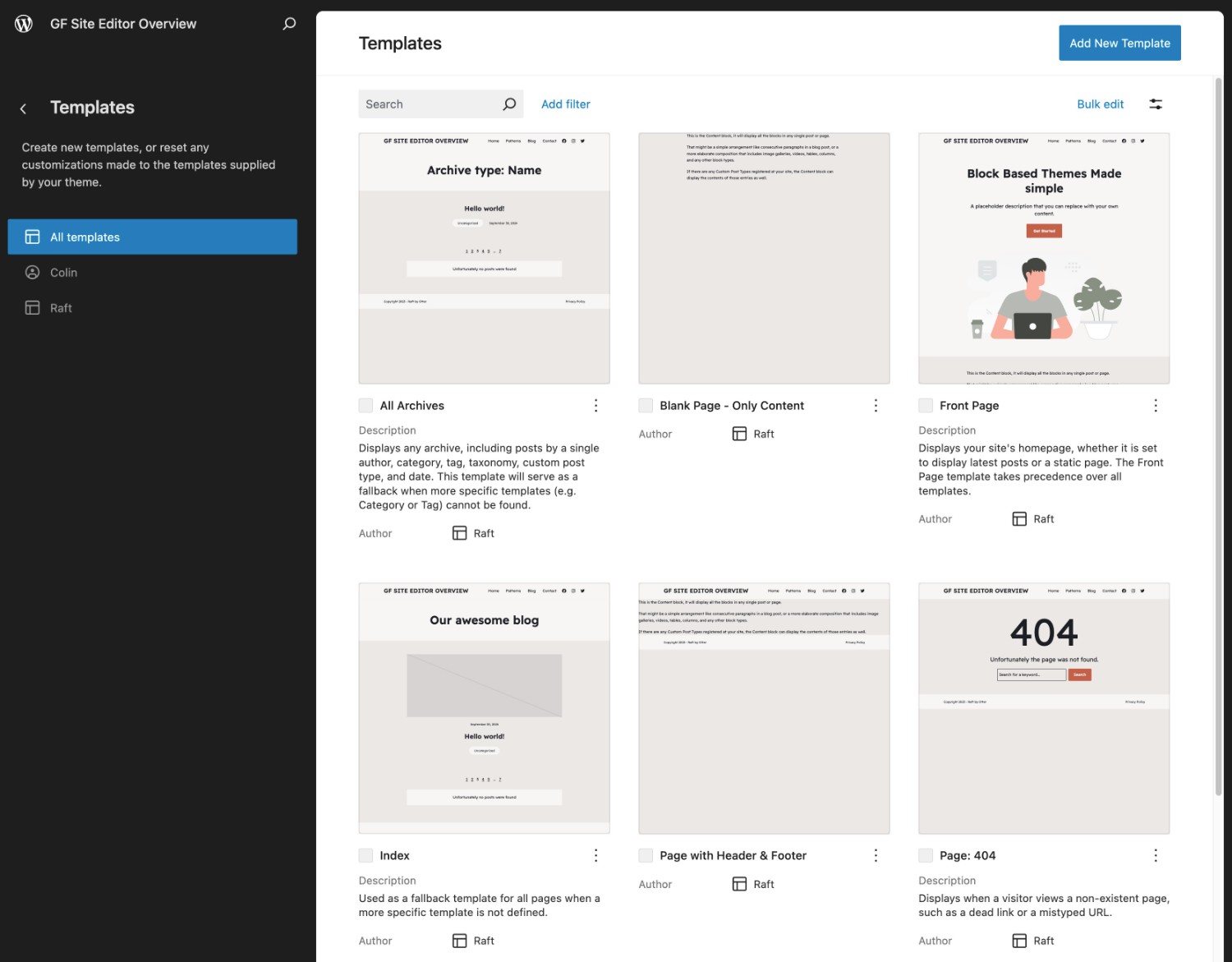
- Go to Appearance, then Editor, then Templates, and add a new template for Pages. Name it something obvious, like Landing page.
- Delete the Header and Footer template parts from it. Keep the Content block. That is your distraction-free shell, reusable for every campaign.
- Create the Page under Pages, then in the Settings sidebar set Template to Landing page. The Settings sidebar is the standard place WordPress exposes per-page controls in the block editor.
- Build the page in the content area with ordinary blocks: Cover or Group for the hero, Columns for benefits, an image or two, your form block.
Classic theme
Open the Page, and in the Settings sidebar look for Template. Most classic themes ship something called Full Width, Blank, Canvas or Page Builder. Pick it, then hide anything the theme still prints, usually through the theme’s own page options.
If the theme has no suitable template, add one in a child theme rather than editing the parent. A parent theme update will overwrite your file and take the design with it. A minimal blank template looks like this:
<?php
/* Template Name: Landing page */
?>
<!doctype html>
<html <?php language_attributes(); ?>>
<head><?php wp_head(); ?></head>
<body <?php body_class(); ?>>
<?php while ( have_posts() ) : the_post(); the_content(); endwhile; ?>
<?php wp_footer(); ?>
</body>
</html>
Save it as landing-page.php in the child theme. Keeping wp_head() and wp_footer() matters: drop them and your analytics, your form scripts and half your plugins stop loading on exactly the page you care about.
What goes on the page
The structure practitioners keep landing on is boring and stable: hero, the problem, the offer, no more than three feature sections, proof, objections, a repeated call to action.
The hero carries one H1 that echoes the ad or email that sent the visitor, one sentence of plain value, and one button. If the ad promised a free quote, the H1 says so. Proof goes after the benefits, not before, because a testimonial only reduces friction once the reader knows what is being offered. Named people with specific outcomes do more than a wall of anonymous “verified customer” quotes.
Keep one goal and one primary action. A second offer on the page is a second decision, and second decisions are where conversion goes to die.
The settings that decide whether the page works
Design is the part everyone looks at. These four are the part that breaks.
Slug. Short, campaign-aware, and unique. Check it does not collide with a plugin’s base, like /shop/, /docs/ or /kb/. If it does, change the plugin’s base in its settings rather than renaming the page a second time.
Indexing. Campaign pages fed only by ads can be set to noindex. Pages you also want found in search must be set to Index, with the canonical URL pointing at themselves, not at the homepage. Then check the SEO plugin’s site-wide settings, because a global “noindex Pages” rule quietly overrides the per-page fix you just made.
Navigation. Keep the page out of the main menu when traffic comes from ads or email. For a page that also serves organic search, a minimal header is a fair trade. For B2B offers, a single link to pricing or docs often costs less than the friction of hiding it.
The thank-you page. Create a separate page shown after submit, set the analytics goal on that URL, and tag campaigns with UTM parameters so you can compare channels. Without a distinct URL you are guessing which source produced which lead.
Check these before you send traffic
- Open the published URL in a logged-out browser, not the editor preview. Template problems and cache problems only show up there.
- Submit the form yourself. Confirm the entry arrives, the notification email arrives, and the thank-you page loads.
- Load it on a phone on mobile data. Check the CTA is reachable without pinching and the hero image is not a 2 MB JPEG.
- Confirm exactly one H1, descriptive button text (“Book a call”, not “Learn more”), and enough contrast on the button to read it outdoors.
- Purge every cache layer you run: the caching plugin, the host cache, the CDN. Then reload.
- Check the page in Search Console’s URL Inspection if it is meant to be indexed.
Do this again after any change to the page, not just at launch. Most silent landing page failures start with an edit that was never checked on the live URL. If keeping that loop going is the part that never happens, it is the kind of work you can hand to an agent that edits pages and reports back.
When the page is blank, 404s, or the form does nothing
Ranked roughly by how often each one turns out to be the cause.
Blank page or “There has been a critical error on this website”
Almost always a plugin or theme conflict, and almost always right after an update. Work in staging if you have it. Deactivate all plugins, then reactivate one at a time, refreshing the landing page after each. On a site with twenty or thirty plugins, halve the set instead of going one by one.
To avoid taking the live page down while you test, the Health Check & Troubleshooting plugin from WordPress.org disables plugins for your session only. Note the caveat on its directory listing: WordPress.org flags that it has not been tested with the latest three major releases, so check it on staging first. If you are locked out of the dashboard entirely, rename the plugins directory over SFTP to get back in, then turn WP_DEBUG on in wp-config.php and read the fatal error instead of guessing.
The page 404s
First confirm the page is published and that you are testing its current URL.
Go to Settings, then Permalinks, and press Save Changes without altering anything. That flushes rewrite rules and fixes most cases. If it does not, your .htaccess or Nginx config is not writable and rules are never being written. Then check what still points at the old URL: menu items, internal links, and live ad campaigns, which will keep spending on a 404 until someone notices.
WP Engine’s support docs recommend the same reset, and warn that changing the permalink structure itself on an established site can cause widespread 404s and hurt SEO. If the 404 survives the save, test for a plugin conflict on staging the same way as for a blank page, but leave the page builder itself active, because every page built with it breaks while it is off. After that, ask your host about rewrite rules.
If the page was built as a builder’s own landing-page type, such as Elementor’s Landing Page, rather than as an ordinary Page, the durable workaround is to save the design as a template and use it on an ordinary WordPress Page with the Canvas layout. Ordinary Pages also appear in the homepage selector, and some builder-specific landing types do not.
The homepage still shows posts or the old page
Publishing a page does not make it the homepage. WordPress’s Reading settings documentation says the front page shows your latest posts until you go to Settings, then Reading, choose “A static page” under Your homepage displays, and pick the page. If the theme still overrides that choice, the walkthrough on editing your WordPress homepage covers the theme files involved.
Landing page plugins with site-wide modes add a second trap. A Coming Soon or Maintenance mode is a separate switch from publishing a page. Check the public URL while logged out, because logged-in admins often bypass those modes and see a site that visitors do not.
Your edits do not show up
Cache, in one of three places. Clear the plugin cache, the host cache and the CDN, in that order, and retest in a private window. Host-level caching is often not configurable from the dashboard, so a correct exclusion in your caching plugin can still be defeated by the server. If edits keep going stale on this one page, exclude the page itself from caching.
The usual mistake is clearing only the browser cache and deciding the edit failed. If the page still looks wrong after every layer is purged, check for mixed content, meaning images or scripts loaded over HTTP on an HTTPS page.
The page is missing from Google, or a test page is in it
A noindex left on from staging keeps a public campaign page out of search, so check both the page’s own setting and the SEO plugin’s site-wide rule. The opposite mistake is using robots.txt to hide a private or test page. Google’s robots meta tag documentation explains that if robots.txt blocks a page, Google never reads its noindex, and the URL can still be indexed. Use noindex or a password for private pages, and robots.txt for neither.
The form submits and nothing happens
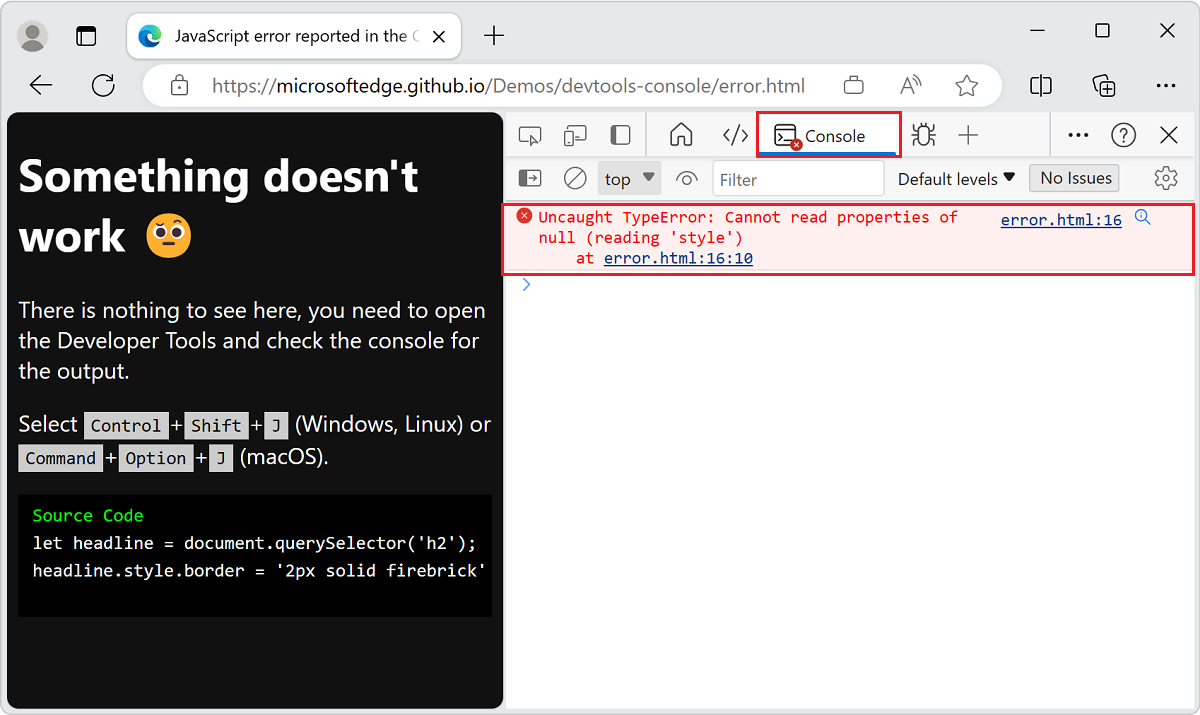
Open the browser console with F12 and watch for JavaScript errors as you submit. The usual causes: a security plugin blocking the AJAX endpoint the form uses, minification or JavaScript deferral changing script order, or mixed content on a page still loading an asset over HTTP. Inside a page builder, using the form plugin’s shortcode instead of its widget removes a whole class of these problems. Turning off JavaScript optimization site-wide to make one form work is a bad trade: exclude that script instead.
The form works but loses leads
Template forms often use placeholders as labels, and those vanish as soon as someone types. The W3C’s Web Accessibility Initiative says each field needs a real label tied to it, with the label’s for matching the field’s id:
<label for="email">Work email</label>
<input type="email" id="email" name="email" required>
Show required fields and errors in words, not only in red.
WooCommerce pages
A product landing page should use the Product post type, or a normal Page with WooCommerce blocks or the [product_page id="123"] shortcode. A Page with product copy pasted in has no cart integration. Cart, checkout and account endpoints must stay out of every cache layer, including the host’s. A cached checkout is a revenue failure that looks fine from the outside.
A product landing page that looks right can still fail to take orders. WooCommerce’s docs say the Cart and Checkout pages must be assigned under WooCommerce, then Settings, then Advanced, then Page setup. If either page is missing, recreate it with the Cart or Checkout block. Before you send ad traffic, place a test order from the landing page all the way through.
When to stop and get help
Stop when the fix requires editing files you cannot restore, when the error is a PHP fatal inside a plugin you did not write, or when the site is taking live ad traffic and you are more than half an hour into isolating a conflict. Roll back to the last backup, point the campaign at a working URL, and debug on staging. Firefighting on production with ad spend running is how a small problem gets expensive.