Give your WordPress site its first task.
Connect the site you already have, add your agent to Slack or Telegram, and tell it what you need.
Connect your siteStart with 500 free credits. No credit card needed.
A WordPress homepage can be a static page, a feed of your latest posts, a block theme template, a classic theme file or a page builder layout. Each one is edited in a different place. Find out which one your site uses first and the edit itself is quick. Skip that step and you can spend an hour changing something visitors never see.
You change the headline, click Update and reload the site, and the old headline is still there. On WordPress this rarely means the save failed. Usually you edited something other than what WordPress serves at the root of your domain.
“Edit the homepage” can mean three different jobs. You might be choosing which page WordPress shows at the root, editing that page’s content, or changing the template that lays it out. Each job happens on a different screen. Our guide to editing pages in WordPress covers the page editor in general. This article covers the homepage, which is where most of the traps are.
You need three answers first, and they take about two minutes to get:
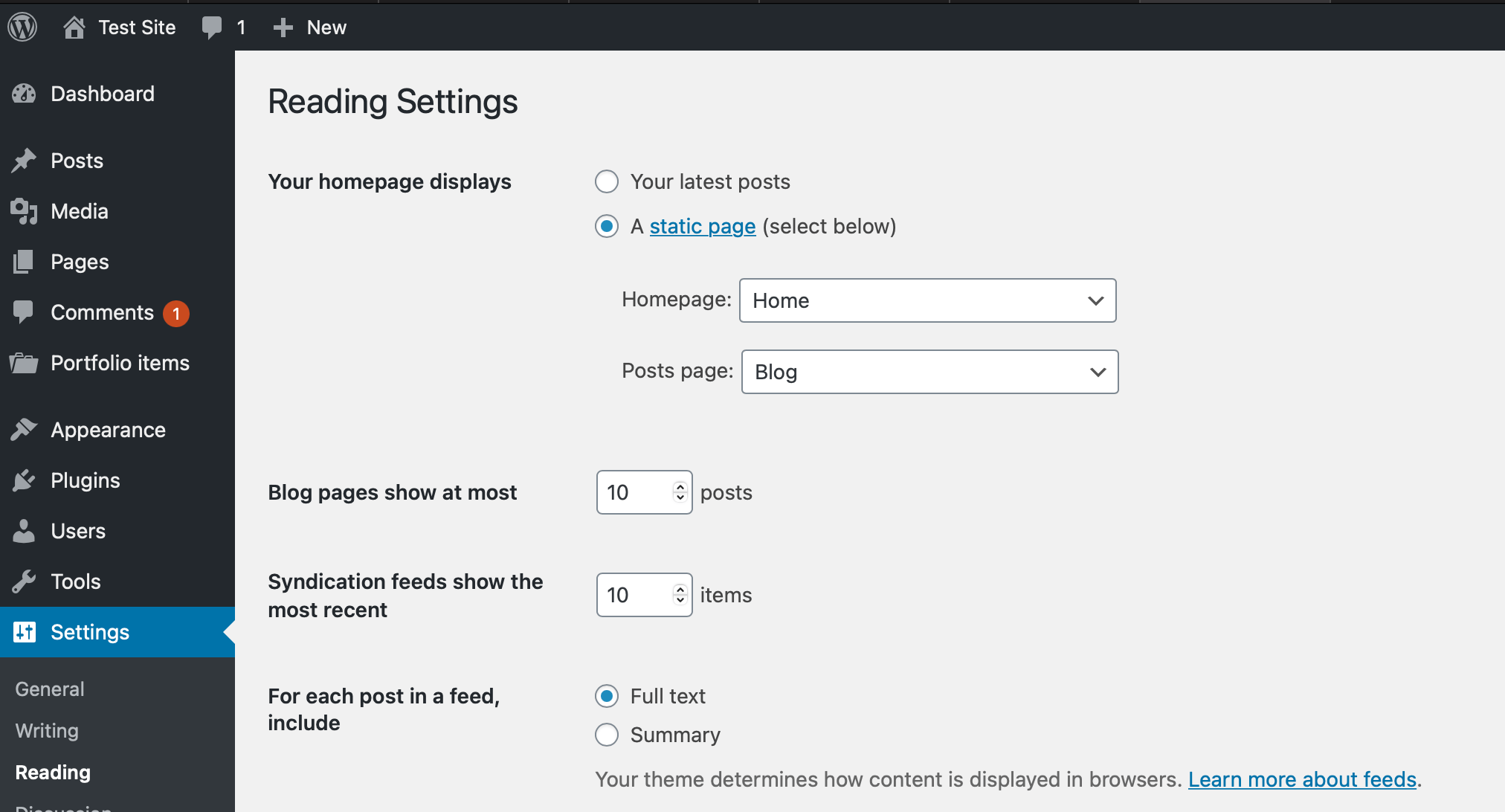
Those answers tell you where to make the edit:
| Your setup | Where to edit |
|---|---|
| Static page, block editor | Pages > All Pages, then the page named in Reading |
| Block theme with a Front Page template | Appearance > Editor > Templates > Front Page |
| Latest posts, block theme | Appearance > Editor, the Home or Index template |
| Classic theme | Appearance > Customize for the theme’s homepage options. If the theme has a front-page.php file, the layout lives in that file. |
| Page builder | The builder, opened from the live homepage |
One habit prevents most problems. Open the live homepage and click Edit in the admin bar. You get the document WordPress is actually serving, not a duplicate with the same title.
WordPress.org’s guide to creating a static front page gives the steps:
Calling a page “Home” does not make it the homepage. Only this setting does. After you save, WordPress marks the page “Front Page” in your Pages list, which makes it easy to find next time.
A template can override the Reading setting. WordPress.org’s additional guide to the Site Editor says that in a block theme, a Front Page template takes precedence over the Reading setting. Classic themes have the same rule. The template hierarchy uses front-page.php for the front page whatever Reading says. The name home.php is misleading: it is the posts index, not the homepage.
Here is what that means in practice. Suppose Reading names your page, you edit it, you publish, and nothing changes. Open Appearance > Editor > Templates and look for a Front Page template. A template only shows a page’s own content if it contains a Post Content block. Without that block, your page edits have nowhere to appear. You have two options: add a Post Content block to the template so page edits show up, or edit the template itself.
Colors and fonts that appear across the site belong in the Styles panel, not in each block’s settings. If you style blocks one by one, the next homepage change means redoing that work.
If your site shows latest posts, or the theme ships a Front Page template, the homepage is a template, and it may not appear in your Pages list at all. WordPress’s own contributors acknowledge this. Gutenberg issue #56244 is about making the Home page easier to find in the editor.
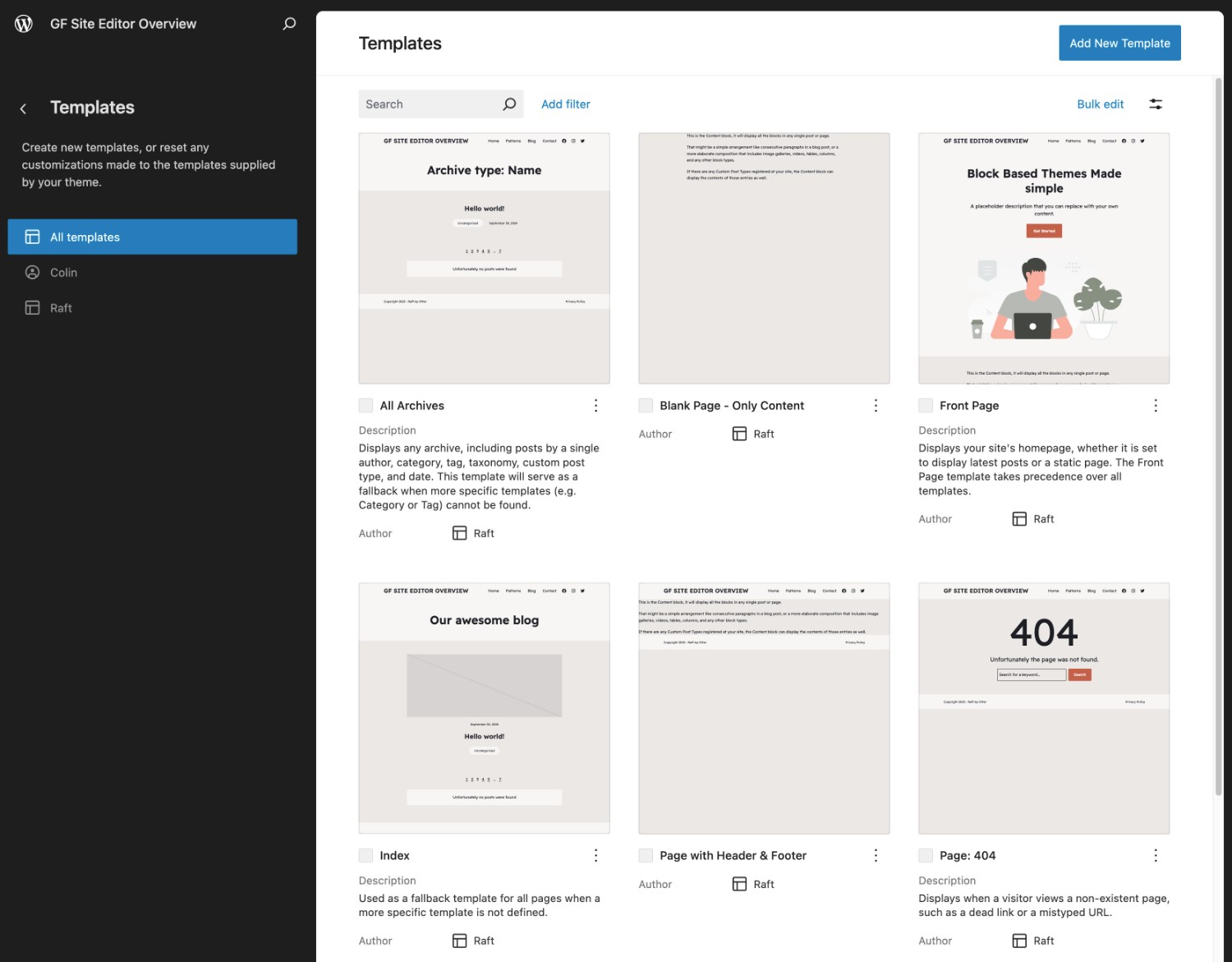
Pay attention to what you are editing. A change to the Front Page template only affects the root URL. The header and footer are template parts shared by every page, so editing them inside the homepage template changes them across the whole site. If a template edit goes wrong, the Site Editor keeps revisions and lets you reset a customized template to the theme’s default.
Classic themes send you to Appearance > Customize. The Homepage Settings panel there mirrors the Reading setting. Many themes add their own panels for homepage sections, such as the hero, featured boxes and widget areas. If the theme has a front-page.php file, some of the layout is written in PHP and no setting will change it. That is a job for a child theme, and our guide to editing themes without losing work explains why you should never edit the parent theme’s files.
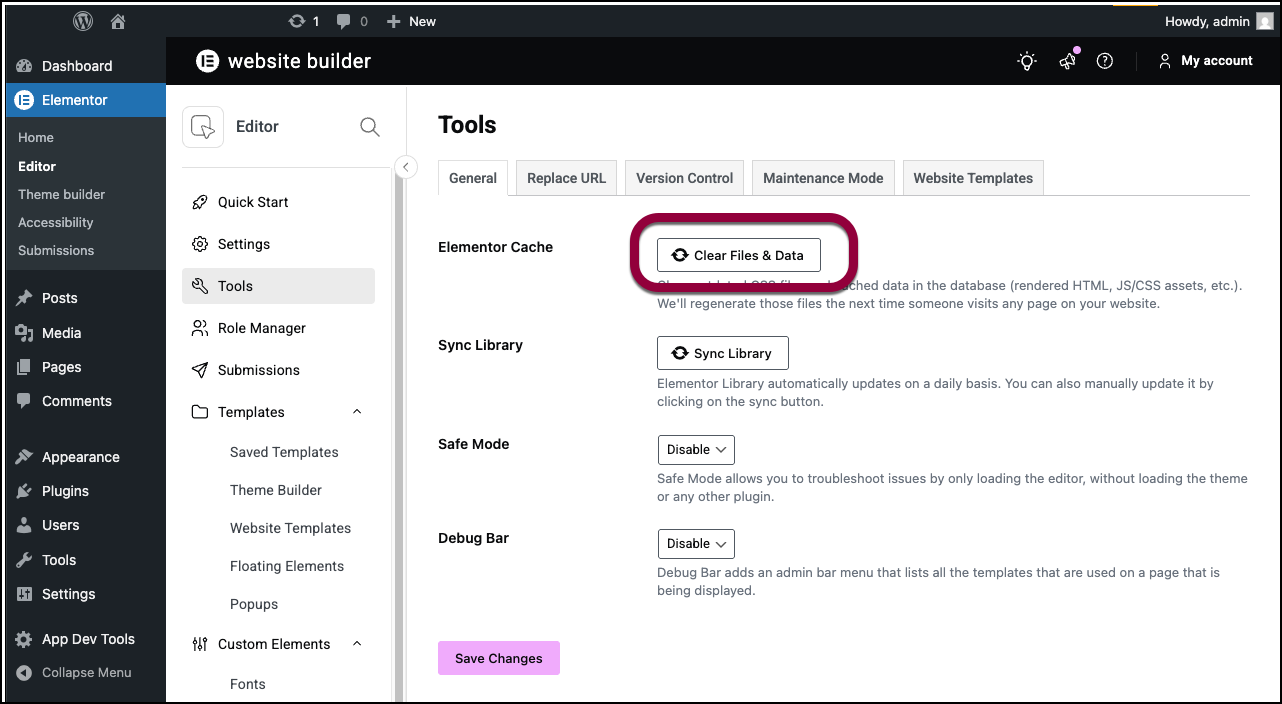
Open the live homepage and click Edit with Elementor in the admin bar, then click Update when you are done. Starting from the live page matters. On one WordPress.org support thread, an Astra starter-template import had created two Home pages and two Elementor Default Kits. The owner kept editing the copy that was not live, and caching turned out not to be the cause. If you think you have duplicates, check which page Settings > Reading names before you delete anything.
Do not open a builder page in the block editor and rewrite it there, because that can break the builder’s layout data. Elementor’s History panel, at the bottom left of the editor, lists recent revisions if you need to step back.
You may see “Sorry, the content area was not found in your page. You must call the_content function in the current template.” Elementor’s help page on that error gives two causes. Either the template has no content area, or you are trying to edit a dynamic page such as an archive or a shop page. Use Theme Builder for dynamic pages. A template that is missing the_content needs a developer or a different theme.
Check these in order. The cheap, common causes come first:
The WooCommerce Shop page. WooCommerce assigns its Shop page separately from your homepage. According to WooCommerce’s Product Catalog documentation, the layout of that page comes from the Product Catalog template in the Site Editor. Content you type into the Shop page may not appear.
Google still shows the old version. Search results are not your website. Google Search Central’s page on asking Google to recrawl says recrawling can take days to weeks. You can request it once with URL Inspection in Search Console. Requesting it repeatedly does not make it faster.
The homepage vanished after a theme switch. WordPress.com’s homepage troubleshooting guide notes that the old homepage can end up in Pages > Drafts. The same check works on any WordPress site: republish the page, then select it again in Settings > Reading.
Stop when the fix means editing front-page.php or adding the_content to a template. Stop when the error points to a host limit such as memory or a firewall rule, because only your host can change those. And stop before you delete pages or re-import a starter template to fix duplicates you have not identified yet. Doing that before you know which copy is live usually makes the damage worse.
Whoever helps you will want the same things: the URL, what Settings > Reading says, the theme, the builder, and the exact error text. If you would rather hand the change over, SiteSelf can make homepage and page edits through chat on request and tell you what it changed and checked, though it refuses pages owned by Elementor, Divi or Beaver Builder when the work starts.
No. WordPress edits happen in the dashboard: the page editor, the Site Editor or your builder. The Edit link in the admin bar on the live page takes you to the right one.
On a block theme that shows latest posts, or one with a Front Page template, the homepage is a template rather than a page. Look under Appearance > Editor > Templates.
In Settings > Reading, choose A static page, pick your homepage, and pick a different page as the Posts page. Leave that Posts page empty, because WordPress replaces its content with your post list.
SEO plugins set it in different places depending on your Reading setting. For a static homepage it is usually set on the page itself. For a latest-posts homepage it is in the plugin’s site-wide settings. Either way, Google shows the new title only after it recrawls the page.
People report success with a simple workaround: create a new page, copy the content across, and select the new page as the homepage in Reading. This is anecdotal. Afterwards, rename or delete the old copy so you do not create the duplicate-page problem.
The template itself only applies to the root URL. The header and footer inside it are shared template parts, so editing those changes every page on the site.
How-to Tutorials
For one “find us” location, a Google Maps embed pasted into a Custom HTML block needs no plugin and no API key. Plugins earn their place when you need several markers, a store locator or a map in a classic widget area. When a Google-powered plugin map shows a grey box, the cause is almost always the API key, the Google Cloud project, billing or the referrer settings. The theme is rarely the problem.
Read article ›How-to Tutorials
Updating a WordPress theme takes one click under Dashboard, then Updates. Nearly everything that goes wrong comes from the site around that click: custom code edited into the parent theme, a license tied to the wrong domain, file permissions, or no way back. Answer three questions before you update and most failures never happen.
Read article ›How-to Tutorials
SEO on WordPress comes down to a short list of settings you get right once, a check that those settings reached the live site, and then the slow work of making pages people want. A plugin handles the configuration. It does not rank anything for you, and a green score is not proof that Google can see your pages.
Read article ›Connect the site you already have, add your agent to Slack or Telegram, and tell it what you need.
Connect your siteStart with 500 free credits. No credit card needed.