Key takeaways
- Pages, then All Pages, then hover the title and click Edit. Quick Edit changes the title, slug and status without loading the editor at all.
- The editor that opens tells you where the content is stored. Block editor and classic editor save into the page content; an “Edit with Elementor” link means the layout lives in the builder’s data instead.
- The homepage is the usual trap. Settings, then Reading names the page, but WordPress’s template hierarchy checks front-page.php before any page template, so a theme file can override what you edited.
- WooCommerce’s documentation lists Shop, Cart, Checkout and My Account as pages it creates automatically, with no content required on Shop. Typing into that page changes nothing on the front end.
- If the editor will not load, work in this order: browser and cache, all plugins off, default theme, /wp-json/, PHP memory and error logs, then roles and database last.
You change a headline, click Update, refresh the live page, and the old headline is still there. Or the text changes and the spacing collapses on mobile. Or the edit link opens a purple screen that says Edit with Elementor and none of the tutorial steps match what you see.
Finding a page and typing in it is the easy part. The part that costs an afternoon is working out which layer of the site owns the thing you want to change. A page has content, but it also sits inside a template, which belongs to the theme, and editing a WordPress theme safely is a different job with different risks. Get the layer right and most edits take two minutes.
Open the right page before you change anything
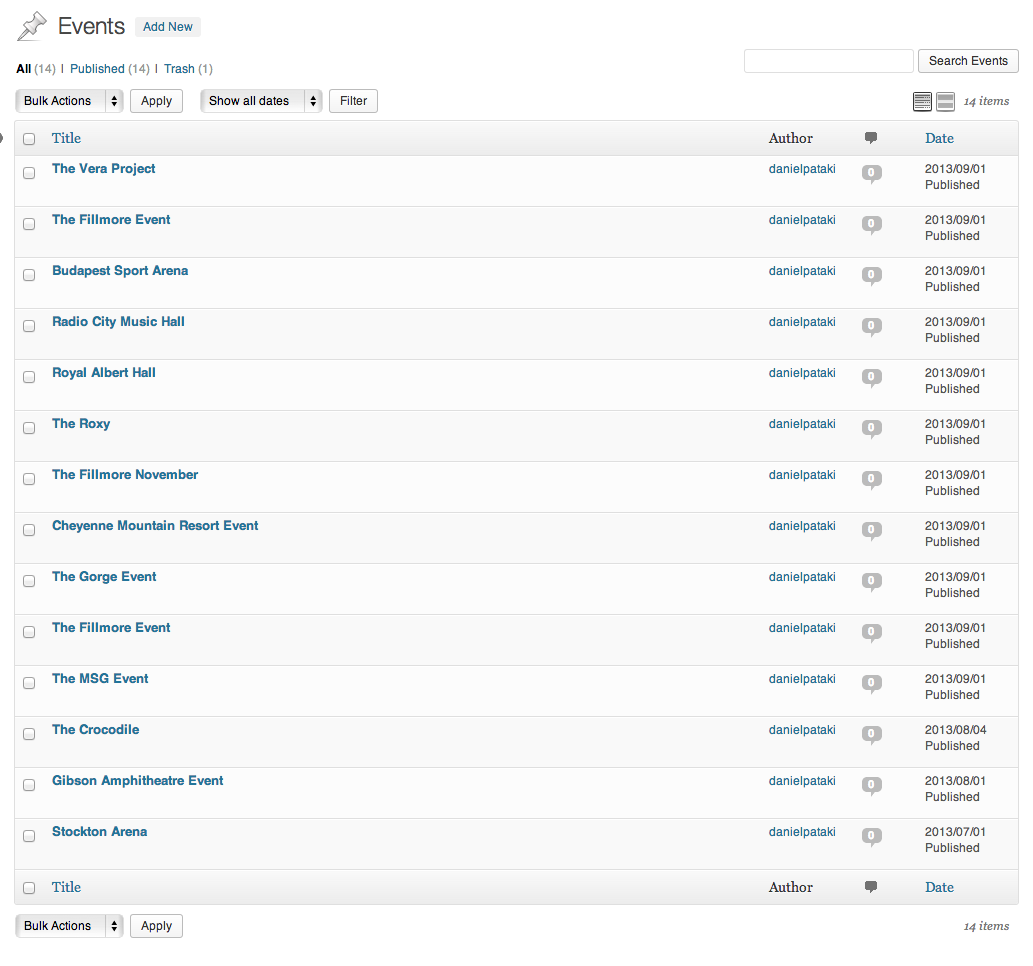
Log in at yourdomain.com/wp-admin, open Pages, then All Pages. Hover the title of the page you want and click Edit. Make the change, click Update. That is the whole flow, and on a simple page it works exactly as it reads.
Two shortcuts save time on busy sites:
- Quick Edit. Hover the title in the Pages list and click Quick Edit to change the title, the slug, the status or the parent without loading the editor. Click Update in the same row.
- The admin bar. While logged in, open the page on the front end and click Edit Page in the black bar at the top. This is the reliable way to be certain you are editing the page a visitor is looking at, not a similarly named copy.
That copy problem is common enough to check for. Sites accumulate duplicates: /about/ and /about-2/, a seasonal landing page cloned three times, a translated version that looks identical in the list. Before editing, confirm the slug in the row matches the URL you visited. You need the Administrator or Editor role to edit published pages; Contributors can write but not publish.
The editor that opens tells you where the content lives
WordPress.org’s documentation calls the default editor the block editor, the WordPress editor or the Gutenberg editor, all the same thing. It builds a page out of blocks: paragraph, heading, image, buttons, columns, group. What you type there is saved into the page’s content, so it is the layer you can reach and change with no help.
Three other things can open instead, and each one means something:
- One large text area with a formatting toolbar. That is the classic editor, usually because the Classic Editor plugin is active or the page holds a Classic block. Content still saves into the page. Layout control is minimal.
- A button that says Edit with Elementor, Edit with Divi or Beaver Builder. The builder stores the layout in its own data, not in the page content. Elementor’s listing in the WordPress.org plugin directory describes it as a drag and drop website builder, and the practical consequence is that the page’s design belongs to it. Edit that page in the block editor and you either change text nobody sees or you wreck the layout. Stay in the builder, or rebuild the page deliberately. Our explainer on what a landing page builder really does covers that tradeoff.
- The Site Editor, reached through Appearance then Editor. WordPress.org’s documentation says the Site Editor is only available when a block theme is installed and activated. If Appearance shows an Editor item, part of what you see on your pages is a template, and headers and footers are template parts rather than page content.
The same distinction explains locked blocks. If you select a section and the layout controls are missing, you are usually inside a pattern, which opens in content-only editing, or inside a template part being edited from a template. Text is editable, structure is not. Edit the pattern at its source, or open the template part directly, which is the same path as editing the footer in WordPress.
Change the block, not the container
Most “I broke the design” damage is a container that moved. A paragraph sits inside a Group, which sits inside a Column, which carries the padding. Drag the paragraph and the spacing goes with it.
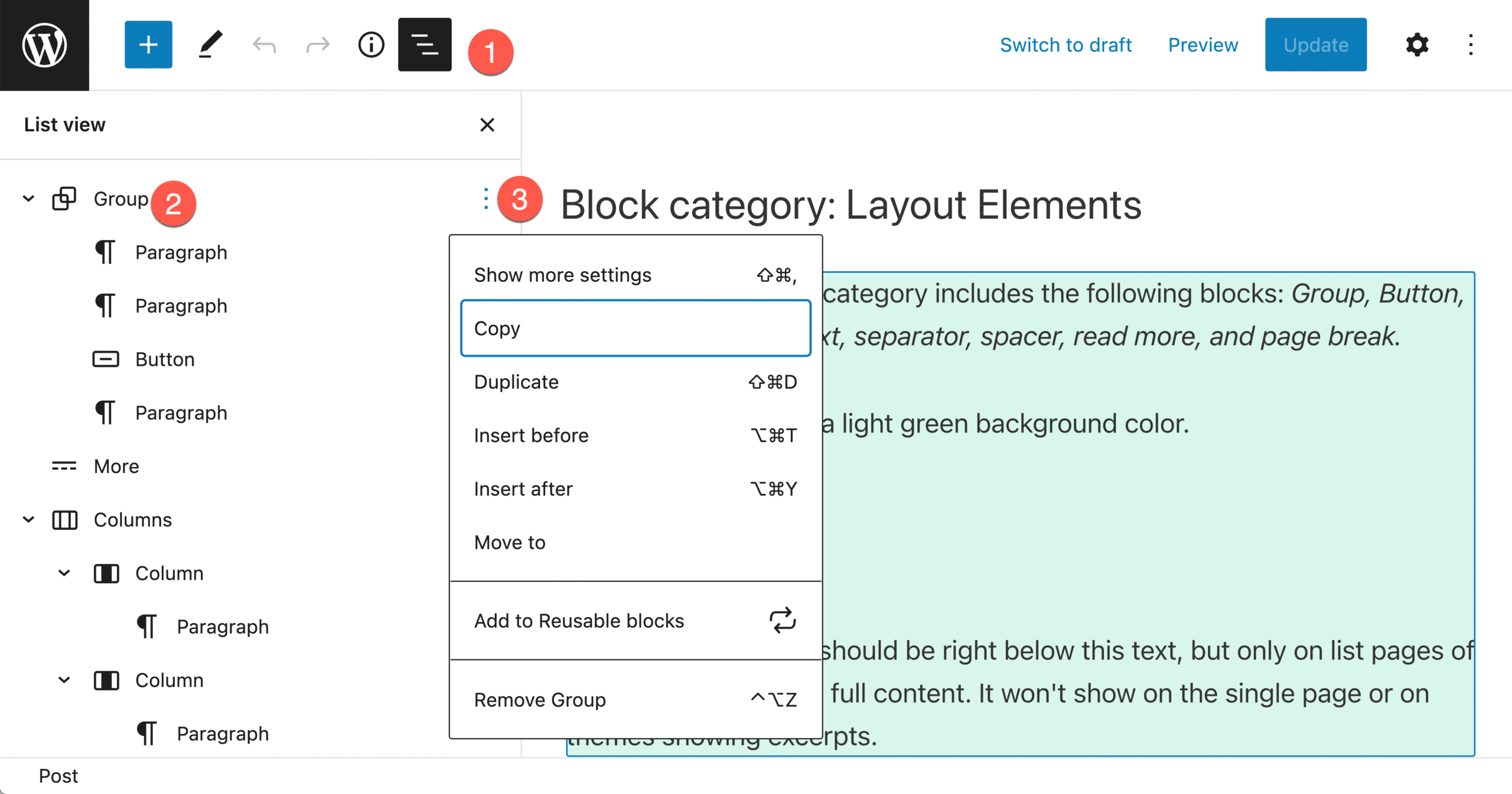
- Open List View (the icon at the top left of the editor). It shows the real nesting. Select the block you mean to edit there, not on the canvas.
- Use the sidebar, not just the toolbar. Dimensions, spacing, colour and typography live in the block settings panel on the right. If one call to action has custom padding and the next inherits theme defaults, they will look aligned in the editor and uneven on the live page.
- Duplicate a section that already works rather than rebuilding one. Right-click the block in List View, choose Duplicate, then change the text. Inherited settings come with it.
- Save a draft first on anything structural. Revisions are good for text and weak for layout, especially with synced patterns involved.
- Preview in a new tab, and check it logged out. An incognito window shows what a visitor gets, without your admin styles or your cache.
For small markup fixes, the three-dot menu at the top right switches to the Code editor, and a Custom HTML block holds raw markup inside a page. Structural changes belong in a child theme, not in the page.
You clicked Update and the live page looks the same
The edit almost always saved. Something else is deciding what visitors see. Work down this list in order, because the cheap causes are also the common ones.
- Your browser. Hard refresh with Ctrl+Shift+R, or Cmd+Shift+R on a Mac, then load the URL in a private window.
- Site and CDN cache. Purge the caching plugin, then the host’s cache, then Cloudflare or whatever sits in front. Two cache layers with no exclusion for the admin will also break the editor itself, not only the front end.
- The wrong page. Compare the slug you edited against the URL in the address bar. Duplicates and translated copies look identical in the Pages list.
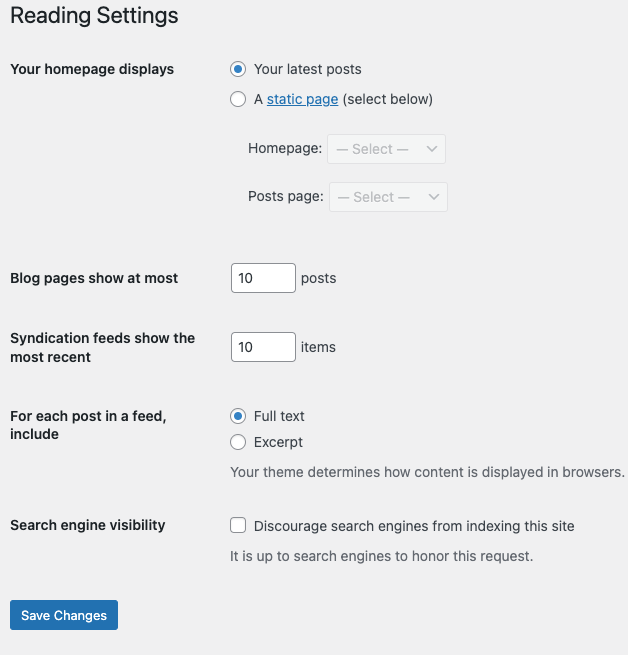
- A template is printing the homepage. Check Settings, then Reading, which is where WordPress decides whether the front page shows your latest posts or a static page. Even when that setting is right, the theme handbook’s front page hierarchy checks
front-page.phpbefore the page you selected, so a theme file can output a layout that owes nothing to the page editor. Change it in the template, in a child theme so an update does not wipe the work. - The content is builder data. Open the page and look for an Edit with Elementor or Edit with Divi link. If it is there, that is where the visible text lives.
- You are looking at the wrong environment. Staging edits stay on staging until someone pushes them.
The WooCommerce Shop page deserves its own line, because it is the single most reported version of this. WooCommerce’s own documentation lists Shop, Cart, Checkout and My Account as pages created automatically during setup, and notes that Shop requires no content. WooCommerce builds the product listing on the fly. Editing that page does nothing. Change the Product Archive template in the Site Editor, use your theme’s catalog options under Appearance then Customize if it has them, or build a normal page with a shortcode such as [products columns="3" orderby="date"] and assign it as the shop page in WooCommerce settings.
If tracking down which layer owns a change is not how you want to spend the afternoon, SiteSelf handles WordPress page edits through chat: you say what to change, the agent finds the page, makes the change, fetches the result and reports what it changed and what it checked, and pages owned by Elementor, Divi or Beaver Builder are refused at the moment of work, with the reason.
When the editor will not load at all
A blank editor canvas, a critical error on the edit screen, or a 404 on the edit link is a different problem from an edit that does not appear. WordPress.org support replies and builder documentation converge on the same sequence. Follow it in order; the early steps are reversible and the last one is where people lock themselves out.
- Browser and cache. Different browser, private window, cache cleared. Five minutes, and it settles a surprising share of cases.
- All plugins off. Not two suspects, all of them. If editing works, reactivate one at a time until it breaks. The last one you switched on is the culprit. One WordPress.org thread titled “Cannot edit page until I disable BOGO” is a clean example of the pattern: the reporter first blamed the theme and the host, saw “You attempted to edit an item that doesn’t exist. Perhaps it was deleted?”, and found the answer in the plugin they had installed most recently. Our guide to fixing WordPress plugins that are not working walks the isolation process in detail.
- Default theme. Switch to a recent bundled theme such as Twenty Twenty-Five and retest. Theme and core updates that land out of step are a repeatable trigger: a theme stylesheet loaded into the editor can render your content white on white.
- Check /wp-json/. Load
yourdomain.com/wp-json/in a browser. You want JSON. A 403, a 404, an HTML page or a PHP warning printed above the JSON gives you the classic blank block editor. Resave Settings, then Permalinks, with no changes to reset routing, then look at security plugins and host firewall rules that filter that path. - PHP memory and logs. A white screen with nothing in the browser console usually means a PHP fatal error. Add
define('WP_MEMORY_LIMIT', '512M');towp-config.php, and raise the server’s ownmemory_limittoo, since WordPress cannot exceed it. Then read the PHP error log, or ask the host for it, because more memory hides a fatal error rather than fixing it. The white screen troubleshooting guide goes through the log reading. - Roles and capabilities, last. “Sorry, you are not allowed to edit this item” on an account that shows as Administrator usually means capabilities in
wp_usermetaare wrong, or a membership or role manager plugin is overriding them, or you are an admin on a different site in a multisite network.
When to stop and get help
Stop at the database. Editing user capabilities by hand in phpMyAdmin is how people lose access to their own site, and it is the step to hand to a developer along with the error log. Stop too when the cause is a plugin’s code rather than its settings: a plugin that opens output buffering without closing it, or ships files with whitespace after ?>, corrupts the JSON the editor depends on, and only the plugin author or a developer can fix that. And back up before any of this, on a staging copy where you have one. Running a full plugin deactivation test on a live store during business hours is its own outage.