Key takeaways
- Open the Appearance menu first: an Editor item means a block theme and a Footer template part, while Customize and Widgets point at a classic theme’s footer panels and widget areas.
- On block themes the footer sits under Patterns or Template Parts depending on the theme, so check both before concluding it is missing.
- If no dashboard screen changes the text, it is hard-coded in footer.php or printed by a theme credit hook, and the update-safe fix is a child theme copy, not an edit to the parent.
- Leave <?php wp_footer(); ?> in place immediately before </body>. Delete it and analytics, pixels and plugin scripts stop printing while the page still looks fine.
- Tracking code belongs in a header and footer snippet plugin such as WPCode, so it survives theme updates and theme switches.
Most footer edits are one line of text: a stale copyright year, a missing privacy link, a phone number that changed. The edit takes ten seconds once you are in the right screen. Getting to the right screen is the whole job, because WordPress has four systems that can each own the bottom of the page.
A block theme keeps the footer as a template part in the Site Editor. A classic theme keeps it in Customizer panels, widget areas, or baked into footer.php. A page builder may hold its own footer template. Editing the wrong one is why people say the site “did not save” when it saved perfectly, just somewhere that does not render. The same routing problem shows up whenever you edit themes in WordPress, and the fix is the same: diagnose the layer, then edit.
How to tell which layer owns your footer
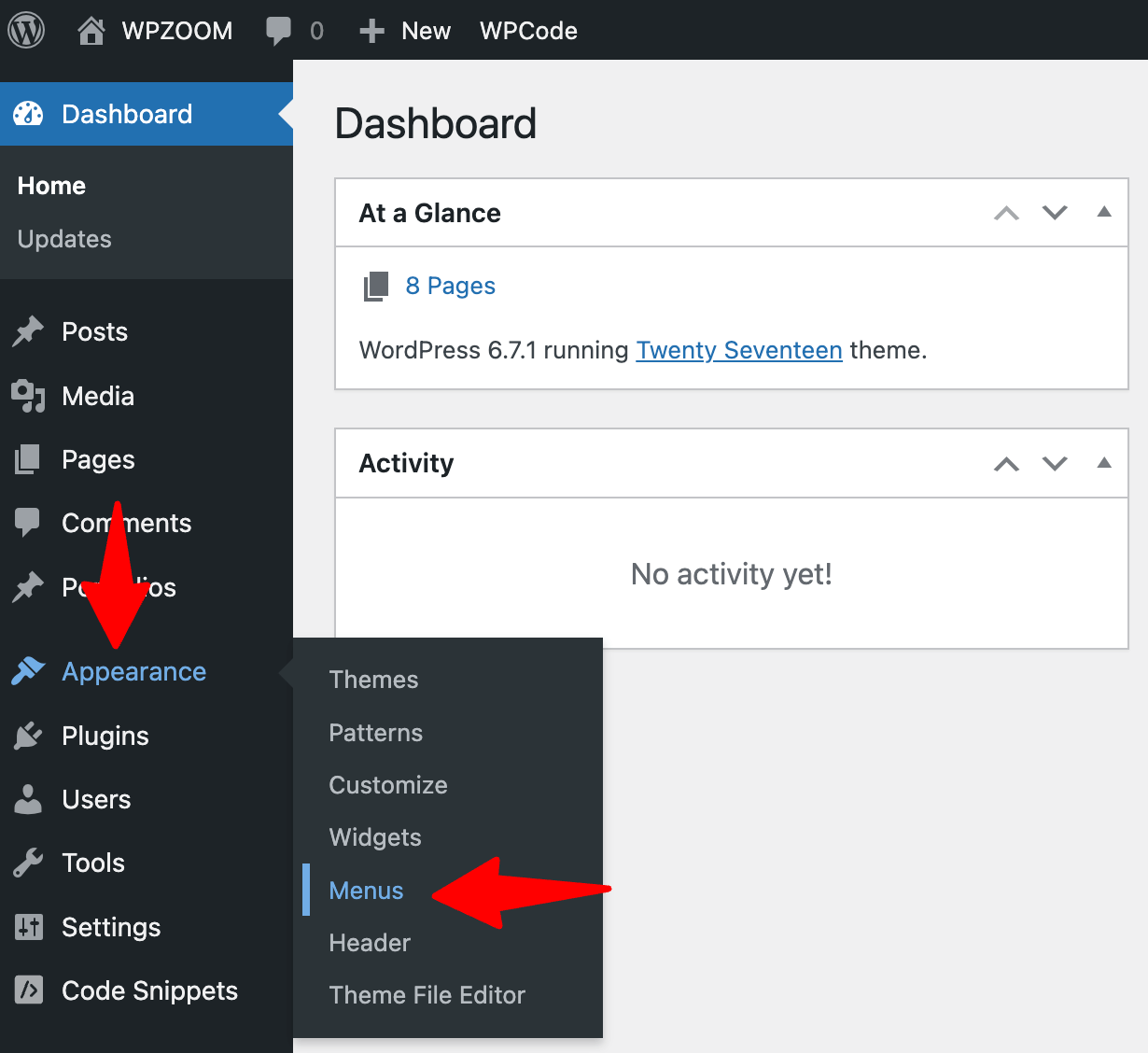
Log in and look at the Appearance menu. That one menu answers the question in a few seconds.
- Appearance has an Editor item: a block theme is active. The footer is a template part inside the Site Editor. WordPress.org’s documentation says the Site Editor is only available when a block theme is installed and active, so its presence is a reliable signal.
- Appearance has Customize and Widgets but no Editor: a classic theme is active. The footer lives in a theme panel in the Customizer, in footer widget areas, or in the theme’s own options screen.
- A page builder runs the site’s templates: check the builder’s own template or theme-builder area too. Builders sometimes take over the footer and sometimes leave it with the theme, and which one is true decides where you edit.
- None of those screens contain the text you can see on the front end: the footer is hard-coded in a theme file or printed by a theme credit hook. Skip to the child theme section below.
One more check before you start. Look at what you are about to edit and ask whether it is global. A footer template part changes every template that includes it. A widget in Footer 1 changes every page with that sidebar. A block you added to the bottom of a single page template changes that view only. Almost every “it only changed on one page” report is that last case.
Block themes: edit the Footer template part, not the bottom of a template
Go to Appearance, then Editor. From there, themes differ in where they file the footer, which is the single most common reason people decide it is missing:
- Try Patterns, then look for a Footer entry, often grouped under a heading such as Template Parts or All template parts.
- If your version shows Template Parts as its own item, look there instead.
- Failing both, open Templates, pick any template such as Index or Single, scroll to the bottom of the canvas and click into the footer area. The block toolbar will name it as a template part, and the three-dot menu gives you an edit option that takes you into the part itself.
- From the front end, the admin bar’s Edit Site link drops you into the same editor. Scroll to the footer, hover, and click the edit control that appears.
Inside the part, edit blocks as you would anywhere else: paragraph text for the copyright line, a Navigation block for footer menus, Social Icons, Site Logo, columns for a multi-column layout. Then save. The save dialog lists what is being written, and for a footer edit it should name the Footer template part. If it lists a template such as Single or Page instead, you edited the template, not the part, and the change will not follow you across the site.
Spacing and padding are block settings, not footer settings
There is no “footer padding” control, which sends people hunting for a setting that does not exist. Select the Group block that wraps the footer content, open block settings, and set Styles, then Dimensions, then Padding. Check the mobile preview before saving, because a footer that looks balanced at desktop width often collapses badly at 375 pixels. If the footer is built from nested Columns inside Columns, flattening it to one Group with a few child blocks makes the spacing predictable and easier to debug later.
Classic themes: the Customizer panel, widget areas, or neither
Open Appearance, then Customize, and look for a panel with any of these names: Footer, Footer Bar, Bottom Bar, Footer Builder, Site Identity, Theme Options, Site Info or Copyright Text. Theme authors name the same thing a dozen ways. Inside, you are usually looking for a field called Footer Text, Copyright Text or Footer Credits.
Two things trip people here. First, Customizer changes stay in preview until you click Publish. A change that looks applied in the preview pane and absent on the live site is usually just unpublished. Second, some themes accept shortcodes in that field, commonly [current_year] and [site_title], which means the year updates itself every January instead of going stale.
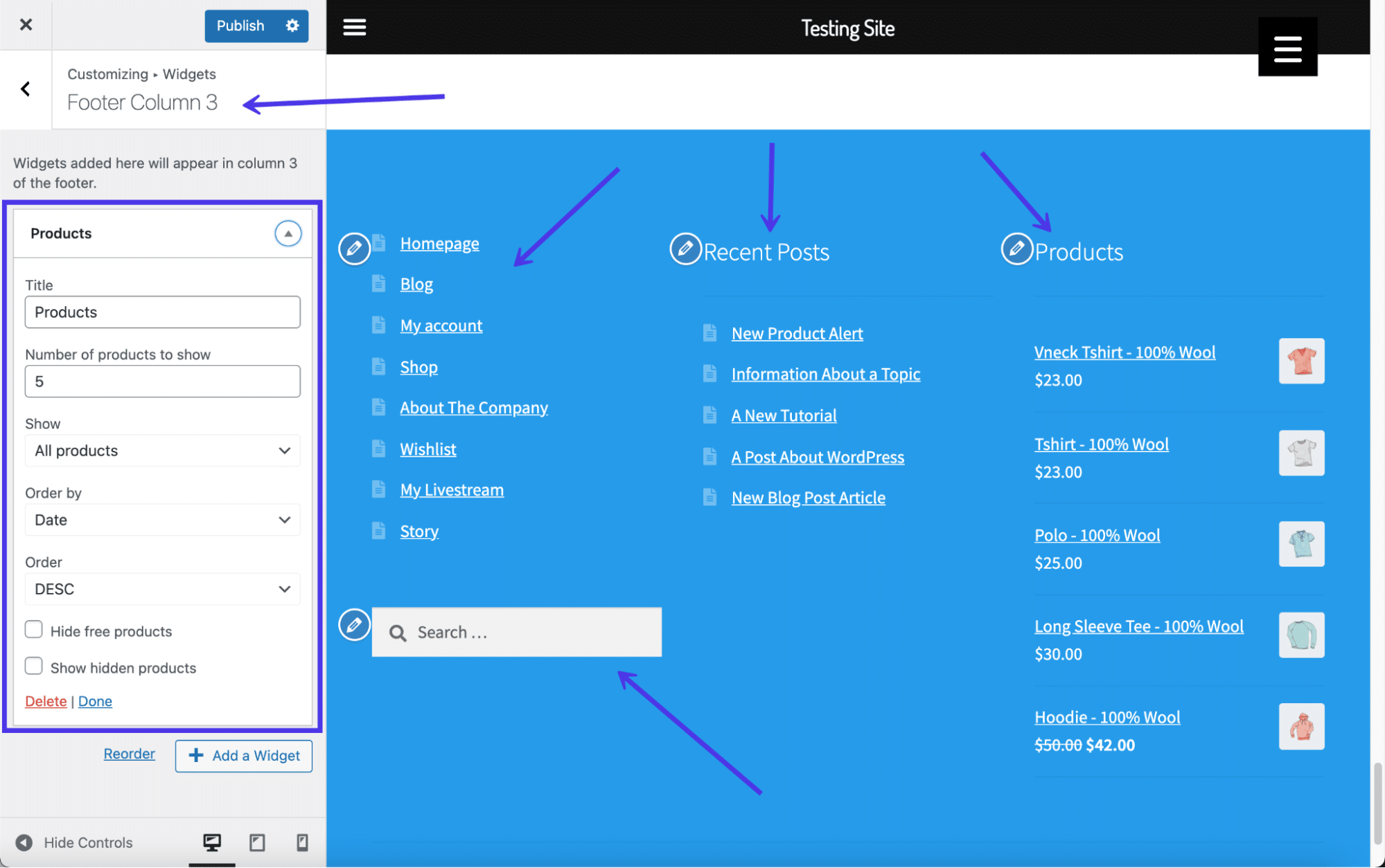
For widget-based footers, go to Appearance, then Widgets, and look for areas named Footer, Footer 1, Footer 2, Footer Column or Footer Bottom. Edit the Text or Custom HTML widget that holds your content, or add a Navigation Menu widget for legal links. If the footer area lists no widgets and offers nowhere to add them, the theme does not support footer widgets, and more hunting will not produce one. That is the moment to switch strategy rather than keep clicking.
If there are several text widgets in the same footer area, make sure you have the right one. Widget IDs such as text-4 and text-5 look identical in the list. Change a word in one, watch the preview, and you will know which instance renders where.
When no screen in the dashboard changes the footer text
Then it is in the theme’s code. Classic themes keep the closing markup in footer.php, which WordPress’s theme handbook treats as a template partial that other template files pull in. Some themes print credits through an action hook of their own, along the lines of do_action( 'theme_name_credits' ), so the text is not in the file you are reading either.
Editing the parent theme’s footer.php works right up until the next theme update overwrites it. Use a child theme instead. WordPress’s handbook describes child themes as a way to modify an existing theme without editing that theme’s code, and a copied footer.php in the child folder takes priority over the parent’s.
- Take a backup, or make sure your host’s restore point is recent, before you open any PHP file.
- Create or activate the child theme.
- Copy
footer.phpfrom the parent theme folder into the child theme folder, keeping the same filename. - Edit only the human-readable text and HTML. Leave PHP functions, tags and structure as they are.
- Upload, then reload the front end.
The one line you must not remove is the footer hook. WordPress’s function reference describes wp_footer() as firing the action that prints scripts and data before the closing body tag, and plugins rely on it:
<footer id="site-footer">
<p>© <?php echo esc_html( date( 'Y' ) ); ?> <?php bloginfo( 'name' ); ?></p>
</footer>
<?php wp_footer(); ?>
</body>Delete or relocate that call and the page still renders, which is what makes it nasty. What stops is analytics, tracking pixels, chat widgets and any script a plugin enqueues in the footer. People then spend an afternoon debugging the plugin that is working fine.
Two failure signatures tell you a PHP edit went wrong: a blank white page, or “There has been a critical error on this website.” With debugging on or in the server error log you will see something like Parse error: syntax error, unexpected ... in wp-content/themes/your-theme/footer.php on line 42. The line number is the fastest route back. Restore your backup, or re-upload the original footer.php from a fresh download of the theme, then redo the change in the child theme.
If a theme’s footer links are wrapped in eval( base64_decode( '...' ) ), stop. That is a theme hiding its own links from you, and it is a reason to question where the theme came from rather than a puzzle to solve.
Adding tracking code to the footer without touching the theme
Scripts are a different job from footer design, and they should not go in footer.php at all. A header and footer snippet plugin stores the code outside the theme, so it survives theme updates and theme switches. WPCode’s listing in the WordPress.org plugin directory describes exactly this: inserting header and footer scripts, pixel code and custom snippets. Install it, open Code Snippets, then Header & Footer, paste into the Footer box, and save.
Two caveats. The footer box still depends on wp_footer() existing in the theme, so a theme with a mangled footer file makes the plugin look broken. And a heavy third-party script in the footer is still a heavy script: test the page after adding it rather than assuming footer placement makes it free.
WooCommerce stores have two footers
On a store, “the footer” is ambiguous. The storefront footer is a theme object and follows the rules above: Customizer panels on a classic theme such as Storefront, the Footer template part on a block theme, and Appearance, then Menus, to assign a dedicated footer menu for terms and privacy links. Some block-and-classic hybrid themes ship both a block footer and a classic footer, and only the active mode shows your edit, which is worth checking before you assume nothing saved.
The email footer is a separate system entirely. WooCommerce’s settings documentation lists an Emails tab under WooCommerce, then Settings, and the footer text used in customer emails is edited there under the email template options, with placeholders such as {site_title} and {site_url}. For structural changes, copy wp-content/plugins/woocommerce/templates/emails/email-footer.php into wp-content/themes/your-child-theme/woocommerce/emails/email-footer.php and edit the copy. Editing the file inside the plugin folder works until the next WooCommerce update replaces it.
Check the edit before you call it done
A footer change touches every page, so verify it like one:
- Load the home page, one blog post and one other page type. A correct template part edit appears on all of them.
- Clear the site and host cache, then reload in a private window. Managed hosting caches routinely make a saved change look like a failed one, and re-editing on top of a stale page makes the mess worse.
- Check the mobile width. Footers break there first.
- Click the links you touched, including the legal ones.
- Confirm the footer is still a real
<footer>element if you rewrote the markup. Replacing it with a plain<div>removes the landmark that screen reader users rely on to jump there.
Know the way back before you need it. Site Editor template parts have revisions in the sidebar. Widget content can be pasted back from a copy you kept. File edits come back from the backup you took in step one, which is the step people skip.
When to stop and get help
Stop if the footer text is not in any dashboard screen and you are not comfortable working in theme files, if the site is already showing a critical error, or if the credits are obfuscated. Stop also if the request is “change this one line” and the answer keeps turning into FTP access and a child theme, because the cost of the workaround has overtaken the cost of the change. Design changes on an existing WordPress site are the kind of work SiteSelf does through chat, using the connector plugin for content and settings and hosting access for anything in theme files, though pages owned by a visual page builder are refused with the reason.