Give your WordPress site its first task.
Connect the site you already have, add your agent to Slack or Telegram, and tell it what you need.
Connect your siteStart with 500 free credits. No credit card needed.
WordPress has no single switch that password-protects a whole website. The built-in setting covers one post or page, a whole-site lock needs a plugin or your host’s password tool, and uploaded files usually stay public unless you protect them at the server. Pick the method that matches what you are protecting, then test it logged out with caching in mind.
Where you add a password to a WordPress site depends on what you want to hide. The editor’s Visibility setting protects one post or page. Locking the whole site takes a plugin or a password tool from your host. Locking uploaded files takes server-level protection. Most “it doesn’t work” reports come from using a tool on the wrong scope, or from a cache serving the page without its gate.
Use this guide to choose a method and set it up. If you only need one page, our guide to password protecting a single WordPress page goes into more detail on that case.
Start with the scope. The table below matches each common need to the method that covers it, along with the limit people most often miss.
| You want to protect | Use | Watch for |
|---|---|---|
| One post or page | WordPress Visibility setting | Title stays visible, 20-character limit |
| The whole site, without host access | A sitewide plugin | Caching, uploads stay public |
| A staging site or pre-launch build | Your host’s password tool (HTTP Basic Auth) | CDN conflicts, wp-cron stops |
| A store or selected products | WooCommerce product settings or a WooCommerce extension | Protected products still listed |
| PDFs, images, member documents | Server or directory protection | Page passwords do not cover them |
| Access per person, revocable | User accounts or a membership plugin | A shared password can’t tell people apart |
This is built into WordPress and needs no plugin. WordPress.org’s documentation describes it as a per-item setting, not a site-wide one.
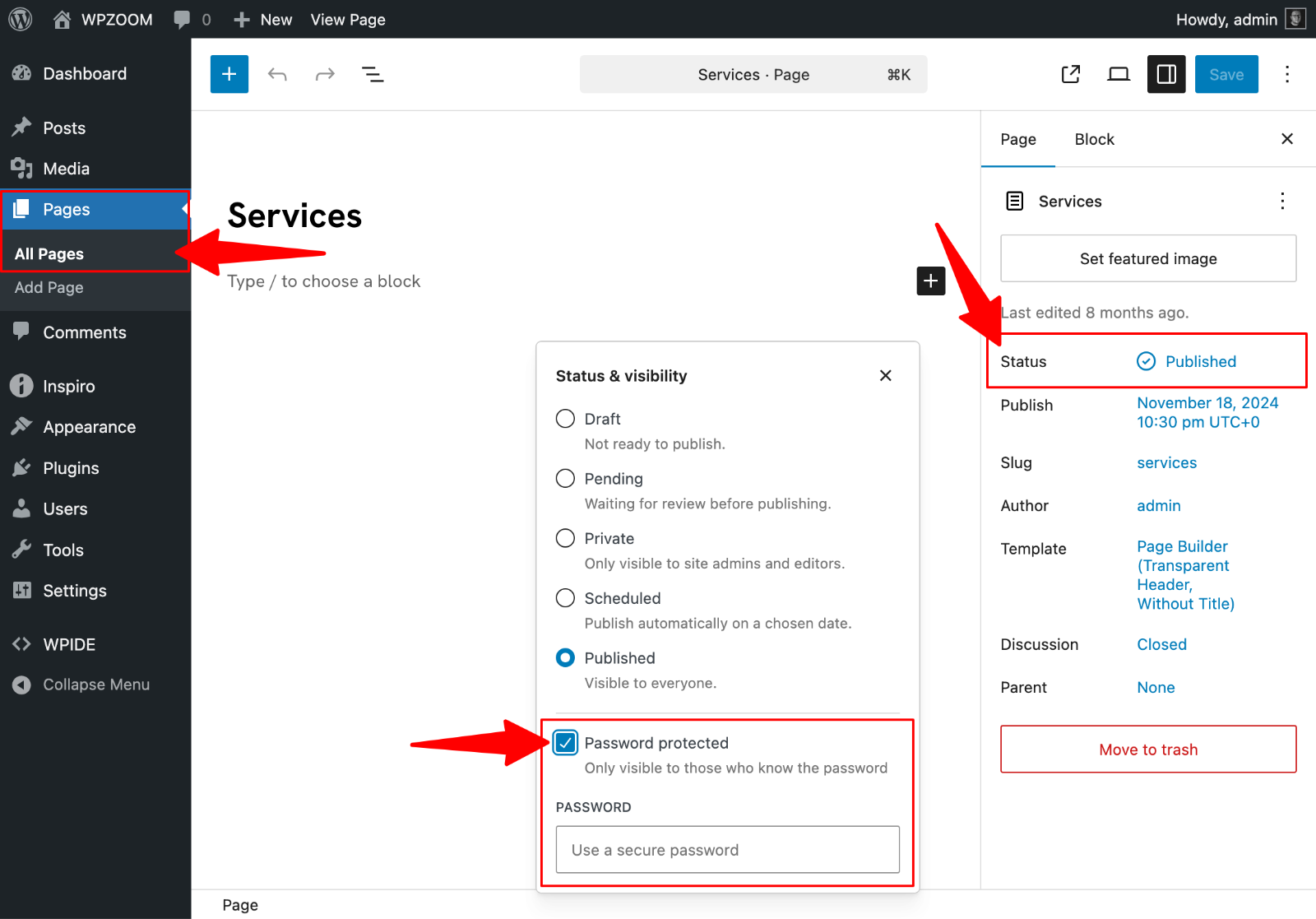
Know the limits before you share the link. WordPress.org’s “Protect posts with password” page says the password can be at most 20 characters, the title stays visible, and the browser remembers access through a cookie. That cookie tracks only one post password at a time, so a visitor moving between pages with different passwords has to re-enter the earlier one. Administrators, Editors and the post’s Author can see the content without the password.
“Private” is a different setting. A private page is visible only to logged-in Administrators and Editors. Use it for internal notes, not for sharing with a client.
The visible title matters for previews. A protected draft sits on the live site, titled and listed. For client reviews, a staging copy behind a host password usually works better.
To remove protection, set Visibility back to Public and click Update.
Whole-site privacy isn’t part of WordPress core, as WordPress.org’s installation FAQ notes, so you need a plugin or a host tool. A plugin is the easier route when you have wp-admin access but no hosting panel.
The most widely installed option is Password Protected (slug password-protected). It has more than 300,000 active installs, and its WordPress.org listing says protecting the complete site is free. Several plugins have similar names, so check the slug and author before you install. Our guide to installing a WordPress plugin safely covers that check, plus taking a backup first.
If the prompt locks you out, rename the plugin’s folder in wp-content/plugins over SFTP. WordPress deactivates a plugin it can’t find, and the gate goes with it.
Selective rules, such as a public homepage with everything else locked, are often in paid tiers. Check the free tier covers your rule before you build around it. Keep these plugins updated like any other code that controls access.
HTTP Basic Auth is a browser prompt the web server shows before WordPress loads. It covers the login page, every URL and the uploads folder at once. That makes it the usual choice for staging sites and pre-launch builds.
Most hosts offer it as a panel tool. In cPanel it is Directory Privacy: select the site’s root folder, turn on password protection, name the area, and create a username and password. On Kinsta it is under MyKinsta, Sites, your site, Tools, Password protection.
On an Apache server without a panel tool, create a password file outside the public folder and add four lines to .htaccess. Back up the file first, and put the block above WordPress’s rewrite rules without touching them.
htpasswd -c /home/youruser/.htpasswd clientname

AuthType Basic
AuthName "Client preview"
AuthUserFile /home/youruser/.htpasswd
Require valid-user
Host-specific behaviour is where this goes wrong:
.htaccess. Pasting these lines on an Nginx host does nothing. Use the host’s own tool..htaccess and try again.Server passwords also block requests the site makes to itself. WooCommerce’s Product Search FAQ notes that the server rejects the wp-cron request, so scheduled tasks quietly stop running. Scheduled posts, imports and emails can fail on a protected staging site, as our article on autoblogging plugins and missed schedules describes. Webhooks and payment callbacks can fail the same way.
A product’s own password gates its page, not its listing. WooCommerce’s product editor documentation says a password-protected product can still appear in the catalog. To take it out of the shop and search results, set Catalog visibility to Hidden in the product’s Publish box.
For a private store or early-access sale, WooCommerce’s Password Protected extension can lock the whole site, the store including cart and checkout, or selected products, categories and pages. Its documentation lists a setting to hide protected products completely on shop and archive pages.
Category locks can break automation. One store owner on r/woocommerce found a category-protection plugin blocked CSV imports and a supplier’s inventory feed. They kept the products open and added a passcode field at checkout instead.
A page password protects the page WordPress renders. The PDF linked from that page is a static file the server sends without asking WordPress. The Password Protected plugin’s GitHub documentation says plainly that it doesn’t protect uploaded images or files at their direct URLs.
Copy a file link from the protected page and open it in a private window. If it loads, the file is public. For anything sensitive, such as a member list with addresses, protect the uploads folder at the server or use a tool built to protect files.
A browser that has already entered the password hides every failure. Test like a stranger:
/wp-login.php.If anything loads without a prompt, the method doesn’t cover that path. Change the method rather than adjusting the password.
Caching is the first suspect, in both directions. A cached copy can show content with no prompt, or ignore the cookie WordPress sets after a correct password, so the form reloads. The Password Protected plugin’s documentation says caches must not serve cached pages when its cookie is set.
wp-postpass_ cookie.In a long WordPress.org support thread on this symptom, users reported fixing it by bypassing the URL in cPanel’s Cache Manager, whitelisting wp-postpass* in CloudFront, and adding a URI exclusion in LiteSpeed Cache after hours of trying. Excluding a large gallery page from cache can slow it down, so exclude only what you protect.
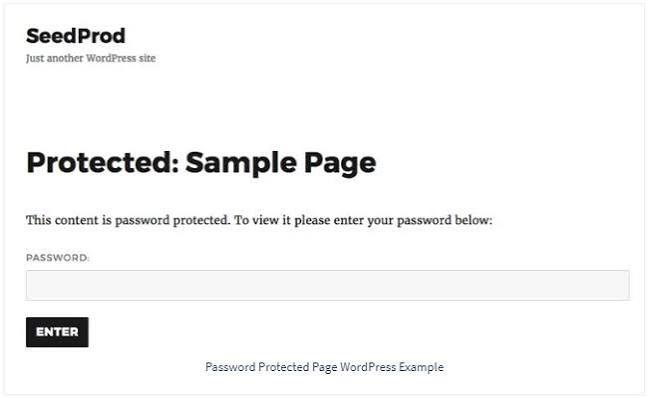
If caching isn’t the cause, switch to a default theme to rule out the theme or page builder, then deactivate plugins one at a time. A 403 on /wp-login.php?action=postpass usually means a login-hiding plugin is blocking the URL that the password form submits to. Our guide to fixing WordPress login problems covers those plugins. If you’d rather hand off the setup and testing, SiteSelf can make the change on your site when you ask in chat. It uses the connector plugin for page and plugin settings and hosting access for server rules, then fetches the page and reports what it found.
A shared password can’t tell people apart. You can’t remove one person without changing the password for everyone, and you can’t see who used it. That is fine for a two-week client preview. It isn’t enough for wholesale pricing, member records or anything you would need to revoke from one person.
When access varies by person, give people their own accounts with the lowest role that works, usually Subscriber, or use a membership plugin. It’s more setup, but you get control over each person’s access.
A password is also not a search setting. Google’s robots.txt guide says robots.txt isn’t a way to keep a page out of Google. For a page that should stay out of search, use noindex or password protection.
Yes, at the host. Use cPanel’s Directory Privacy, your host’s own password tool, or .htaccess and .htpasswd on Apache. The prompt appears before WordPress loads and covers uploads too. Check that scheduled tasks still run afterwards.
Don’t assume it is hidden. The title stays visible on the site, and files attached to the page can still be indexed if their URLs are public. Google recommends password protection or noindex to keep a page out of search, not robots.txt.
WordPress remembers only one post password per browser. If two pages use different passwords, opening the second replaces the first. Use the same password across a set of pages that belong together.
Give the field a visible label, add autocomplete="current-password", and allow paste. WCAG 2.2’s accessible authentication criterion treats blocking paste or autofill as a failure, because people rely on password managers.
Usually a stale cache or an old cookie. Purge every cache layer, clear the site’s cookies or use a private window, and try again. If it still fails, check for a login-hiding plugin blocking the form’s submit URL.
How-to Tutorials
To hide a WordPress page title, hide the heading the theme prints. Leave the title stored on the page alone. Which control does that depends on your theme, your template and whether a page builder or WooCommerce owns the page. So start by finding which element is actually showing, then use the most built-in control you have.
Read article ›How-to Tutorials
Adding a contact form to WordPress takes a plugin, a page and a few minutes. Making sure every message reaches you is the real job, because the form can say “sent” while your inbox never gets the email. Set the sender address correctly, send through authenticated SMTP, store every entry, and test from outside your own login.
Read article ›How-to Tutorials
To make a page your WordPress homepage, use one built-in setting: Settings > Reading > A static page. When the homepage still looks wrong after you save, the setting is rarely the cause. The usual causes are a theme template, a cache, or a page that isn’t published.
Read article ›Connect the site you already have, add your agent to Slack or Telegram, and tell it what you need.
Connect your siteStart with 500 free credits. No credit card needed.