Give your WordPress site its first task.
Connect the site you already have, add your agent to Slack or Telegram, and tell it what you need.
Connect your siteStart with 500 free credits. No credit card needed.
WordPress can put a password on any page without a plugin. Set Visibility to Password protected and click Update. The page is then hidden behind one shared password that the visitor’s browser remembers, which keeps casual visitors out but does not secure files, custom fields or confidential work.
Clients often want to see a page before it goes live. A printer needs to check the new menu, a client needs to approve a gallery, or a partner needs to read a draft announcement. WordPress has a built-in setting for this. It needs no plugin and no user accounts, and it takes about a minute.
It also does less than most people expect. The password covers the page’s main content. It doesn’t cover the files on the page, and it doesn’t record who got in. Most “it doesn’t work” reports come from caching, not from the setting itself. This guide covers the steps, how to check the result, what stays exposed, and how to fix it when the right password fails.
Choose Password protected when the people who need access don’t have accounts on your site. Choose Private when only logged-in staff should see the page. The WordPress.org support handbook says Private pages are visible only to logged-in users with the Administrator or Editor role. A password-protected page is visible to anyone who has the password.
Both options keep the page out of normal view. As our guide to adding pages in WordPress explains, they also keep it out of menus and the homepage selector. That is fine for a client preview. It can surprise you on a page you meant to link from the navigation.
You need an account that can edit and publish the page, usually Editor or Administrator. Content access is all this task needs. You don’t need hosting or FTP access.
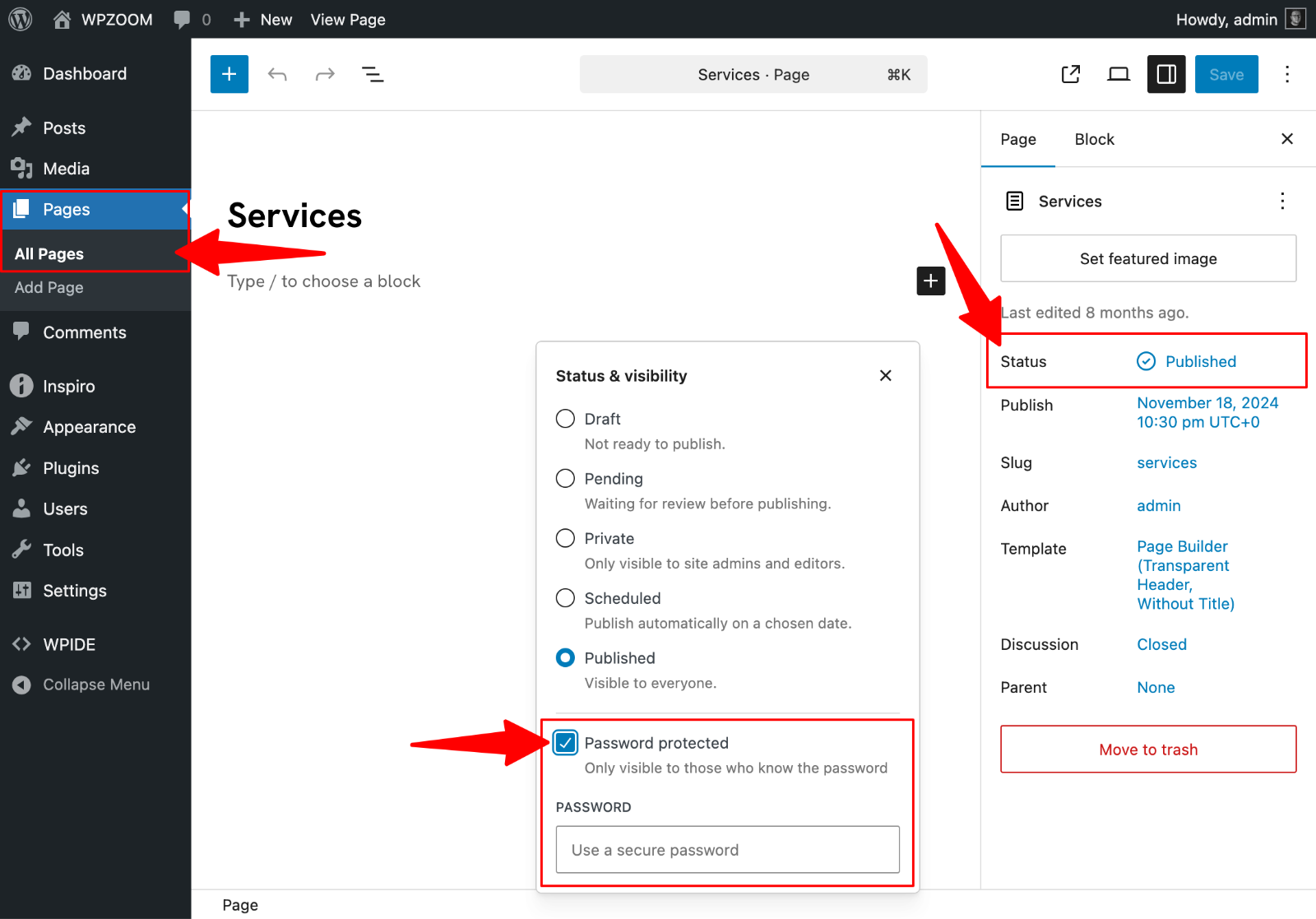
There are two other routes. On the Pages list, hover over the title, click Quick Edit, fill in the Password field and click Update. In the Classic Editor, the same control sits in the Publish box as Visibility: Public with an Edit link next to it.
A few mistakes come up again and again. People tick Private by mistake, close the editor without clicking Update, or set the password on the wrong page in a set of similar drafts. A WordPress.org support thread notes that if the option is missing completely, a theme or plugin has probably changed the editor. To check, test with a default theme.
If you’d rather not do this yourself, SiteSelf can set page visibility through chat. It uses the connector plugin’s access, then fetches the page and reports whether the password prompt appears. Pages owned by a visual page builder are refused, and the reason is given.
A logged-out visitor should see your theme’s header and footer, the page title, and a password form where the content would normally be. After the right password, the full content loads. After a wrong one, current versions of WordPress show an error message on the form.
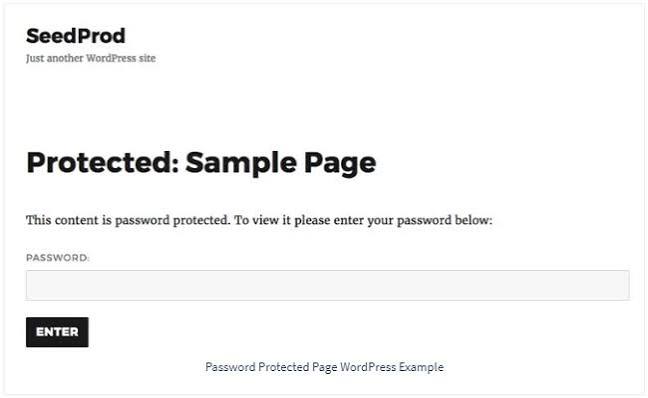
Test in a private or incognito window that has never opened the page. Two things can give you a false result in your normal browser:
The cookie has one more effect. WordPress remembers one post password at a time. Pages that share a password unlock together. Pages with different passwords ask again when the visitor moves between them. A shared password across a set of client pages is convenient. It also means anyone with one link and the password can read all of those pages.
The setting hides the page’s main content from people who don’t have the password. Several things sit outside that.
Files in the media library have their own URLs. Anyone with a file’s URL can still open it, and search engines can still index it. The plugin page for PPWP, one of the main protection plugins, says its page protection doesn’t cover uploaded files either. If a file is the confidential part, protect the file itself. Restrict direct access on the server or move the file to protected storage. Our guide to embedding PDFs in WordPress explains why hiding a download button protects nothing.
WordPress’s documentation warns that custom field data isn’t protected automatically. WordPress hides what the_content() outputs. Content from ACF fields, a custom loop, or a template that prints post data directly can still show up under the password form. Wrap that output in a post_password_required() check:
<?php if ( ! post_password_required() ) : ?>
    <?php echo esc_html( get_post_meta( get_the_ID(), 'client_notes', true ) ); ?>
<?php endif; ?>
To find a leak, view the protected page logged out and read everything below the form. Anything you can read there is coming from a template or a field, not from the page content.
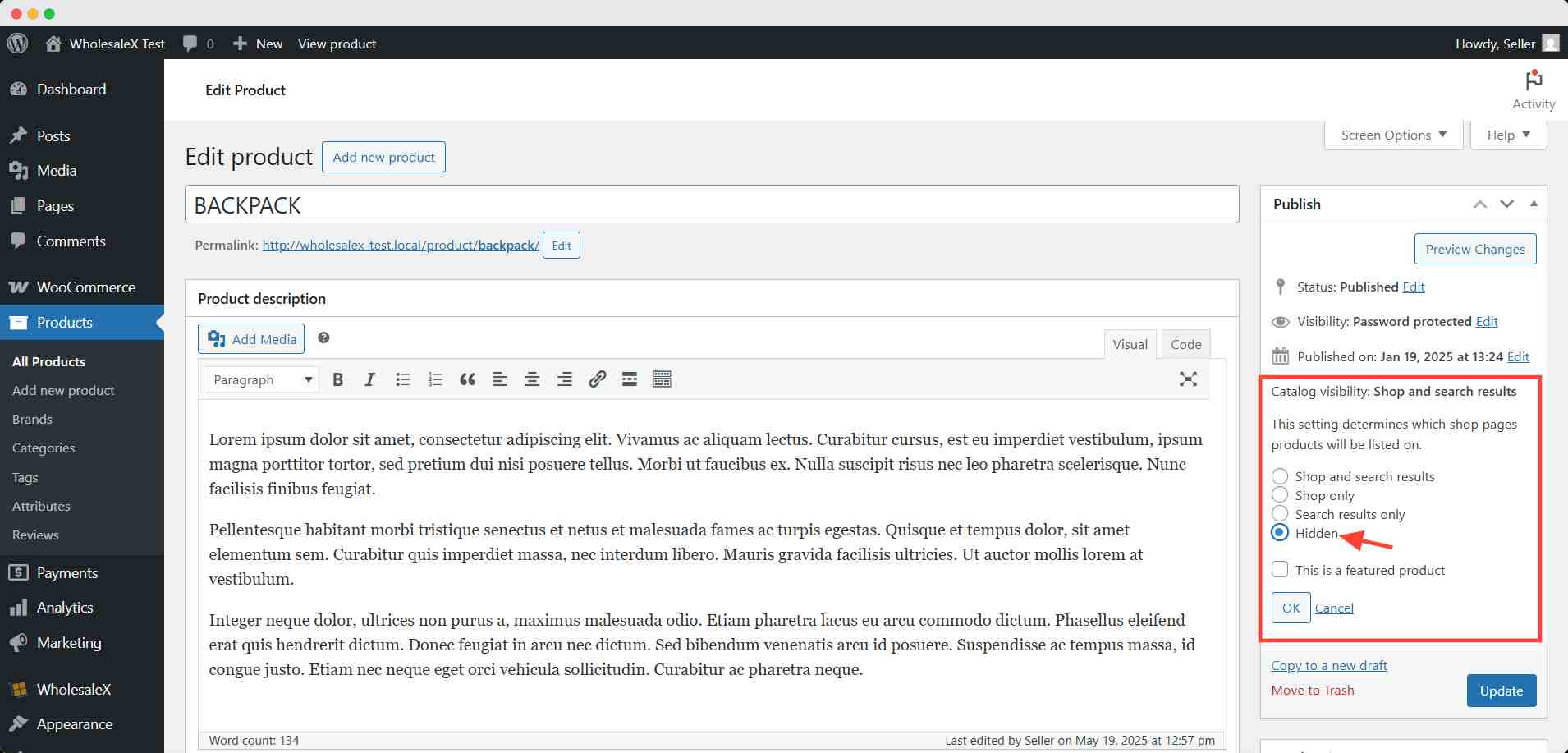
WooCommerce’s documentation says a password-protected product still appears in the catalog. Only the single product page asks for the password. To hide the product from the shop, category pages and search results, open the product. In the Publish box, click Edit next to Catalog visibility, choose Hidden, and update the product. Catalog visibility can also be changed for many products at once with Bulk Edit.
A password hides the content. It doesn’t tell search engines to drop the page. The URL and title of a protected page can still appear in search results, and files linked from the page can be indexed separately. If the page shouldn’t be found at all, set it to noindex in your SEO plugin as well. Don’t count on robots.txt to keep it out of results.
The causes below are ranked by how often they come up in support threads and forums. The ranking reflects how often each cause appears in reports. It is not a measured failure rate.
Signs: the right password reloads the form, it works on the second try, or it works for some people and not others. A page cache, server cache or CDN has saved the locked version of the page and keeps serving it. In a 2023 WordPress.org thread, the fix was to clear the cache and exclude the page from LiteSpeed Cache. A 2025 r/Wordpress post reported the same problem with LiteSpeed Cache on OpenLiteSpeed. WP Super Cache has a GitHub issue on the same symptom.
Step 3 needs both checks. In the LiteSpeed thread, changing the cache rules led to the page apparently skipping the password altogether. There’s also a cost: excluded pages load without the cache. One user with a gallery of more than 150 images found it slower and accepted that. If you use a protection plugin, follow that plugin’s own cache instructions. PPWP, for example, documents its own cookie names. Those names don’t apply to core or to other plugins.
If the page never asks for the password, check whether you’re logged in, or whether this browser has already entered the password. A private window, a different browser, or clearing the site’s cookies settles it. Browser extensions that block cookies can also stop the password from being remembered.
The password form sends the visitor to wp-login.php?action=postpass, which should then send them back to the page. Before WordPress 6.8, that return trip depended on the browser’s referrer. A Referrer-Policy: no-referrer header from a security plugin or server config could leave visitors on a blank screen. In a 2024 Bricks Builder forum case, the blank screen was /wp-admin/?action=postpass. The cause was a no-referrer policy, not the builder.
WordPress 6.8 added a hidden redirect_to field to the password form so the return no longer depends on the referrer. Check your WordPress version first. Updating core is the lasting fix. On one older install in a WordPress.org thread, changing the header to strict-origin-when-cross-origin fixed it. If you change the header instead, test anything else on the site that relies on referrers.
Injected code can break the form or the redirect. In a 2020 GeneratePress forum case, the cause was a Google Analytics hook added through the GP Premium Elements module. Switching themes didn’t help, because the module stayed active. The GoDaddy server cache also hid the result of each test until it was flushed by hand. Content-restriction plugins can also catch the request and send visitors to the homepage. In a 2023 case, a Profile Builder update fixed that.
To isolate the cause, switch to a default theme, then turn plugins off one at a time. Purge the cache between every test. Without the purge you’re testing a stale copy. Our guide to fixing plugins that are not working walks through the full conflict test.
Ask your host or a developer when any of these is true:
Give them the page URL, your WordPress version, your caching plugin, your host, and the exact screen or URL a visitor ends up on.
A page password is light privacy for low-stakes content. One password goes to everyone, so you can’t remove one person without changing it for all of them. You also can’t tell who opened the page or passed the password on. Practitioners on r/Wordpress are blunt about it: it isn’t a way to share confidential documents securely.
A password set by your host is a different feature. It locks the whole site at the server, and some hosts say their site lock doesn’t work with their CDN or edge caching. It doesn’t fix a problem with one page’s password.
To remove the gate, open the page, set the status or visibility back to Public, and click Update. Then purge your caches. Otherwise visitors may keep getting the old password screen.
If you forgot the password but can still edit the page, just type a new one in the same field and save. Then send the new password only to the people who still need access. Everyone using the old one is locked out.
If you have server access but can’t log in, WordPress stores the page password in plain text in the post_password column of the wp_posts table. With WP-CLI, wp post update 123 --post_password='new-password' sets a new one, where 123 is the page ID. An empty value removes the password. Take a backup before you change the database.
No. Per-page and per-post passwords are built into WordPress and cost nothing. You only need a plugin for a site-wide lock, part of a page, more than one password per page, or protection by category or product.
Yes. Give the pages the same password. The browser’s cookie remembers it, so the visitor enters it once and the other pages open too. That convenience also widens access, so use it only when everyone should see every page.
Not with page passwords, which use one shared password for each page. Create WordPress user accounts with a suitable role, or use a membership or content-restriction plugin that links pages to accounts.
Your browser already holds the cookie from an earlier entry, or you’re logged in. Open the page in a private window to see what a new visitor sees.
The page you set as the Posts page under Settings, then Reading, shows a list of posts rather than its own content. The page password may not work the way it does on a normal page. Protect the individual posts, or use a plugin that protects categories.
It can. The content is hidden, but the URL and title can still be listed, and images or PDFs linked from it can be indexed on their own. Add a noindex tag if the page shouldn’t appear in search, and protect sensitive files separately.
How-to Tutorials
An .htaccess 301 redirect is one line of Apache config. It shares a file with WordPress’s permalink rules, and it only works on servers that read that file. Check the server first, put your rules above the WordPress block, test with a 302, and let one layer handle HTTPS and www.
Read article ›How-to Tutorials
How you customize a WordPress template depends on which kind of template is drawing the page: a block template in the Site Editor, a PHP file in a classic theme, a WooCommerce override or a page builder layout. Find out which one you have before you edit anything. Then make the change in a layer that theme updates won’t overwrite, and check the result as a logged-out visitor.
Read article ›How-to Tutorials
To add an internal link in WordPress, select the words, press Ctrl+K and pick the page. Most links fail for other reasons: a URL copied from the admin screen, a slug that changed later, an anchor that doesn’t match. Get the destination right and test the link on the live page. That is most of the job.
Read article ›Connect the site you already have, add your agent to Slack or Telegram, and tell it what you need.
Connect your siteStart with 500 free credits. No credit card needed.