Give your WordPress site its first task.
Connect the site you already have, add your agent to Slack or Telegram, and tell it what you need.
Connect your siteStart with 500 free credits. No credit card needed.
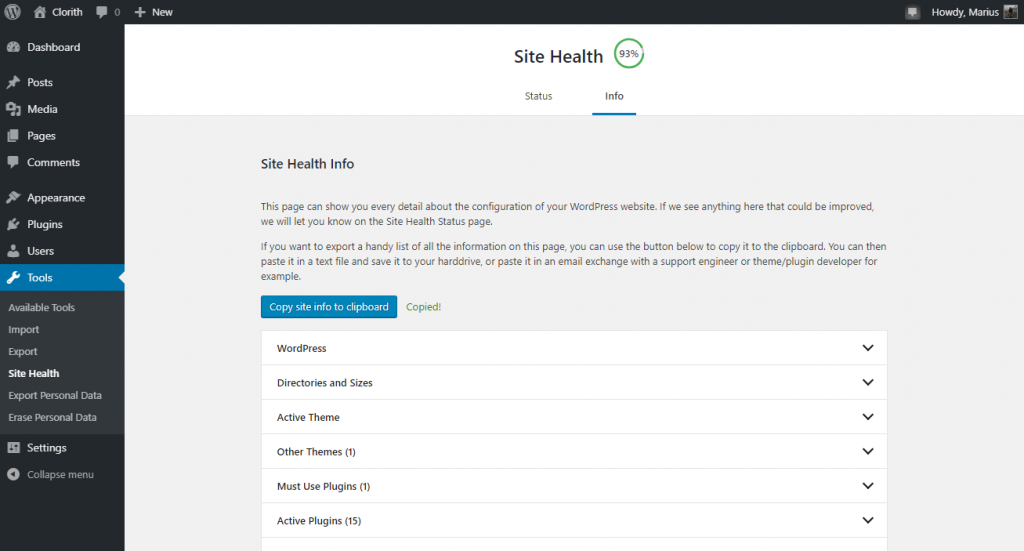
If you can log in, go to Tools, then Site Health, then Info, and open the WordPress section. The Version line there is the release you’re running. If you can’t log in, read $wp_version in wp-includes/version.php or run wp core version. Clues you can see from outside, like the generator tag, are often stripped, so a blank result there doesn’t tell you anything.
Most people look up their WordPress version for one of a few reasons. A security release has come out, a plugin says it needs a newer WordPress, a scanner report has flagged the site, or someone has inherited a site and nobody knows what’s on it. Checking takes seconds when you can log in. The trouble starts when you can’t log in, or when two tools give you two different numbers.
This guide goes through each method, from the official screen to the command line, and explains which results you can trust. The WordPress version is only one number. Before an update you’ll usually want the plugin versions too, and our guide to listing plugins with wp plugin list covers those.
Site Health is the most reliable screen. WordPress.org’s documentation says its Info tab lists the version your site is currently using. Site Health was added in WordPress 5.2, so any site you’re likely to run today has it.
The same tab has a Server section, which shows your PHP version. Keep the two separate: the PHP version is the one people most often report by mistake. WordPress.org’s Site Health screen documentation lists every section on the Info tab.
Three other screens show the version too:
If one of these is missing, try another. Plugins and custom admin themes sometimes hide the footer or remove widgets. That doesn’t mean something is wrong.
If it’s your own site, you don’t need wp-admin. You need access to the files or to the server. Three methods work.
WordPress keeps its version in a file. Open your hosting file manager or connect over SFTP, find the folder that holds wp-config.php, wp-admin and wp-includes, and open wp-includes/version.php. Look for this line:
$wp_version = '7.1.2';Only read the file. Don’t edit it or save it. The usual mistake here is opening the wrong installation. Hosting accounts often hold a staging copy, an old copy in a folder like /old/, or several sites next to each other. Check the folder path against the domain before you trust the number. Staging copies often drift from production, so don’t assume they match.
If you have SSH access and WP-CLI, one command gives you the answer:
cd /var/www/example.com/public
wp core version
Or point the command at the site from anywhere on the server:
wp core version --path=/var/www/example.com/publicThe WordPress Developer Blog points out that wp core version is not the same command as wp cli version. The second one reports the version of WP-CLI itself, and people mix them up all the time. If you see Error: This does not seem to be a WordPress install. Pass --path=`path/to/wordpress` or run `wp core download`., you’re in the wrong directory. Move into the site folder or pass --path.
According to the wp core version command reference, the command runs before WordPress loads. That means a plugin with a fatal error usually won’t stop it from answering.
Many hosts show the WordPress version in their control panel, often on a site overview or updates screen. Make sure you’re signed in to the right account and looking at the right site or environment. Treat the number as a convenience, not proof. WordPress.com says it may run one version behind while it tests a new release. WP Engine’s support docs tell you to refresh the portal’s Updates section if the version shown might be out of date. If the host’s number doesn’t match Site Health or WP-CLI, go with Site Health or WP-CLI.
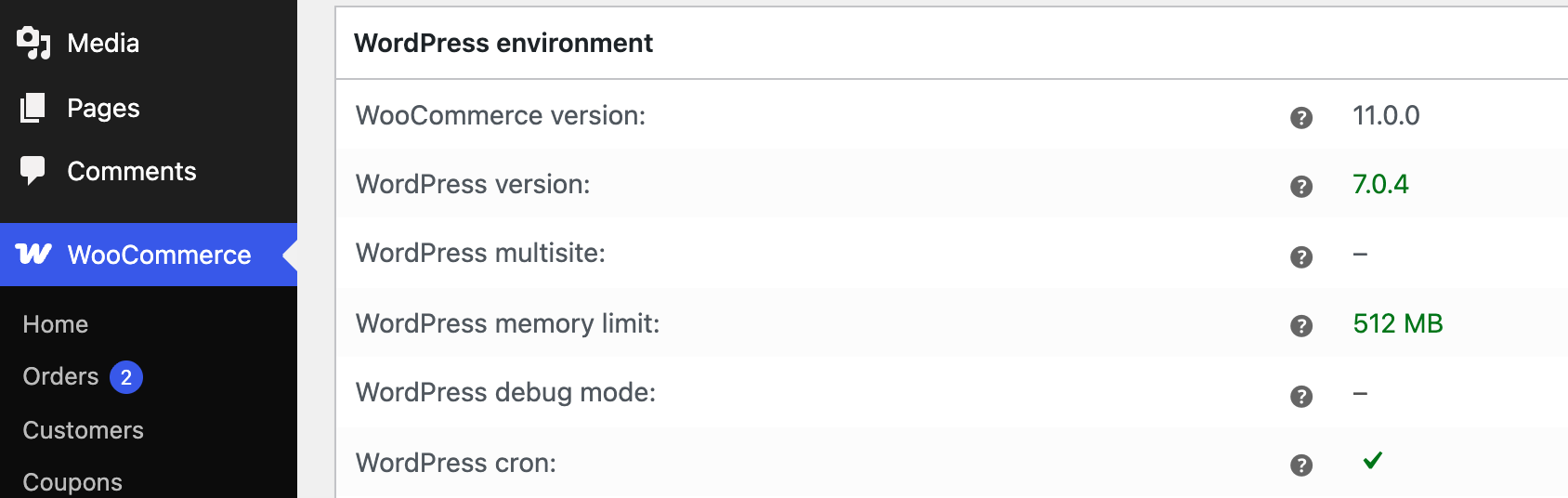
If you run a store, WooCommerce → Status shows the WordPress version under WordPress environment. WooCommerce’s guide to updating PHP and WordPress mentions Site Health as another option. The same report also shows the WooCommerce version and the PHP version, so read the WordPress row. This report is also what support forums usually ask for, so it’s worth knowing where it is.
A WordPress site has at least five version numbers, and a status report may show all of them together:
| Number | What it is | Where you see it |
|---|---|---|
| WordPress core | The release you’re running, such as 7.1.2 | Site Health → Info → WordPress, version.php |
| PHP | The server language version | Site Health → Info → Server |
| WooCommerce | The store plugin’s own release | Plugins screen, WooCommerce → Status |
| Database revision | An internal schema number, not a release | version.php, WP-CLI |
?ver= on CSS and JS files | A cache-busting string, often a theme or plugin version | Page source |
If a plugin’s requirements, a PHP upgrade or a support ticket depends on the core version, take it from the WordPress row and nowhere else.
Sometimes. From outside you only have clues, and they’re often missing. There are two to try, in this order:
generator. An unmodified site outputs <meta name="generator" content="WordPress 7.1.2" />./feed/ and look for <generator>https://wordpress.org/?v=7.1.2</generator>.Many sites hide both. In September 2026, SmartWP scanned 1,203 WordPress sites. It found 40.7% showed the version in the generator tag, 21.1% showed it only in the RSS feed, and 38.2% showed it in neither place (SmartWP’s version study). SmartWP also offers a version-checking tool, so treat the study as a useful snapshot, not a census. Still, the lesson holds: check the feed after the page source, because many sites that hide the tag still expose the feed.
Two other clues often come up, and both are weak. readme.html no longer shows the version number in current WordPress, and many sites block it with a 403 or remove it entirely. ?ver= strings on stylesheets often belong to a theme or plugin, not to WordPress.
If nothing turns up, you’ve learned nothing. Security plugins and some themes remove these clues on purpose. A hidden version doesn’t mean the site isn’t WordPress, and it doesn’t point to any particular version. If you need the real number, you need access to the site.
Almost nobody gets stuck on how to check. People get stuck when the answers don’t match. A scanner reports an old version on a site you updated last week. The host panel shows one release and Site Health shows another. Or a plugin complains that WordPress is too old when you know it isn’t.
First, confirm the version with a method that reads the installation itself: Site Health, version.php or wp core version. Then look into why the other tool disagrees. A scanner may be reading a cached page, a CDN copy or a stale clue. A host panel may need a refresh. Don’t swap files around or re-run updates because a scanner told you to.
Sometimes the version is right and something else is wrong. In one resolved WordPress.org support thread, a store owner saw plugin requirements in red, as if WordPress were out of date, and core updates weren’t showing up. The WooCommerce Status report confirmed WordPress was current. The real cause was a conflict with another plugin, found by isolating plugins one at a time. That process is explained in our guide to fixing plugins that are not working.
If the check itself fails, the problem is bigger. A missing or broken version.php, or a site that returns a 500 error after an update, points to a failed core update. Restore from a backup, or reinstall the same version from a fresh download. Our guide to the WordPress white screen covers recovering a site that won’t load.
Compare it with WordPress.org’s release archive. As of September 22, 2026, the archive listed 7.1.2, a security release, as the latest. It also said only the most recent release in the 7.1 series is safe to use and actively maintained. Don’t rely on a version number printed in an article, including this one. Check the archive on the day you check your site.
If you’re behind, updating is a separate job. WordPress.org’s Updating WordPress guide covers it. In short:
.maintenance file in the site root. That clears the notice but doesn’t finish the update.wp-content folder. It holds your themes, plugins and uploads.Agencies and freelancers taking on a client site usually record the core, PHP, plugin and theme versions at intake, with the date. That way the next mismatch has a baseline to compare against.
If you’d rather hand over the check and the updates that follow, SiteSelf handles WordPress core and plugin updates on request through chat. It tells you what’s about to change before it starts, records what it did, and reports what it checked afterwards.
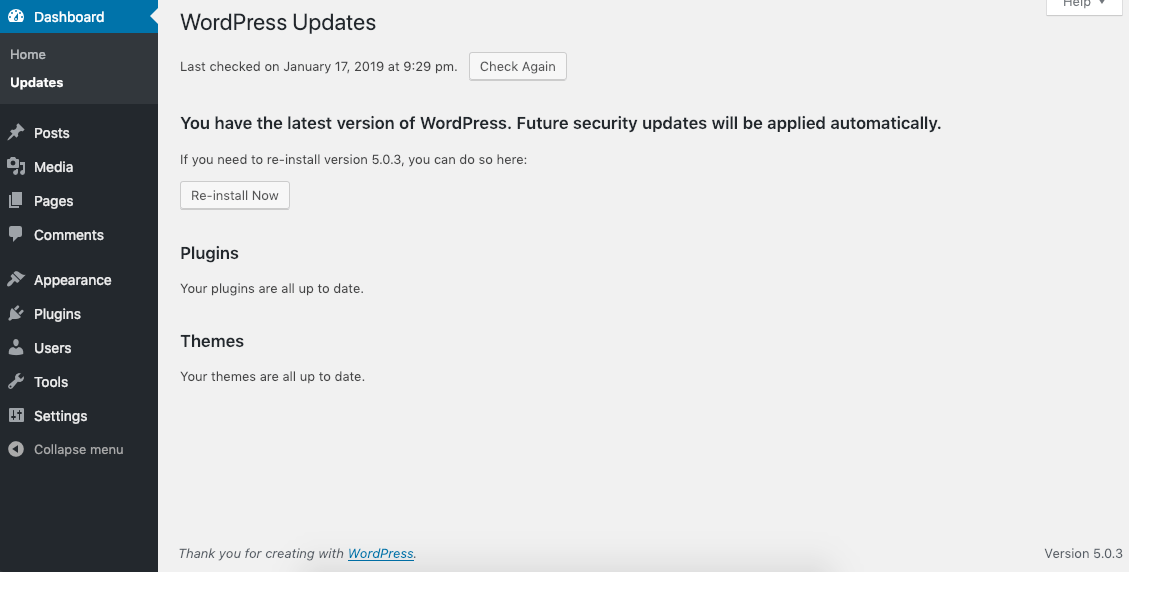
No. Site Health is built into every WordPress release since 5.2, and the admin footer and At a Glance widget need no setup either. Version-display plugins exist, but installing one just to read a number adds code you then have to keep updated.
Many security guides recommend removing the generator tag and the version in the feed, and plenty of security plugins do this. The tradeoff is that some client scanners and audits expect to read the version publicly. Stripping ?ver= from every stylesheet can also break cache-busting, so visitors keep seeing old CSS after an update.
External scanners read public clues, which can come from a cached page, a CDN copy or a stale file. Confirm the version with Site Health or wp core version. If those show the current release, the scanner is wrong, and you can send it the confirmed number along with how you checked.
Yes. A Multisite network runs one copy of WordPress core, so every site in it is on the same version. Check it once from the network admin or with WP-CLI in the installation folder.
Clear any caching first, then check whether another plugin is interfering with update or version data. Deactivating plugins one at a time on staging usually finds the one causing it. Reinstalling WordPress rarely helps, because core was never the problem.
How-to Tutorials
For one “find us” location, a Google Maps embed pasted into a Custom HTML block needs no plugin and no API key. Plugins earn their place when you need several markers, a store locator or a map in a classic widget area. When a Google-powered plugin map shows a grey box, the cause is almost always the API key, the Google Cloud project, billing or the referrer settings. The theme is rarely the problem.
Read article ›How-to Tutorials
A WordPress homepage can be a static page, a feed of your latest posts, a block theme template, a classic theme file or a page builder layout. Each one is edited in a different place. Find out which one your site uses first and the edit itself is quick. Skip that step and you can spend an hour changing something visitors never see.
Read article ›How-to Tutorials
Updating a WordPress theme takes one click under Dashboard, then Updates. Nearly everything that goes wrong comes from the site around that click: custom code edited into the parent theme, a license tied to the wrong domain, file permissions, or no way back. Answer three questions before you update and most failures never happen.
Read article ›Connect the site you already have, add your agent to Slack or Telegram, and tell it what you need.
Connect your siteStart with 500 free credits. No credit card needed.