Give your WordPress site its first task.
Connect the site you already have, add your agent to Slack or Telegram, and tell it what you need.
Connect your siteStart with 500 free credits. No credit card needed.
You can embed a public PDF in WordPress without a plugin: use the File block, turn on “Show inline embed”, set a height and keep the download link. When an embed fails, the cause is usually the file URL, a cache, the page layout or a mobile browser, not the embed tool. Check the raw PDF URL before you switch plugins.
Putting a PDF on a WordPress page takes about a minute. Getting it to display everywhere is the harder part: on phones, behind a cache, inside a tab, over HTTPS. When it doesn’t work, visitors see a bare link, a grey box or a viewer stuck on “Loading…” and assume the page is broken.
This guide covers the methods in the order most sites should try them, then the failures people report most and how to fix each one. If you haven’t edited a block page before, start with how to edit pages in WordPress.
For an ordinary public PDF, use the core File block. Add a plugin only when you need something the browser’s own viewer can’t give you.
| Method | Use it when | Main weakness |
|---|---|---|
| File block with inline embed | A public brochure, policy or price list | Relies on the browser’s viewer, which is patchy on mobile |
| Iframe in a Custom HTML block | You need a size or title the block won’t set | Same browser dependency; breaks on HTTP or preview URLs |
| Viewer plugin | You need page navigation, zoom, mobile modes or view tracking | More scripts to exclude from caching, more updates, more to maintain |
| Google Drive embed | The file already lives in Drive and changes often | Depends on a third party and on sharing settings |
| HTML page plus PDF download | The content matters, changes often or has to be tracked | Takes the most work up front |
One common mistake to rule out: the generic Embed block is for content from third-party services like YouTube, according to WordPress.org’s Embeds documentation. If you paste a PDF URL into it, you’ll usually get “Sorry, this content could not be embedded.”
You need an editor or administrator account on a site that uses the block editor. No hosting access is required.
/file in an empty paragraph.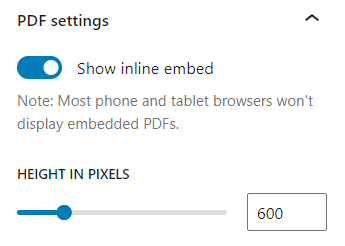
The result should be a scrollable viewer at the height you set, with a working link and button below it. On many phones you’ll see only the link or the first page. That’s normal browser behaviour and the reason step 5 matters.
When the File block isn’t enough, put an iframe in a Custom HTML block. Point it at a direct HTTPS URL for the file. The easiest way to get one is Media, then Library, then click the file and copy the File URL.
<iframe src="https://example.com/wp-content/uploads/2026/09/price-list.pdf"
  width="100%" height="800"
  title="2026 price list (PDF)"></iframe>
<p><a href="https://example.com/wp-content/uploads/2026/09/price-list.pdf">Open the price list (PDF)</a></p>
The title is what a screen reader announces for the frame. “2026 price list” helps a listener. “PDF viewer” doesn’t. If you paste the iframe into a field that filters HTML, like a widget, a theme option or a paragraph block, WordPress may remove it without telling you. Custom HTML blocks and page builder code modules keep it.
For a viewer plugin, use the plugin’s own block in the block editor and its shortcode everywhere else: the Classic Editor, builder text modules, widgets. PDF Embedder, which the WordPress.org directory lists at 300,000+ active installs, has both, and it renders the PDF on your own server without a third-party service:
[pdf-embedder url="https://example.com/wp-content/uploads/document.pdf"]If you use Google Drive, the file has to be shared as “anyone with the link can view”. Use Drive’s own embed code, not the sharing link. A sharing link opens a preview page, not the PDF file. Don’t use Drive for private or regulated documents.
A plugin earns its place when you need page-by-page navigation, zoom, a dedicated mobile mode, watermarks or view and download counts. Most plugins draw the PDF with JavaScript instead of the browser’s viewer, so it looks the same across browsers.
That control has a cost. Each viewer adds scripts that your caching plugin has to leave alone, updates that can change how it behaves, and code that needs security patches. Flipbook viewers look good in a demo. They are also heavier, and some need extra server headers before they load at all. If one plain viewer covers your needs, stop there.
Most failures come from the setup around the embed, not the embed tool. The order below comes from reading support threads, not from measured data, so treat it as a rough guide. Whatever you try, check the file URL first.
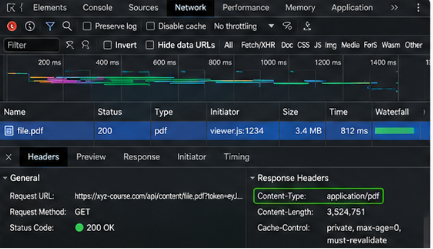
Paste the PDF URL into a private window. You should see the document. If you get a login page, a 403, a 404, a redirect to the homepage or a security challenge, the viewer has nothing to show. In your browser’s developer tools, open the Network panel, reload the page and click the PDF request. The Content-Type should be application/pdf. If it isn’t, the fix is on the server: hotlink protection, a firewall rule or a membership plugin. Send your host the URL and the response you saw. Renaming the file won’t help.
Check for a PDF URL in an Embed block, an iframe removed by a filtered field, a shortcode in a field that doesn’t run shortcodes, or “Show inline embed” switched off. Moving the content into the right container fixes all four.
A viewer that sits on “Loading…” usually means its JavaScript didn’t run. That happens a lot after an update, when a caching plugin or CDN still serves the old files. Purge the caching plugin, the host cache and the CDN, then the browser, and test again in a private window. If it still hangs, exclude the viewer’s script files from minification and combining. Plugins sometimes rename those files, and an exclusion written for the old names quietly stops working. To test for conflicts safely, follow the plugin conflict routine on a staging copy.
An HTTPS page that loads an HTTP PDF is mixed content, and browsers handle it inconsistently. In one wordpress.org thread, a PDF with “Show inline embed” turned on displayed only in Firefox. The fix was loading the file over HTTPS in an iframe. Some viewers also refuse files from a different origin: www versus no www, another subdomain, or S3 and CDN storage without CORS headers. Pick one HTTPS domain and update old URLs to match it.
A viewer that loads while its container is hidden measures its own size as zero and stays blank when the tab opens. Give each PDF its own tab, use a plain accordion, or put the document on a separate page. The same happens with any container that has no set height.
PDF Embedder’s mobile troubleshooting page says phones have less memory and stricter rendering, so large or complex PDFs can crash or show blank pages. Its advice: compress the file, flatten transparency and layers, re-export with common fonts, and give a revised file a new name such as brochure-v2.pdf so no one gets the cached copy.
Embeds that used to work can break after an update. After Gutenberg 17.2.0, one user reported that inline PDFs showed only the text link and Download button, as if the setting had been turned off. If embeds broke the same day as an update, look at that update first.
It doesn’t protect the file. To display a PDF, the browser has to download it first, so hiding the Download button or blocking right-click only slows people down. WooCommerce’s downloadable products documentation says anyone with the direct URL can open a Media Library file. Paid files should be uploaded from the Edit product page so they go into the protected woocommerce_uploads folder. Avoid the “Redirect only” download method, because it reveals the file’s URL.
It isn’t part of the page’s SEO. Google indexes the PDF as its own document. A noindex tag on the page doesn’t apply to the PDF. To keep a PDF out of search results, the server has to send an X-Robots-Tag header, as described in Google’s robots meta tag specification.
It isn’t automatically accessible. An accessible page doesn’t make the PDF inside it accessible. A scanned PDF with no text layer is just an image to a screen reader. The PDF itself needs OCR (with the errors corrected), tags, a reading order, a title and a language. The W3C lists how to do this in its WCAG 2.2 PDF techniques.
It isn’t free to load. A PDF of several megabytes on a homepage slows the whole page. Compress it, or show a thumbnail image that links to the file.
For newsletters, catalogs and anything with prices that change monthly, practitioners often suggest skipping the embed. Publish the content as a normal page and offer the PDF as a download. The page works on phones, search engines can read it, analytics can track it, and editing it doesn’t mean exporting a new file.
Once you’ve checked the URL, the block settings and every cache layer, what’s left usually needs someone who can read response headers, CORS settings and minification rules, or change server configuration. Stop there if the failure appears only for logged-out visitors, only through the CDN, or only inside a page builder layout. If you’d rather hand off the rest of the work, SiteSelf takes on page and layout changes on your existing site on request through chat, then checks the live page and reports back.
Yes. Use the File block with “Show inline embed”, or an iframe in a Custom HTML block that points to a public HTTPS PDF URL. Both rely on the browser’s built-in viewer. You get the document, but not the navigation, zoom or mobile mode a plugin adds.
The editor loads a fresh copy while logged in, and visitors get cached output. Purge the caching plugin, the host cache and the CDN, then check in a private window. If it still fails, compare the live page’s Console and Network panels with what you see in the editor.
Use the builder’s HTML or code module for an iframe, or paste the viewer plugin’s shortcode into a text module. Test the published page, not only the builder preview. Watch for viewers inside hidden sections or tabs, and remember the builder has its own cache to clear.
Only if the viewer gets a direct link to the .pdf file and the other server allows it to be fetched. Some viewers accept only files from the page’s own domain. Others need CORS headers on the host. A viewer or preview URL from another service won’t work in place of the file.
Put a form on a landing page and email a link to the file, not an attachment. If the file sits at a public Media Library URL, the gate is for show, because anyone with the link can skip the form. Store it somewhere that checks access.
How-to Tutorials
Adding a page in WordPress takes a minute: Pages, Add New Page, a title, some blocks, Publish. Getting visitors to it is a separate job. You have to add it to the menu, pick the right template, and on a store, assign it in WooCommerce. Each of those is its own step, and publishing does none of them for you.
Read article ›How-to Tutorials
Editing WordPress in HTML starts with finding which layer owns the markup: post content, a block, a theme template, a WooCommerce template or a page builder. Content HTML is a five-minute job in the Custom HTML block. Template, store and file HTML have their own override paths, and editing in the wrong place gets you edits that vanish, get stripped or break the editor.
Read article ›How-to Tutorials
Editing a page in WordPress is four clicks until it isn’t. The hard part is knowing whether the thing you want to change lives in the page, in a template, in a pattern, in a page builder’s own data, or in WooCommerce. This walks through the edit itself, then the checks that tell you whether your change actually reached the live site.
Read article ›Connect the site you already have, add your agent to Slack or Telegram, and tell it what you need.
Connect your siteStart with 500 free credits. No credit card needed.