Give your WordPress site its first task.
Connect the site you already have, add your agent to Slack or Telegram, and tell it what you need.
Connect your siteStart with 500 free credits. No credit card needed.
Good coming soon text says what is launching, who it is for and what to do now. On WordPress the harder part is often finding who owns the message: WooCommerce, a plugin, your host, a stuck update or a cache can each show it. Before you edit or remove it, work out which one is showing it.
People who search for coming soon text usually need one of two things. Some are writing the page and want words that make visitors come back. Others want to change or remove words that are already on their site, often “Great things are on the horizon”, and can’t find where they live. This guide covers both, in that order.
The second job is harder than it looks because WordPress has no single coming soon setting. WooCommerce, a plugin, your host or a leftover update file can each put up the placeholder, and a cache can keep it showing after you turn it off. If you are building the page from scratch, our guide on building a landing page in WordPress covers the page itself. This article covers the words and the switches.
Say what is coming, who it is for, and what the visitor should do now. Copy guides from WPForms and SiteGround Academy agree on this short structure: a headline, a brief explanation and one clear next step. Nobody has published test data showing that one wording beats another, so treat any template as a starting point, not a proven formula.
A formula that works for most launches:
[What’s coming] is launching [date, only if confirmed]. We’re building [one line of benefit]. [One action: join the list, call us, get early access].
Applied to a few common situations:
The weak version is the one most sites ship: “Launching soon. Subscribe to our newsletter.” A small-business owner on Reddit got this advice: name the offer and the audience instead, as in “We’re developing X for Y; sign up for an exclusive preview and early access.” They were also told to show the real product, even if it is just one photo. If the business is already trading, the most useful words on the page are your phone number and opening hours.
Add a countdown only when the date is fixed. A timer is a promise. When it hits zero and nothing happens, visitors stop trusting the page. If the date might slip, write “Opening this spring” and update it when you know more.
An email form is worth adding only if you will actually write to the list. In the same Reddit discussion, people suggested sending a real update every two to three weeks so the list doesn’t go cold. Results vary a lot. One founder reported 1,033 waitlist signups from about 3,500 visitors after posting a video demo, but said they didn’t know how many of those became customers. Other marketers report too little interest to justify the work. A visible product and a reason to sign up make more difference than the form itself.
One more decision comes before any of this. If your site is already live and you are redesigning it, you probably don’t need a coming soon page at all. Keep the current site running, build the new version on staging, and leave unfinished pages out of the menu.
It comes from whichever layer switched the placeholder on, and each layer has its own off switch. Turning off one doesn’t touch the others. In one wordpress.org thread, a user disabled and then deleted a coming soon plugin and still saw the page. Their host had to fix it. Start by reading the exact text and footer on the page, then match it here:
| What you see | Likely owner | Where to change it |
|---|---|---|
| “Great things are on the horizon” | WooCommerce Coming soon mode | WooCommerce > Settings > Site visibility |
| A designed page with your logo, maybe a countdown | A plugin such as SeedProd, LightStart, CMP or Elementor | That plugin’s own settings screen |
| “Coming Soon!” with a footer that names your host | Your hosting company | The host’s dashboard or its WordPress plugin |
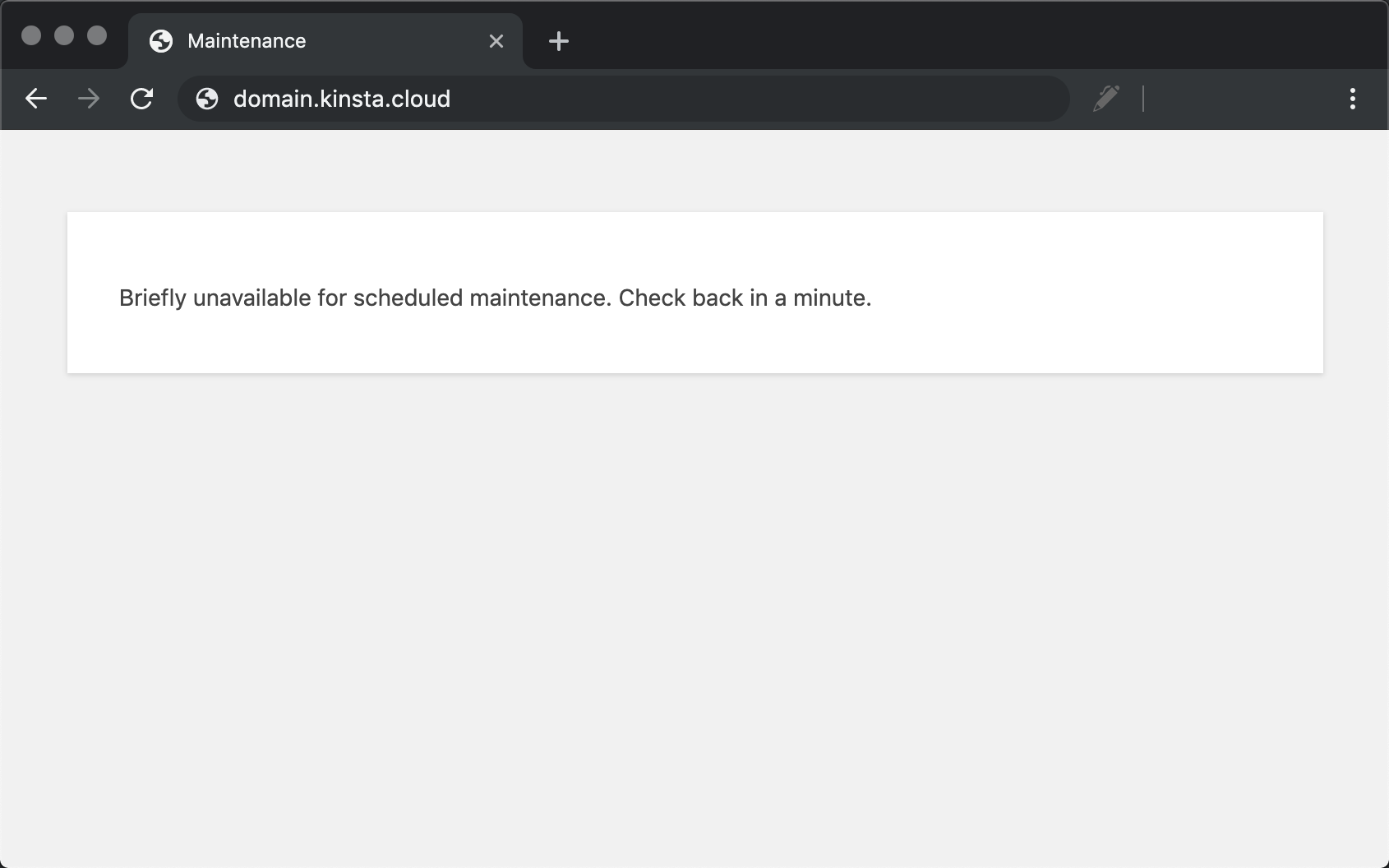
| “Briefly unavailable for scheduled maintenance. Check back in a minute.” | A leftover .maintenance file | Delete the file from the site root |
| A coming soon notice on one product only | A product-level setting, such as Coming Soon Products for WooCommerce | Products > Edit Product > Product Data > Coming Soon |
| A message on a site hosted at WordPress.com | WordPress.com site visibility | Settings > Reading > Site Visibility > Public |
Changing the text and changing the mode are separate actions. Editing the WooCommerce landing page changes what it says, not whether visitors see it. The same goes for a product’s Coming Soon Text field, which doesn’t switch off that product’s Coming Soon Mode.
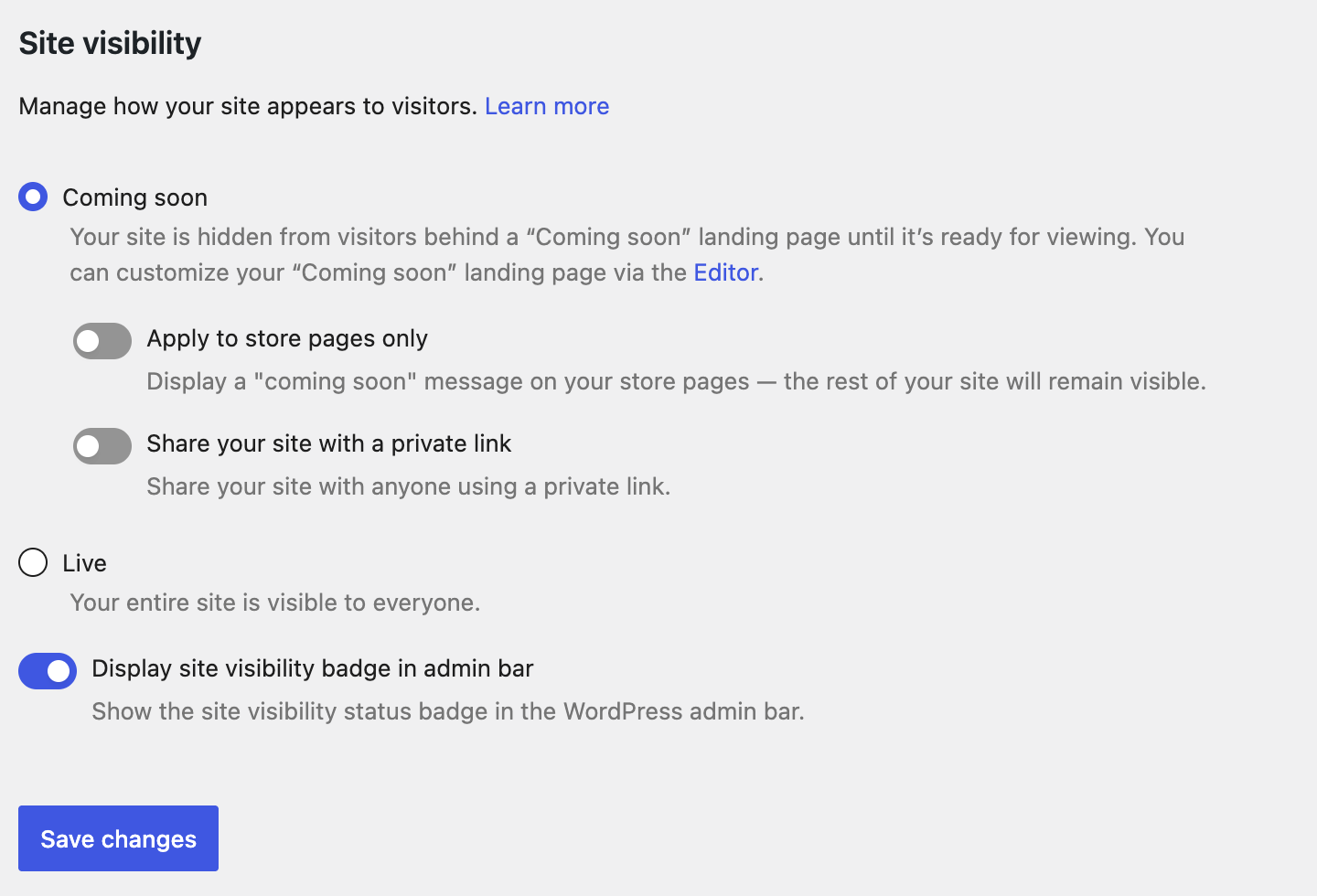
WooCommerce shows its own landing page while the store is in Coming soon mode. According to WooCommerce’s documentation, new stores that complete onboarding start in that mode, and stores that were already live start as Live. Where you edit the text depends on your theme.
If you use a block theme (Twenty Twenty-Five, for example):
If you use a classic theme such as Storefront, there is no direct editor. The workaround from WooCommerce’s own support forum takes about ten minutes:
Don’t edit WooCommerce’s plugin files to change the wording. Support volunteers discourage it because the next WooCommerce update overwrites your change. If the theme switch feels too risky on a store taking orders, practitioners suggest two other routes: a dedicated coming soon plugin, or a custom page plus a small snippet that redirects logged-out visitors to it.
To take the store live, set Site visibility to Live and save. Watch for the “Apply to store pages only” option. With it on, the rest of the site looks public while the shop, cart and product pages stay hidden. Hiding the admin bar badge changes nothing for visitors.
The usual answer is that you are logged in or a cache is serving an old copy. Work through these in order. They are ranked by how often they come up in support threads, which is a rough guide rather than a measured rate.
SeedProd, WooCommerce and WordPress.com all show the real site to logged-in users on purpose. An owner can look at a live-looking site while every visitor sees the placeholder, or the other way round. Always check in a private window. Our guide to landing page plugins and visibility modes explains the same trap from the publishing side.
Clearing your browser cache doesn’t clear the copies held by a caching plugin, your host or a CDN. In one wordpress.org thread, a maintenance page was still showing almost 24 hours after it was disabled. The fix was purging the host’s Varnish cache from the Cloudways dashboard. Purge in this order: caching plugin, host cache, CDN, then browser. A quick test is to load the homepage with a junk query string such as /?nocache123. If that version is live and the plain URL is not, a cache is the culprit.
Go back to the table above. A host placeholder survives turning off WooCommerce, and a WooCommerce placeholder survives deleting a plugin. If none of the switches explains it, check that the Shop page is still assigned under WooCommerce > Settings > Products. Then deactivate other plugins one at a time on staging to find a conflict.
This comes from WordPress, not from a plugin. WordPress writes a .maintenance file while an update runs, and if the update is interrupted, the file stays behind. The WordPress Advanced Administration Handbook gives the fix: delete .maintenance from the folder that contains wp-admin, using FTP or your host’s file manager, then run the update again. Wait a few minutes first so you don’t delete it mid-update. The file starts with a dot, so turn on “show hidden files” if you can’t see it. If the update keeps failing, our guide to fixing plugins that stop working covers half-finished updates.
Use coming soon mode for a site that has never launched, and maintenance mode for short work on a live site. They send different signals to search engines. Google’s guidance on pausing a website is to return HTTP 503 only for an urgent shutdown of a day or two. For longer closures, it recommends a placeholder page that returns 200 and can be indexed. Google also warns against blocking crawling with robots.txt or returning 503 for the robots.txt file.
SeedProd’s WordPress.org listing says its Coming Soon mode returns 200 and its Maintenance mode returns 503. Elementor’s help pages describe the same split. Other plugins vary, so check the real response instead of trusting the label:
curl -I https://example.com/The first line of the output shows the status, for example HTTP/2 200 or HTTP/2 503. If a site that has been in “maintenance” for weeks is still returning 503, switch it to coming soon mode or launch it.
A coming soon page hides the front door. It doesn’t protect the content behind it. Published pages can still be reached through direct URLs, feeds, sitemaps or a plugin bug. Anything that must stay private belongs on staging or behind real access control, such as a password-protected WordPress page.
The same goes for client work. Staging is the usual place for client previews, though some plugins offer a bypass link so clients can see a production site behind the placeholder. Freelancers on Reddit strongly warn against using a placeholder to take down a client’s live site over an unpaid invoice. Put payment and handover terms in the contract and hold back deployment instead.
If you would rather not chase the switch yourself, SiteSelf can edit the page or take it live from a chat request. Text and visibility settings need only the connector plugin. Deleting a stuck .maintenance file needs hosting access.
Not by itself. Coming soon modes usually return 200, so Google can index the placeholder. Maintenance modes usually return 503, and Google treats that as temporary. A noindex tag or a robots.txt block can remove URLs from search, so don’t add either just to keep a placeholder private.
Most coming soon modes let logged-in users through on purpose. Open the site in a private window or on a phone using mobile data to see what the public sees. If that view still shows the placeholder after you switched it off, purge your caches.
Yes, in two common cases. WooCommerce has its own Site visibility setting, and WordPress.com sites have a Site Visibility option under Settings > Reading. On other self-hosted sites you need a plugin, a host feature or custom code.
WooCommerce lets you share a private link to the store. SeedProd offers a bypass URL. Many agencies prefer a staging copy, because nothing on production is exposed and the client can click around without risk.
No. A blank page with the mode switched on usually means the page has no saved content. In SeedProd, the page also has to be Active and Published before it displays. Add content, save, and check again logged out.
Only until you launch. A placeholder left up for months tells visitors the business has stalled. If the launch keeps slipping, put up a small live site with your real contact details and add pages as they are ready.
How-to Tutorials
The most reliable place to find your WordPress version is Tools → Site Health → Info → WordPress, because it reports what is actually installed. If you can’t log in, read $wp_version in wp-includes/version.php or run wp core version. Public clues like the generator tag, readme.html and ?ver= strings are only hints, and they are often missing or wrong.
Read article ›How-to Tutorials
To find the WordPress version you actually run, check from inside: Site Health, WP-CLI or wp-includes/version.php. Page source, feeds, asset URLs and readme.html are only clues. They can be missing or stale, and they can belong to a plugin. If two tools disagree, look for a cache or the wrong installation before you change anything.
Read article ›How-to Tutorials
WordPress has had a built-in lightbox since version 6.4. Turn it on in the Gallery block’s link settings and simple galleries don’t need a plugin. When a lightbox won’t open, opens twice or breaks on phones, the cause is usually two scripts fighting over the same click, or an optimisation setting that loads the lightbox too early.
Read article ›Connect the site you already have, add your agent to Slack or Telegram, and tell it what you need.
Connect your siteStart with 500 free credits. No credit card needed.