Give your WordPress site its first task.
Connect the site you already have, add your agent to Slack or Telegram, and tell it what you need.
Connect your siteStart with 500 free credits. No credit card needed.
WordPress has had a built-in lightbox since version 6.4. Turn it on in the Gallery block’s link settings and simple galleries don’t need a plugin. When a lightbox won’t open, opens twice or breaks on phones, the cause is usually two scripts fighting over the same click, or an optimisation setting that loads the lightbox too early.
Since WordPress 6.4, released on November 7, 2023, the Image and Gallery blocks can open a clicked image in an overlay without any plugin. Many tutorials still say you need one. Whether you actually do depends on which gallery system the page uses. A WordPress site can have four of them, and each one’s settings leave the others alone.
So start by finding out what the page is really running. Then turn on the right setting. If the lightbox still misbehaves, work through the causes below in order.
Open the page in the editor and click the gallery. The block name or widget name tells you which system owns it. If you see a shortcode or a plugin’s own panel, it isn’t a core gallery.
| What you find | What it is | Where the lightbox setting lives |
|---|---|---|
| A block named Gallery or Image | Core WordPress block | The block’s link options: Enlarge on click |
| Legacy shortcode gallery | None in core. You need a plugin that supports it |
| Images on a single product page | WooCommerce product gallery | The Product Gallery block, or your theme for classic product pages |
| A widget in Elementor, Kadence or a similar tool | Theme or page builder gallery | The widget’s own settings |
| A panel from FooGallery, NextGEN, Envira, Modula and so on | Gallery plugin | That plugin’s settings screen |
To check what visitors get, right-click a gallery image on the live page and choose Inspect. Core galleries carry the class wp-block-gallery. Plugin and builder galleries usually include the plugin’s name in their class names.
You need WordPress 6.4 or later and permission to edit the page. If you’re not sure which version you run, check your WordPress version first. On older versions the option doesn’t exist.
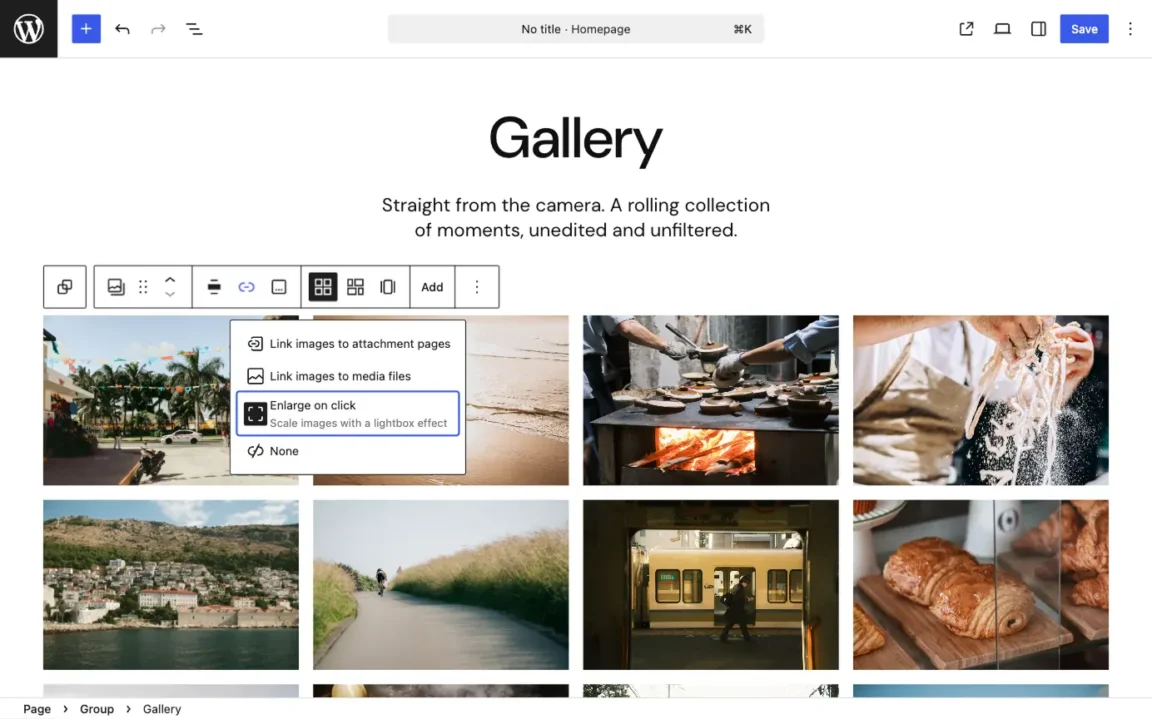
Here is what should happen. The image grows into an overlay on the same page, the URL stays the same, and a close button or the Escape key brings you back. If the image opens as a bare file in a new tab, the gallery is set to link to the media file. If you land on a page with one image on it, it’s linking to the attachment page.
Previous and next arrows depend on your version. WordPress.org’s current Gallery block documentation describes moving between images in the lightbox. Earlier versions opened each image on its own: in March 2025 a Reddit reply pointed out that Enlarge on click alone did not give you a sliding gallery. If you don’t see arrows, update WordPress before you install anything.
Core handles click to enlarge. A dedicated plugin makes sense when you need things core doesn’t do:
One small-business owner on Reddit with 350 tagged images is a fair example of a plugin-sized job. A portfolio with twelve photos isn’t.
A plugin also adds costs. It’s one more lightbox that can clash with core or your theme. Many advanced features sit in paid tiers. And it has to keep up with WordPress. After WordPress 6.7, WP Featherlight kept working on existing galleries, but the option to enable it on new ones disappeared. The site owner estimated that posting would now take two to three times as long.
If you do add one, read its setup notes for the link setting it expects. Many plugins need images to link to the media file and won’t fire on Enlarge on click or None. Turn the core lightbox off on any gallery the plugin handles. Our guide to installing a WordPress plugin safely covers how to add one without surprises.
Changing a Gallery block in a post or page does nothing to your product pages. WooCommerce runs its own gallery, and the setting depends on your theme.
One more WooCommerce detail: the main Product Image already shows first in the gallery. If you add it again under Add product gallery images, it appears twice.
Nobody publishes numbers on how often each cause turns up. Across support threads, though, the pattern is consistent: competing scripts come first, optimisation second, and settings and markup after that. Change one thing at a time and retest after each change.
The symptoms are an overlay inside an overlay, two sets of arrows, a close button you have to click twice, or a page that stops scrolling. This happens when a theme, a builder, core and a plugin all respond to the same click. The Responsive Lightbox documentation lists a theme’s own lightbox as a common cause of two lightboxes opening at once.
Turn one of them off. In one Reddit thread, a site owner ran Meow Lightbox alongside the core lightbox and tried to fix the clash with CSS and JavaScript. Images vanished and the page stopped scrolling. Hiding a lightbox with CSS doesn’t stop its script from running.
Open your browser’s developer tools and check the Console tab. If you see “jQuery is not defined”, a script is running before jQuery has loaded. Defer, delay, combine and minify settings in caching plugins often cause this.
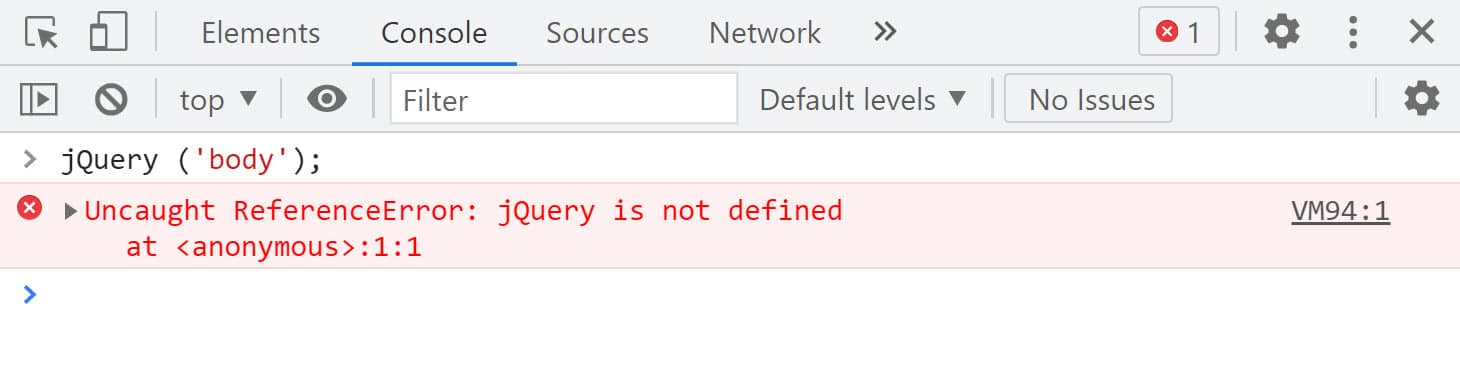
In a July 2026 FooGallery support thread, turning off Autoptimize’s JavaScript optimisation fixed the gallery. Excluding foogallery.min.js from optimisation kept it working with optimisation back on. LiteSpeed documents the same approach:
/?LSCWP_CTRL=before_optm to see it unoptimised.Don’t leave optimisation off for the whole site. A single exclusion fixes the gallery and costs far less speed.
When the link setting is wrong, you get no error at all. The image does nothing, opens in a new tab or goes to an attachment page. Core needs Enlarge on click. Most plugins need Media file. Neither works with None.
The legacy shortcode is its own case. A WordPress.org support thread from 2026 confirms that isn’t supported. Convert the gallery to a Gallery block or use a plugin that supports the shortcode.
Many lightbox plugins only recognise standard WordPress gallery markup. Responsive Lightbox’s documentation says native galleries work but galleries built by themes or other plugins may not. Galleries that load images after the page loads, through AJAX or infinite scroll, cause the same problem. The lightbox scans the page once, before those images exist.
Look for a compatibility setting before you write code. Responsive Lightbox has an option to trigger ajaxComplete under Custom Events, and Jetpack galleries have a Force gallery lightbox option. “Each plugin works on its own” doesn’t tell you they work together.
If your fix works while you’re logged in but visitors still see the broken version, a cache is serving them a stored copy. Purge the caching plugin, then the host’s server cache, then the CDN, and retest in a private window. Kinsta’s documentation says clearing the server cache doesn’t clear the CDN, which can keep old JavaScript, CSS and images.
Test on the device that fails, not a resized desktop browser. Mobile failures tend to be specific to one setup:
Very long galleries are the common thread. Split or paginate them.
The Health Check plugin’s troubleshooting mode disables plugins and switches to a default theme for your logged-in session only. Visitors see nothing change. Turn plugins back on one at a time until the lightbox breaks. Our guide to fixing plugins that stop working walks through the same method in more detail.
Stop and get help when the Console shows an error inside the gallery plugin’s own file, when the gallery works in the editor but not on the live page, or when the fix means editing PHP. Send the plugin’s support forum your plugin and theme names and versions, your WordPress and PHP versions, and the full error text. If you’d rather not trace it yourself, SiteSelf can find and fix the broken feature on your live site and report what it changed. Script exclusions and code changes need hosting access.
A lightbox is a modal dialog, and the W3C’s ARIA Authoring Practices Guide describes how one should behave:
Test it with only the keyboard. Many lightboxes look fine and still trap keyboard users.
Give every gallery image real alt text. Use alt="" only for images that are purely decorative. For search, Google’s lazy-loading guidance says content has to load when it becomes visible, without anyone clicking. A lightbox that shows a larger version is fine, as long as the thumbnail is a real image on the page and not something only a click reveals.
No. In marketing tools, a “lightbox” is usually a newsletter or offer popup that covers the page. A gallery lightbox opens a larger image when someone clicks one. Different tools handle each, so search for the one you mean.
Not for click to enlarge. Core does it for free on Image and Gallery blocks, and the main gallery plugins have free versions. Paid tiers usually unlock layouts, video, albums and selling features. Most are billed yearly.
No. Enlarge on click is a block setting. Galleries made with the Classic editor or the shortcode need a plugin that supports them, or need converting to a Gallery block.
The editor loads scripts differently and skips your page cache and optimisation. First rule out cache and optimisation using the steps above. In a 2024 Essential Addons for Elementor thread, neither was the cause. It was a plugin bug, fixed in a development build from the vendor.
Updates can change how block markup or core’s own lightbox behaves, and older plugins may not keep up. Check whether the plugin has been updated recently and read its changelog. A changelog entry is a lead, not proof. Confirm the cause by isolating plugins as described above.
The core lightbox handles images. Several gallery plugins support video in the same gallery, so check that feature before you choose one. Embeds from third-party services sometimes refuse to open in any lightbox.
How-to Tutorials
Setting up a WordPress blog takes a few documented settings: publish a post, choose where posts appear, set permalinks once and make sure nothing blocks indexing. Most new blogs go wrong in other ways. Owners add plugins and polish the design before they have published anything, or they assume that a post that looks right is already in Google.
Read article ›How-to Tutorials
“Modify the header” in WordPress can mean four jobs: the visible header, the code in the page head, the HTTP response headers, or the “headers already sent” error. Each one has its own place to make the change. Most failed header edits are correct edits made in the wrong place, so start by working out which system controls your header.
Read article ›How-to Tutorials
WordPress has no feature called a redirect page. What most people need is a rule that sends an old URL to a new one with the right status code, set in the right place on the site. Most redirect problems come from two of those places disagreeing, and adding another rule rarely fixes them.
Read article ›Connect the site you already have, add your agent to Slack or Telegram, and tell it what you need.
Connect your siteStart with 500 free credits. No credit card needed.