Key takeaways
- On a block theme such as Twenty Twenty-Five, the header is a template part in Appearance > Editor. Edits are saved to the database, so there is no header.php file to edit.
- A template part is synced, so one header edit changes every page that uses it. To give a single page its own header, you need a separate template or builder display conditions.
- If the header is missing, check things in this order: page layout (Elementor Canvas leaves the header out), display conditions and published status, device visibility, every cache layer, then plugin conflicts.
- Before you decide an edit failed, click Publish and look at the page in a private window. Logged in, you see the admin bar, and you may get different scripts than visitors get.
- A sticky header that won’t stick usually has a parent element with overflow set. Anchor links that land under the header need scroll-margin-top.
You save a new menu, refresh the site, and the old links are still next to the logo. Or you want to add a phone number to the top of the page, and every settings screen seems to control something else. This happens because WordPress has no single “header settings” page. The header is drawn by whatever layer your site uses: a block theme, a classic theme, a theme’s own header builder, or a page builder.
So first work out which layer you have. After that, the edit is usually small.
Which header are you trying to change?
People use “header” for several different things, and each one gets fixed in a different place. This guide covers the visible site header: the logo, site title, navigation, search and call-to-action button at the top of every page.
If you came here for a different kind of header, here is where to go instead:
- Adding tracking code or meta tags to the header. This is the HTML
<head>, which visitors never see. Use a code-insertion plugin or a child theme, not the visual header. - HTTP response headers, such as security headers or
X-Robots-Tag. These are set on the server or by a plugin. - “Cannot modify header information – headers already sent by…” This is a PHP warning about early output and has nothing to do with your logo.
All three are covered in our guide to modifying the header in WordPress. Headings inside a page (H1, H2) are content structure, not the site header.
How to tell which layer draws your header
Log in and open the Appearance menu.
- Appearance has an Editor item that opens a visual editor: you have a block theme. The header is a template part.
- Appearance has Customize and no Site Editor: you have a classic theme. The header is a mix of Customizer settings and a
header.phpfile. - The Customizer has its own Header Builder panel (Astra has one, for example): the theme controls the layout. Look there before you look anywhere else.
- Elementor, Divi or another builder appears in the dashboard menu: check whether the builder has a header template. If it does, that template replaces the theme’s header on the pages its conditions cover.
Theme File Editor is not the same as Editor. Theme File Editor opens raw code, and you rarely need it for a header change. Starter sites add confusion too. In one WordPress.org thread, a novice couldn’t find the “Get Quote” button anywhere in WordPress because it belonged to the theme’s header builder.
How to edit the header on a block theme
Go to Appearance > Editor > Patterns > Template Parts > Header. Labels move a little between WordPress versions. If that route isn’t there, open the homepage in the Site Editor, open List View and select the Header block.
- Find the Navigation block in List View. It is often nested inside Rows and Groups. If you just changed a menu and nothing happened, check here that the block shows the menu you edited, because sites often have similar copies.
- Change the logo or title. Select the Site Logo or Site Title block. For a phone number, add a Paragraph or Buttons block and link it as
tel:+15551234567so it can be tapped on a phone. - Adjust spacing on the container. Select the Row or Group that holds the blocks and change alignment, gap and wrapping there. Empty spacer blocks are the wrong tool for this.
- Preview at phone width. A long menu next to a wide logo is the most common thing to break on mobile.
- Save, then check a page you didn’t edit. The save dialog lists every changed item. Make sure the Header template part is in that list.
Twenty Twenty-Five and other block themes save these edits to the database, not to theme files. That is why a support volunteer on WordPress.org told a user hunting for header.php that the file wasn’t where the header lived. The same fact explains why reinstalling the theme doesn’t undo Site Editor changes. Our guide to undoing changes in WordPress covers how to reset a template part.
How to edit the header on a classic theme
Start at Appearance > Customize. Don’t start in a PHP file. Site Identity holds the logo, site title and tagline. Menus lets you pick a menu and assign it to the header location, which themes name Primary, Main Navigation or Header. Theme-specific panels cover layout, colours and buttons.
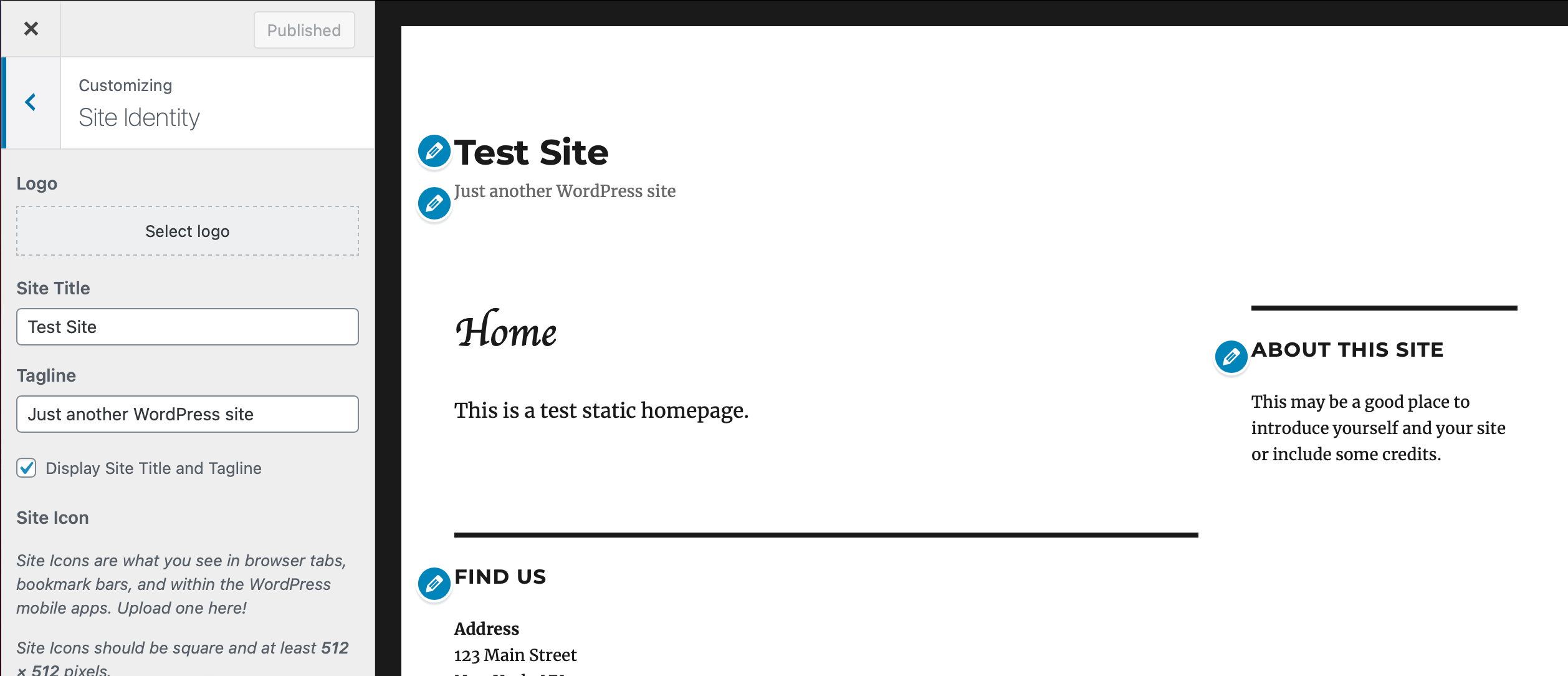
Then click Publish. The Customizer previews changes without saving them. In one Astra thread, the user had made the changes but never published them.
If the settings can’t do what you need, such as adding markup the theme doesn’t offer, copy header.php into a child theme and edit the copy. Edits to the parent theme’s files get overwritten when the theme updates. Keep using wp_nav_menu() and the registered menu location, so the menu stays editable from the dashboard and doesn’t become a hard-coded list of links. Our guide to theme customization that survives updates covers setting up a child theme.
For a single visual tweak, a few lines of CSS in Additional CSS often beat a template override. Use your browser’s Inspect tool to find the selector. CSS copied from a forum usually needs its selectors changed, because every theme names its classes differently.
How to edit an Elementor or builder header
In Elementor, the header is a Theme Builder template. Three things decide whether visitors see it: the template is published, its display conditions cover the page, and its responsive settings don’t hide it on that device. Elementor’s own help article on missing headers lists exactly those three checks.
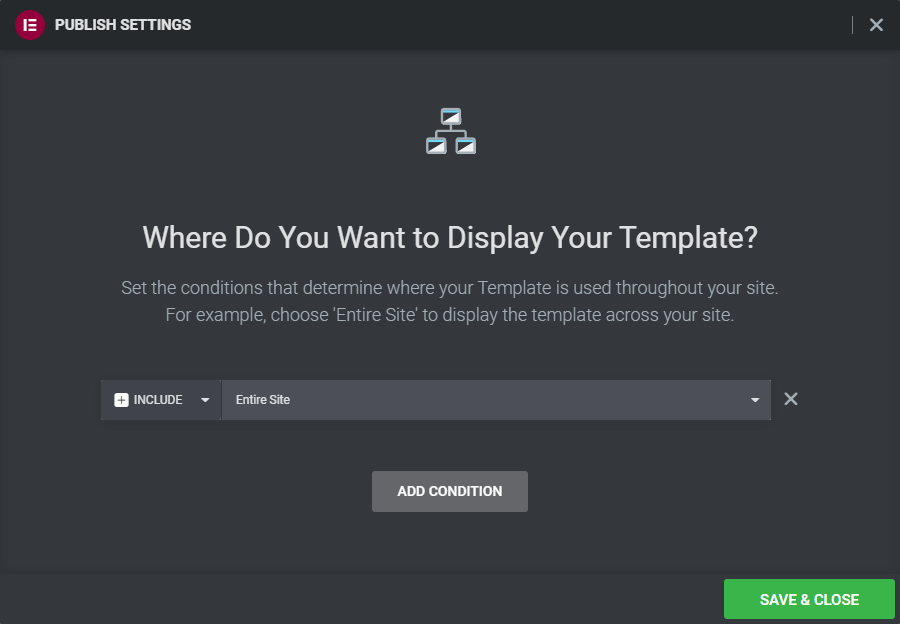
Changing the theme’s Customizer header won’t override a builder header that has replaced it. If the live header doesn’t match what you see in the Customizer, the builder is probably drawing it.
Why one header edit changes every page
A block theme’s header is a template part, and template parts are synced. WooCommerce’s documentation describes them as reusable components: change one, and every template that uses it changes. On a builder site, the header template does the same thing across its display conditions.
That makes it easy to keep the site consistent, and easy to break every page with one mistake. If you want a different header on a single landing page, don’t edit the shared one. Create a separate template with its own header part, or add a builder template with a narrower condition. Elementor’s Canvas layout drops the header completely. That is useful on a campaign page and confusing anywhere else.
Why your header change isn’t showing
The causes below appear again and again in support threads. The order comes from those threads, not from measured data. Most of these failures show no error message at all. The header simply looks wrong or doesn’t appear.
- The page layout leaves the header out. Elementor Canvas omits it. In one WordPress.org thread, switching the page to Full Width brought the header back. On a block theme, check the page’s Template setting.
- The template isn’t published or assigned. Check the builder template’s status and display conditions.
- It is hidden on this device. Look at the builder’s “Hide on mobile” style settings and the theme’s toggles for the header on the homepage.
- A cache is serving the old version. Regenerate the builder’s CSS, then clear the caching plugin, the host cache, any CDN and the browser. A private window only skips your login session. It doesn’t skip server caches. If only one page changed, the problem is the template, not the cache. More on this in why a page is not updating.
- A plugin conflicts with it. Updates to header add-ons, cookie banners and social-feed plugins have all broken headers or hamburger menus in public threads. Deactivate plugins one at a time, preferably on staging. Rolling a plugin back is a workaround, not a fix.
- The theme code or a PHP error stops it. A custom template without
get_header()won’t load the header. If WordPress shows “There has been a critical error”, checkwp-content/debug.logwithWP_DEBUG_LOGturned on. Turn debugging off again afterwards.
There are two false alarms to rule out first. Logged-in admins see the WordPress toolbar, which visitors don’t, and people sometimes mistake it for part of the header. Also, optimization plugins that defer JavaScript can break a sticky or transparent header for visitors only, while the logged-in view looks fine. On WooCommerce, the Checkout template uses a simplified header by design, so a header that looks stripped down there isn’t a bug.
Why a sticky header misbehaves
When position: sticky does nothing, look up the element tree. MDN explains that a sticky element sticks to its nearest ancestor that has a scrolling mechanism. That means a theme or builder wrapper with overflow: hidden, auto or scroll stops the header from sticking to the page. Remove the overflow from that wrapper, or use the theme’s or builder’s own sticky setting.
A sticky header that works can still cover the heading an anchor link jumps to. Give the targets a top offset that matches the header’s height:
html { scroll-padding-top: 90px; }
h2[id], h3[id] { scroll-margin-top: 90px; }
Also check on a real phone. A sticky header that takes up a third of a small screen costs visitors more than the menu gives them.
When to stop and get help
Stop if the fix means editing a parent theme, if a plugin update left the site with a critical error, or if you have gone through the checklist and the header is still missing. Changing more settings at that point mostly destroys evidence. Write down what you changed and when, and keep a backup.
If you don’t want to work out the layer yourself, SiteSelf takes header and design changes through chat. It uses the SiteSelf Connector plugin for settings work and hosting (SSH) access for theme files, and it refuses pages owned by Elementor, Divi or Beaver Builder, telling you why.