Key takeaways
- Run URL Inspection on the exact URL first. ‘Excluded by noindex’, a 403 or a redirect calls for a technical fix. ‘Crawled – currently not indexed’ or a low position calls for content work.
- WordPress’s ‘Discourage search engines from indexing this site’ box under Settings → Reading adds noindex,nofollow to every page, and visitors never see a sign of it. Check it on the live site, not on staging.
- Request Indexing only nudges Google to recrawl. Google says crawling can take a few days to a few weeks and doesn’t promise inclusion, and the request does nothing while a noindex is still in place.
- Ahrefs found that only 1.74% of new URLs in its September 2023 sample reached the top 10 within a year, and 72.9% of top-10 pages were over three years old. That makes it worth improving pages that already rank before writing new ones.
You publish a page, search for it, and it isn’t there. Or it’s there on page three, under competitors who seem to have done less. Both cases feel like “my page doesn’t rank on Google”, but they have different causes and different fixes. Most wasted SEO effort comes from treating them as the same thing.
Google handles a page in three separate stages. It crawls it, decides whether to index it, and then ranks it against other pages for each query. A page that isn’t indexed can’t rank at all. A page that is indexed can still rank badly for reasons no setting will fix. So before you change anything, find out which stage your page is stuck at. If you want the wider context first, our WordPress SEO walkthrough covers the basic setup this article builds on.
Is the page indexed, or indexed and ranking low?
Open Google Search Console, paste the exact URL into the inspection bar at the top, and read the result. You’ll need Search Console set up for the domain. If it isn’t, add and verify the property first, which takes a few minutes with a DNS record or your SEO plugin’s verification field.
The status tells you which problem you have:
- “URL is on Google”. The page is indexed. If it doesn’t show up, it’s a ranking problem. Skip to the ranking sections below.
- “Excluded by ‘noindex’ tag”, “Blocked by robots.txt”, “Not found (404)”, “Blocked due to access forbidden (403)” or “Page with redirect”. Something technical is stopping indexing. These are usually quick to fix.
- “Crawled – currently not indexed”. Google fetched the page and decided not to keep it. That is a judgment about the page, not a broken setting.
- “Alternate page with proper canonical tag”. Google is indexing a different URL in its place. That is often correct, for example with feeds, pagination or duplicate URLs.
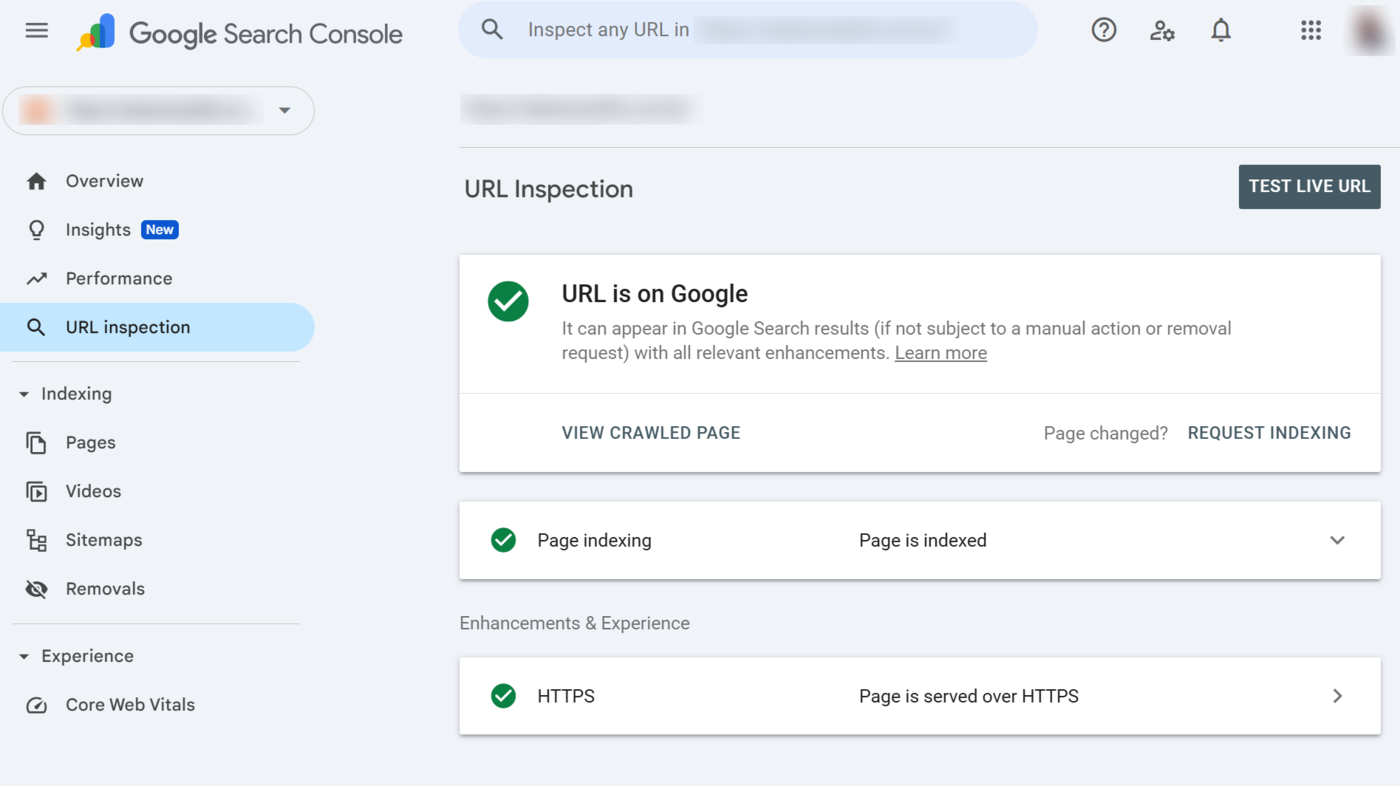
Click “Test live URL” too. The indexed result shows what Google saw last time. The live test shows what Google gets now. If they differ, something changed recently.
How to see where the page ranks today
For a page that’s indexed, its ranking is its position for a specific query, not one number. Search Console gives you that per query:
- Go to Performance → Search results.
- Turn on the Average position and Average CTR metrics alongside clicks and impressions.
- Click + Add filter → Page and enter the exact URL.
- Open the Queries tab. Each row is a search that showed your page, with its average position.
- Set the country and device filters to your main market. A mix of worldwide mobile and desktop searches blurs the numbers.
Average position is an average across every time your page appeared, so treat it as a place to start looking. Position 8 means “usually near the bottom of page one”, not a fixed slot. When you want to see the real results page, search the query in a private window on the right device. That cuts some personalisation but won’t give you a neutral test.
Don’t use a site:yourdomain.com search as a ranking check. It only shows pages Google holds for your domain, not where they rank for anything a customer types.
If the page isn’t indexed, check these in order
These are the WordPress causes people report most often. They run roughly from quickest to check to hardest. Fix only pages that should be in Google. Internal search results, thin archives and thank-you pages are often kept out on purpose.
1. The sitewide “Discourage search engines” box
Go to Settings → Reading and look at “Search engine visibility”. WordPress’s documentation says that ticking “Discourage search engines from indexing this site” adds a noindex,nofollow instruction to your pages. Visitors notice nothing, which is why it often stays ticked for months after a launch.
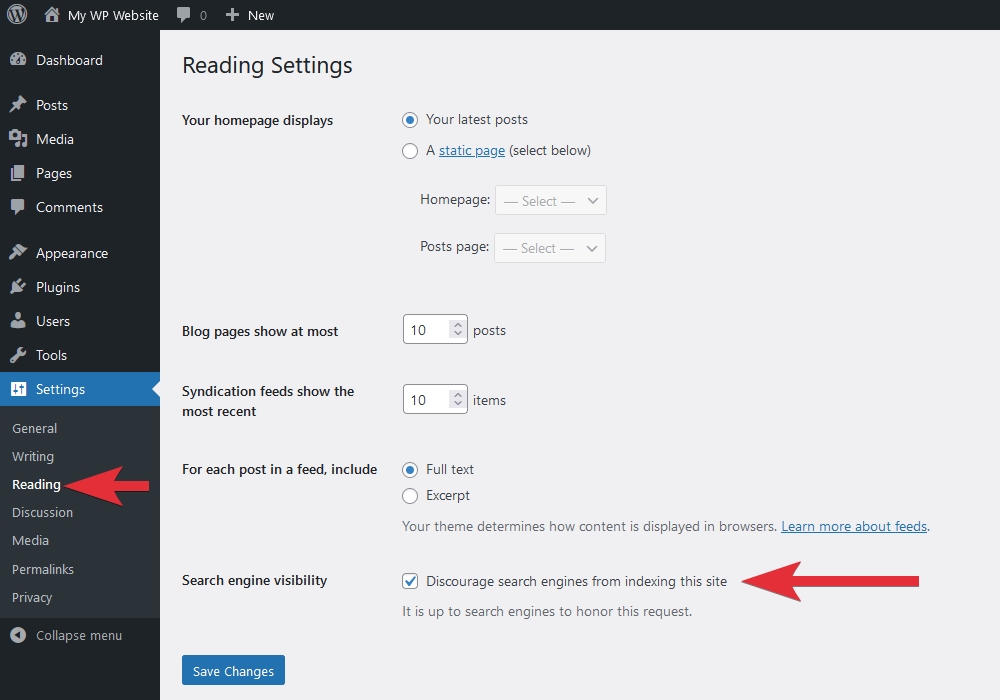
Check this on the live site. Staging copies are meant to have it ticked, and pushing staging to production can carry the setting across. Kinsta’s documentation, for example, says its staging environments are kept out of search through WordPress settings and an X-Robots-Tag header.
2. A noindex from your SEO plugin
SEO plugins can noindex one post or a whole post type. Yoast’s help pages cover noindexing an individual URL from the post editor, and the same plugin has defaults per content type. If every page of a type is missing (all products, or all Pages), check the post-type setting before the individual post. A landing page with its own setting on “index” still drops out if the plugin’s sitewide rule for Pages says noindex.
3. A noindex sent as an HTTP header
A noindex can come from the server instead of the HTML, as an X-Robots-Tag: noindex header. You won’t find it in the page source. Check the headers from a terminal:
curl -I https://example.com/your-page/Look for an X-Robots-Tag line and check that the first line says 200. If the header is there, it’s coming from the host, a staging tool, a security plugin or a rule in .htaccess or the server config. You’ll need hosting access or your host’s help to remove it.
4. robots.txt doing a job it can’t do
Open yourdomain.com/robots.txt and look for a Disallow rule that matches the page’s path. Google’s robots.txt guide says the file manages crawling, not indexing, and that a blocked URL can still show up in results without its content. Google’s noindex documentation adds that Google has to be able to crawl a page to see its noindex. So “block it in robots.txt and noindex it” keeps neither promise. To keep a page out, use noindex and allow crawling.
5. Wrong status, redirect or canonical
The page has to return 200. A 404 means the URL has changed or the page is gone. A redirect means Google is indexing wherever it lands. For a canonical, URL Inspection shows both the canonical you declared and the one Google picked. If your SEO plugin points the canonical at another URL, or a theme or custom snippet outputs a second, conflicting canonical, Google may index the other page. Fix a canonical only if it points to the wrong page.
6. A firewall or CDN refusing Googlebot
If URL Inspection reports a 403 or 503 but the page loads fine in your browser, the block is usually upstream of WordPress. Typical sources are a security plugin’s rules, Cloudflare or another CDN, or the host’s firewall. Turning off plugins won’t help if the block is at the CDN. Before you loosen any security rule, check which URLs are affected. A 403 on /wp-content/plugins/ is often deliberate. A 403 on your content pages is the problem.
Once you’ve fixed the cause, rerun the live test, then click Request Indexing. Google’s recrawl documentation says crawling can take a few days to a few weeks and that a request doesn’t guarantee inclusion. If you’d rather hand over this kind of setting and redirect work than do it yourself, SiteSelf handles SEO settings through chat, checks the changed page and reports what it changed.
“Crawled – currently not indexed” is Google’s call, not a bug
This status means Google saw the page and passed on it. Resubmitting the sitemap or clicking Request Indexing again won’t change that. The pattern on forums is consistent. On r/Wordpress, a sports blogger with 159 articles had 64 of them in this state and was told to publish fewer, more distinctive posts in a crowded niche. On r/SEO, the owner of a new site with about 90 AI-assisted articles reported impressions falling from about 300 a day to almost zero within three days, as pages that had been indexed flipped to this status.
The fix is editorial. Compare the page with what actually ranks for its query, add what it lacks, and merge or remove near-duplicates that make the site look thin. Google gives no per-URL reason, so expect this to be slow.
If the page is indexed but low, what actually moves it
No setting moves an indexed page up. The work is about relevance and usefulness, and it goes best on pages that already have some traction.
Match the intent first. Search the query and look at what type of page Google shows: guides, product pages, comparisons or local businesses. If the results are all guides and your page is a sales pitch, better headings won’t close that gap.
Start with pages in positions roughly 4 to 20. In the Performance report, filter to those positions and sort by impressions. These pages are already relevant enough to be shown. Complete the answer, cover the questions searchers ask next, make the title say exactly what the page offers, and add specific examples. Practitioners swear by this method, but it is a rule of thumb, not measured evidence. Our guide to updating old WordPress posts walks through it.
Link to the page from pages that already get traffic. Google finds and weighs pages through crawlable links. A page that only appears in the sitemap is a weak candidate. Add contextual links from related posts with anchors that describe the page, as covered in adding internal links in WordPress.
Give each intent one page. When two of your own pages target the same query, Google may rank the weaker one, or switch between them. Pick the stronger URL, merge the useful material into it, redirect the other one, and point internal links at the winner. Archives count too. A category page can outrank the post you wanted, and tags versus categories covers when archives should stay indexed.
Why rankings often drop after a redesign or theme update
When a page that ranked well suddenly drops, look at what changed on the site before you blame Google. The usual causes:
- Old URLs now return 404. A new permalink structure, renamed slugs or deleted pages broke them.
- Everything redirects to the homepage. Google gets no matching page for the old one. Map each old URL to its closest real equivalent with a 301. Our article on how 301 redirects affect SEO covers the mapping.
- Customisations lived in the parent theme. In one documented case, a parent-theme update wiped custom URL and redirect code, and pages that used to rank returned 404 until a backup was restored. Keep customisations in a child theme.
- Custom code fights the SEO plugin. A snippet that prints its own canonical or meta tags can contradict the plugin’s correct output.
- Staging settings came across. A noindex from staging ended up on production.
Be careful with coincidences. One wordpress.org poster blamed a Yoast update when a keyword fell from 12th to about 50th. They later traced it to slow, unoptimised CSS plus a Google update. Change one thing at a time so you can tell what worked.
How long until a page ranks
Crawling and indexing take days to weeks. Ranking takes longer and isn’t guaranteed. In Ahrefs’ 2025 study, only 1.74% of a million URLs first seen in September 2023 reached the top 10 within a year. Of pages already in the top 10, 72.9% were over three years old, and the average No. 1 result was five years old.
That’s a reason to measure in months, not days. Give a change about four to six weeks after Google recrawls it before judging it, and compare the same page, queries, country and device before and after. A title change should move click-through rate. A content fix should move position or impressions.
When to stop and get help
Bring in your host or a developer when URL Inspection shows a 403 or 503 you can’t see in a browser, when an X-Robots-Tag header comes from somewhere you can’t find, or when a migration has left hundreds of 404s. Bring in an SEO specialist when the page is indexed, technically clean, and still stuck against established competitors. If you hire someone, agree on deliverables, a timeline and the numbers you’ll judge them by before you pay. Be wary of anyone who guarantees positions.