Key takeaways
- Choose posts from Search Console data, not by age. Practitioners usually start with posts sitting around positions 4 to 20 that have real impressions, or posts that lost clicks.
- Google’s helpful content guidance warns against changing a page’s date when the content hasn’t substantially changed. In Moz’s 2015 test, a date-only bump on 16 posts faded after about two months.
- WordPress calls permalinks permanent. If a slug must change, 301 it to the closest relevant page, never the homepage, which Google may treat as a soft 404.
- On sites with dates in their permalinks, changing the publish date can change the URL itself.
- Google says recrawling takes days to weeks and repeated indexing requests don’t speed it up, so judge results after a few weeks.
An old post that ranks on page two already has things a new post takes months to earn: an indexed URL, inbound links, and queries Google connects to it. Updating that post is often a better use of an afternoon than writing a new one. Doing it badly can lose what the post had, through a changed slug, a misleading date or a cache that keeps serving the old version.
This guide covers the whole job in WordPress: choosing which posts to update, making changes that count, handling dates and URLs, and checking that the update actually went live.
Which old posts are worth updating first?
Update the posts that already have search demand, not the oldest ones. Open Google Search Console, go to Performance, switch to the Pages tab and compare the last three months with the previous period. Three groups usually stand out:
- Near misses. Posts averaging roughly position 4 to 20 with meaningful impressions. Google publishes no such rule. It’s a practitioner heuristic, and a useful one.
- Decliners. Posts that lost clicks compared with last year.
- Stale facts. Tutorials with steps that no longer work, old prices, retired tools, outdated screenshots.
Tag each candidate with one outcome: leave, update, rewrite, merge, or delete and redirect. Be careful with posts already in the top three. Practitioners disagree on whether to overhaul a page that is working, and the cautious answer is small, targeted edits.
Don’t prune on search data alone. Draft.dev’s own refresh kept some posts with little search traffic because they still performed on social media. Low traffic is a reason to look at a post, not a verdict.
What you need before you open the editor
- An Editor or Administrator account in WordPress.
- Search Console access, plus a spreadsheet with one row per post: URL, clicks, impressions, average position and the date you edited it.
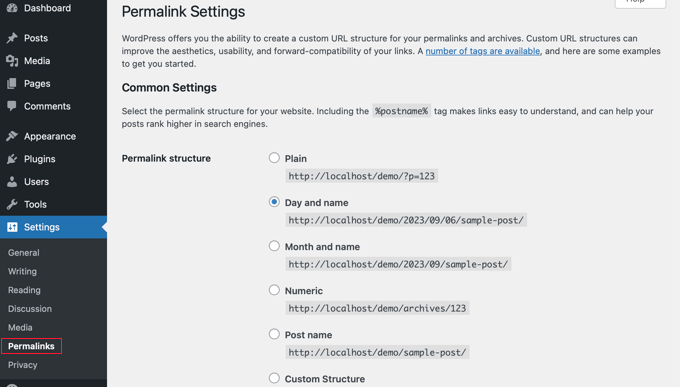
- Your permalink structure, from Settings, then Permalinks. If it includes dates, read the date section below before touching any post date.
- A list of your cache layers: caching plugin, host cache, CDN.
Text edits don’t need a full backup. WordPress keeps revisions of every saved update, so you can restore the earlier version from the editor. If the refresh also involves plugins, theme files or a store page, back up first.
How to update an old blog post, step by step
- Record the baseline. Copy the post’s clicks, impressions and position from Search Console into your sheet. Without it, you’ll be judging the edit from memory.
- Search the query yourself. Read what currently ranks and note what your post misses. Search intent shifts. A post written as a definition may now face results that are step-by-step guides.
- Fix what is wrong. Update statistics, prices, steps, version numbers and screenshots. Replace dead outbound links. One broken citation tells a careful reader the rest of the page isn’t maintained.
- Fill the gaps and restructure if needed. Content Harmony makes a fair point: adding a couple of hundred words under an existing heading often helps less than rethinking the structure around what searchers want now. Put the direct answer near the top.
- Rewrite the title and meta description only if they underperform. If a post ranks but gets few clicks, the title is the likely problem. If it already matches the query, leave it.
- Add internal links in both directions. Link from the refreshed post to newer related posts, and from one or two relevant older posts back to it. Our guide to adding internal links in WordPress covers the mechanics.
- Leave the slug alone. In the post sidebar, don’t touch the URL field.
- Set the date honestly. See the next section.
- Click Update. For an existing post the button says Update, not Publish.
- Check the live page logged out, in a private window. This is the step people skip, and it’s the one that catches a broken embed or a stale cache.
- Request indexing for that URL with Search Console’s URL Inspection tool. Do it once.
Keep your images and headings accessible while you work. Write short alt text for informative images, use empty alt text for decorative ones, and nest headings in order rather than picking a heading level for its size.
On a large archive, these steps add up to a lot of hours. If you’d rather hand them off, SiteSelf makes post updates and publishing work on your WordPress site through chat, then reports what it changed and what it checked.
Should you change the date on an updated post?
Only when the change is real. Google’s guidance on helpful content warns against changing a page’s date when the content hasn’t substantially changed. Google describes the date it shows in results as an estimate of when the page was published or significantly updated.
Date-only refreshes are popular because they sometimes work for a while. In Moz’s 2015 test, changing only the dates on 16 posts that already ranked was followed by a 66% rise in organic visits over four weeks. The effect lasted about two months, and Moz warned against treating it as lasting growth. That test also predates Google’s current wording.
The approach that holds up:
- Keep the original publish date and show a clearly labelled “Last updated” date on the post.
- Make sure the structured data agrees with it. Google’s Article markup has separate
datePublishedanddateModifiedproperties, which most SEO plugins output. Check the rendered page source, not the editor. - Let your sitemap’s
<lastmod>change only for significant updates. Google says it uses that value only when it’s consistently accurate.
One WordPress trap: if your permalinks include the date, such as /2021/04/post-name/, changing the publish date in the sidebar changes the URL. The Republish Old Posts plugin warns against using it on sites like this for exactly that reason.
When the URL has to change, or two posts become one
WordPress’s own documentation calls permalinks permanent URLs that shouldn’t be changed. Most refreshes never need to. There are two exceptions.
Merging overlapping posts. If two or three of your posts compete for the same query, fold the useful material into the one with the strongest links and traffic, then redirect the others. Draft.dev did this with four overlapping hiring posts, keeping the URL with the most backlinks and traffic.
Retiring a post. If a post has no traffic, no links and no fixable purpose, remove it and redirect it to the closest relevant page. Don’t send it to the homepage. Google’s site-move guidance says redirects to irrelevant pages may be treated as soft 404s.
Use a server-side 301 straight to the final URL, with no chains, and test it in a private window, because browsers remember old redirects. Our guides on redirecting a WordPress page and how a 301 affects SEO walk through both.
What a correct result looks like
- The live page, opened logged out in a private window, shows the new content.
- The URL is identical to before, or the old URL redirects in one hop.
- The visible “Last updated” date and
dateModifiedin the page source match. - Images load, links resolve, and any embeds or shortcodes render.
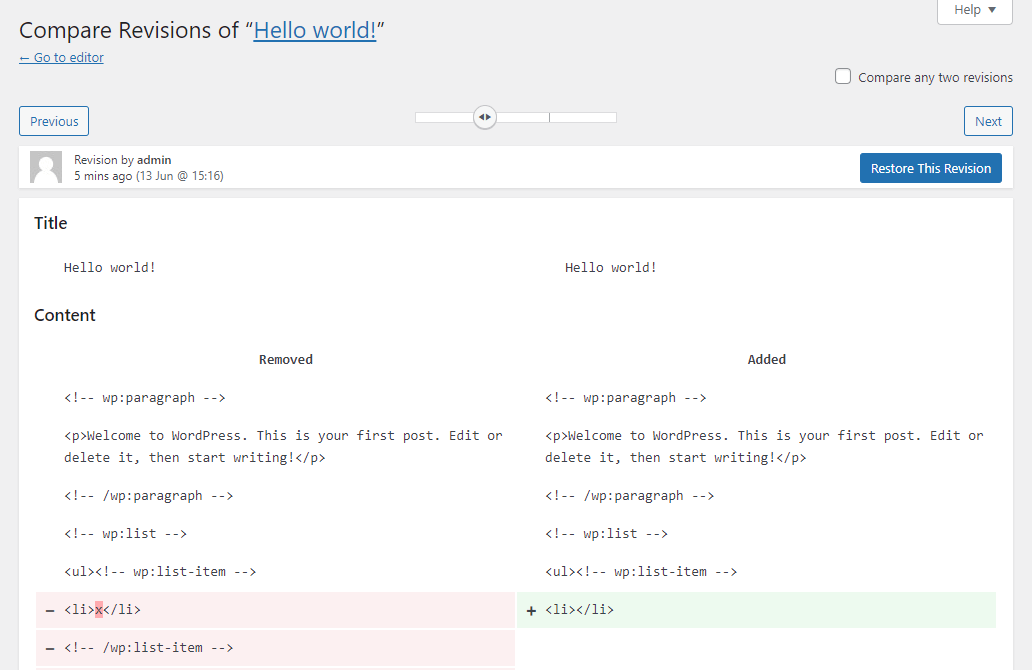
- A new revision appears in the editor sidebar, so you have a way back.
If the update didn’t show up or didn’t save
The editor shows the change but the live page doesn’t. That’s almost always cache. Logged-in users often skip the page cache, so you see the new version and visitors don’t. Clear the caching plugin, then the host cache, then the CDN, because on some hosts clearing one layer leaves the others untouched. Our guide to a WordPress page not updating goes layer by layer.
“Updating failed.” Copy your changes somewhere safe before trying again. In wordpress.org support threads, two causes come up again and again. One is a plugin conflict breaking the REST API, which one site traced to a WooCommerce payment extension. The other is “Could not update the post in the database,” which in some reports went away after certain emoji were removed from pasted text. Clicking Update again doesn’t fix either of them.
You regret the edit. Open the Post tab in the editor’s sidebar, select Revisions, find the earlier version and click Restore. See undoing changes in WordPress for what revisions don’t cover.
How long before you know it worked?
Weeks, not days. Google’s recrawl documentation says crawling can take days to weeks, that repeatedly requesting it doesn’t help, and that indexing isn’t guaranteed. Practitioners usually compare Search Console data two to four weeks after the recrawl, against the baseline in your sheet.
Don’t edit the page again at day ten because nothing moved. If you do, you won’t know which change caused what. Orbit Media reports that bloggers who update old posts are about twice as likely to report strong results. That’s a self-reported correlation, not proof that updating causes the results, so your own before-and-after numbers matter more.