Give your WordPress site its first task.
Connect the site you already have, add your agent to Slack or Telegram, and tell it what you need.
Connect your siteStart with 500 free credits. No credit card needed.
When a WordPress page won’t update, the edit has usually saved and a cache is still serving the old copy. WordPress core has no page cache of its own, so the purge buttons live in your caching plugin, your host panel, your CDN and your page builder. Clearing one of them while another keeps the old copy is the most common reason the fix doesn’t work.
You change the opening hours, click Update, reload, and the old hours are still there. You save again and nothing changes. Saving again won’t help, because “page not updating” can mean at least five different things: the edit saved but a cache serves an old copy, the edit saved in the wrong place, the save failed, the styling is stale while the text is current, or Google is showing an old version.
Each one has a different fix. The order below starts with the test that tells them apart, then goes through the causes from most to least common. If you’re still learning where the editor’s controls are, start with how to edit pages in WordPress.
Open the exact public URL in a private or incognito window, where you’re logged out. Then compare three views: the editor, your normal logged-in tab, and the private window.
Never judge a fix from the logged-in session where you made the edit. That view is the one most likely to look right when it isn’t.
WordPress doesn’t include a page cache by default. WordPress.org’s FAQ says so, and it means there’s no core “clear cache” button. Any page caching on your site comes from a plugin, your host, a proxy such as Varnish, or a CDN. Each one keeps its own copy.
That explains most failed fixes. In one WordPress.org support thread, the poster disabled W3 Total Cache entirely and the page stayed stale, because the host’s own GoDaddy cache was serving it. In an r/webdev thread, a plugin purge did nothing. Clearing the whole-site cache in cPanel fixed it. The same FAQ adds a second trap: cache plugins generally purge a page when you publish it, but a change elsewhere, such as in the theme, can leave cached pages untouched.
| Layer | Where the purge lives | Commonly missed because |
|---|---|---|
| Caching plugin (LiteSpeed Cache, WP Rocket, W3 Total Cache, WP Fastest Cache, SiteGround Optimizer, Breeze) | The plugin’s admin bar menu or settings page | People purge one page when the stale URL is another |
| Host server cache | Your hosting panel (cPanel, Site Tools, MyKinsta, WP Engine portal) | Owners don’t know the host runs its own cache |
| CDN or edge cache (Cloudflare, host CDN) | The CDN dashboard, or a separate CDN tab in the host panel | It’s often purged separately from the server cache |
| Object cache (Redis, Memcached) | Host panel or the object cache plugin | It holds database results like menus and options, not pages |
| Browser | Hard refresh or private window | It’s the only layer people clear, over and over |
Work outward: plugin, then host, then CDN, then your browser. Test in a private window after each step. The layer that fixes it is the one you’ll want to configure properly later.
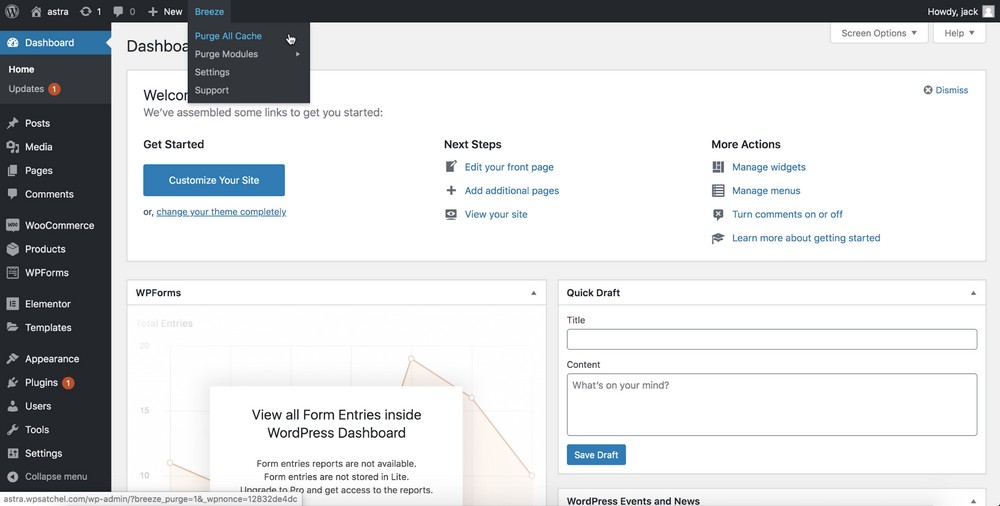
Two hosts show why “clear cache” is ambiguous. Kinsta’s docs say the Clear cache button under Caching > Server Caching clears server and edge cache, plus Redis if it’s enabled, but not the CDN. You clear the CDN under Caching > CDN. WP Engine’s support docs list page, network/CDN and object cache as separate purge options. They also say a purge started from WP Engine’s WordPress admin doesn’t clear object cache, and that a full purge can make the site briefly slower while pages are cached again. If you don’t know which layers your site runs, ask your host. Thirty seconds of support chat beats an evening of guessing.
If you’re comfortable with a terminal, read the headers instead of guessing:
curl -sI https://example.com/your-page/ | grep -iE 'cache|age|cf-'A hit header (for example X-LiteSpeed-Cache: hit, or a CDN’s HIT status) and a large Age value mean a cache answered. LiteSpeed’s troubleshooting guide uses exactly this check. It also explains a quieter failure: when another plugin changes what a page shows without the page being saved, LiteSpeed may not know to purge it. A quick non-technical version is to add a made-up query string such as ?nocache=482 to the URL. Many page caches treat that as a different page. If the new content appears there, a cache is involved.
Don’t turn caching off to make edits show. DebugHawk’s report on 5.7 million pageviews found a median time to first byte of 106 ms for cached pages and 723 ms for uncached ones. Purge the stale layer instead, and make sure it purges itself automatically when content changes.
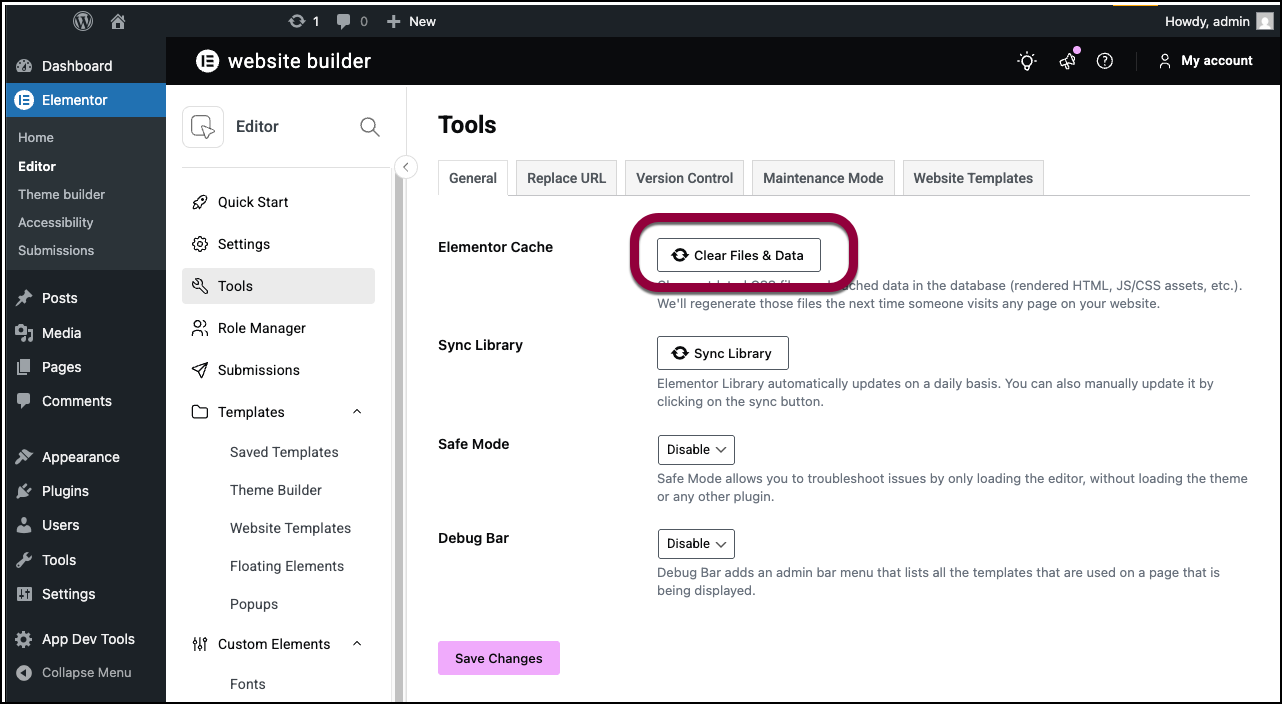
When the words are current but the layout, colours or widget styling are old, the stale copy is usually a generated CSS file, not the page. Elementor’s help center gives the fix: Elementor > Tools > Clear Files & Data, then purge your other caches.
Minification caches cause the same symptom. In a WordPress.org thread about Elementor with W3 Total Cache’s CSS minification, purging only the minify cache wasn’t enough. What fixed the logged-out view was updating W3TC’s media query string and purging all caches. Our guide to layout and design changes in WordPress covers regenerating builder CSS in more detail.
This sounds unlikely until it costs you an hour. Check these in order:
Then open Revisions in the editor sidebar. WordPress.org’s Revisions documentation says autosaves don’t overwrite published content, so if your change only exists in an autosave, it was never published. Restore it, review it, and click Update on purpose.
If the editor showed “Updating failed”, “Publishing failed”, “The response is not a valid JSON response” or “Updating page failed. You’re probably offline”, nothing reached the database. The offline message can appear when your internet is fine. Nexcess’s documentation ties it to the server or REST API, not your connection.
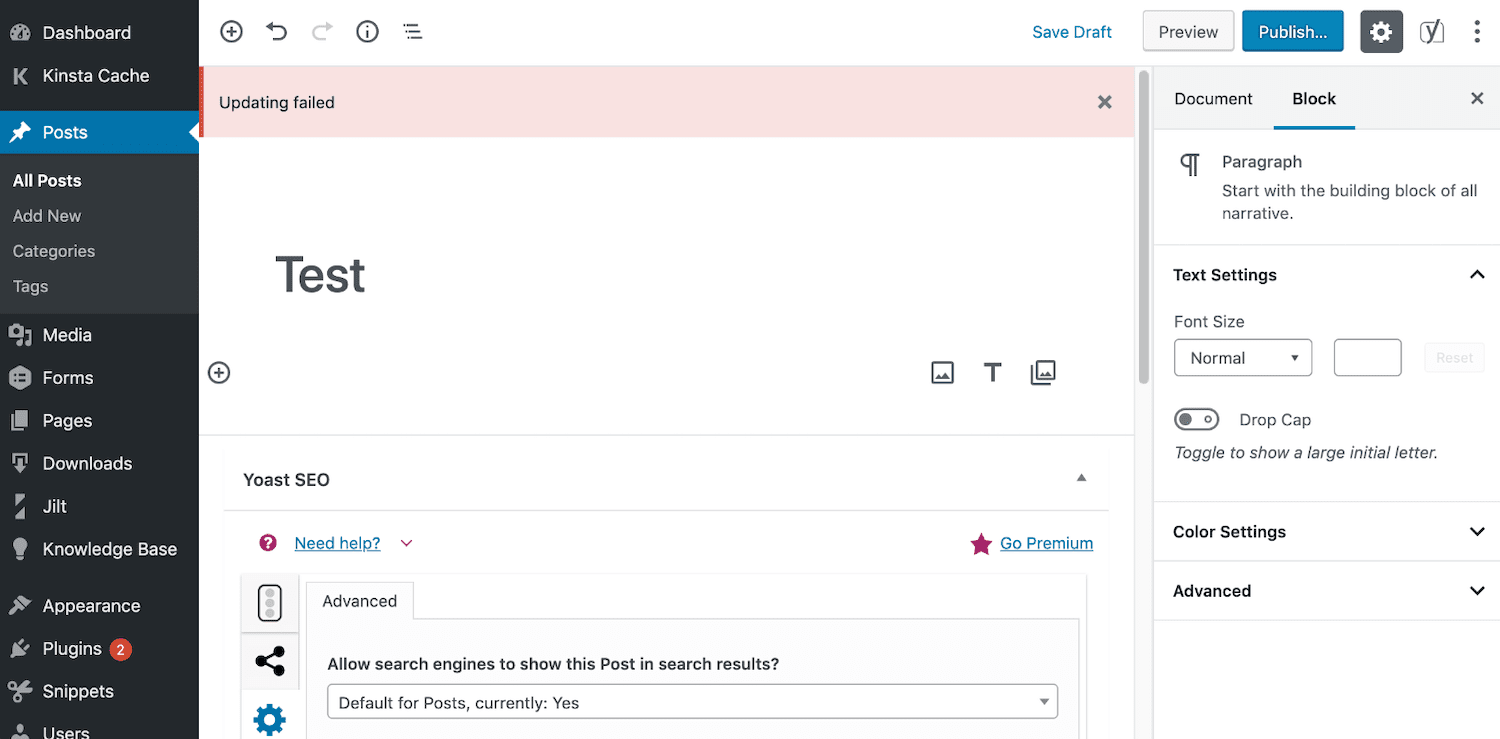
/wp-json/ and note its status code.Installing Classic Editor has made saving work for some people, but that hides the cause rather than fixing it.
WooCommerce > Status > Tools has separate tools, and they don’t do the same job. “Delete all shop and product transient data” is for stale product or shop data. “Clear Template Cache” is for theme customizations that aren’t showing. “Clear expired transients” removes only expired entries. “Clear Customer Sessions” empties every shopper’s cart, so it’s not a refresh button.
WooCommerce’s docs also say cart and checkout pages should normally be excluded from caching, because their content differs for each shopper. If those pages show the wrong contents, a purge won’t last. Fix the exclusion rule in the plugin and at the host.
That’s a crawl problem, not a site problem. In Search Console, use URL Inspection to request indexing for one URL, or submit a sitemap for many. Google’s documentation says crawling can take days to weeks and that requesting the same URL again doesn’t speed it up.
Stop if you’ve purged every layer you know about and the logged-out view is still old, if saves fail and you can’t see server logs, or if testing for conflicts would mean switching off plugins on a live store. At that point, give your host or developer four facts: the exact URL, the time of your last update from Revisions, what visitors see, and every cache you purged. If you’d rather hand the whole hunt over, SiteSelf works through WordPress bug fixes like this one on request. It needs hosting (SSH) access for cache and file work, and it reports what it changed and what it checked.
There’s no core page cache to clear. Use your caching plugin’s purge option, then your host panel’s cache tool, then your CDN. If you don’t know which of those your site uses, your host can tell you.
No. A long wait usually means a cache layer nobody has purged yet. In one r/Wordpress thread, a maintenance company told the owner to wait, and the actual fix was clearing an edge cache.
Each device and browser keeps its own cache, and a CDN can serve different copies from different locations. Test in a private window on the phone. If it’s still old there, purge the CDN.
Usually not. A failed software update is a different problem: think maintenance mode, file permissions and PHP version. Update when a plugin’s changelog names your exact bug, not as a general cure for a stale page.
For a few minutes, yes. But a host or CDN cache may still serve the old page, so a stale result proves nothing. Turn the plugin back on afterwards, because running without a page cache makes every page slower.
Troubleshooting
Most WordPress security issues start in plugins, weak logins and neglected maintenance, not in WordPress core. Before you treat an error as a hack, rule out an ordinary bug. If it is a hack, the fix is a full recovery, because removing the files you can see usually leads to the site being reinfected.
Read article ›Troubleshooting
A 503 on WordPress means the server, or something in front of it, could not handle the request at that moment. It does not tell you which part failed. Work out which layer sent it before you change anything, because the fix for a plugin fault has nothing in common with the fix for a host limit.
Read article ›Troubleshooting
A WordPress fatal error means PHP stopped partway through a request. The “critical error” screen looks the same whatever caused it, so the fix depends on the error line in the recovery email or the PHP log. Read that line first, then make one change you can undo.
Read article ›Connect the site you already have, add your agent to Slack or Telegram, and tell it what you need.
Connect your siteStart with 500 free credits. No credit card needed.