Give your WordPress site its first task.
Connect the site you already have, add your agent to Slack or Telegram, and tell it what you need.
Connect your siteStart with 500 free credits. No credit card needed.
A 503 on WordPress means the server, or something in front of it, could not handle the request at that moment. It does not tell you which part failed. Work out which layer sent it before you change anything, because the fix for a plugin fault has nothing in common with the fix for a host limit.
A customer sends you a screenshot that says “503 Service Unavailable”. The domain still resolves and your hosting account still exists, so the site hasn’t vanished. Something between the visitor and the finished page couldn’t answer when they asked.
That is all a 503 tells you. WooCommerce’s documentation on response codes describes it as the server being temporarily unable to handle the request. It doesn’t say which part failed. Usually the web server, the host or a proxy sends the response, even when WordPress code caused the trouble. So the job is to find which layer sent it, then fix that layer. If you see a bare 500 instead, that is a different failure, covered in our guide to fixing a server error 500.
Spend two minutes on this before you touch a file. The same status code comes from very different places, and the pattern usually tells you which one. Open the site in a private window so you see what a logged-out visitor sees. Then check the homepage, a normal post, /wp-admin and, on a store, the cart and checkout.
| What you see | Most likely layer | First move |
|---|---|---|
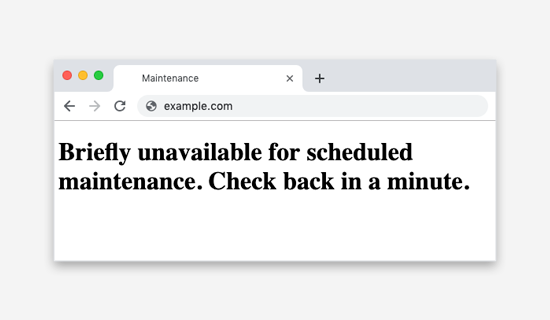
| “Briefly unavailable for scheduled maintenance. Check back in a minute.” | A leftover .maintenance file from an interrupted update | Delete the file, then rerun the update |
| The whole site fails right after a plugin update | That plugin | Disable it by renaming its folder |
Public pages load, /wp-admin fails | Uncached PHP work hitting a limit, a security lockout, or a plugin’s admin-side task | Check host resource usage and any security plugin |
| Cart, checkout or logged-in pages fail, cached pages are fine | Exhausted PHP workers, or a route-specific fault | Ask the host for PHP worker usage at that time |
| Saving many product variations or opening many orders fails | mod_security or a server request limit | Ask the host to check firewall rules for that request |
| A page branded by a security plugin, such as Wordfence | A login lockout | Wait, or adjust the lockout settings |
| “cloudflare” or “cloudflare-nginx” in the error page | Cloudflare generated the response | Follow Cloudflare’s 503 steps |
| Only one page fails | A block or element on that page | Check what is on that page |
Write down the time you first saw it and what changed beforehand: an update, a new plugin, a campaign that sent traffic, an email from your host. Logs are only useful if you know which minutes to read.
No one has measured how often each cause happens, so this order comes from WordPress.org support threads and host documentation, not from a dataset. Plugin behaviour and host capacity show up far more often than anything else.
This is the most reported trigger, especially when the 503 starts within minutes of an update. In one WordPress.org thread, a user lost 12 client sites at once and traced the failure to WP-Optimize 3.2.22. Other users in the thread removed the plugin to get their sites back. Take reports like this as a pattern, not proof. In other threads, the plugin’s own support team disputed whether their plugin was to blame.
The fix is to disable the suspect and see whether the site recovers. If you can’t reach the dashboard, connect over SFTP or open your host’s file manager. Go to wp-content/plugins and rename the plugin’s folder, for example wp-optimize to wp-optimize-off. WordPress deactivates a plugin when it can’t find the plugin’s files. If you have no suspect, rename the whole plugins folder, confirm the site loads, then restore the plugins one at a time. Our guide to fixing a WordPress fatal error walks through the same folder method in detail.
Once the site is back, decide what to do with the plugin. Rolling back to an older version brings the site back but may reopen security holes the update closed. Replacing the plugin, or waiting for a fixed release, is often the safer choice.
Every uncached request needs a PHP process to build the page. Kinsta’s documentation says each PHP thread handles one request at a time. When all the threads are busy, new requests time out or get a 503 or 504. Cached pages skip PHP, which is why the homepage can load while /wp-admin, the cart and checkout fail. Those pages can’t be served from cache, so they use up the workers first.
You can’t see this from inside WordPress. Look at your host’s resource dashboard for CPU, memory, I/O and process limits at the time of the failure. Then ask the host directly: were PHP workers or entry processes maxed out at that time, and which requests were slow? The fix might be caching more pages, fixing a slow query or a plugin that makes runaway requests, or a bigger plan. Only take the bigger plan once the logs show capacity is the actual limit.
During an update, WordPress creates a file named .maintenance in the site root. WordPress’s Advanced Administration Handbook explains that if the update is interrupted, the file stays behind and the maintenance message keeps showing. Make sure the update has really stopped by waiting a few minutes first. Then delete .maintenance over SFTP or in the file manager, and run the update again from Dashboard, then Updates. Dot-files are often hidden, so you may need to turn on “show hidden files” in your file manager.
If you delete the file while an update is still running, the site can end up half-updated. That is worse than the message.
A 503 on the login screen with a security plugin’s branding is usually a brute-force lockout, not an outage. Check how the plugin detects visitor IP addresses, since behind a proxy everyone can look like the same visitor. Also check whether it locks out invalid usernames immediately. Renaming the plugin’s folder gets you in, but it also switches off your protection. In one reported case, the lockout came back once the plugin was restored.
Server firewalls can do the same. WooCommerce’s documentation says mod_security blocking requests can cause 503 errors when saving large amounts of data, such as many product variations, and that your host can configure or disable the rule. Ask the host to allow the legitimate request. If you switch any firewall off to test, switch it back on afterwards.
Cloudflare’s support docs say that if the 503 page contains “cloudflare” or “cloudflare-nginx”, Cloudflare generated the response. If it doesn’t, the 503 came from your origin server and you should investigate there: overload, exhausted connections, maintenance mode. Even a Cloudflare-generated 503 only tells you which layer answered, not why. A quick way to see the headers is curl -I https://yoursite.com from a terminal. Look at the status line and the server header.
When only one URL fails, look at what is on it. Forum cases include a Contact Form 7 block with no form selected, and a WooCommerce product-category element on a front page. Each was fixed at that page: selecting a form in one case, swapping the element in the other. Broad fixes miss problems like these. In one WordPress.org thread, a store owner ran a full conflict test, raised PHP memory, cleared caches and reinstalled WooCommerce. The cart still returned 503s. The cause turned out to be requests to an old /cart/ URL being caught by a temporary must-use plugin.
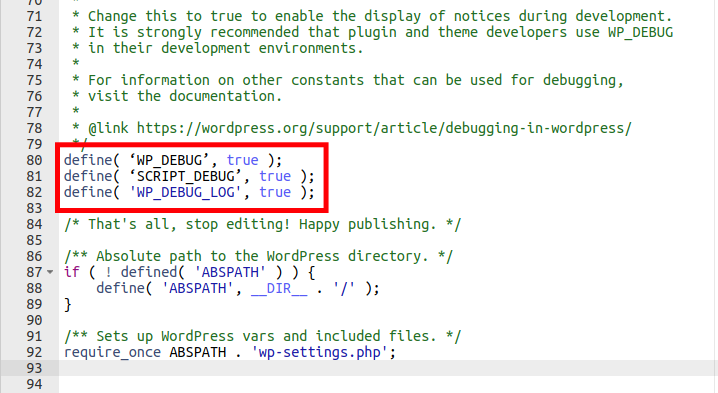
Your host’s server and PHP error logs are the first place to look, and reading them changes nothing on the live site. If PHP errors are involved, WordPress can also write its own log. Add these lines to wp-config.php above the line that says “That’s all, stop editing”:
define( 'WP_DEBUG', true );
define( 'WP_DEBUG_LOG', true );
define( 'WP_DEBUG_DISPLAY', false );
WordPress’s debugging handbook explains that this writes errors to wp-content/debug.log instead of printing them on the page. Keep display off on a live site. Errors shown in the browser can reveal file paths, query fragments and sometimes data. Reproduce the 503, read the entries with matching timestamps, then set WP_DEBUG back to false and delete the log. WooCommerce gives the same advice: switch debugging off once the problem is diagnosed.
A memory error such as “Allowed memory size of 536870912 bytes exhausted” names the request that hit the limit. It doesn’t always show what caused it. Follow the file path in the error back to the plugin or block it names.
The standard test, as WooCommerce’s conflict guide describes it, goes like this. Take a backup and use staging if you can. Switch to a default theme and deactivate plugins except WooCommerce and the extensions involved. Reproduce the problem, then reactivate plugins one at a time. It is the right method, and it has blind spots.
wp-content/mu-plugins yourself.Before any rollback or restore, confirm you can actually get back. A backup job that reported success is not the same as a backup that restores. Our explainer on what a backup plugin covers explains the difference.
WordPress’s Recovery Mode, available since version 5.2, helps when a plugin or theme causes a fatal PHP error. It emails the administrator a link and pauses the faulty extension for that session. It is built for fatal errors, so don’t expect it to catch a 503 caused by exhausted workers or a firewall rule.
“Increase PHP memory” and “upgrade your plan” are the most common advice in 503 threads. Sometimes they are right. A host raising PHP limits has fixed an orders page, and moving hosts has ended 503s caused by a plan that was too small. But Kinsta’s documentation points out the catch on its platform: raising the memory for each PHP thread leaves fewer threads. If the problem is how many requests can run at once, more memory per request means fewer requests served.
In an r/webdev thread, one commenter called buying more RAM without finding the cause “a sales pitch not a resolution”. That is the right instinct. Get the log line or the worker graph first, then decide what to buy.
Restarting PHP, switching PHP versions back and forth, or having the host restart the server often brings the site back for an hour. That is a symptom going quiet, not a fix. If the 503 comes back on a pattern, such as every five minutes or after a few minutes logged in, the pattern itself is evidence to give the host.
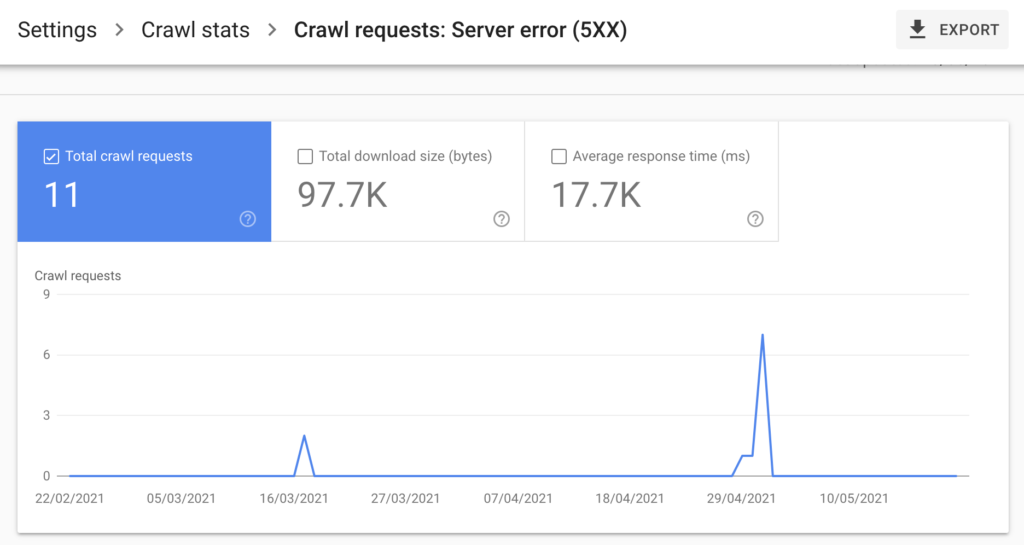
Google’s Search Central guidance treats a 503 as temporary, and for planned downtime that is the right signal. For a deliberate shutdown of a day or two, Google recommends returning 503 with a Retry-After header. It also says not to return 503 for robots.txt and not to use 404, 410 or noindex as a temporary signal. Google’s crawl troubleshooting page adds that if 503s go on for more than about two days, Google may start dropping URLs from its index. A 503 is a way to buy a day, not a way to sit out a broken site.
Stop changing things if any of these is true:
Each extra guess on a live site adds a change someone will have to undo later.
Send your host a short note they can act on:
Ask specifically about PHP worker usage, slow requests and firewall rules at those times. A specific ticket gets someone to check the logs. A vague one gets a suggestion to upgrade.
If you’d rather not dig through logs and file managers yourself, the SiteSelf page on WordPress bug fixes explains how the agent works through errors like this one, using hosting (SSH) access for log and file work, and reports what it changed and what it checked.
It can be either. The host or web server sends the 503, but a plugin, a slow query or an unconfigured block can be what pushed it there. The scope table above, plus your host’s resource graph for the time of the failure, usually settles which.
Public pages are often cached and skip PHP, while every admin request runs PHP. If workers are exhausted, a plugin is running heavy admin tasks, or a security plugin has locked you out, the dashboard fails first. Check host limits and your security plugin before anything else.
Use SFTP or your host’s file manager. Rename the suspect plugin’s folder in wp-content/plugins, or rename the whole plugins folder if you have no suspect. If that doesn’t help, ask your host to check the server logs, because the cause may sit outside WordPress.
For planned work, yes. A deliberate 503 tells search engines the downtime is temporary. Keep it short, keep robots.txt reachable, and switch it off when the work is done, since a maintenance page left on is a self-inflicted outage.
That wording comes from Varnish, a caching proxy some hosts put in front of WordPress. Varnish asked your server for the page and didn’t get a usable answer in time. Treat it like any origin-side 503: check host resources and logs, and ask the host whether Varnish or PHP was the bottleneck.
Troubleshooting
Most WordPress security issues start in plugins, weak logins and neglected maintenance, not in WordPress core. Before you treat an error as a hack, rule out an ordinary bug. If it is a hack, the fix is a full recovery, because removing the files you can see usually leads to the site being reinfected.
Read article ›Troubleshooting
A WordPress fatal error means PHP stopped partway through a request. The “critical error” screen looks the same whatever caused it, so the fix depends on the error line in the recovery email or the PHP log. Read that line first, then make one change you can undo.
Read article ›Troubleshooting
On a WordPress site, “SSL handshake failed” can mean at least three different failures, and each one has a different owner. Before you change any setting, work out which connection broke: Cloudflare to your server, WordPress to an outside service, or a visitor’s browser to your site.
Read article ›Connect the site you already have, add your agent to Slack or Telegram, and tell it what you need.
Connect your siteStart with 500 free credits. No credit card needed.