Give your WordPress site its first task.
Connect the site you already have, add your agent to Slack or Telegram, and tell it what you need.
Connect your siteStart with 500 free credits. No credit card needed.
SEO on WordPress comes down to a short list of settings you get right once, a check that those settings reached the live site, and then the slow work of making pages people want. A plugin handles the configuration. It does not rank anything for you, and a green score is not proof that Google can see your pages.
A WordPress.org forum poster once described 39 indexed pages, every one green in Yoast, a submitted sitemap and search engines allowed, and still nothing showed up in search. That thread sums up the whole topic. The settings were correct, and correct settings only get your site considered. Being considered and being found are separate problems.
Doing SEO on WordPress means three jobs. Get a handful of technical foundations right. Confirm they took effect on the live site. Then do the ongoing work of publishing useful pages and linking them together. The first two take an afternoon. The third never ends, and it is where the results come from.
Out of the box, WordPress core gives you a search visibility setting, a permalink setting and an automatic XML sitemap at /wp-sitemap.xml. An SEO plugin such as Yoast SEO, Rank Math or All in One SEO adds control over per-page titles, meta descriptions, canonical URLs and structured data. No plugin has been shown to rank a site better than another, so pick on workflow and price.
What no plugin does is decide whether two pages compete for the same search, whether a page answers the question better than the pages already ranking, or whether anyone can reach it through your menus. Those decisions stay with you. If you are adding pages as you go, the basics of publishing pages Google can find apply to every one of them.
Go to Settings > Reading and find “Discourage search engines from indexing this site.” When it is ticked, WordPress adds a noindex, nofollow robots meta tag to every page. Visitors still see the site normally, which is why the setting survives unnoticed after launch. Untick it and save.
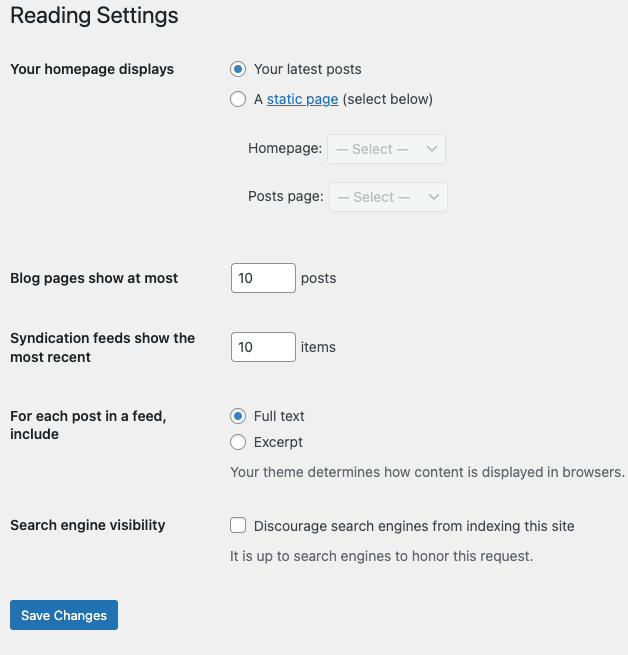
Then check two things the checkbox does not control. First, some hosts noindex staging sites with an X-Robots-Tag HTTP header as well as the WordPress setting. Kinsta’s documentation describes exactly this for its staging environments. If staging configuration was copied to production, the header can remain after you untick the box. Second, look at individual pages. Your SEO plugin can set noindex per page, per post type or for whole archives.
Do not use robots.txt to keep pages out of Google. Google’s noindex documentation is explicit: Google has to crawl a page to see its noindex tag. If robots.txt blocks the URL, Google never reads the tag, and the page can still appear in results.
On a new site, go to Settings > Permalinks and choose Post name, so URLs read /pricing/ rather than /?p=123. WooCommerce stores have a separate “Product permalinks” section on the same screen. WooCommerce’s documentation recommends short structures with relevant words, and warns that a custom product base can conflict with a taxonomy base.
On an established site, “switch to Post name” is not automatic advice. Changing the structure changes every existing URL, and old links from Google, email and social posts start returning 404s. If you must change it, map each old URL to its new one with a 301 redirect first. Google treats redirects as a strong signal of which URL you prefer.
Pick one plugin and deactivate any other plugin that writes titles, meta descriptions, Open Graph tags or schema. Two plugins doing the same job produce duplicate tags. Yoast’s own help pages warn about Open Graph conflicts for exactly this reason.
Most SEO plugins replace the core sitemap with their own. That is fine, as long as only one exists. In Yoast, the switch is under Yoast SEO > Settings > Site features > XML sitemaps, and content types you set to stay out of search are left out of the sitemap automatically. Yoast also advises deleting any physical sitemap.xml file left in the site root by an old plugin, because it can shadow the real one.
A sitemap helps Google discover URLs. Google’s sitemap documentation says it does not guarantee crawling or indexing. A page that appears only in the sitemap, with no links from your menus or other pages, is still close to invisible.
Use the plugin’s fields under the editor, or set templates for whole post types. Each title should say what the page is, specifically: “Emergency plumbing in Leeds, same-day callouts” beats “Home | Services | Company Name.” Avoid template text repeated across dozens of pages.
Set expectations accordingly. Google can rewrite title links, and its snippet documentation says the result text comes mainly from page content and only sometimes from the meta description. Write the description anyway, because it is the version you control, but do not spend hours on it.
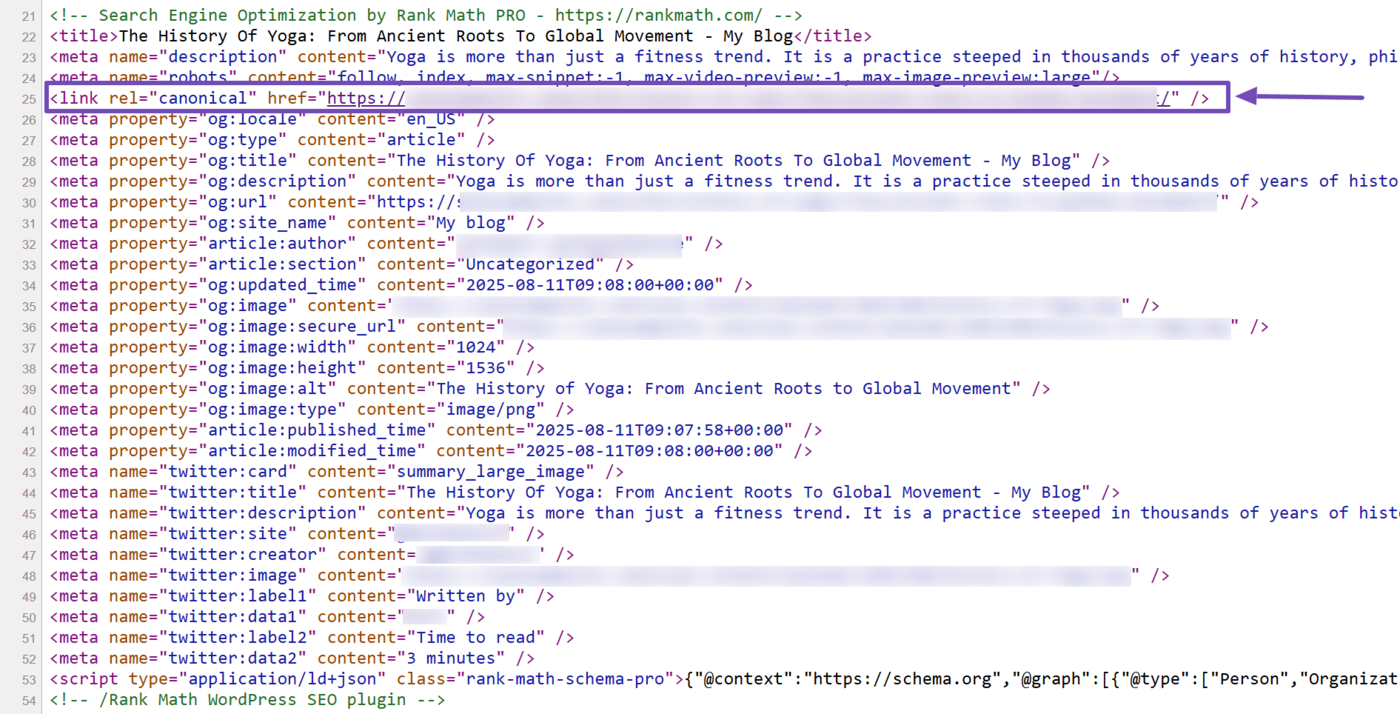
The same page can exist at http and https, with and without www, with and without a trailing slash, and with tracking parameters. Choose the preferred form, redirect the others to it, and keep internal links and sitemap entries consistent with it. Your SEO plugin outputs a self-referencing canonical tag on each page by default. Leave that alone unless you have a reason.
Manual canonicals are where this goes wrong. In one WordPress.org support thread, a Yoast post sitemap showed “This XML Sitemap contains 0 URLs.” Cache purges, a Cloudflare purge, disabling plugins and switching themes did nothing. The cause was hand-entered canonical URLs without trailing slashes on a site that used them. Removing them fixed it.
Your SEO plugin, WooCommerce or your theme outputs schema for articles, products and breadcrumbs. Run key pages through Google’s Rich Results Test, then URL Inspection in Search Console. Valid markup makes a page eligible for richer results. It does not guarantee them and it is not a ranking boost.
Theme code causes duplicates as often as plugins do. In a GeneratePress forum case, breadcrumbs loaded twice and Search Console reported “Missing field ‘item’ (in ‘itemListElement’).” The cause was a child theme’s header.php calling wp_head() twice, so every plugin’s head output appeared twice.
Google’s Core Web Vitals thresholds for a good experience are Largest Contentful Paint within 2.5 seconds, Interaction to Next Paint under 200 milliseconds and Cumulative Layout Shift under 0.1. Google uses them in its ranking systems, and its page experience documentation also says good scores do not guarantee top rankings.
WordPress sites are improving here. HTTP Archive’s 2024 Web Almanac found that the share of WordPress mobile sites passing all three metrics rose from 28% in 2023 to 40% in 2024. Check your own field data in Search Console’s Core Web Vitals report, find the failing template, and fix the specific cause: usually an oversized hero image, a heavy builder section or unneeded scripts. Adding a third optimization plugin on top of two others makes debugging harder and rarely helps.
Submitting the sitemap in Search Console is optional, and it is worth doing because you then get a report of what Google fetched. Use URL Inspection on your homepage and two or three key pages. It shows whether Google can crawl the page, which canonical Google chose, and whether a noindex was found.
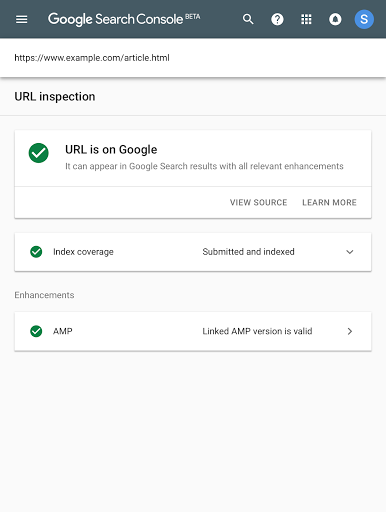
A plugin’s “Settings saved” message tells you what is in the database. It does not tell you what the site serves. Caching, host rules, security plugins and theme code all sit between the two. Check the output directly, logged out, after clearing your cache:
# Any robots header added by the server or host
curl -sI https://example.com/ | grep -i x-robots-tag

# The robots meta tag and canonical in the served HTML
curl -s https://example.com/ | grep -iE 'name="robots"|rel="canonical"'

# What robots.txt really says
curl -s https://example.com/robots.txt
No terminal? Open the page, choose View Page Source, and search for robots and canonical. Then open /robots.txt and your sitemap URL in a private window.
A correct result: no noindex anywhere on pages you want found, one canonical tag per page pointing at the URL you chose, one title tag, one set of Open Graph tags, a robots.txt that does not disallow those pages, and a sitemap that lists real URLs in the same format as your canonicals. Repeat this after every plugin update, theme change or migration. Updates occasionally change defaults, and nothing on screen tells you when they do.
Read the exact status in Search Console’s Pages report, because each one points somewhere different.
If a plugin misbehaves in a way you cannot explain, test for conflicts one plugin at a time on a staging copy. The steps for isolating a plugin that is not working apply here too.
Google’s guidance on helpful content says its systems favour reliable, people-first content, written from first-hand knowledge. In practice that means one page per real question, answered better than the pages already ranking, with headings a reader can scan.
Practitioners on X and Reddit repeat one method so often it is worth trying, though nobody has controlled data for it. In Search Console’s Performance report, filter for queries where you sit around positions 4 to 20 and sort by impressions. Those pages are already close. Answer the query more fully, fix a weak title, and add internal links from related pages. That usually beats writing another near-duplicate post.
Three smaller habits help. Write alt text that describes informative images, and use alt="" for decorative ones, as the W3C images tutorial recommends, rather than stuffing keywords. Keep tags and categories purposeful, because a tag per post creates hundreds of thin archive pages. And do not noindex every archive by default either, because older posts can lose their only crawl path.
Give it time. Forum replies to owners with correct setups say competitive searches can take months. The r/marketing commenters in the research put it at three to six months before anything shows. Measure impressions and clicks in Search Console, not the plugin’s score.
Get a developer or your host involved when a noindex or X-Robots-Tag header persists after you have removed every setting you can find, when duplicate tags come from theme files, when a migration or domain change needs a redirect map, or when a security plugin or firewall is returning 403 errors to the SEO plugin. Those are code, server and hosting problems, not settings. If what you want off your plate is the routine part (titles, descriptions, redirects, plugin settings), SiteSelf handles WordPress SEO changes from chat: it works through its connector plugin for settings and content and needs hosting access for header or theme fixes, then fetches the changed page and reports what it found.
Partly. The visibility setting, permalinks and the core sitemap at /wp-sitemap.xml are free and built in. Per-page titles, meta descriptions and canonical control normally come from a plugin, and the free versions of the major ones cover those basics.
No evidence shows one plugin ranks sites better than another. Choose on interface, the features you actually use and licensing cost across your sites. Whichever you pick, run only one.
No. The score checks things like keyword placement and length on one page. It knows nothing about competing pages, links or whether your content answers the search better than what already ranks.
No, Google can find it through robots.txt and links. Submitting it in Search Console is still worth doing, because you get a report on whether Google could fetch it and how many URLs it read.
Only if the current structure causes a real problem, and only with 301 redirects from every old URL. Otherwise you trade a cosmetic improvement for broken links and lost signals.
Product permalinks have their own settings, product schema comes from WooCommerce or your SEO plugin and needs validating, and near-identical product descriptions compete with each other. Filling in every metadata field is not enough on its own. Distinct product pages and guides that link to them do more.
How-to Tutorials
For one “find us” location, a Google Maps embed pasted into a Custom HTML block needs no plugin and no API key. Plugins earn their place when you need several markers, a store locator or a map in a classic widget area. When a Google-powered plugin map shows a grey box, the cause is almost always the API key, the Google Cloud project, billing or the referrer settings. The theme is rarely the problem.
Read article ›How-to Tutorials
A WordPress homepage can be a static page, a feed of your latest posts, a block theme template, a classic theme file or a page builder layout. Each one is edited in a different place. Find out which one your site uses first and the edit itself is quick. Skip that step and you can spend an hour changing something visitors never see.
Read article ›How-to Tutorials
Updating a WordPress theme takes one click under Dashboard, then Updates. Nearly everything that goes wrong comes from the site around that click: custom code edited into the parent theme, a license tied to the wrong domain, file permissions, or no way back. Answer three questions before you update and most failures never happen.
Read article ›Connect the site you already have, add your agent to Slack or Telegram, and tell it what you need.
Connect your siteStart with 500 free credits. No credit card needed.