Give your WordPress site its first task.
Connect the site you already have, add your agent to Slack or Telegram, and tell it what you need.
Connect your siteStart with 500 free credits. No credit card needed.
“Modify the header” in WordPress can mean four jobs: the visible header, the code in the page head, the HTTP response headers, or the “headers already sent” error. Each one has its own place to make the change. Most failed header edits are correct edits made in the wrong place, so start by working out which system controls your header.
Four different jobs show up under the words “modify header” in WordPress. Someone wants a new logo or menu. Someone else needs to paste a Google verification tag. A third person needs a security header from the server. A fourth is staring at a PHP warning that says “Cannot modify header information.” Each job happens in a different place, and the most common failure is a correct edit made in the place that doesn’t control the live site.
Pick your row before you open anything.
| What you want | What it is | Where you change it |
|---|---|---|
| Logo, menu, layout, colours, sticky behaviour | The visible site header | Site Editor, Customizer or theme options, or a page builder |
| Verification tag, analytics script, meta tag | The HTML <head> | A code-insertion plugin, or a child theme |
| Security, caching or CORS headers | HTTP response headers | The Redirection plugin, your host’s panel, or server config |
| “Cannot modify header information – headers already sent” | A PHP error | The file and line after “output started at” |
Open the Appearance menu in wp-admin. If you see Editor, you’re on a block theme and the header is a template part. If you see Customize and no Editor, it’s a classic theme. Our guide to telling block and classic themes apart walks through the same check.
Then check for a builder. If Templates > Theme Builder in Elementor has a published header, Elementor controls the header and the theme’s settings won’t change it. Some commercial themes have their own panel too. One Avada user on Reddit found the controls under Appearance > Theme Options > Header after searching everywhere else.
Here’s a catch developers run into: after you save, WordPress keeps your version in the database and uses it instead of the theme’s parts/header.html. Editing that file later changes nothing until you reset the template part’s customizations in the Site Editor. The guide to WordPress drop-down menus covers the Navigation block in more detail.
Go to Appearance > Customize. Three panels do most of the work:
Click Publish when the preview looks right. A classic theme only lets you change what it exposes. If the panel you need isn’t there, you can either live with the limit or make a code change in a child theme. You can’t fix it from the settings screen.
Go to Templates > Theme Builder > Header, edit the template and click Publish. Elementor then asks for display conditions, such as the entire site or specific pages. A header that shows on some pages and not others is usually a condition problem. It’s rarely a design problem.
Check the page template as well. Elementor Canvas deliberately leaves out the header and footer. In a resolved WordPress.org support thread, switching a page from Canvas to Elementor Full Width brought a missing header back.
Use a code-insertion plugin. In WPCode, the steps are:
<script> or <meta> tags. If you leave out a script wrapper, the code can print on the page as plain text.<body> into the Body field. This only works if your theme calls wp_body_open, the hook WordPress fires after the opening body tag.WPCode’s documentation says code added this way stays in place when you switch themes, because it lives in the plugin. A pasted tag in header.php disappears with the next theme update.
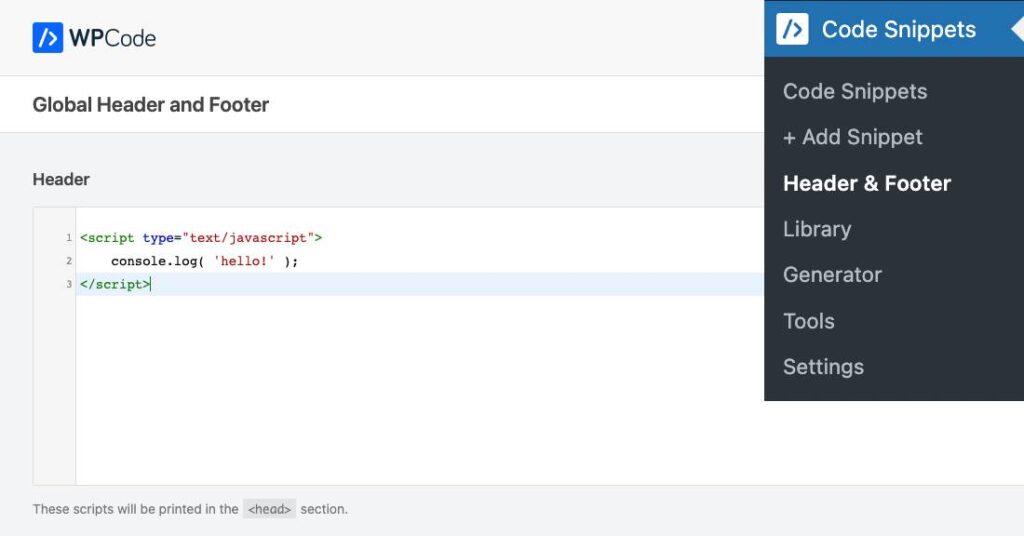
In a classic theme, header.php contains the document head and calls wp_head(). Plugins print their scripts and meta tags through that hook. Edit the parent theme’s copy and the next update overwrites it.
Back up first. Then create a child theme. Often you don’t need to copy header.php at all, because a hook in the child theme’s functions.php is smaller and safer:
add_action( 'wp_head', function () {
    echo '<meta name="example-verification" content="abc123">' . "\n";
} );
Only copy header.php into the child theme when you need to change its markup. Don’t copy the parent’s functions.php. WordPress’s Theme Handbook warns that duplicated function names cause fatal errors. Our article on theme customization that survives updates covers the child-theme setup.
These usually fail silently, with no error. Check them roughly in this order:
header.php, a pattern or the page content.This PHP warning means something printed output before WordPress tried to send a header, a cookie or a redirect. The message looks like this:
Warning: Cannot modify header information - headers already sent by
(output started at /wp-content/themes/child/functions.php:34)
in /wp-includes/pluggable.php on line 1450
Fix the file after “output started at”, not the one after “in”. WordPress’s Advanced Administration Handbook names the usual culprits:
<?php or after a closing ?>;In a PHP-only file, leave out the closing ?> completely. For redirects, run them on template_redirect and stop execution, because wp_redirect() doesn’t exit on its own:
add_action( 'template_redirect', function () {
    if ( is_page( 'old-offer' ) ) {
        wp_redirect( home_url( '/new-offer/' ), 301 );
        exit;
    }
} );
If a core file is damaged, replace it from a backup or a fresh WordPress download. The guide to redirecting a page without losing traffic covers the non-code routes.
These are set at the server, not in the page. With the Redirection plugin, go to Tools > Redirection > Site and use the HTTP Headers section. Add a header name and value, choose whether it applies to the whole site or only to redirects, and save. Picking “redirects” for a header meant for every page is a common mistake.
Purge caches. Then open your browser’s developer tools, reload, and read the response headers in the Network tab. Some managed hosts restrict certain headers, so check your host’s panel if one won’t stick.
Check the live site in a private window, logged out, at phone width. Open and close the mobile menu, scroll to test any sticky behaviour, and make sure the sticky header doesn’t cover page titles. Then tab through the header with the keyboard.
The W3C’s accessibility tutorials recommend putting the main menu in a labelled <nav> region. A <header> nested inside an <article> or <section> is not the page-wide banner. Custom header markup should keep both points intact.
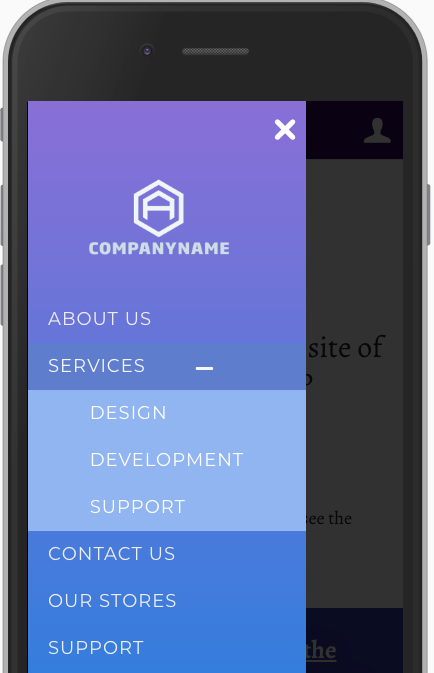
Sometimes there’s no setting to find. In a 2026 WordPress.org thread, a Storefront user wanted the account, cart and search on one line. Storefront doesn’t do that by default. Moving My Account into the primary menu got partway there, and the owner kept the simpler header.
At that point you have three options: accept the theme’s layout, rebuild the header in a builder, or have the markup changed in a child theme. If you want the third option done for you, SiteSelf makes header and layout changes on an existing site from a chat request. It needs hosting access for template files, and it refuses headers owned by Elementor, Divi or Beaver Builder.
On a block theme, create a second header template part and use it in the templates that need it. In Elementor, publish a second header and give it its own display conditions. Classic themes only offer this if the theme supports it.
For visual changes, usually yes, through the Site Editor or the Customizer. For scripts and meta tags, a plugin is the simplest route. The alternative is a wp_head hook in a child theme, which needs file access.
Edits to the parent theme’s files will be erased. Site Editor changes, Customizer settings, builder templates and code-plugin snippets are stored separately and survive theme updates. Child-theme files survive as well.
Check the logo file first. Transparent padding inside the image counts as part of the logo’s size, so cropping the image often fixes it. If the logo is fine, look at padding on the header group or a newly added announcement row.
Use your SEO plugin’s per-post setting if you have one. Otherwise, add a conditional wp_head hook in a child theme, or a snippet in a code plugin with page conditions.
How-to Tutorials
WordPress has no feature called a redirect page. What most people need is a rule that sends an old URL to a new one with the right status code, set in the right place on the site. Most redirect problems come from two of those places disagreeing, and adding another rule rarely fixes them.
Read article ›How-to Tutorials
You can install a WordPress plugin in under a minute from Plugins, then Add New Plugin, then Install Now and Activate. When it goes wrong, the cause is usually the setup around the plugin: the wrong ZIP, file ownership, an upload limit, a leftover folder, or an account that is not allowed to install. Check the plugin before you install it, and check the site after you activate it.
Read article ›How-to Tutorials
In WordPress the favicon is called the Site Icon. On WordPress 6.5 and later you set it under Settings → General, and you don’t need a plugin or any code. Setting it is the easy part. Most of the time goes into getting browsers, caches and Google to show the new icon, and that goes faster when you find the cause before you start clearing things.
Read article ›Connect the site you already have, add your agent to Slack or Telegram, and tell it what you need.
Connect your siteStart with 500 free credits. No credit card needed.