Key takeaways
- Classic themes build submenus in Appearance then Menus. Block themes use the Navigation block. WordPress.org’s documentation says 5.9 was the last version to include the Appearance Menus screen for all sites by default.
- A menu that looks complete in the admin but shows nothing on the front end is usually not assigned to a theme location, or the header template has no Navigation block.
- If the submenu is in the page source but invisible, the cause is almost always CSS: z-index, overflow or height on a parent, or a leftover visibility rule.
- An empty WooCommerce variation dropdown means the attribute was never ticked Used for variations, or variations were never generated.
- A select needs a real label tied to it with for and id. Placeholder text that reads Select… is not a label, and it should never submit as a valid answer.
The Services item in your header will not open on a phone. Or a quote form keeps arriving with an empty “Choose a service” value. Or the size picker on a product page renders, but there is nothing inside it. All three get searched as the same thing: a WordPress drop down list.
They are not the same thing. WordPress has no single dropdown feature. The phrase covers at least five surfaces, each owned by a different system, each with its own cause when it stops working. Picking the wrong one and fixing that instead is the expensive mistake here.
Which of the five dropdowns are you looking at
| What you see | What owns it | Where you change it |
|---|---|---|
| Submenu under a header link | WordPress menus plus your theme | Appearance then Menus, or the Navigation block |
| Select field in a contact or booking form | Your form plugin | The plugin’s form builder or form-tag |
| Size or colour picker on a product page | WooCommerce variations | Product data then Attributes and Variations |
| “Sort by” box on the shop page | WooCommerce plus the theme template | Theme output of the catalog sorting hook |
| Filter or picker inside wp-admin | Core or a plugin | Code: a metabox, a filter callback, a walker |
Before any of that, answer one question: is the site on a classic theme or a block theme. Classic themes store navigation in the Menus screen. Block themes store it in a template, edited through the Site Editor. If you are unsure which you have, open the Appearance menu and look at what is in it, the same test used for editing a WordPress theme safely: a Customize item points to classic, an Editor item points to block. WordPress.org’s documentation notes that 5.9 was the last version to include the Appearance Menus screen for all sites by default, and that block themes in 6.0 and later manage navigation through the Navigation block.
Editing the wrong screen for your theme type is the top reason people say “I saved it and nothing changed”.
Build a submenu on a classic theme
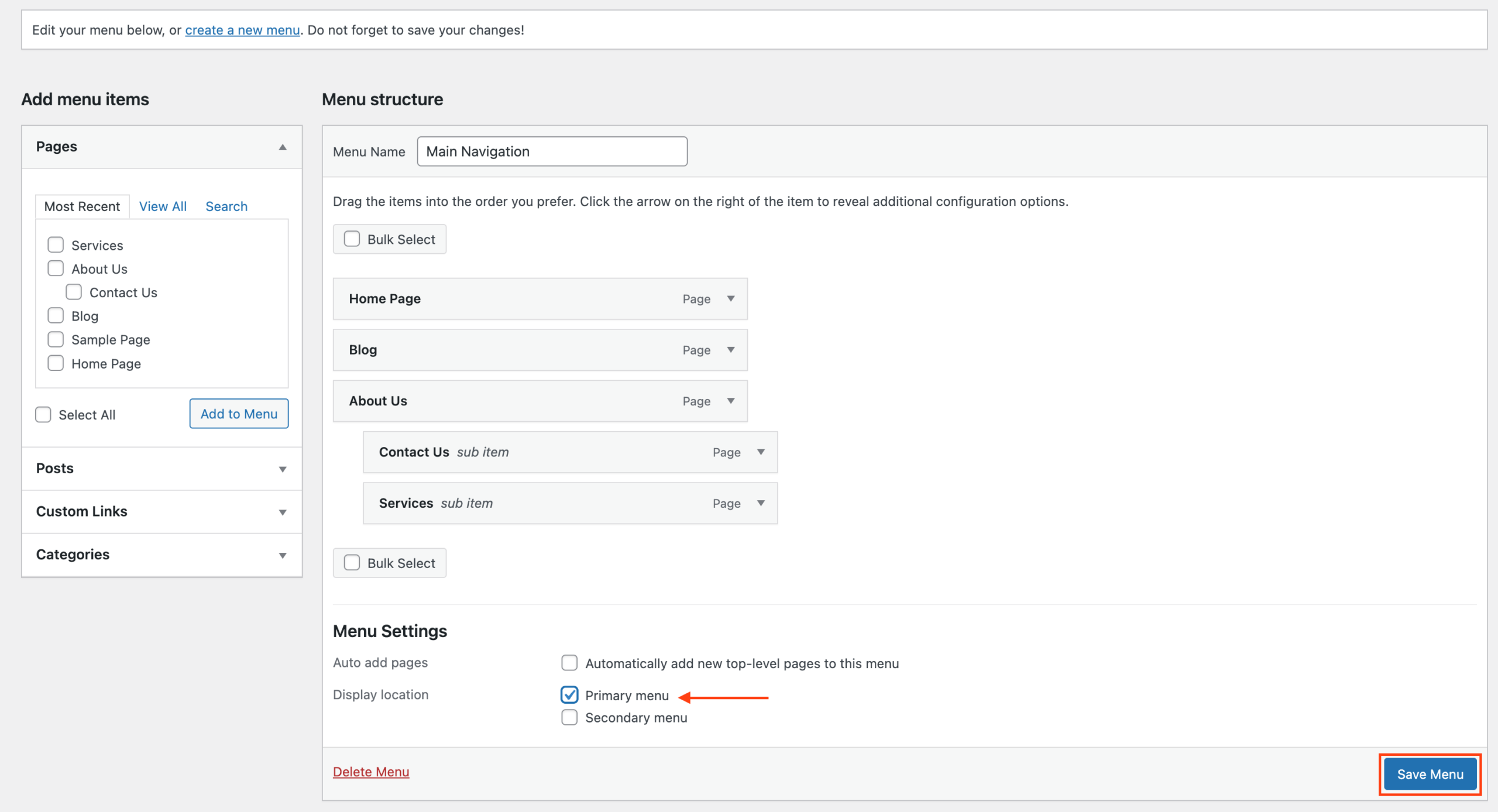
Go to Appearance then Menus. You need an editor or administrator account; no file access is involved.
- Create a menu, or select the existing one from the dropdown at the top.
- Add the parent item first, for example the Services page.
- Add the child items below it.
- Drag each child slightly to the right, under the parent. The item label changes to “sub item”. That indentation is the dropdown.
- In Menu Settings, tick a display location such as Primary Menu. A menu with no location ticked renders nowhere.
- Save Menu, then load the front end in a logged-out window and check desktop and mobile.
A correct result looks like this: hovering or tapping the parent reveals the children, and the parent still links to its own page if it has one. If the admin screen shows your items but the front end shows nothing, go back to step 5 first. Missing location assignment is the single most frequent cause, and it takes a minute to rule out.
Build a submenu on a block theme
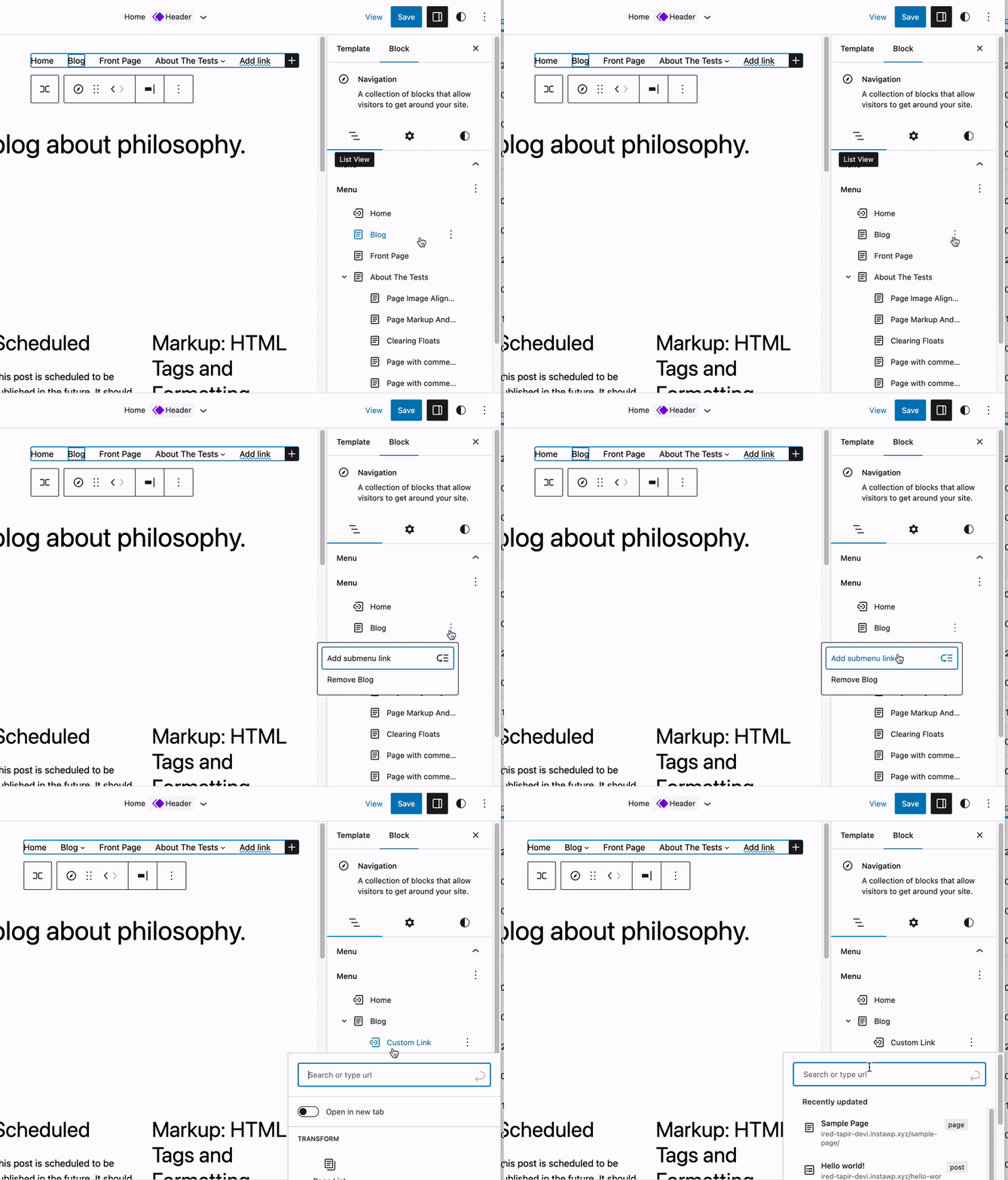
Open Appearance then Editor, then Patterns or Templates, and open the template part that holds your header. Select the Navigation block inside it. The block’s documentation on WordPress.org covers creating a menu, selecting an existing one, and adding submenu items.
- Select the link you want as the parent.
- Use the block toolbar option to add a submenu, then type or search for the child pages.
- In the Navigation block’s settings, check whether submenus open on hover or on click. Click is the safer default, because touch devices cannot hover.
- Save, and confirm the change on the live header rather than in the editor preview.
The block-theme version of “nothing happened” is usually one of two things: the header template part contains no Navigation block at all, or the block points at a different menu than the one you edited. Both are visible in the Site Editor in about thirty seconds. The same template-part logic applies lower down the page, which is why editing the WordPress footer follows the same route.
Resist the urge to create a second menu when the first one will not appear. Duplicate menus are how a site ends up with different navigation on different templates.
Add a select field to a form without losing the answer
Form dropdowns come from the form plugin, not from WordPress. In a builder like WPForms or Forminator you drag in a Select field, type the options, and set required or multi-select in the field settings. Contact Form 7 does the same job with a form-tag; its documentation covers drop-down menus alongside checkboxes and radio buttons, and the starred version of a tag makes the field required:
[select* service "Web design" "SEO" "Maintenance"]Four decisions matter more than the markup:
- Who maintains the list. If office staff need to rename an option next quarter, keep it in the plugin’s interface. Hard-coded options save nothing if every edit becomes a developer task.
- How long the list is. A fifty-item select is a scrolling problem. Split it into two dependent selects (category, then subcategory), or use radio buttons when there are five or fewer choices.
- What the empty state submits. A first option reading “Select…” must not be an acceptable value. Mark the field required so it cannot be submitted blank, otherwise that placeholder becomes a row in your reporting.
- Where the value lands. Send a test entry and check the notification email and the saved entry. A dropdown that works on screen and maps to the wrong field downstream still costs you the lead.
Dynamic options, pulled from products, posts or taxonomy terms, are possible but not from core alone. Custom fields with a select, a form plugin’s dynamic choices feature, or a small function that turns terms into options all work. The tradeoff is worth naming: business logic built around a niche plugin is hard to move if that plugin stops being maintained.
Fix a WooCommerce dropdown that is empty or missing
Variation pickers and the shop’s sort box fail for different reasons.
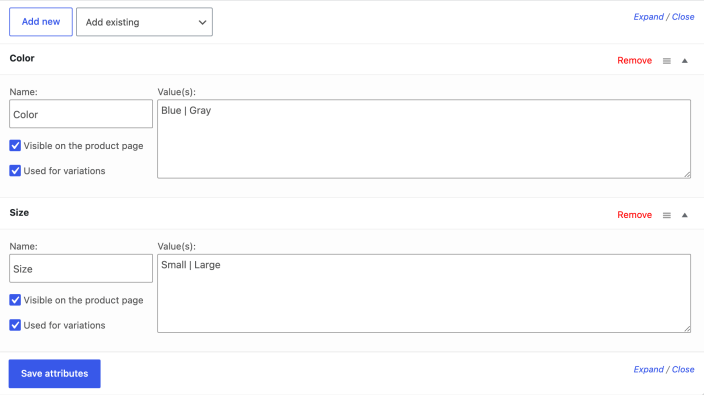
An empty variation dropdown. WooCommerce’s documentation describes variable products as a product type offering a set of variations with their own price, stock and image. The chain has to be complete: set the product type to Variable product, add the attribute with its values, tick Used for variations on that attribute, save, then generate the variations and give each one a price. A select can render and still be empty when the attribute exists but was never marked for variations, or when variations were never created.
A missing “Sort by” box. That control comes from the theme calling WooCommerce’s catalog ordering hook, woocommerce_catalog_orderby. Themes that build their own shop templates sometimes remove it. Restoring it is a template change, which means a child theme and file access, not a settings toggle. Check the theme’s own options first; some expose sorting as a checkbox.
A picker nobody uses. On mobile, a variation dropdown below the Add to cart button gets missed, and you hear about it as “the item is out of stock”. Put selectors above the button, label them explicitly (“Select size”), and show a clear message when nothing is chosen.
The dropdown exists but nobody can see it
Work down this order. It is the sequence that resolves these fastest, because each step is cheaper than the one after it.
- Assignment. Classic: is a display location ticked. Block: does the header template actually contain a Navigation block, pointing at the right menu.
- CSS. Right-click the parent item and inspect. If the submenu is in the page source but not on screen, it is a style problem, not a broken feature. The usual four:
z-indextoo low so the submenu sits behind a sticky header, slider or the admin bar;overflow: hiddenor a fixedheighton a parent container clipping it; avisibility: hiddenordisplay: nonerule that never gets reversed; a gap between the parent and the submenu so the dropdown closes as the pointer travels toward it. - JavaScript. Open the browser console on the front end.
Uncaught TypeErrororReferenceError: $ is not definedmeans the script that opens the menu died. WordPress loads jQuery in no-conflict mode, so custom scripts need wrapping:jQuery(document).ready(function($) { // menu code }); - Conflicts. Deactivate plugins, reproduce, re-enable one at a time, then switch to a default theme such as Twenty Twenty-Five to isolate theme scripts. Do it on staging, or in a troubleshooting mode that only affects your own session, so visitors do not watch you work. The same method covers most cases where WordPress plugins are not working.
- Caching. Purge every layer you have: the caching plugin, the host’s server cache, the CDN. Then turn off JS and CSS minification and combination, or exclude the menu’s scripts from them. Stale assets make correct fixes look like they did nothing.
- Rebuild. After a migration or a repeated menu import, items can exist in the admin and never render. Delete that menu, rebuild it by hand, reassign the location.
One rule runs through all six: change one thing at a time. Disable five plugins at once and the symptom goes away without telling you what caused it.
If you would rather hand the diagnosis over, SiteSelf takes a report like “the Services submenu does not open on mobile” through chat, does the work on the live site, and reports what it changed and what it checked, which is the kind of request covered by WordPress bug fixes through chat.
When to stop and get help
Stop before you edit header.php or a wp_nav_menu() call in a parent theme, because the next theme update overwrites it. Stop if the site runs a theme header, a page builder header and a mega menu plugin at once; that is three systems competing for the same navigation, and the fix is choosing one and removing the others, which is a project rather than a tweak. Stop if a copied CSS or JS snippet changes behaviour you do not understand.
Make the dropdown work without a mouse
A dropdown that only opens on hover is finished for mouse users and broken for everyone else. Keyboard users cannot hover. Touch users cannot either.
For forms, the rule is short: every select gets a visible label associated with it through for and id, with unique IDs on the page. W3C’s WAI tutorial on labeling controls covers that association. Placeholder text inside the select is not a label, no matter how well it reads.
For navigation, W3C’s WAI tutorial on fly-out menus covers making submenus that open on hover also work from the keyboard. Test it yourself in two minutes: put the mouse aside, press Tab through the header, confirm every top-level item shows a visible focus outline, confirm Enter or Space opens the submenu, and confirm focus never vanishes behind a sticky header or an off-canvas panel.
Where you have a choice, use the native <select>. It is announced correctly by screen readers, it behaves the way each phone expects, and it survives plugin updates that break custom widgets. A custom dropdown with search, swatches or grouped options has to earn its place by adding something the native element cannot do, and then it owes you keyboard operation, focus management and correct roles and states.