Give your WordPress site its first task.
Connect the site you already have, add your agent to Slack or Telegram, and tell it what you need.
Connect your siteStart with 500 free credits. No credit card needed.
The most reliable place to find your WordPress version is Tools → Site Health → Info → WordPress, because it reports what is actually installed. If you can’t log in, read $wp_version in wp-includes/version.php or run wp core version. Public clues like the generator tag, readme.html and ?ver= strings are only hints, and they are often missing or wrong.
A plugin refuses to activate because it needs a newer WordPress. A support volunteer asks for your environment details. A security notice names a release and you need to know if your site falls in the affected range. In all three cases the question is the same, and so is the answer: find the version the site actually has installed, not the one a public page seems to show.
There are many places to see a WordPress version number, and they are not equally trustworthy. Screens and files inside the site report what is installed. Signals visible from outside, such as page source, feeds and scanners, can be removed, filtered or out of date. Which method you use depends mostly on your access. If the dashboard won’t load at all, the file and command-line methods below still work, and our guide to fixing a WordPress white screen covers getting the site itself back.
Start with the highest row you can reach. Everything above the line reads the installed version. Everything below it guesses.
| Your access | Method | How much to trust it |
|---|---|---|
| Admin login | Tools → Site Health → Info → WordPress | Authoritative |
| Admin login | At a Glance widget, admin footer, Dashboard → Updates | Authoritative |
| WooCommerce admin | WooCommerce → Status → WordPress environment | Authoritative |
| Host portal | Your host’s site dashboard | Authoritative, but may need a refresh |
| Files (file manager, SFTP) | $wp_version in wp-includes/version.php | Authoritative |
| SSH | wp core version | Authoritative |
| Public site only | Generator tag, feed, readme.html, ?ver= strings | A hint at best |
Site Health is the most detailed screen. WordPress.org’s documentation puts it under Tools → Site Health, with an Info tab that reports the version in use along with server, database and plugin details.
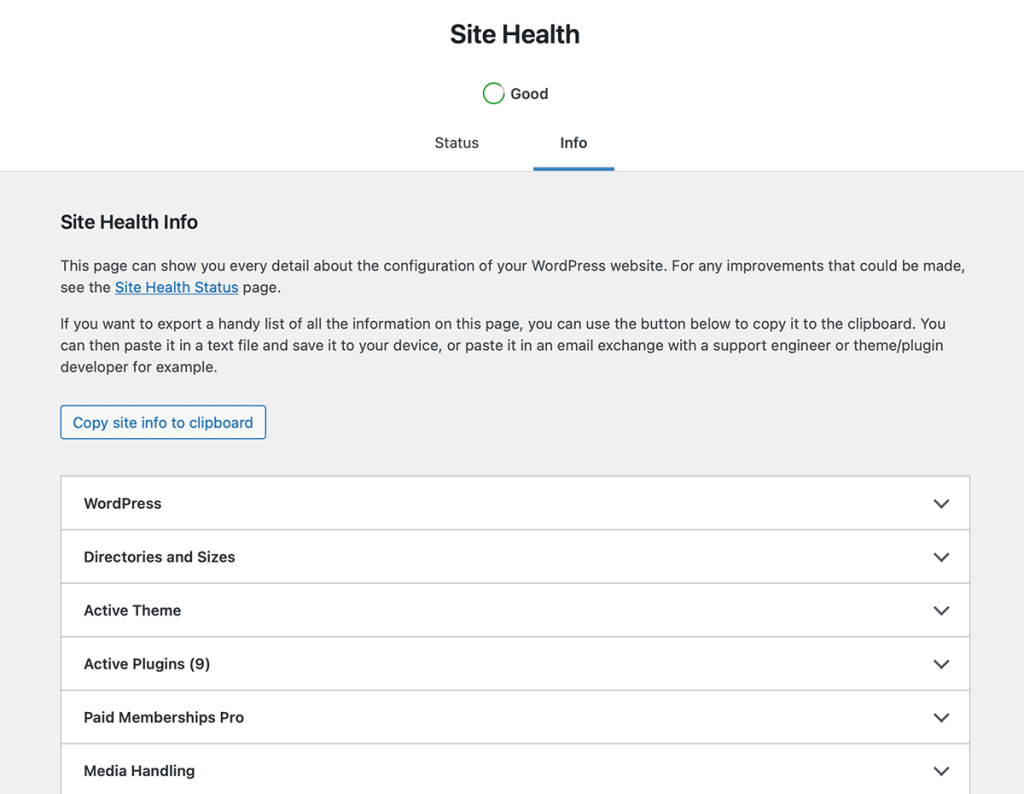
The Info tab is read only, so you can’t break anything by opening it. If you’re asking for help, use the Copy site info to clipboard button and paste the report into your support thread. It covers the WordPress version, PHP version, active theme and plugin list in one go, which is what a volunteer needs to tell a core problem from a plugin conflict. Our guide to fixing plugins that stop working covers what else to include.
WordPress.org’s Administration Screens documentation lists two quick spots. The At a Glance widget on the Dashboard home screen names the installed version, and the admin footer at the bottom right of most screens shows it too.
If At a Glance isn’t there, it hasn’t gone anywhere. Someone turned it off. Open Screen Options at the top right of the Dashboard and tick At a Glance to bring it back.
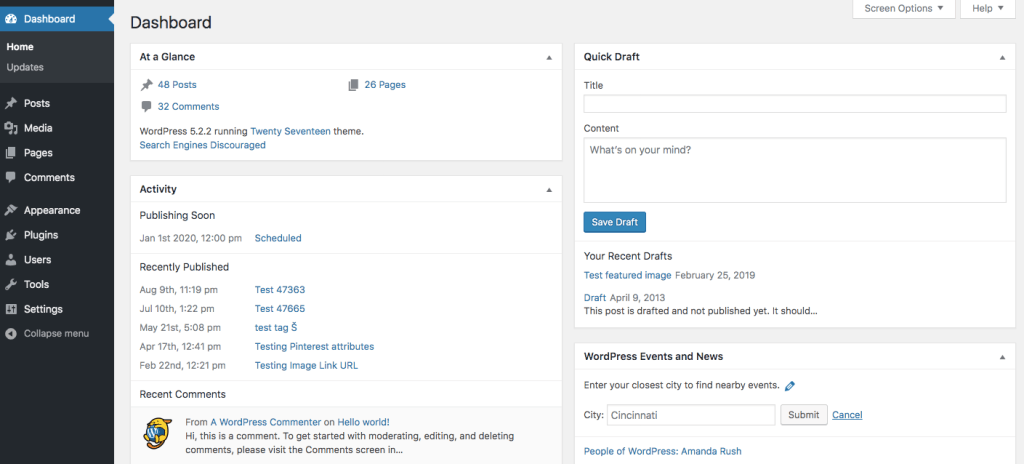
Dashboard → Updates also states your current version, and it’s the screen to use when you want to act on the number rather than just read it. It tells you whether a newer release is available.
Store operators have a second authoritative screen. WooCommerce’s documentation gives WooCommerce → Status → WordPress environment → WordPress version, with Site Health as the alternative. Be careful not to mix up the WordPress version with the WooCommerce version listed near it.
Managed hosts show the version in their own panels:
Lost credentials, a contractor login without admin rights, or a fatal error that takes down wp-admin all lead here. You need either file access or SSH.
Open your host’s file manager or connect over SFTP. Find the WordPress install directory, which is often public_html or a folder named after the domain, then open wp-includes/version.php. Look for this line:
$wp_version = '6.8.3';The value in quotes is your core version. Two warnings. First, read the file and close it. Never edit it, because changing the number changes nothing about the code, and WordPress overwrites the file on the next update anyway. Second, ignore $wp_db_version a few lines down. That’s a database schema revision, not the release number.
If your hosting account holds several installs, such as a staging copy or an old folder from a redesign, check that you’re in the directory the live domain actually serves.
If your host gives you SSH and WP-CLI, one command answers it:
wp core version
wp core version --path=/var/www/example.com/public_html
Run it from the WordPress root, or point it there with --path. If WP-CLI says it can’t find a WordPress install, you’re in the wrong directory, so pass --path and don’t try to fix anything else. On a multisite network, add --url= to target one site. The same command loops easily across several installs. If you look after many sites, see our guide to managing multiple WordPress websites for dashboards that collect this for you.
From outside, you can only collect clues. On a well-maintained site, expect most of them to return nothing. That’s usually deliberate hardening, not a broken method.
generator. WordPress core can print <meta name="generator" content="WordPress x.y.z" />, but the developer reference for get_the_generator() shows plugins can filter it. Security plugins, themes and small snippets routinely remove it. A missing tag says nothing about the version, and it doesn’t mean the site isn’t WordPress./feed/ and look for a <generator> line. The same filter applies, so it’s often gone too./readme.html. Many hosts and admins delete or block it, and practitioners disagree on whether it shows a precise current version at all. Treat it as an opportunistic check.?ver=. The wp_enqueue_script() reference says this value defaults to the WordPress version, but a theme or plugin can set its own number or leave it off. A ?ver= on a file under /wp-includes/ is a stronger hint than one under /wp-content/plugins/, which belongs to the plugin.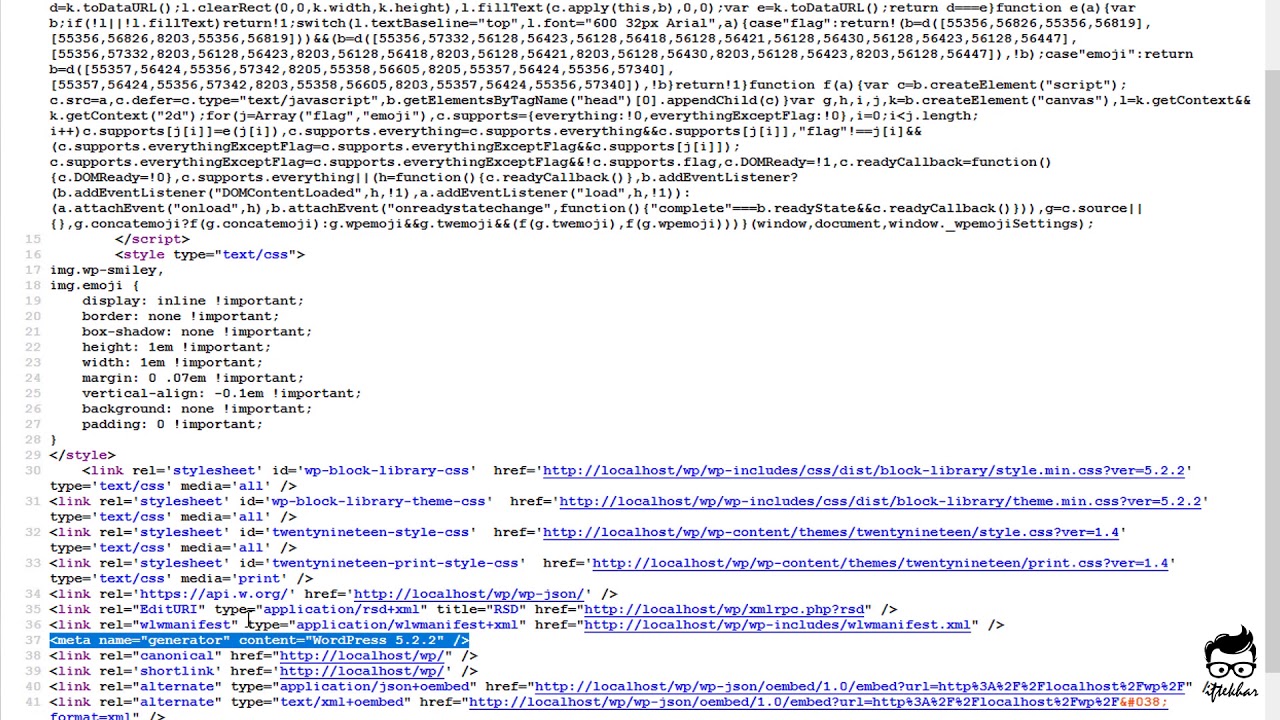
Technology lookup tools and vulnerability scanners use the same clues plus file fingerprints. They can suggest a version or a range. They can’t confirm one.
An authenticated reading beats a public one every time. If Site Health says one thing and the page source, a scanner report or readme.html says another, Site Health is right about what’s installed.
Conflicts usually have boring causes. A page cache or CDN serves HTML generated before the update. A theme or plugin owns the ?ver= you read. A scanner is working from stale data or matching a leftover file. Reports of scanners flagging old versions on sites that had already been updated come up regularly in WordPress communities.
So don’t edit core files or force a reinstall to make a scanner happy. Confirm the version in Site Health or with wp core version, clear your caches, and check your server logs if something still looks off. The exception is a version.php that disagrees with the dashboard, or core files you didn’t change showing unexpected edits. That points to a failed update or a compromise, and our guide to WordPress malware removal explains how to check.
You can, but it isn’t security. Removing the generator tag stops the most casual lookups and nothing else. Scanners identify WordPress versions from core files, asset URLs and other fingerprints, so the version you hid is still recoverable. And hiding it doesn’t patch a single vulnerability. Google Search Central’s malware-prevention guidance puts the weight on keeping software updated, not on concealing it.
If you do hide something, hide only the generator tag and then check the page source to confirm it’s gone. Stripping every ?ver= string is riskier. WordPress adds those strings for cache busting, so removing them can leave visitors and your CDN serving old CSS and JavaScript after an update. Only do it if you’ve tested the change with your theme, plugins and cache setup.
Write down the full version, all three parts. WordPress treats 6.8 as a major release and 6.8.3 as a maintenance release on that branch, and security advisories are written to that level. “WordPress 6” is not enough to answer a compatibility or security question.
Then open Dashboard → Updates. If a newer release is available, take a backup before you update. If the site runs a store, a membership area or anything heavily customised, test the update on a staging copy first. WordPress.org’s Updating WordPress guide covers the one-click route and the manual fallback for when it fails. On WordPress.com or WP Engine, the host manages core updates, so check its schedule before you assume the site has been neglected.
If you would rather not run updates yourself, SiteSelf can handle WordPress core and plugin updates when you ask in chat, reporting what it changed and what it checked afterwards.
Sometimes. WordPress uses the core version by default for scripts and styles enqueued without their own version, but themes and plugins usually set their own number. A ?ver= on a file inside /wp-includes/ is more likely to be core. Confirm in Site Health before you rely on it.
You’re probably on the Status tab, which opens first. Switch to the Info tab and expand the WordPress section. If Tools → Site Health isn’t in your menu at all, your account doesn’t have administrator rights.
No. Every logged-in method above is built into WordPress and costs nothing. Version-info plugins mostly help people who want the details shown in one place, or who collect them across many sites.
It’s the database schema revision that the core files expect, stored as a single integer. It changes when an update alters the database structure. It isn’t the release number, so read $wp_version instead.
Probably not. WordPress.com manages core updates itself, and its support documentation says a one-version lag can mean it is still testing the new release. On plugin-enabled sites the Hosting Dashboard shows the current version.
Removing the generator tag doesn’t touch the ?ver= strings on core scripts and styles, the feed, or readme.html. Another plugin or your theme may also print its own marker. View the page source after each change and search for your version number to find what is still exposing it.
How-to Tutorials
To find the WordPress version you actually run, check from inside: Site Health, WP-CLI or wp-includes/version.php. Page source, feeds, asset URLs and readme.html are only clues. They can be missing or stale, and they can belong to a plugin. If two tools disagree, look for a cache or the wrong installation before you change anything.
Read article ›How-to Tutorials
WordPress has had a built-in lightbox since version 6.4. Turn it on in the Gallery block’s link settings and simple galleries don’t need a plugin. When a lightbox won’t open, opens twice or breaks on phones, the cause is usually two scripts fighting over the same click, or an optimisation setting that loads the lightbox too early.
Read article ›How-to Tutorials
Setting up a WordPress blog takes a few documented settings: publish a post, choose where posts appear, set permalinks once and make sure nothing blocks indexing. Most new blogs go wrong in other ways. Owners add plugins and polish the design before they have published anything, or they assume that a post that looks right is already in Google.
Read article ›Connect the site you already have, add your agent to Slack or Telegram, and tell it what you need.
Connect your siteStart with 500 free credits. No credit card needed.