Give your WordPress site its first task.
Connect the site you already have, add your agent to Slack or Telegram, and tell it what you need.
Connect your siteStart with 500 free credits. No credit card needed.
Managing many WordPress sites starts with picking the right setup. Then it depends on a routine for checking each site after an update. For independent sites, that usually means separate installs connected to one management dashboard. Running the updates is quick. The real work is confirming afterwards that every site still works.
Here’s a typical Tuesday. The phone number needs changing on three client sites, two others need a campaign page, a WooCommerce promotion has to go live, and a contact form somewhere stopped sending notifications. Every one of those sites has its own login, theme, plugins and host, plus years of earlier changes nobody wrote down.
A longer spreadsheet won’t fix that. What helps is three decisions made in order: how the sites are set up, how routine maintenance runs across all of them, and who handles the exceptions that maintenance turns up. Most advice starts with the second one. Start with the first.
“Managing multiple WordPress sites” can mean four different setups, and each needs a different tool. Mixing them up is the most expensive mistake in this area, because undoing a bad setup choice later means a migration.
| Your situation | The setup that fits | What it does not do |
|---|---|---|
| Independent sites: different clients, brands or owners | Separate installs, managed from a central dashboard or your host’s panel | Share content, users or plugins between sites |
| Related sites that share a design, plugins and admins | WordPress Multisite: one installation running a network of sites | Keep sites isolated, or share data between them |
| One shop with several physical locations | A location extension inside one WooCommerce store | Connect shops that already run as separate sites |
| Separate WooCommerce stores that need the same products or orders | A sync extension that connects the stores through the WooCommerce REST API | Handle updates, backups or security |
Multisite is the option people choose too quickly. WordPress’s own guide to preparing a network opens with “Do you really need a network?” before it lists any requirements. A network runs one copy of WordPress core. Plugins and themes are installed at network level, and every site depends on the same server. That’s convenient for a group of regional sites built from one design system. It’s a liability for twelve unrelated clients, because one bad plugin update reaches all of them, and moving one client out later is real work. If your sites really do belong together, our guide to WordPress Multisite installation walks through the setup.
The store options get confused just as often. WooCommerce’s Multi Store Manager adds location-based shops with their own products, prices, stock and orders, all inside one WooCommerce site. Installing it won’t merge two shops you already run separately. For that you need Products and Orders Sync or something similar, with API keys on each store.
For independent sites, keep each one as its own installation and connect them all to one control panel. Each site keeps its own database, its own update timing and its own backups. The dashboard takes away the repeated logins.
The two names that come up most often in practitioner threads work differently:
Many managed hosts also include a multi-site panel for the sites they host. That’s often enough if every site lives with one host. Whichever tool you pick, the core features are similar: bulk updates for core, plugins and themes, backups, uptime checks, security scans and client reports.
A dashboard holds admin-level access to every connected site, which makes it the most valuable account you run. Practitioners on r/Wordpress have described incidents where one compromised dashboard account or an unpatched management plugin exposed every connected client site. Treat the dashboard login like the keys to your whole client list. Use two-factor authentication, keep the list of people who can log in short, update the dashboard first, and remove sites you no longer look after.
Most connection failures come from a security layer sitting in front of the site, not from a missing plugin. A firewall, a host’s web application firewall, a security plugin or a CDN sees the dashboard’s requests as automated traffic and drops them. MainWP’s connection test reference links each HTTP status code to a likely cause. Roughly, a 403 means something refused the request, and a 404 means the child plugin isn’t answering.
The fix is to find the rule that blocked the request and ask the host to allow the dashboard’s IP address. Turning protection off until the site connects is not the fix, because it leaves the site exposed. If the site recently moved hosts or domains, check that DNS and the site URL point to the new place before you assume anything is broken.
Running updates across 50 sites takes minutes. Confirming that 50 sites still work afterwards is the actual job. Practitioners agree on this more than anything else. A dashboard that reports “updated” is telling you the update ran. It has no idea whether the booking form on one site now fails without any error.
Checking every page by hand doesn’t pay on a care plan. Skipping checks means your clients find the breakage first. The workable middle is to check each site based on how much damage a failure would do:
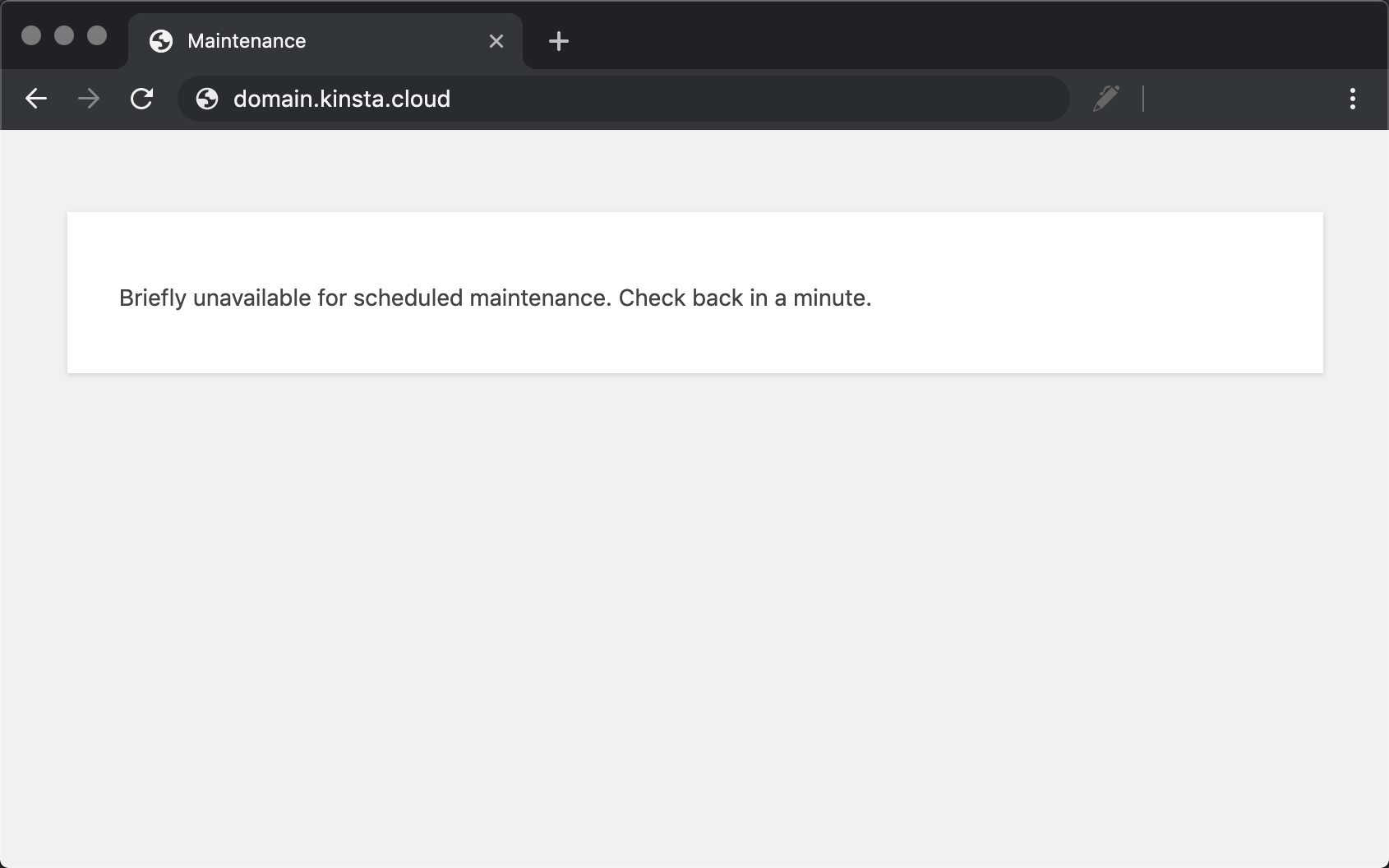
Learn what failure looks like, because a bulk run can leave several sites in the same state. “Briefly unavailable for scheduled maintenance. Please check back in a minute.” usually means an update stopped halfway and left a .maintenance file in the site root. “There has been a critical error on this website.” means PHP hit a fatal error. The details go to the admin email address or to wp-content/debug.log if debugging is on. WordPress’s common errors handbook covers both. Our guide to fixing plugins that stopped working goes through the cleanup.
To find which plugin caused a conflict without taking a client site down, use the Health Check plugin’s troubleshooting mode. It disables plugins and switches to a default theme for your logged-in session only, so visitors keep seeing the normal site while you turn things back on one at a time.
A dashboard makes a stable portfolio cheaper to run. It doesn’t make an unstable one stable. When someone on r/Wordpress described 20-plus sites breaking every day, the replies were nearly unanimous: fix the hosting, the plugins and the access problems first, then add a dashboard.
The biggest factor is how many different plugins and themes your sites run. Every extra plugin that appears on only one site makes the next bulk update harder to predict. The habits that reduce failures are simple:
Teams with developers go further: version control, staging and automated tests that run before anything reaches production. That’s worth it with hundreds of sites. With fifteen, a disciplined manual routine is usually enough.
Dashboards do maintenance: updates, backups, uptime and security. Several other jobs come with running a portfolio, and they need their own plan.
Content and small changes. The phone number on three sites, the campaign page and the broken form from the opening never show up in an update queue. They arrive as requests, they differ for each site because each site’s header and footer are built differently, and they take up the delivery time a care plan was priced to protect. Changing six words in a footer shouldn’t need a ticket, a developer and a deployment window. On most agency teams, it still does.
Store reporting. A maintenance dashboard won’t combine orders, revenue or inventory from several WooCommerce stores. Operators who want one sales view across shops use a separate WooCommerce reporting tool for that.
Search. Google’s spam policies treat sets of near-identical sites, or city-targeted sites that funnel visitors to one destination, as doorway abuse. If you build regional sites from one template, each one needs content of its own.
Accessibility. A shared template spreads its flaws to every site built from it. Fix contrast, focus states and form labels in the template, then check each site too, because the content on each one adds its own problems.
Our explainer on what maintenance packages actually cover helps draw this line when you scope a client plan.
The routine part of multi-site maintenance is already automated. What’s left is the work that lands on a person: the one site out of forty that broke, the form that stopped sending, the wording change that differs on every site. That’s the work SiteSelf is for. It joins your stack and doesn’t replace your dashboard or your host.
Example request: “After last night’s plugin updates, the contact form on harbourdental.com stopped sending notification emails. Find out why, fix it, and tell me what changed.”
Here’s what the agent would do. It reads the site’s error log and the form plugin’s settings. It compares what changed with the update, then applies the fix: a setting, a conflicting plugin, or a mail configuration that the update reset. Before the change, it says what is about to change and whether that can be undone. Afterwards it fetches the contact page, confirms the page loads with the form in place, and reports in chat what it changed and what it checked. The work is recorded, so the next person who opens that client’s thread can see what happened.
For access, settings and content work goes through the SiteSelf Connector plugin from the WordPress.org directory. Reading logs, editing files and reverting a plugin needs hosting (SSH) access to that site.
There are honest limits. The check is a fetch of the changed page and a plain-language report. It’s not a test submission from a real inbox and not a full device test, so send yourself one test message. Pages owned by Elementor, Divi or Beaver Builder are refused when the work starts, with the reason given. Nothing runs on a schedule and nothing watches the sites. The agent works when someone asks, so your dashboard keeps handling the routine updates. The page on client site work for agencies shows how this fits a retainer, and pricing explains how credits work.
Yes, and for independent sites you usually should. Keep each site as its own install and connect them to a dashboard or your host’s multi-site panel. You get central updates and backups without one network’s problems reaching every client.
No number settles it. The question is whether the sites belong together: the same owner, the same design, the same plugins and the same admins. Two closely related sites can suit a network. Twenty unrelated client sites usually don’t.
Yes. Most hosting plans allow several separate installs. The limit is server resources. Once one busy site slows the others down, move the heaviest sites out one at a time rather than migrating everything at once.
Auto-updates are reasonable for low-risk plugins on simple sites, as long as you have a backup you have tested restoring. For payment, membership, caching and page builder plugins, update them yourself, check the site afterwards, and take care with stores.
For maintenance, yes: updates, backups and uptime work the same as for any WordPress site. For business data such as combined orders, revenue and stock, no. You need a WooCommerce reporting tool, or a sync extension if the stores have to share products or orders.
A shared policy or legal page is fine. Whole sites that differ only in a city name or a small wording change risk falling under Google’s doorway rules. Give each site content its visitors can’t get from the others.
Tips & Strategies
Theme customization in WordPress is not one task. It is a choice about which layer holds the change: theme settings, CSS, a child theme, or a plugin. Pick the wrong layer and the change either disappears at the next update or takes the site down with it.
Read article ›Explainers
A website maintenance package is a label. Nobody defines it, and the same name covers anything from automated updates to a developer who tests every change. What you’re paying for is the process behind the updates, the backups and the security work, plus a clear answer to who fixes things when they break.
Read article ›How-to Tutorials
WordPress has no feature called a redirect page. What most people need is a rule that sends an old URL to a new one with the right status code, set in the right place on the site. Most redirect problems come from two of those places disagreeing, and adding another rule rarely fixes them.
Read article ›Connect the site you already have, add your agent to Slack or Telegram, and tell it what you need.
Connect your siteStart with 500 free credits. No credit card needed.