Key takeaways
- The install itself is five steps. Almost every reported failure is four layers disagreeing: DNS, web server config, wp-config.php constants, and rewrite rules.
- Subdomain or subdirectory is a launch decision. Subdomains need a wildcard DNS record and a server that answers wildcard hostnames; switching afterwards is a migration, not a config edit.
- Replace the entire WordPress block in .htaccess with the generated one. Merging old single-site rules with the new network rules is the classic reason every subsite 404s while the main site works.
- If a broken subsite shows your host’s branded 404 instead of your theme’s 404 page, the request never reached WordPress. Fix DNS and server routing before touching constants.
- In a network, only the Network Administrator installs plugins, and network activation is a different state from per-site activation. A plugin written for single-site can fatal every subsite at once.
Enabling Multisite is one line in wp-config.php, one form in Tools, and two blocks of generated code. Most people get through it in ten minutes. Then the second subsite returns a 404, the admin loops back to the login screen, and the same ten-minute job turns into a day.
That gap is the whole subject. Multisite spans four layers that have to agree with each other: DNS, web server configuration, WordPress constants, and plugin behaviour. Nearly every reported failure is a disagreement between two of them, not a bug in WordPress.
It multiplies ordinary problems, too. One network-activated plugin that was never written for a network takes every subsite down at once, so the routine for a plugin that is not working applies across the whole install rather than one site. That is worth knowing before you enable anything.
Decide whether you need a network before you edit a file
WordPress’s own Advanced Administration Handbook opens its multisite preparation page with the question “Do you really need a network?” before it gets to any requirements. That order is deliberate.
Multisite fits sites that belong to the same organisation and share a stack: franchise locations, university departments, regional or language variants of one brand, an internal publishing group, a set of microsites built from the same base theme. One codebase, one update cycle, one hosting bill, shared users where you want them shared.
It fits badly when the sites are unrelated. The most common regret in practitioner threads is an agency that put a portfolio of unconnected client sites into one network for the convenience of a single dashboard. Shared convenience is shared fate: one compromise, one bad update, one runaway cron job, and everything is affected. Per-site experimentation gets awkward, and offboarding a client means extracting a subsite from the network, which is possible but not quick.
Two alternatives come up repeatedly and both are reasonable. Separate installs with a management tool across them gives you most of the single-dashboard benefit without coupling anything at the database level. Multi-tenant setups, where one codebase serves isolated sites without WordPress’s network tables, are a different answer to the same cost problem. Neither is Multisite, and neither carries its lock-in.
A short filter: if the sites will share users, themes and governance for years, Multisite earns its place. If any one site must be able to fail, move host or leave on its own, use separate installs.
What your host has to support before you touch wp-config.php
Most failed installs are host capability problems that surface halfway through. Check these first, because finding out afterwards means unwinding a half-configured network.
- Pretty permalinks already work on the single site. If they do not work now, they will not work network-wide.
- Rewrite support. On Apache,
mod_rewritehas to be enabled or the.htaccessrules are ignored silently. On nginx there is no.htaccessat all and the rules belong in the server block, which means you need either server access or a host that applies them for you. - Writable
wp-config.phpand.htaccess. If the files cannot be saved, the network looks installed and keeps behaving like a single site. - Writable uploads tree. Each subsite gets its own directory under
wp-content/uploads/sites/. Wrong ownership produces “Could not create directory” on the first media upload. - Wildcard DNS, if you are going with subdomains, plus a virtual host or app mapping that accepts wildcard hostnames. Add the record and let it propagate before onboarding sites, or you will misdiagnose intermittent resolution as a WordPress bug.
- Headroom. A currently supported PHP version, a supported MySQL or MariaDB release, and enough memory and process allowance that network-wide operations do not fail at random.
- A full backup of files and database, taken and verified before you start.
Budget shared hosting is where this list gets expensive. Some plans do not expose wildcard subdomains, some do not let you touch rewrite configuration, and a few managed hosts either do not support Multisite or support it with limits on domain mapping. If your host treats server rewrites or wildcard DNS as a special case, that is the answer about whether Multisite is a first-class workload there.
Subdomains or subdirectories, decided once
Network Setup asks you to choose, and the choice is not cosmetic. It determines routing, cookie handling, certificate coverage and how domain mapping will work later. You cannot flip it afterwards with a config edit: changing structure after launch breaks URLs and internal links, and the honest path is a controlled migration.
Subdirectories (example.com/paris/) are the lower-friction option. No wildcard DNS, cookies are simpler to reason about, and your existing certificate covers everything. They suit sites that are genuinely one brand: regional sections, departments, campaign hubs.
Subdomains (paris.example.com) suit sites that need visible separation or will eventually run on their own domains. They need a *.example.com record pointing at the server, a web server configured to answer wildcard hostnames, and a wildcard certificate, which usually means DNS-based validation rather than the click-through flow you used on the single site. Trying to fake subdomain routing with rewrite tricks instead of fixing DNS is a reliable way to lose a day.
One thing that surprises people testing locally: if the site runs on localhost, on an IP address, or on a URL that already contains a path, Network Setup only offers subdirectories.
Running the installation
The handbook’s Create A Network article walks the same sequence every host guide repeats, from Step 0 “Before You Begin” through Step 6 “Administration”. Here it is with the parts that actually bite.
- Back up files and database, and keep a copy of
wp-config.phpand.htaccessoutside the site. - Deactivate plugins. All of them, on an existing site. Security plugins, redirect managers and cache layers interfere with Network Setup often enough that you end up debugging the wrong thing. Reactivate one at a time afterwards.
- Add the constant to
wp-config.php, above the/* That's all, stop editing! Happy publishing. */line and not inside anyifblock or function:
If that comment does not exist in your file, put it above the firstdefine( 'WP_ALLOW_MULTISITE', true );requireorinclude. Placed below it, or inside a conditional, Tools > Network Setup never appears. - Reload the admin and open Tools > Network Setup. Choose the structure you already decided on, check the network title and admin email, and submit.
- Paste the two generated blocks exactly as shown, into
wp-config.phpand.htaccess. Do not tidy them, do not adapt a version from a tutorial, and do not merge the.htaccessblock with your old rules. - Log out and log back in. Network Admin appears under My Sites only after a fresh login. “The install finished but there is no Network Admin” is almost always this.
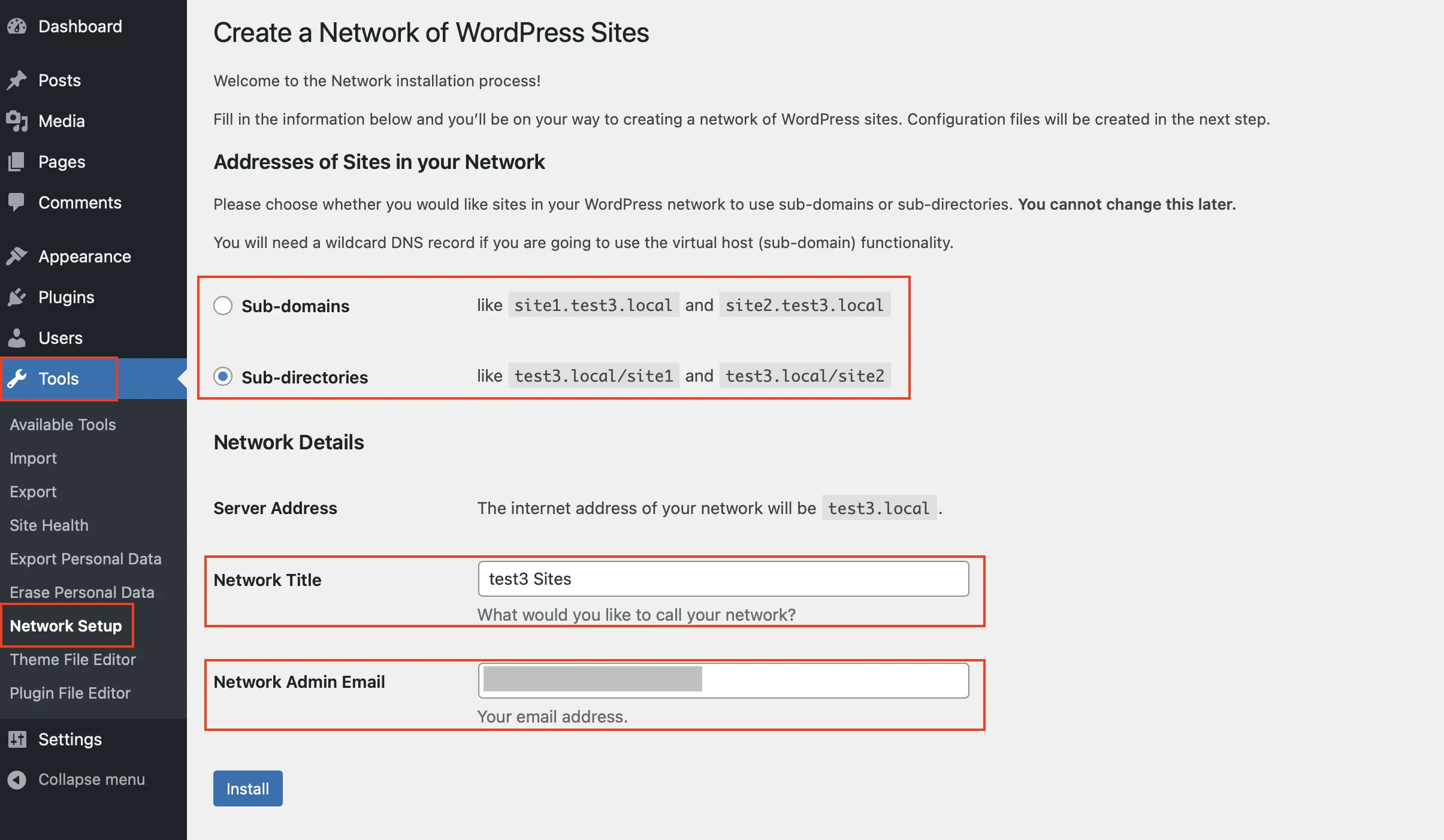
On a subdirectory network the generated constants look like this, with your own domain in place:
define( 'MULTISITE', true );
define( 'SUBDOMAIN_INSTALL', false );
define( 'DOMAIN_CURRENT_SITE', 'example.com' );
define( 'PATH_CURRENT_SITE', '/' );
define( 'SITE_ID_CURRENT_SITE', 1 );
define( 'BLOG_ID_CURRENT_SITE', 1 );
A subdomain network gets the same constants with SUBDOMAIN_INSTALL set to true. DOMAIN_CURRENT_SITE has to match the primary site URL exactly, with no trailing slash and with www. present or absent exactly as the site runs. If you see COOKIE_DOMAIN suggested in a tutorial, leave it out unless you have a tested reason; copied cookie settings cause a lot of avoidable login trouble.
The Apache block for a subdirectory network replaces the entire existing WordPress section of .htaccess:
RewriteEngine On
RewriteRule .* - [E=HTTP_AUTHORIZATION:%{HTTP:Authorization}]
RewriteBase /
RewriteRule ^index\.php$ - [L]
RewriteRule ^([_0-9a-zA-Z-]+/)?wp-admin$ $1wp-admin/ [R=301,L]
RewriteCond %{REQUEST_FILENAME} -f [OR]
RewriteCond %{REQUEST_FILENAME} -d
RewriteRule ^ - [L]
RewriteRule ^([_0-9a-zA-Z-]+/)?(wp-(content|admin|includes).*) $2 [L]
RewriteRule ^([_0-9a-zA-Z-]+/)?(.*\.php)$ $2 [L]
RewriteRule . index.php [L]
What a correct result looks like
Before you create real sites, confirm all of this:
- Network Admin is reachable from My Sites in the admin bar.
- Settings > Permalinks saves without error on the main site.
- A throwaway test subsite loads its own front page, not the main site’s, and its admin does not loop at login.
- A media upload on that test subsite succeeds and lands in
wp-content/uploads/sites/2/. - Reactivated plugins still behave on both the main site and the test subsite.
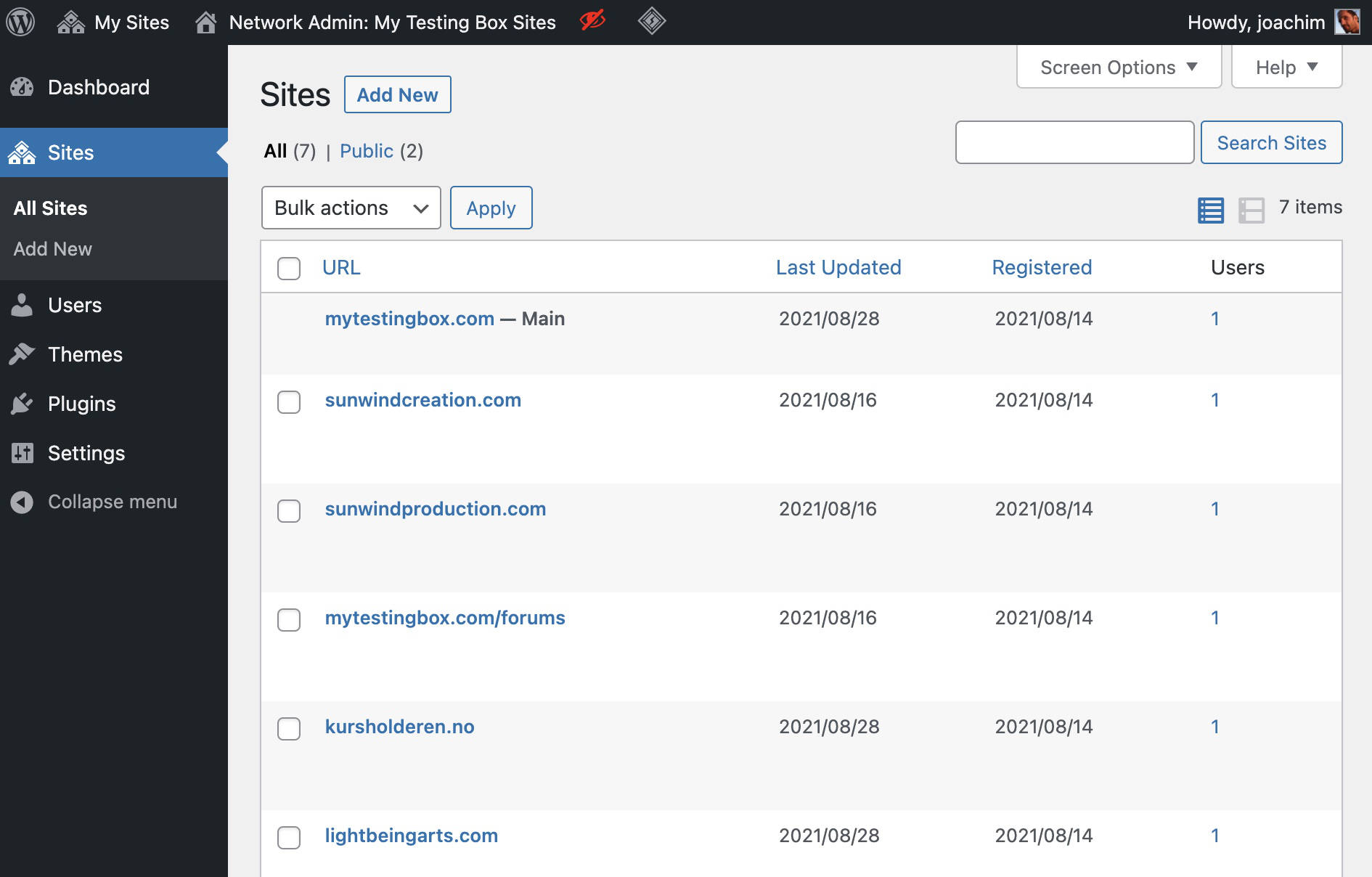
If something looks off, do not re-run Network Setup repeatedly hoping for a different outcome. By then WordPress has written constants and database records; re-running on top of a partly configured install adds duplicates to untangle.
If it did not work, check the layers in order
The single most useful habit here is changing one layer at a time, from the outside in. Practitioners converge on the same order, for the same reason: each step’s result is then readable.
- DNS and host routing. Wildcard record present and propagated, server configured to answer wildcard hosts, mapped domains pointing at the right place.
- Server modules and permissions.
mod_rewriteor the nginx equivalent, writable config files, PHP version and memory. - The constants from Network Setup,
SUBDOMAIN_INSTALLin particular. - Rewrite rules, then Settings > Permalinks > Save Changes on each affected subsite to flush them.
- Plugins, deactivated network-wide and re-enabled one by one.
- The database, last.
Two symptoms tell you which layer you are in without any guessing. If a broken subsite shows your host’s branded 404 page, the request never reached WordPress, so the problem is DNS or server routing. If it shows your theme’s 404 page, WordPress answered and the problem is rewrite rules or constants.
The failures that account for most of it
Every subsite 404s, the main site is fine. Rewrite rules. Usually someone merged the new network block into the old single-site rules instead of replacing the WordPress section outright. Re-copy the block from Tools > Network Setup, replace the whole section, flush permalinks.
Subsites load the main site’s content, or core assets 404 with a subdirectory in the path like /site1/wp-includes/js/jquery.js. Constants. Check DOMAIN_CURRENT_SITE and PATH_CURRENT_SITE against the real primary URL, confirm SUBDOMAIN_INSTALL matches the structure the rewrite rules describe, delete any duplicate definitions, then flush permalinks.
White screen or a 500 straight after saving wp-config.php. PHP syntax, almost always: a missing semicolon or smart quotes from a copy and paste. Nothing renders and the error is in the log, not on screen.
Network Setup never appeared. The constant is below the stop-editing comment, inside a conditional, or the file never saved because the host would not write it.
Subdomains do not resolve at all. Missing wildcard DNS, a server that is not configured for wildcard hosts, or a certificate that covers the apex domain and nothing else.
Network problems are unusually good at pointing at the wrong cause, and the fix often sits in files you reach over SSH rather than in the dashboard. If you would rather hand that over, SiteSelf fixes WordPress errors on request: you describe the symptom in chat, the agent works on the live site, and it reports what it changed and what it checked.
Plugins, themes and code in a network
In Multisite, only the Network Administrator installs plugins and themes. A beginner on r/WordPress who selected Multisite during setup by mistake reported the giveaway clearly: there was no Add Plugin button on the site they were working in. They removed the network and reinstalled.
Installation and activation are separate. A plugin is installed once at network level, then either network-activated across every site or made available for per-site activation. Those are different states, and several plugins built for networks, including WP Multi Network by John James Jacoby, which turns one Multisite installation into several networks, only work correctly when they are network-activated. Activating them per site produces partial behaviour that is hard to read.
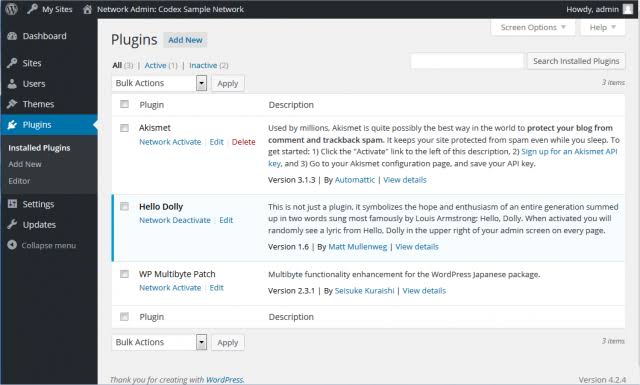
Keep network activation for things every site genuinely needs. Themes work the same way: Network Admin decides what is available, each subsite picks from that list, and the shared stack is the point. Note that the Theme File Editor is restricted in a network by default, which changes how you edit theme files safely.
If you write custom code for the network, two habits save later pain. Guard multisite-only calls such as switch_to_blog() with is_multisite() so the code does not fatal if it ever runs on a single site. And use home_url() or site_url() in templates rather than hard-coded domains, so mapped domains and per-site URLs resolve correctly.
Three things people expect to be built in and are not: cross-subsite user access (adding a user to the network does not give them access to every site), search across all sites in the network, and pulling one subsite out into its own install. All three need plugins or custom work.
Moving a network later
A Multisite moves as one piece. Site-by-site migration is where these projects die, because shared user tables, per-site media directories, network-level plugins and domain values stored in both the database and the config files all have to land together.
When you fix URLs after a move, WP-CLI’s wp search-replace searches through all rows in a selection of tables and replaces the first string with the second. Run it with the network flag so it covers every subsite, and skip the guid column, because rewriting GUIDs causes more trouble than it solves. If tables come out corrupted, wp db repair first, restore from backup if errors persist, and check wp_blogs and wp_site for duplicate entries.