Give your WordPress site its first task.
Connect the site you already have, add your agent to Slack or Telegram, and tell it what you need.
Connect your siteStart with 500 free credits. No credit card needed.
A WordPress care plan is a label, not a standard. Most plans list the same things: updates, backups, monitoring and some support hours. The value is in how that work gets done: staged updates, backups you have proven by restoring them, and checks that the forms and checkout still work afterwards.
Two sites can pay for “WordPress care” and get very different service. On one, someone updates plugins on staging, checks the contact form and the checkout, and can show you a restore that worked. On the other, auto-updates run unattended, a green backup icon sits in the dashboard, and nobody opens the site afterwards. Both sites appear in a listing as “updates, backups, monitoring.”
No one sets a standard for what a care plan has to include. You have to judge the work behind the list. This article explains what that work is, where it usually fails and what to ask before you pay. If you are comparing offers, our guide to what a maintenance package should cover goes further into contract scope.
A care plan is a recurring service. It nearly always covers four things: WordPress core, plugin and theme updates, backups, uptime and security monitoring, and a small amount of support time. Some plans add staging, reports, faster response or hosting. Malware cleanup, content edits, SEO and speed work are usually billed separately, so read the exclusions before the features.
Care plans are everywhere. In The Admin Bar’s 2025 survey of 1,233 WordPress professionals, 93.1% said they offer maintenance. That is why the same three-word bullet list shows up on so many pricing pages, and why the bullet list tells you so little.
A care plan is also not the same as managed hosting. Managed hosting looks after the server. A care plan looks after the site: the plugins, the theme, the forms, the checkout. Some hosts do part of both, so check for overlap before you pay twice.
Updates break sites more often than anything else on this list. One practitioner who runs automated updates across many client sites estimated on r/Wordpress that about 1 update in 20 caused a problem. That is one person’s estimate, not a measured rate, but it matches what you see in the support forums.
The fix is also not always the obvious one. In a 2026 wordpress.org support thread, MonsterInsights reported a failed update and rolled itself back, yet the “There has been a critical error on this website” message stayed. The real cause was two Avada theme plugins that had not updated properly. Rolling back the plugin that complained did nothing. Someone had to read the error log.
A safe update routine has the same steps everywhere:
wp-content/debug.log or the host’s error log.If you need to find a conflict on a live site, the Health Check plugin’s troubleshooting mode turns off plugins and switches to a default theme for your logged-in session only. Visitors still see the normal site. WordPress.org’s support handbook explains how troubleshooting mode works. When a plugin breaks after an update, our guide to fixing plugins that stop working covers the usual causes, including the stuck “Briefly unavailable for scheduled maintenance” message.
Ask any provider how they handle this routine. If you would rather hand it off, the plugin updates and maintenance page explains how SiteSelf does the update cycle on request.
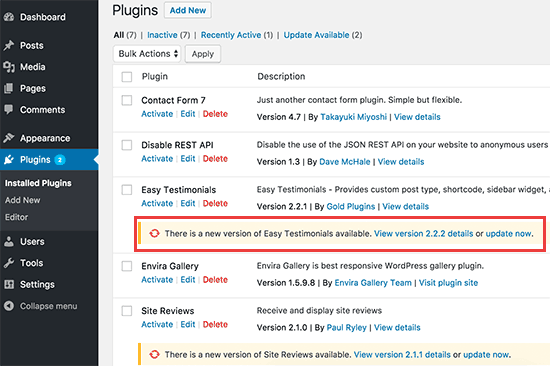
WooCommerce’s update guide suggests reviewing updates monthly for most stores and applying security fixes sooner. It sets out a store-specific sequence:
The common mistakes are the reverse of that list: updating live, refreshing the page halfway through, skipping the database update, or reopening checkout before anyone places a test order.
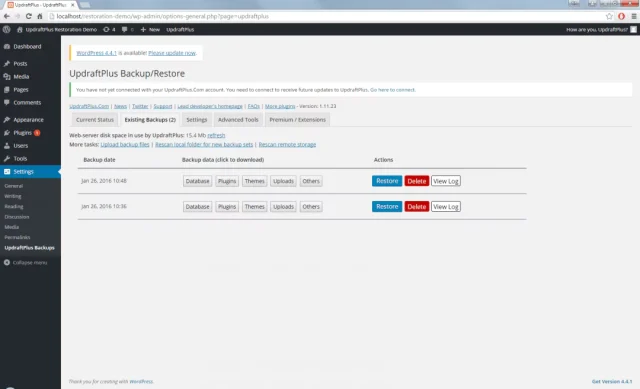
A successful backup job only proves that a file was written. It does not prove you can get the site back. WordPress.org’s backup handbook sets the minimum:
Backup tools fail too. UpdraftPlus’s own changelog records fixes for jobs that failed on particular server setups, such as FTP uploads under PHP-FPM and large-file restores that ran out of PHP memory. When a backup fails, the diagnosis starts in the backup log and the server details, not with guesswork. The only real test is restoring a copy to staging and clicking through it. Our explainer on what a backup plugin covers lists the gaps to look for.
One more catch: if the site was hacked, restoring a backup taken after the break-in can bring back the attacker’s accounts and files. Cleanup is its own job, covered in our guide to malware removal that does not come back.
Restoring a full backup, or pushing a staging database to live, overwrites everything created since the copy was made. On a store, that includes orders. Kinsta’s push documentation warns that its database push cannot tell new WooCommerce orders from old ones. It offers a files-only push, a selective push that leaves out the WooCommerce tables, or syncing live to staging first. These options are specific to Kinsta, but the risk applies on any host.
A store owner raised exactly this fear on r/woocommerce. The replies gave the practical rule: treat code rollback and database restore as separate operations. Ask a provider how they roll back an update without touching orders. A vague answer tells you something.
Uptime monitoring checks that the server answers. A site can answer perfectly while it loses money. Practitioners in a 2026 r/Wordpress thread listed the failures that slipped past their monitoring:
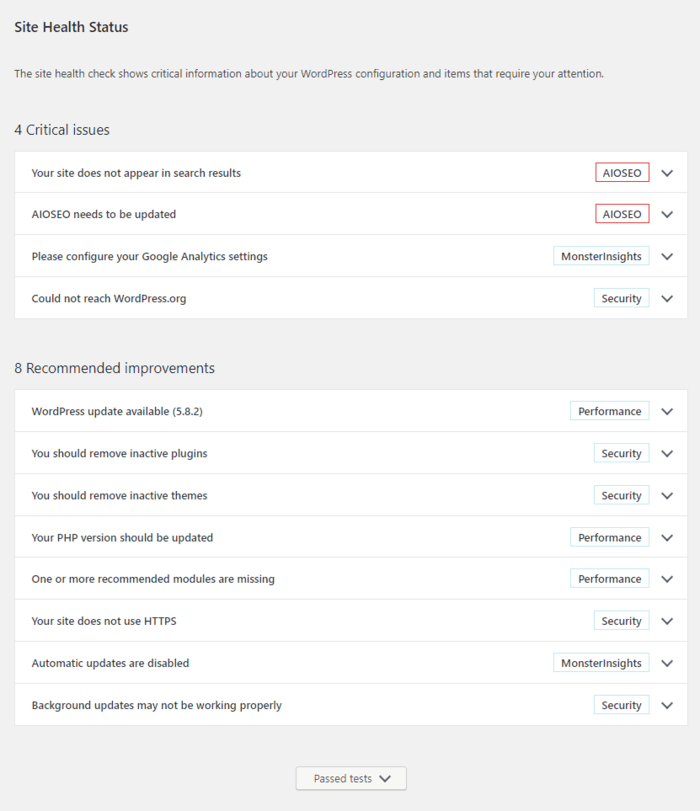
noindex to pages that should rank.The fix is to test the site the way a stranger uses it, not as a logged-in admin. After changes, submit a real form, place a test order, open the browser console, and check that key pages are not set to noindex. Admin sessions skip caches and hide permission problems, so a logged-in admin sees a healthier site than visitors do.
Prices quoted by providers in Reddit threads run from about 50 euros a month for bare version updates to 375 or 400 dollars a month for larger packages. Those numbers cover very different work, so an average means nothing. One r/woocommerce commenter put the small end plainly: a 40 to 50 dollar retainer buys less than an hour of work. In The Admin Bar’s survey, the average hourly rate was $96.36 and the median $95.
The condition of the site matters more than the plan tier. Sites with 20 or 30 plugins, an old theme or a build inherited from someone else take far more time. One freelancer described spending 5 to 10 hours a week on maintenance. Another described about an hour a month overseeing 60-plus well-kept sites. Deleting plugins you no longer use is the cheapest maintenance there is.
Owners mostly complain about not seeing the work. A widely discussed r/smallbusiness post described an owner paying $400 a month whose site still had pending updates and unused plugins. Whatever the plan, ask for a record of what was done each month.
It depends on what a broken afternoon costs you. A plan is worth the most when:
A brochure site that changes twice a year is a different case. Its owner may do better with Site Health (Tools, then Site Health), a reliable host backup, and paying for an hour of work when something comes up. The tradeoff is real, though: without someone who already knows the site, each problem means finding help from scratch.
Most maintenance work is small. The process around it often isn’t: a ticket, a wait, someone who has to learn the site again, and a “done” email with no detail. SiteSelf is an AI agent for existing WordPress sites. You tell it what needs doing in chat, it does the work on the live site, and it reports what changed and what it checked.
Example request: “Update the plugins on our site. Do WooCommerce last, tell me if anything needs the database update, and check the contact page and checkout afterwards.”
The agent lists the pending updates. Before each change, it says what is about to change and whether it can be undone. It applies the updates, runs the WooCommerce database update if one is needed, then fetches the changed pages and reports back in plain language. The work is recorded, so next month you can see what happened this month.
Access depends on the task. The SiteSelf Connector plugin from the WordPress.org directory covers content and settings work. Reading debug.log, removing a stuck .maintenance file or other file and code work needs hosting (SSH) access.
The limits are part of the answer. The check is a fetch of the changed page and a written report. It is not a screenshot or a test on every device, so a Safari-only checkout bug can still get through, and a real test order is still your job. Nothing is scheduled and nothing runs unattended, so SiteSelf does not monitor the site between requests. It also does not confirm your backups. Check that a recent restore point exists before a big update cycle. Pages built with Elementor, Divi or Beaver Builder are refused at the moment of work, with the reason. The update and maintenance page shows the rest, and pricing is credit-based.
No single schedule fits every site. WooCommerce suggests a monthly update review for most stores and applying security fixes sooner. For backups, WordPress.org suggests weekly on quiet sites, daily on busy ones, and always before an upgrade.
No. Managed hosting looks after the server, and some hosts add backups and automatic updates. A care plan covers hands-on work on the site: updates, troubleshooting and checks after changes. Compare the two lists so you do not pay for the same backups twice.
Usually only within a capped allowance of time each month. Past that, providers bill hourly or quote the work as a separate project. Ask for the cap and the rate in writing.
Yes. WordPress.org’s backup handbook, the Site Health screen, the Health Check plugin and WooCommerce’s update guide cover the steps. The cost is time, plus the risk of debugging alone when an update breaks something.
Which updates were applied and which were held back, the date of the last backup and last restore test, what was checked after changes, and any open issues. A report that only says “all good” proves nothing.
On a simple site with a recent backup, mostly yes. On a store or a site with many plugins, auto-updates still need someone to check forms and checkout afterwards, because a site can load fine while a key feature is broken.
Explainers
A WordPress maintenance package is a sales label wrapped around a documented routine: back up, test significant updates on staging, update, then check that the site still works. Plans differ in how much of that routine a person actually does, who pays when an update breaks something, and what they leave out. Read the scope line by line and ignore the plan name.
Read article ›Explainers
A website maintenance package is a label. Nobody defines it, and the same name covers anything from automated updates to a developer who tests every change. What you’re paying for is the process behind the updates, the backups and the security work, plus a clear answer to who fixes things when they break.
Read article ›Explainers
WordPress suits most business websites as long as someone owns the upkeep. The software is free, but the build, hosting, plugins and maintenance cost money. Most WordPress horror stories come from plugin sprawl, untested updates and nobody being in charge, not from WordPress itself.
Read article ›Connect the site you already have, add your agent to Slack or Telegram, and tell it what you need.
Connect your siteStart with 500 free credits. No credit card needed.