Give your WordPress site its first task.
Connect the site you already have, add your agent to Slack or Telegram, and tell it what you need.
Connect your siteStart with 500 free credits. No credit card needed.
Every WordPress theme can be customised. What changes from theme to theme is how much you can do without code, and where you have to do it. Find out whether you have a block or a classic theme, put each change in the layer that survives updates, and check that it reached the live site.
You can customise every WordPress theme. The question is how far you can get without writing code, and whether your change will survive the next update. Most frustration with “customisable” themes comes from mixing up those two things.
This explainer covers what the word means in practice, how the two WordPress editing models differ, which layer each kind of change belongs in, and how to tell when a theme’s options have run out. If you are still choosing a base, our guide to layout and design on WordPress covers the structural side.
For a developer who writes PHP, CSS and JavaScript, every theme is fully customisable. For an owner who doesn’t, “fully customisable” means the theme has a lot of built-in settings. Those are two very different promises, and theme marketing usually leaves you to work out which one you are getting.
The gap appears with very specific changes: the colour of the mobile menu, the spacing on one section, the font on a WooCommerce product page. A theme can have hundreds of settings and still not have the one you need. A WordPress.org support thread called “Editing a custom theme” shows how this goes. Someone took over an agency-built site and was installing plugins to make simple changes like padding, because the theme gave them no setting for it.
When you judge a theme, ignore how many options it has. Ask whether it lets you make the changes you will actually make, in a place that survives an update.
WordPress has two editing models. Most confusion about customisation starts when a tutorial describes one model and your site uses the other.
To check which one you have, open Appearance in the dashboard. If you see Editor, you have a block theme. If you see Customize, you have a classic theme. Some setups show both, either a hybrid theme or a plugin that brings the Customizer back. If a guide sends you to Appearance > Customize and that menu isn’t there, nothing is broken. Your theme puts those controls in the Site Editor.
Page builders such as Elementor and Divi add a third layer. When a page builder owns the header or a page, change it in the builder. If you change it in the theme instead, the builder can override your change.
Where you make a change matters more than which theme you have. WordPress’s Theme Handbook says a child theme lets you modify a theme without editing that theme’s own code. That matters because an update replaces the parent theme’s files, along with any edits you made to them.
| The change | Where it belongs | What to watch |
|---|---|---|
| Brand colours, fonts, site-wide spacing | Styles in the Site Editor, or the theme’s Customizer options | One global colour can change links, buttons and notices across the site |
| One spacing fix, a hover state, a narrow override | Additional CSS (on block themes, CSS lives under Styles) | It is tied to the active theme and stays behind if you switch |
| Template markup, PHP, new functions | A child theme | Parent updates can still rename classes your code depends on |
| A redesign the theme fights at every step | A different base theme | Content carries over. Layout and theme-specific settings don’t |
There are two catches. First, creating a child theme after you have customised a parent does not automatically copy those customisations across. Settings stored against the parent theme may have to be recreated in the child. Second, the advice in that WordPress.org thread differs for small and large changes. For small changes, find the element with your browser’s inspector and save an override in Additional CSS. For large changes, choose a theme that is already close to what you want. A bare starter theme has almost no styling, so you would be rebuilding the layout from scratch.
For a full walkthrough of each layer, see theme customization that survives updates.
The most common complaint about theme customisation is a change that does nothing. There’s no error message. The page just looks the same. Check these causes in order, starting with the cheapest.
WordPress.org’s Customizer documentation explains that you can try changes without publishing them. Nothing goes live until you click Publish. The Site Editor has its own Save button. When you live-preview a theme you haven’t activated yet, nothing is kept until you activate and publish it.
A site can have caches in several layers: the browser, a caching plugin or the theme’s own optimisation, the host’s server cache, and a CDN. Clearing one layer proves nothing about the others. Open the page in a private window, purge each layer, and regenerate any combined or minified CSS your optimisation plugin creates. Purging won’t fix a change that was never saved, though.
Right-click the element and choose Inspect. If your rule appears with a line through it, a more specific rule is winning. If it doesn’t appear at all, check the Network tab to see whether your stylesheet loads. In a child theme, the child stylesheet has to load after the parent’s, or the parent’s rules win. Our article on why a font change is not showing walks through this inspection step by step.
If the site breaks after a change instead of staying the same, you probably have a conflict, not a styling problem. Learn WordPress’s lesson on plugin and theme conflicts recommends this method: back up, work on a staging copy, deactivate plugins and reactivate them one at a time, and use error logs to find the cause. Our guide to plugins that stop working covers the same isolation process.
A demo shows you what the theme can look like. It doesn’t show you what editing it will feel like six months after launch. Test these things instead.
Your site will also never look exactly like the demo, because the demo uses its own images and copy. Import starter content onto a fresh install or a staging copy, not a live site. Installation problems are covered in installing a theme without breaking it.
A change can look right and still make the site harder to use. W3C’s WCAG quick reference sets a minimum contrast ratio of 4.5:1 for normal-sized text. A darker brand colour on a button, or light grey body text, can fall below it. A common CSS reset removes focus outlines, and then keyboard users can’t see where they are on the page. After any colour or navigation change, check contrast, tab through the menu and forms, and make sure links still stand out by more than colour alone.
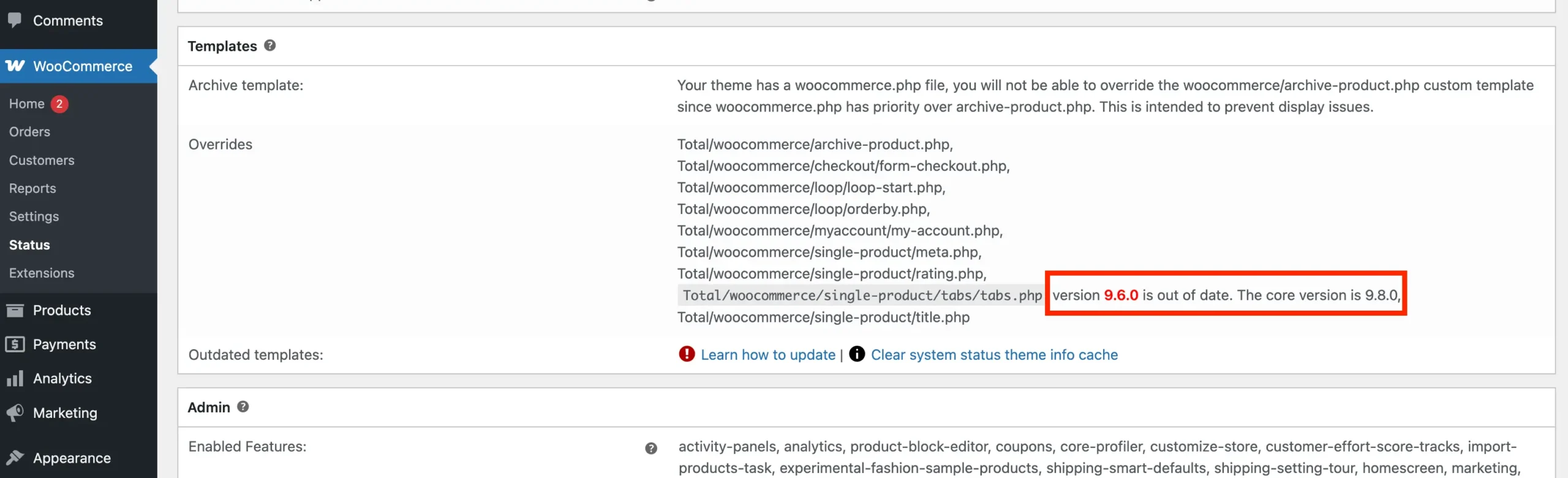
WooCommerce stores have one more risk. If your theme overrides WooCommerce templates, WooCommerce’s developer docs explain that WooCommerce sometimes updates its default templates in new releases, and your theme’s copies don’t update with them. WooCommerce’s System Status report, at WooCommerce > Status, lists outdated overrides. To fix one, back up the override, copy in the current template, reapply your changes and test. If you replace the file without reapplying your changes, you lose your customisation.
Sooner or later you will want a change that no setting covers. Your options, from simplest to biggest:
If you would rather describe the change than track down the selector, SiteSelf takes requests like this in chat and makes them on your existing theme. Our page on having design changes made for you covers what that includes.
Whichever route you take, keep a short note of what changed and where: a setting, a CSS rule or a child-theme file. After the next theme or plugin update, that note tells you exactly what to check. Our guide to updating a theme without losing work covers that check.
You probably have a block theme. Block themes put their design controls in the Site Editor at Appearance > Editor, under Styles, Templates and Patterns. Nothing is broken.
No theme is the most customisable for everyone. It depends on which controls you need and whether you can write CSS. Make a list of the five changes you expect to make most often, and test each candidate theme against that list.
Yes. Free themes include the Site Editor or Customizer controls, and you can add Additional CSS or a child theme to any of them. Many free themes keep some settings for a paid pro version, so check the documentation to see which options are free.
No. Posts, pages and media stay in the database. Theme-specific settings, Additional CSS, widget placement, menu locations and theme shortcodes may not carry over, so try the switch on a staging copy first.
No. Use Styles or Additional CSS for colours, fonts and spacing. You need a child theme once you are editing template files or adding PHP.
Explainers
A WordPress slug is the short, editable part of a URL that names one post, page, product or category, like about-us in example.com/about-us/. Choosing a good slug before you publish costs nothing. Changing it after the page is live is a URL change, and it needs a redirect.
Read article ›Explainers
A WordPress template gives a business site its design and setup to start from. It is not a finished site. Choose one based on the pages you need, the person who will edit the site and the builder the template depends on, then install it on a fresh copy before it touches anything live.
Read article ›Explainers
On WordPress, a site’s layout and design don’t live in one setting. What you see comes from the theme, global Styles, templates, page content, any page builder and the caches in front of them. Good layouts come from clear structure that works on a phone. Most layout trouble comes from editing the wrong layer or from stale CSS.
Read article ›Connect the site you already have, add your agent to Slack or Telegram, and tell it what you need.
Connect your siteStart with 500 free credits. No credit card needed.