Give your WordPress site its first task.
Connect the site you already have, add your agent to Slack or Telegram, and tell it what you need.
Connect your siteStart with 500 free credits. No credit card needed.
DNS_PROBE_FINISHED_BAD_CONFIG means Chrome could not turn your domain into an IP address. Your WordPress site never got the request, so plugins, themes and settings are not the cause. The first test is whether anyone else sees it: if only one device or network does, fix the local DNS path, and if every network does, fix the domain’s DNS records.
Chrome shows DNS_PROBE_FINISHED_BAD_CONFIG on its “This site can’t be reached” page. It means the browser asked DNS for your domain’s IP address and did not get a usable answer. With no address there was nothing to connect to, so your server never heard from the browser. WordPress never ran.
That is why the usual WordPress reflexes don’t help here. Deactivating plugins, switching themes or editing the site URL under Settings → General changes nothing, because the failure happened before any of that code could run. Save our guide to plugins that stop working for after the domain resolves again. Your first question is simpler: does anyone else see this error?
Open the site on your phone with Wi-Fi turned off, using mobile data. Then try another computer on your own network, and if you can, ask someone in a different city to try. These three checks take two minutes and tell you which half of this article you need.
| What you see | Where the problem is |
|---|---|
| One computer fails, other devices on the same Wi-Fi work | That computer: its DNS cache, VPN, security software, browser setting or hosts file |
| Every device on your Wi-Fi fails, mobile data works | Your router or your internet provider’s resolver |
| Several unrelated websites fail too | Your local network or resolver, not your domain |
| Your site fails on Wi-Fi and mobile data, from different places | Your domain’s DNS: nameservers, records or DNSSEC |
| Your site fails only for people on one mobile carrier or one company network | That network’s resolver may be filtering your domain |
The last row is easy to miss. Some carriers and corporate networks use DNS security filters that refuse to resolve domains they have flagged as malicious. Your records can be perfect and the site still fails for everyone on that network. The only fix is to contact the filtering provider, and the appeal process varies by vendor.
Practitioners disagree about which case is more common for this exact error code. Many people who troubleshoot it say it is usually local. Hosting documentation, including Kinsta’s, still lists wrong records and wrong nameservers among the causes of failed resolution. Nobody publishes frequency data for this error, so don’t guess. Let the scope test decide.
If the site loads anywhere else, leave your site alone. Nothing on it is broken, and changing DNS records now can create a real outage. Work through these steps in order, from cheapest to most involved, and test the site after each one.
ipconfig /flushdns, then ipconfig /release, then ipconfig /renew, one at a time. On a Mac, sudo dscacheutil -flushcache; sudo killall -HUP mDNSResponder clears the local cache.C:\Windows\System32\drivers\etc\hosts or /etc/hosts, often from a past migration test, overrides DNS on that one machine.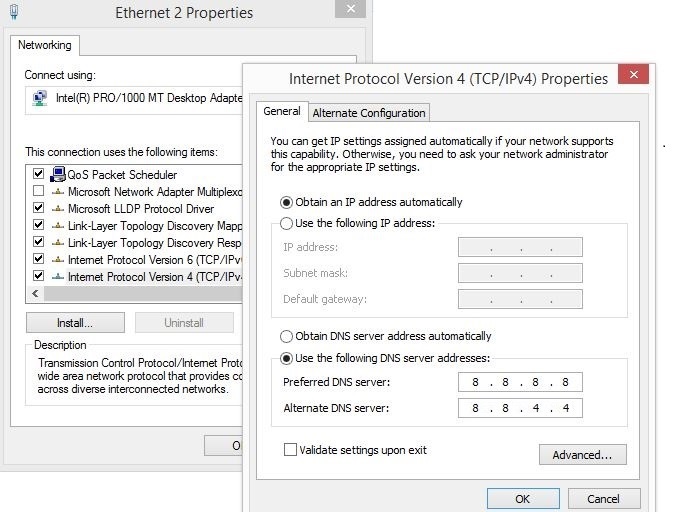
A correct result is simple: the site loads on the device that was failing, in a normal window. If switching resolvers was the fix, decide whether to keep the change. A public resolver can work around a broken provider, but it also changes which DNS service sees your traffic, so an office network should follow its own IT policy.
Don’t rely on local fixes for one thing: deciding the site is healthy. When you flush your cache or change your resolver, only your own computer is affected. If the site loads for you after that, it proves nothing about your visitors.
When the site fails everywhere, the problem is in the domain’s authoritative DNS, where the real records live. Google’s Search Central team wrote in 2023 that DNS errors are most often caused by a setting, or a missing setting, on the DNS server. If you don’t manage that server, contact your DNS provider. If you don’t know who that is, ask your host or registrar.
Your nameservers decide where your records live. That might be your registrar, your host, Cloudflare, or a provider you set up years ago and forgot about. Editing records anywhere else does nothing, and deleting “unfamiliar” records in the real zone can make things worse. One wordpress.org support thread shows the cost of guessing: the owner blamed a security headers plugin for taking down the main site and every subdomain, when the real problem was that the domain’s DNS record had disappeared from Cloudflare.
On macOS or Linux, run:
dig example.com NS +short
dig @1.1.1.1 example.com A +short
dig @8.8.8.8 www.example.com +short
On Windows, nslookup -type=ns example.com and nslookup example.com 1.1.1.1 give the same information. The NS result tells you which provider to log in to. If the A lookups return nothing, the wrong IP, or a SERVFAIL error, the fault is in that zone.
Log in to the provider the nameservers point to. Compare the A record for the root domain, and the A or CNAME record for www, against the values your current host gives you. These are separate hostnames, and each needs its own correct record. WooCommerce’s Shopify migration guide, for example, points the root A record at the new host’s IP and points www at the primary domain with a CNAME. Test both example.com and www.example.com in the browser.
The usual mistakes people make with their own records:
Once the right record is corrected, sites often come back quickly. Some owners report minutes. How fast depends on how long resolvers cached the old answer.
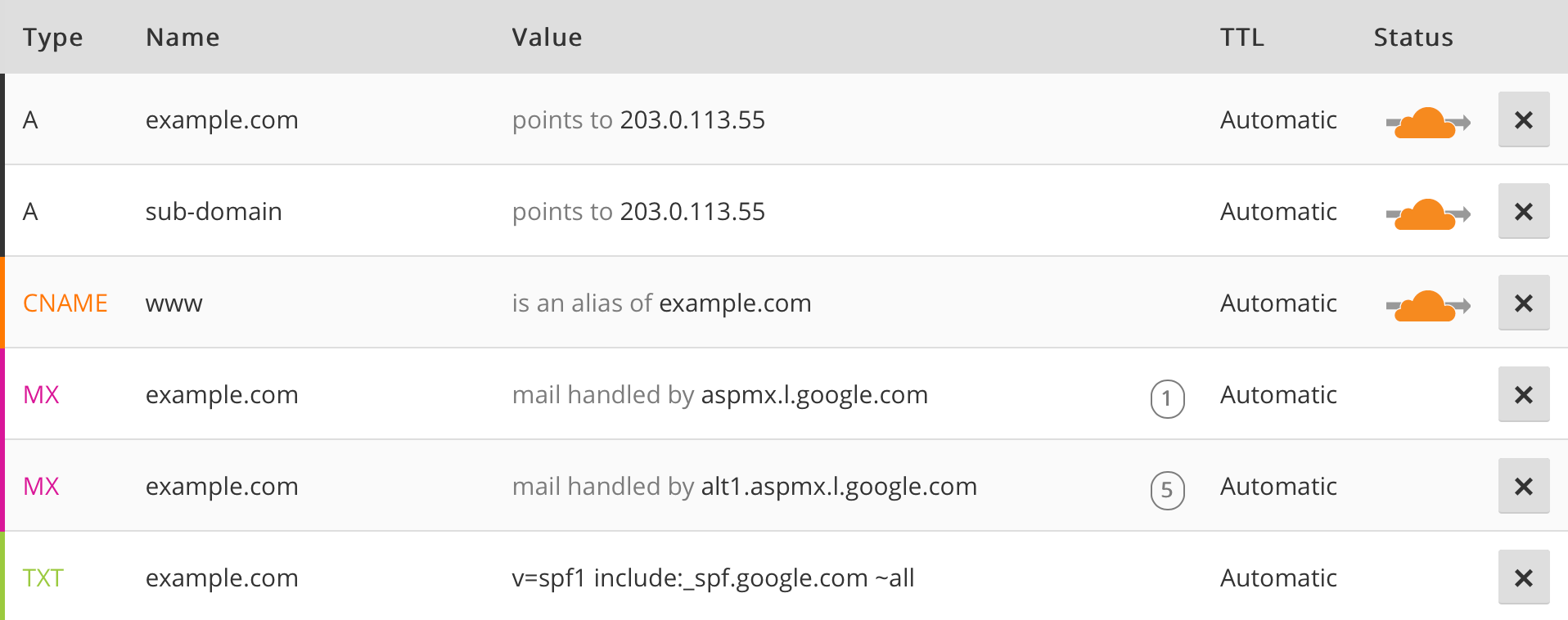
If you moved your DNS to a new provider and DNSSEC was turned on at the registrar, the old signing records may no longer match. Cloudflare’s documentation says that changing nameservers without handling DNSSEC can cause SERVFAIL errors, and then the domain won’t resolve at all. Ask your registrar or DNS provider to check the DS records. Don’t simply switch DNSSEC off without understanding why it fails.
Propagation is real. Kinsta’s DNS docs say nameserver changes may take 24 to 48 hours, and WordPress.com’s support docs say DNS changes usually take a few hours but can take up to 72. But waiting only helps when the new records are correct. If an A record points at the wrong IP, the site stays broken no matter how long you wait.
Check the authoritative answer with dig first. If the authoritative answer is correct and a few resolvers still return the old one, that is propagation. If it is wrong, fix it. Change one thing at a time. If you keep editing records while you wait, you soon can’t tell which version is live.
The most damaging DNS mistake is also the easiest to avoid. Kinsta warns that switching nameservers before the records exist at the new provider can leave the domain with no DNS records at all. The website, email and everything else on the domain go down together. Do it in this order:
For a store, pick a low-traffic window and take a fresh backup kept off the host on both sides. Some WooCommerce owners say carts and sessions started before the switch can cause checkout problems afterwards. Agencies running many client domains should keep a written record of which provider is authoritative for each one, along with the other checks in our guide to managing multiple WordPress sites.
When the site loads from several networks, you are back in WordPress territory. Check the home page, a few inner pages, the login screen and checkout if you run a store. If something is broken now, WordPress.org’s plugin documentation says to find a conflict by deactivating plugins one at a time. That is the right process for this stage. It never fixes DNS.
If you would rather not chase what is left yourself, SiteSelf takes WordPress fixes requested through chat once the site resolves. Your DNS records stay with your registrar or DNS provider, and SiteSelf doesn’t change them.
Stop changing records and contact your DNS provider, host or registrar if:
dig returns SERVFAIL and you recently changed providers. That points to DNSSEC, which the registrar has to fix.When you ask for help, include which devices and networks you tested, when the error started, what you changed beforehand, and the output of your dig or nslookup commands. Support can usually go straight to the record that matters.
No, though both are DNS failures. NXDOMAIN usually means the name has no record or doesn’t exist, which is what you see when an A record was deleted. BAD_CONFIG points more toward the DNS setup or resolver the browser used. The scope test in this article works for both.
Either your domain’s records have a problem, your computer cached an old answer for that domain, a hosts file entry overrides it, or a resolver is filtering that domain. Test from mobile data. If it fails there too, look at the domain’s records.
No. Those settings tell WordPress which URL to use for links and redirects. They have nothing to do with DNS. Changing them while the domain doesn’t resolve can lock you out of wp-admin once it does.
If the domain fails for everyone, Googlebot can’t reach the site either. A short outage that you fix quickly is far less of a concern than one left for days. Fix resolution first. Asking Google to reindex does not repair DNS.
That’s up to you, and if it’s a work machine, your IT policy decides. It is a reasonable workaround for an unreliable provider’s resolver. Just remember it changes how your machine resolves names, not how your visitors do.
No reliable figure exists for this specific error. A local fault costs nothing but time. A broken zone usually takes minutes for whoever has access to the right DNS dashboard, which is why getting your account access back matters more than the hourly rate.
Troubleshooting
Removing WordPress malware means removing the compromise, not just the file a scanner flagged. That includes backdoors, rogue admins, database payloads, cron jobs, stolen credentials and the vulnerable plugin that let the attacker in. If you skip any of these, the site gets reinfected.
Read article ›Troubleshooting
A saved font change that still shows the old typeface is usually one of five things: a cache you did not clear, a setting changed at the wrong scope, theme CSS that outranks yours, a font registered but never loaded on the front end, or a font file that never arrives. Each has a different check. Two minutes in your browser’s developer tools tells you which one you have.
Read article ›Troubleshooting
A white screen is not an error. It is a fatal PHP error with the message switched off, which is why guessing at fixes takes longer than reading a log. Work the sequence instead: note what is blank, check for the recovery email, turn on logging, read the file path in the error, then isolate the plugin or theme it names.
Read article ›Connect the site you already have, add your agent to Slack or Telegram, and tell it what you need.
Connect your siteStart with 500 free credits. No credit card needed.