Give your WordPress site its first task.
Connect the site you already have, add your agent to Slack or Telegram, and tell it what you need.
Connect your siteStart with 500 free credits. No credit card needed.
On a WordPress site, Apache security comes down to a few targeted, tested rules: block sensitive files, turn off directory listings, stop PHP running in uploads, and get HTTPS in the right order. First check that your server reads those rules at all. When hardening breaks a site, the error log almost always shows the rule that did it.
Apache is rarely the weak point on a WordPress site. Patchstack’s 2026 report counted 11,334 new WordPress vulnerabilities in 2025, and 91% of them were in plugins. Six were in core. So when people talk about Apache web server security for WordPress, they mostly mean configuration: a few rules that make a plugin flaw or an exposed file harder to exploit.
Those rules also cause a lot of outages, because people paste them in without testing. This guide covers which ones help, how to tell whether your server reads them, and how to work out which rule broke your site.
It covers four layers. Each one sits next to WordPress’s own security (updates, accounts, backups), not in place of it:
.htaccess: blocking sensitive files, turning off directory listings, stopping PHP from running in uploads.Many of them won’t. W3Techs puts Apache at 26.5% of WordPress sites with a known web server. Nginx is at 37.2% and LiteSpeed at 25.3%. Nginx doesn’t read .htaccess, so a rule that works on one host does nothing on another and shows no error. Our guide to setting up .htaccess redirects runs into the same problem.
Running Apache isn’t enough on its own. Apache’s documentation says the AllowOverride default is None, which means it ignores .htaccess files unless the host allows them. Hosts can also allow some kinds of directive and not others. If you use a directive that isn’t allowed, you get a 500 error instead of protection.
The simplest check is a support ticket. Ask your host three things:
AllowOverride classes are enabled?mod_rewrite and mod_headers loaded?If you control the server, put site-wide rules in the main configuration. Apache’s docs say that gives tighter control than per-directory files.
Add a few targeted rules, one at a time, and test after each. Copied “maximum security” blocks and good grades from header scanners don’t show that a rule suits your site.
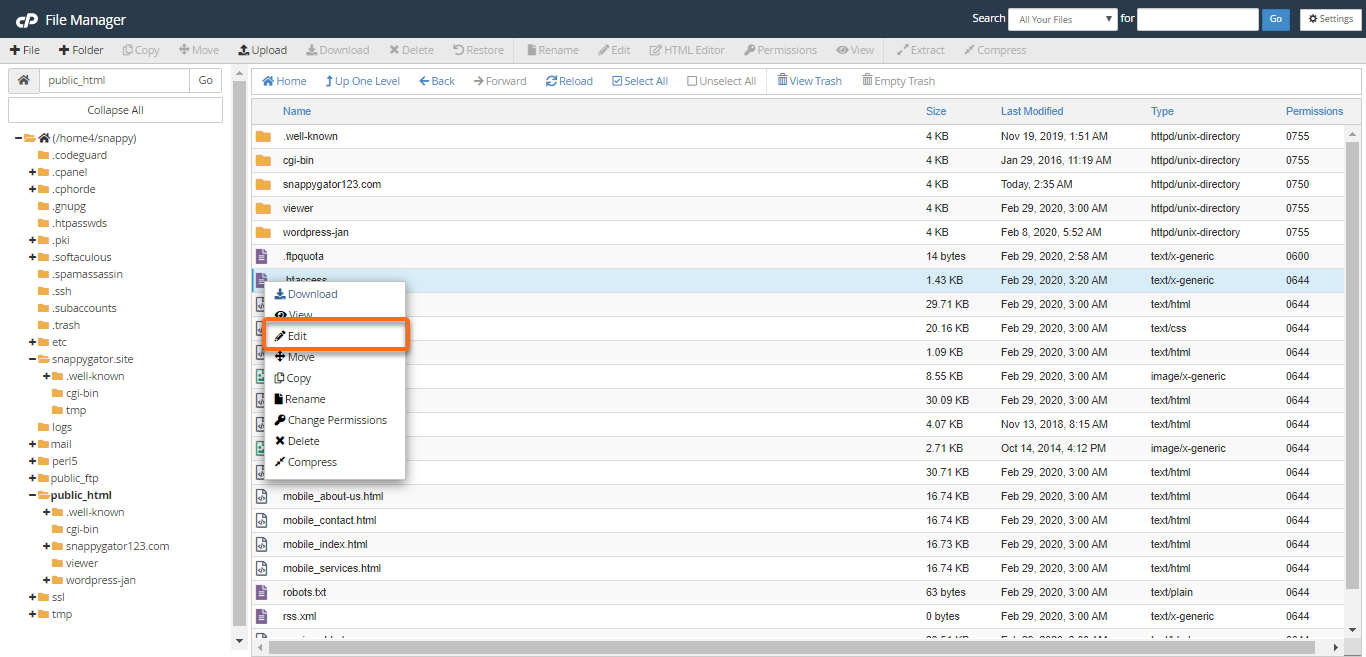
WordPress’s Apache handbook documents this rule for the root .htaccess:
<FilesMatch "^(wp-config\.php|\.htaccess|\.htpasswd|debug\.log)$">
  Require all denied
</FilesMatch>
The handbook also suggests blocking install.php once the site is installed. Require all denied is Apache 2.4 syntax. Older guides use Deny from all, which is the 2.2 form, so match the syntax to your server version. Blocking wp-config.php over the web doesn’t replace tight file permissions on it.
When a folder has no index file, Apache can list everything in it. Options -Indexes turns that off, but only if the host allows Options overrides.
For uploads, block PHP from running instead of blocking the whole folder, which would break images. In wp-content/uploads/.htaccess:
<FilesMatch "\.(php|phtml|phar)$">
  Require all denied
</FilesMatch>
This doesn’t make private files private. Anything else in uploads can still be loaded by anyone with its URL.
WordPress’s Hardening handbook lists the failure modes plainly:
/wp-admin/ carelessly breaks admin-ajax.php. Many front-end features depend on that file.wp-includes rule stops ms-files.php generating images on Multisite.# BEGIN WordPress / # END WordPress markers, because WordPress may overwrite anything between them.Moving wp-config.php has disputed value. The handbook only documents moving it one level above the install, and it warns that doing it carelessly can create serious holes.
Permissions follow the same least-privilege logic. WordPress’s permissions page gives 755 for directories and 644 for files as examples, not fixed rules. It notes that .htaccess has to be writable if you want WordPress to update rewrite rules. Never use 777. Hiding the WordPress version is fine to do, but the handbook calls obscurity an unsound main strategy.
Turning on HTTPS is a sequence of steps. Force it before the certificate and settings are ready and the site can lock everyone out. WooCommerce’s SSL documentation says most payment gateways require SSL. The order:
https:// under Settings > General.Set each header in one place only: the server config, the cache layer or a plugin. Headers added from PHP don’t reach cached pages or static files that never touch WordPress, so the policy visitors get can differ from the one you wrote. Setting a header in two places gives you duplicates. After any change, purge the cache and check the live headers on a cached page and an uncached one.
Content Security Policy goes wrong in two directions. Make it too strict and it blocks legitimate scripts. “Fix” the violation reports by allowing every origin or unsafe-eval and the policy stops protecting much. Start it in Report-Only mode and click through the real site: forms, embeds, analytics, logged-in views and, on a store, the full checkout and payment flow. Enforce it only after that.
Most hardening failures are self-inflicted. A rule is too broad, it isn’t allowed in .htaccess, or it clashes with another rule. The Apache error log (in cPanel, usually under Metrics > Errors) often tells you which one.
| What you see | Log line | Likely cause |
|---|---|---|
| 500 error after an edit | <Directory not allowed here | A server-only directive pasted into .htaccess |
| 500 error after adding headers | Invalid command 'Header' | mod_headers isn’t loaded |
| 500 or rules ignored | RewriteEngine not allowed here | Overrides not permitted |
| 403 on a path that should work | AH01797: client denied by server configuration | An Apache access rule matched |
| 403 or 406 page branded by the host | ModSecurity: Access denied with code 403 plus a rule ID | A server firewall false positive |
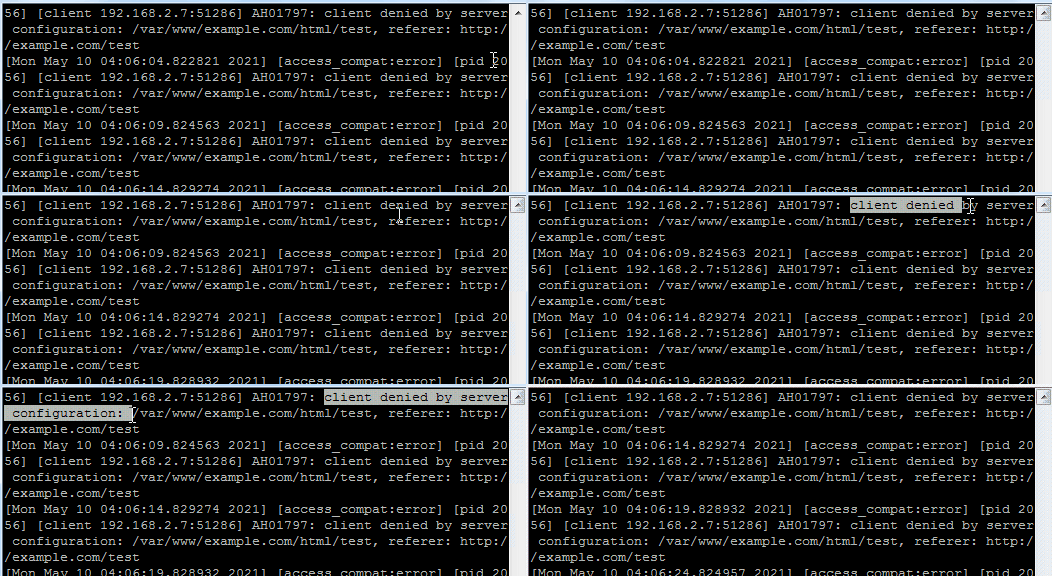
For a 500 after editing .htaccess:
.htaccess-old as a test.Removing the file brings the site back but drops your redirects, so put them back afterwards. Our white screen guide goes through the same order for fatal errors.
If pretty permalinks return 404s, WordPress’s Common errors page points to mod_rewrite being off or the rules being missing. Save the permalinks page again. If that fails, save a different structure, then switch back.
Firewall false positives need a narrow fix. In one WordPress.org thread, ModSecurity rule 214540 in a COMODO rule set blocked the Google Tag Manager iframe after GTM4WP 1.16. A SecRuleRemoveById exception for that one rule fixed the 403. On shared hosting, the host adds that exception. Switching the whole firewall off is useful as a quick test, never as the fix. Plugin firewalls work the same way: allowlist the one request that was blocked, then turn protection back on.
Don’t assume every symptom is a server block, either. In another thread, a store owner whose customers couldn’t check out found AH01797 lines from directory-hardening rules the host had added to wp-content and uploads. The replacement rules didn’t fix checkout. The log line and the customer complaint were two separate problems.
Reading the log and fixing the rule is the kind of work SiteSelf’s agent does on request through WordPress bug fixes. Editing .htaccess needs hosting (SSH) access, and the agent reports what it changed and what it checked.
Malicious .htaccess rules are a common sign of infection. Sucuri found allow/deny rules tied to Japanese SEO spam on 10.07% of the infected sites it cleaned in 2023. That sample isn’t limited to WordPress or Apache. WordPress.org support threads show the other side too: .htaccess files reinfected again and again, despite security plugins, a CDN and read-only permissions. The infection was still somewhere else on the site.
If rules keep reappearing, clean up first, then harden. Our guide to malware removal that holds covers finding the entry point. Before you restore anything, check what your backup plugin actually covers, because restoring a backup that already contains the malware brings it straight back.
Stop when the fix needs something you can’t reach: the main Apache config, a ModSecurity exception, module changes or the Apache version itself. On shared and managed hosting, all of those belong to the host. Send a specific request with the URL, the time, the log line and the rule ID. A vague “please harden Apache” ticket won’t get you far.
A bare VPS is different. Patching, certificates, backups and PHP versions are your job or your developer’s. If nobody has that time, managed hosting costs less than the outage. On a store, take payments through an external gateway so card data never sits on the server.
No. Nginx ignores .htaccess completely, so the same protections have to be written into the Nginx server configuration, usually by the host. Plugins that rely on .htaccess for access control can leave an Nginx site unprotected without showing any error.
LiteSpeed reads Apache-style .htaccess files, and WordPress’s rewrite block generally works there. Don’t assume every Apache directive behaves the same way. Test each security rule on the live site and check the error log.
Block it only if nothing uses it. Some mobile apps, publishing tools and integrations still depend on XML-RPC, so check what connects to the site before you block it, and test those connections afterwards.
No. 777 lets any user on the server write to the file or folder. If updates fail, the cause is usually file ownership, and the host can fix that properly. WordPress’s permissions page gives 755 and 644 as starting examples.
No. Noindex only affects search results. Automated scanners probe every public IP and hostname. Build the site locally or behind a password until launch, and add the access rules before it goes public.
Only if you manage the server. On shared or managed hosting, the host patches Apache and its modules. Ask which version you are on and how quickly they apply security releases.
Tips & Strategies
Most WordPress sites can build a landing page with the editor or builder they already have, and a new plugin is worth adding only for a specific missing feature. The plugin also matters less than the settings around the page. Permalinks, the Reading screen, caches, noindex and checkout setup are what usually stop a landing page from working.
Read article ›Tips & Strategies
Managing many WordPress sites starts with picking the right setup. Then it depends on a routine for checking each site after an update. For independent sites, that usually means separate installs connected to one management dashboard. Running the updates is quick. The real work is confirming afterwards that every site still works.
Read article ›Tips & Strategies
Theme customization in WordPress is not one task. It is a choice about which layer holds the change: theme settings, CSS, a child theme, or a plugin. Pick the wrong layer and the change either disappears at the next update or takes the site down with it.
Read article ›Connect the site you already have, add your agent to Slack or Telegram, and tell it what you need.
Connect your siteStart with 500 free credits. No credit card needed.