Give your WordPress site its first task.
Connect the site you already have, add your agent to Slack or Telegram, and tell it what you need.
Connect your siteStart with 500 free credits. No credit card needed.
“Updating failed” is the name of two different problems: the block editor could not save a post, or WordPress could not install a core, plugin or theme update. Find out which one you have and read the exact error before you change anything. Most fixes are small. Most of the damage comes from the wrong fix.
WordPress uses the words “updating failed” for two failures that have nothing in common. One appears in the block editor when you click Update on a post or page. The other appears on Dashboard > Updates or the Plugins screen when WordPress could not install new software. The causes are different, the fixes are different, and a fix for one can damage the other.
So start by working out which one you are looking at. Then read the full error message. “Updating failed” tells you something went wrong. The rest of the message tells you which part of the site failed.
Look at where the message appeared and how it is worded. The table below covers the common versions.
| Where you saw it | What it says | What failed |
|---|---|---|
| Block editor, after Update, Publish or Save draft | “Updating failed. The response is not a valid JSON response.” or “You are probably offline.” | The save request to the REST API |
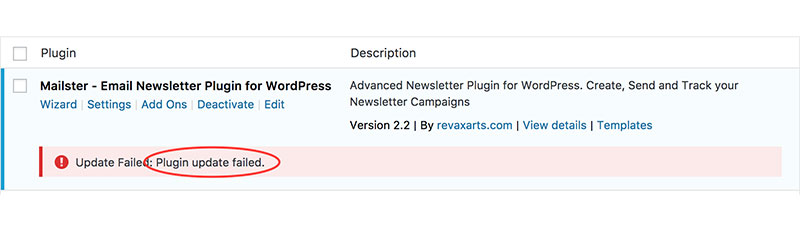
| Dashboard > Updates or Plugins | “Download failed”, “Could not create directory”, “Could not copy file”, or a prompt for FTP credentials | The software update, before or while files were written |
| The public site | “Briefly unavailable for scheduled maintenance. Check back in a minute.” | An update that stopped partway |
| Admin email inbox | “An automated WordPress update has failed to complete” | A background core update that was interrupted |
| The site after an “Update successful” notice | A critical error, a white screen, or a checkout that does nothing | The new code ran and something conflicted with it |
If it was the editor, the short version is below, and our guide to a WordPress page not updating goes through every cause. Everything after that section is about software updates.
When you click Update, the block editor sends your post to the REST API and expects JSON back. “Updating failed” means it got something else: a firewall block page, a redirect, a login screen, a PHP warning, or stray output in front of the JSON. Until you see what actually came back, you are guessing.
Open your browser’s developer tools, go to the Network tab and click Update again. Then click the failed request and check three things: the status code, the Content-Type and the start of the response body.
Reload the post in a new tab before you retype anything. Also, don’t change your permalink format to see if it helps. In one WordPress.org thread, a site owner switched to the default format, broke every link shared on social media, and later found the real cause was a ModSecurity rule. If you want to try it, re-save the existing structure without changing it.
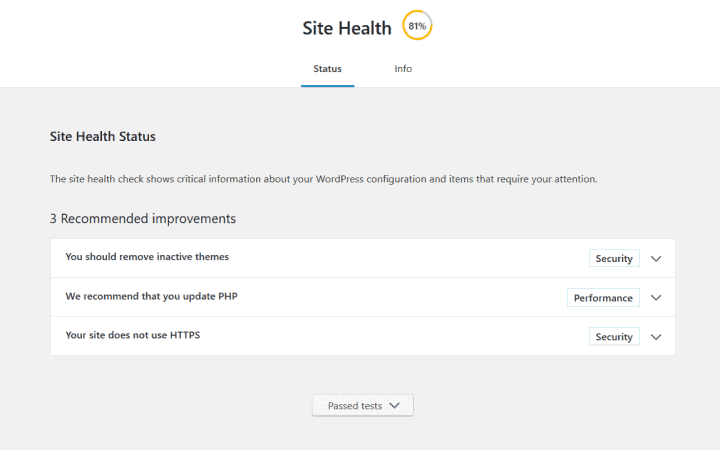
For software updates, WordPress’s own documentation and support threads keep pointing to the same few causes. The order below follows how often they come up in reports. Nobody has measured it, so treat it as a rough order. Two places help you sort them fast: Tools > Site Health, which flags problems such as the site being unable to reach WordPress.org, and your host’s error log.
WordPress writes update files as the web server’s user. If that user doesn’t own wp-content/plugins or wp-content/upgrade, the write fails, or WordPress asks you for FTP details. Ownership is which server user owns a file. Permissions control what that user can do with it. Changing permissions doesn’t fix the wrong owner.
That’s why chmod 777 is the wrong fix. WordPress’s file permissions guide says to keep permissions as restricted as possible and warns about 777 specifically. On shared hosting, send the host the exact error and the folder it names, and ask them to correct ownership for that folder.
The site either couldn’t reach WordPress.org or the vendor’s update server, or the server refused it. If Site Health says it cannot reach WordPress.org, the host needs to look at outbound connections. For paid plugins, check the licence before anything else. It may have expired, or it may be registered to an old domain or to the agency that built the site.
For WooCommerce Marketplace extensions, WooCommerce’s subscription troubleshooting page covers the usual causes: an expired subscription, a store disconnected from WooCommerce.com, or an outdated WooCommerce.com Update Manager. Changing files won’t fix any of these.
The updater needs working space as well as room for the finished plugin. It unpacks the package into wp-content/upgrade and may keep a temporary backup of the old version while it works. Check your quota in the hosting panel. To free space, delete old backups stored on the server, not files in wp-content you don’t recognise.
Look in the PHP error log for “Allowed memory size exhausted” or “Maximum execution time exceeded”. If one of those lines matches the time of the update, ask the host to raise that specific limit. If it isn’t in the log, raising limits only hides the real cause.
Sometimes the update installs fine and the new code is the problem. A 2023 study by Lin, Sayagh and Hassan found that 497 of the 500 most frequently released WordPress.org plugins had shipped at least one urgent fix within 24 hours of an earlier release. That measures how often releases need patching, not how often updates fail on real sites. It’s still a good reason to read the changelog, and to wait a day before installing a major release on a store.
To find a conflict without taking the site down, use Troubleshooting Mode in the Health Check & Troubleshooting plugin. The WordPress support handbook explains that it disables plugins and switches the theme for your logged-in session only, so visitors see the normal site. WooCommerce’s conflict-testing guide recommends the same approach, or a staging copy, rather than switching everything off on a live store.
WordPress creates a file called .maintenance in the site root while an update runs and deletes it when the update finishes. If the update stopped partway, the file stays and visitors keep seeing the message. Fix it in this order:
.maintenance from the folder that holds wp-config.php.The WordPress troubleshooting FAQ confirms that removing the file clears the message, and the same applies to “An automated WordPress update has failed to complete”. Clearing the message doesn’t prove the update finished. Step 4 is how you find out.
If the site shows “There has been a critical error” after an update, the new code is failing when it runs. WordPress usually emails the admin address with a recovery mode link that pauses the failing plugin or theme so you can log in. Our guide to fixing a WordPress fatal error shows how to read the file path in the error, which tells you which component failed.
Roll back that one component before you consider restoring a full backup. On a WooCommerce store, a full restore brings back yesterday’s database, which means losing every order placed since. Install the previous version from the vendor’s archive or a rollback plugin, then test the page that broke.
If wp-admin is locked, rename the plugin’s folder in wp-content/plugins (for example to plugin-name-off) and WordPress will deactivate it. If you don’t know which plugin it is, our guide to plugins that stop working walks through isolating it.
A manual update gets around the updater itself. It does not get around wrong ownership, a full disk or a blocked network, so fix those first.
wp-config.php, and don’t delete the existing wp-content folder. That folder holds your uploads, themes and plugins.The notice means the installer finished. It doesn’t mean checkout works, forms send, or the version you wanted actually installed. Even update reports can be wrong: Easy Updates Manager’s changelog records a November 2024 fix for emails that marked some failed updates as “success”.
After every update, check the installed version, log out and back in, send a test form and look at a few key pages. On a store, WooCommerce’s update guide asks for more: a backup first, staging where you can, letting the update finish without refreshing, running any database update WooCommerce prompts for, and then testing products, cart, checkout, payment, shipping, tax and emails. Before any of that, make sure your backup can actually be restored, because a backup job that ran isn’t proof of that.
If you’d rather hand the update cycle off, SiteSelf runs plugin updates on request using hosting access, fetches the changed pages afterwards and reports what it updated and what it checked; the page on plugin updates and maintenance explains how that works.
Contact your host when the save request returns a 403, when the error names a folder WordPress can’t write to, when the disk is full, or when the log shows a PHP limit. These are server settings, and on shared hosting only the host can change them. Contact the plugin vendor when a paid update won’t download and the licence looks valid. Bring a developer in when a fatal error points at custom code, or when checkout is down and a single rollback hasn’t brought it back.
Whoever you contact, send evidence: the exact message, the time it happened, the plugin and version, the status code or log line, and what you’ve already tried. A vague “updating failed” ticket gets sent back to the forums. A ticket with the log line in it gets fixed.
Sometimes. The error tells you the editor didn’t get the reply it expected. That doesn’t always mean nothing was written. Open the post in a new tab or check its revisions before you retype anything.
Re-saving the structure you already have under Settings > Permalinks is low risk, and it regenerates the rewrite rules. Changing the format is a different matter. Every existing URL changes, so links shared elsewhere start returning 404s.
No. It lets anyone on the server write to those files, and it usually leaves the real cause, wrong ownership, untouched. Ask the host to correct ownership on the specific folder named in the error.
You can, but customers will see a broken store while you test. Use Troubleshooting Mode in the Health Check plugin, which changes plugins only for your session, or test on a staging copy.
Background updates depend on scheduled tasks and on the site sending requests to itself. A plugin conflict or a host firewall, DNS, SSL or password-protection rule can block those requests. Site Health reports loopback and scheduled-event problems, so start there.
Only after a targeted rollback has failed. A full restore replaces the database too, so on a store you lose any orders and customer accounts created since the backup was taken.
Troubleshooting
Most WordPress problems end up on the same few screens: a critical error, a blank page, a 500, a spinner that never stops. The screen tells you something broke. It doesn’t tell you which layer broke, and the fix depends on finding that out from the logs and testing one change at a time.
Read article ›Troubleshooting
“WordPress not loading” describes a symptom. It doesn’t tell you the cause. A blank page, a database error, a redirect loop and a domain that won’t resolve each fail in a different place, so each needs a different fix. Work from the outside in: first check who can see the failure, then read the exact message, then the logs. Change something only after that.
Read article ›Troubleshooting
When a WordPress page won’t update, the edit has usually saved and a cache is still serving the old copy. WordPress core has no page cache of its own, so the purge buttons live in your caching plugin, your host panel, your CDN and your page builder. Clearing one of them while another keeps the old copy is the most common reason the fix doesn’t work.
Read article ›Connect the site you already have, add your agent to Slack or Telegram, and tell it what you need.
Connect your siteStart with 500 free credits. No credit card needed.