Give your WordPress site its first task.
Connect the site you already have, add your agent to Slack or Telegram, and tell it what you need.
Connect your siteStart with 500 free credits. No credit card needed.
“WordPress not loading” describes a symptom. It doesn’t tell you the cause. A blank page, a database error, a redirect loop and a domain that won’t resolve each fail in a different place, so each needs a different fix. Work from the outside in: first check who can see the failure, then read the exact message, then the logs. Change something only after that.
Say your homepage is white and a customer can’t place an order, but the login screen still opens. That detail matters. It means the server answers requests and at least part of WordPress runs, so turning off every plugin would be the wrong first move.
“Not loading” covers at least eight different failures: a blank page, a critical error, a database error, a 5xx code, a stuck maintenance screen, a redirect loop, a domain that won’t resolve, and a checkout that spins forever. Each one lives in a different layer. Find the layer first and the fix is usually short.
Find that out before anything else. Open the site in a private window, then on your phone with Wi-Fi switched off. If it loads on mobile data, the fault is your browser, an extension, your router or your DNS resolver, not the site. Our guide to fixing DNS_PROBE_FINISHED_BAD_CONFIG errors covers that case.
If the site fails on every network, check your host’s status page before you edit anything. On Reddit’s r/webdev, one owner was sure a new forms plugin had broken their site. It turned out to be a host outage. Changing a working site to “fix” someone else’s outage is how one incident becomes two.
Clearing your browser cache only fixes your own browser. It does nothing for a server, database or DNS fault.
Write down the exact message, the URL and the time it started. Then find it in this table.
| What you see | Likely layer | First check | Who usually fixes it |
|---|---|---|---|
| Blank white page, or “There has been a critical error on this website” | PHP fatal error in a plugin, theme or custom code | Recovery Mode email, then the debug log | You or a developer |
| 500 Internal Server Error | .htaccess, a plugin, the theme or memory | The host’s error log | You, a developer or the host |
| “Error establishing a database connection” | Wrong credentials, or the database server is down or full | Compare wp-config.php with your host’s values | Usually the host |
| “Briefly unavailable for scheduled maintenance” | An update left a .maintenance file behind | Is the update still running? | You |
| ERR_TOO_MANY_REDIRECTS | Two redirect rules or the SSL mode disagree | Site URLs, .htaccess, CDN SSL mode | You or whoever controls the CDN |
| 502, 503, 504 or a timeout | Host capacity, resource limits or the database | Host status page and logs | The host first |
| “Site can’t be reached” or NXDOMAIN | DNS or nameservers | Domain records at the registrar | Whoever controls DNS |
| Store loads, but checkout spins | JavaScript, caching or CDN optimisation | Browser Console and Network tabs | You or a developer |
Before you edit files, take a backup or a hosting snapshot, and include the broken state. You should know how to restore it without the WordPress dashboard.
A white screen or the “critical error” message almost always means PHP hit a fatal error. Practitioners most often find that a plugin, a theme or custom code caused it, usually right after an update or a PHP version change. That pattern comes from repeated reports, not from any measured failure rate.
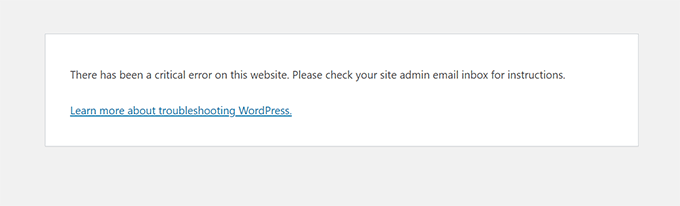
Start with the Recovery Mode email. WordPress added Recovery Mode in version 5.2. When a fatal error happens, it can email the administrator a login link. That link pauses the faulty plugin or theme for your session only. Visitors still get the error. Use the session to find out which component the email names, then deactivate or update it.
The email doesn’t always arrive. WordPress’s documentation says Recovery Mode triggers only on fatal errors during normal page loads, not during cron or background tasks. Check spam. If nothing is there, use file access instead.
Without the dashboard, connect over SFTP or your host’s file manager. Rename the folder of the suspect plugin inside wp-content/plugins. If you can’t tell which plugin is at fault, rename the whole plugins folder. If the theme is the problem, rename the active theme’s folder and WordPress falls back to a default theme, provided one is installed.
Read the log before guessing. In wp-config.php, edit any existing debug lines rather than adding duplicates. Set them above the “stop editing” comment:
define( 'WP_DEBUG', true );
define( 'WP_DEBUG_LOG', true );
define( 'WP_DEBUG_DISPLAY', false );
Reload the failing page, then open wp-content/debug.log. Find the first fatal error with a matching timestamp. Its file path names the culprit. Later warnings are often side effects. WordPress’s debugging handbook covers these constants. Never show errors to visitors, and turn debugging off when you’re done, because the log can hold sensitive paths and data. Our guide to reading a WordPress fatal error goes through common messages one by one.
Check the host’s error log first. A 500 hides its cause from the browser, but the log usually names it. WordPress.org’s troubleshooting FAQ names a corrupted .htaccess as a likely cause. To test it, rename the file to .htaccess_old and reload the site. If the site comes back, go to Settings > Permalinks and click Save to create a clean file.
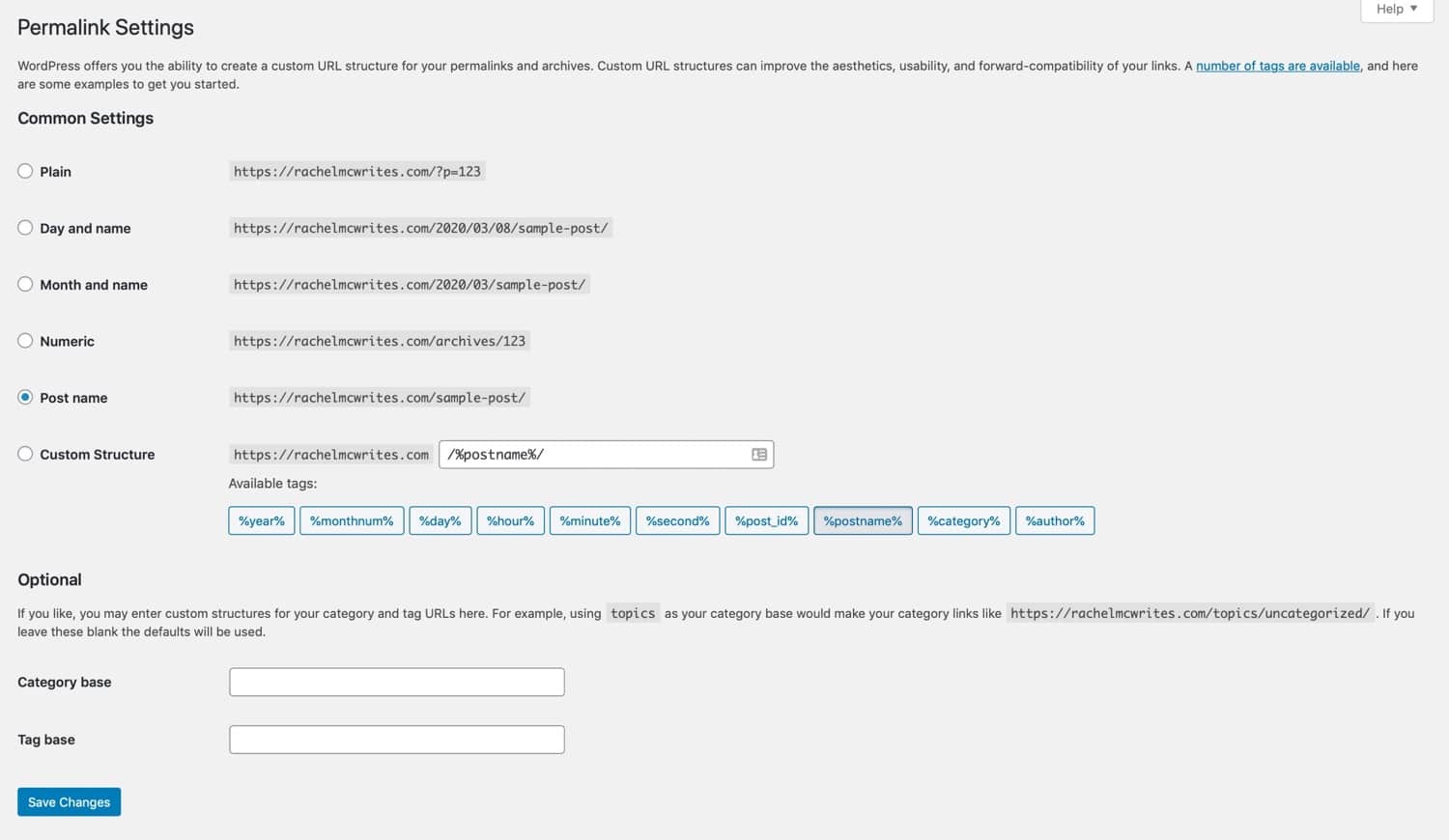
Keep the old file until you’ve compared the two. It may contain custom rules you still need, such as redirects or security directives. Security plugins sometimes leave rules behind that point to files that no longer exist, and those can cause a 500 on their own. If .htaccess wasn’t the cause, test plugins and the theme next. Our full guide to fixing a server error 500 covers the rest.
“Error establishing a database connection” has two families of cause. The first is wrong values in wp-config.php: DB_NAME, DB_USER, DB_PASSWORD or DB_HOST. The second is on the host’s side: the database server is down, over its quota, or out of connections.
Compare each value with what your hosting panel shows. Don’t assume DB_HOST is localhost, because many hosts use a separate database server. If every value matches, contact the host. Guessing new credentials doesn’t fix a stopped database server, and it adds a second fault you’ll have to undo later.
WordPress creates a .maintenance file in the site root during updates and deletes it when they finish. If an update is interrupted, the file stays and the site keeps showing the notice. First make sure no update is still running. Then delete the file (turn on “show hidden files” in your file manager to see it) and rerun the update that failed. Deleting the file only removes the notice. An interrupted update can leave a plugin half-installed, so test that plugin too. Why WordPress updating failed covers that half.
ERR_TOO_MANY_REDIRECTS is a configuration conflict, not a crash. First check that the WordPress Address and Site Address (Settings > General, or WP_HOME and WP_SITEURL in wp-config.php) both use the scheme you intend. Then look for competing redirects in .htaccess, in an SSL plugin and at your CDN.
Here’s a common version. Cloudflare is set to Flexible SSL, so it talks to your server over plain HTTP. Your server or WordPress redirects HTTP to HTTPS. Each side keeps sending the visitor back to the other. Cloudflare’s documentation recommends Full or Full (strict) mode when your server has a valid certificate, or removing the conflicting redirect.
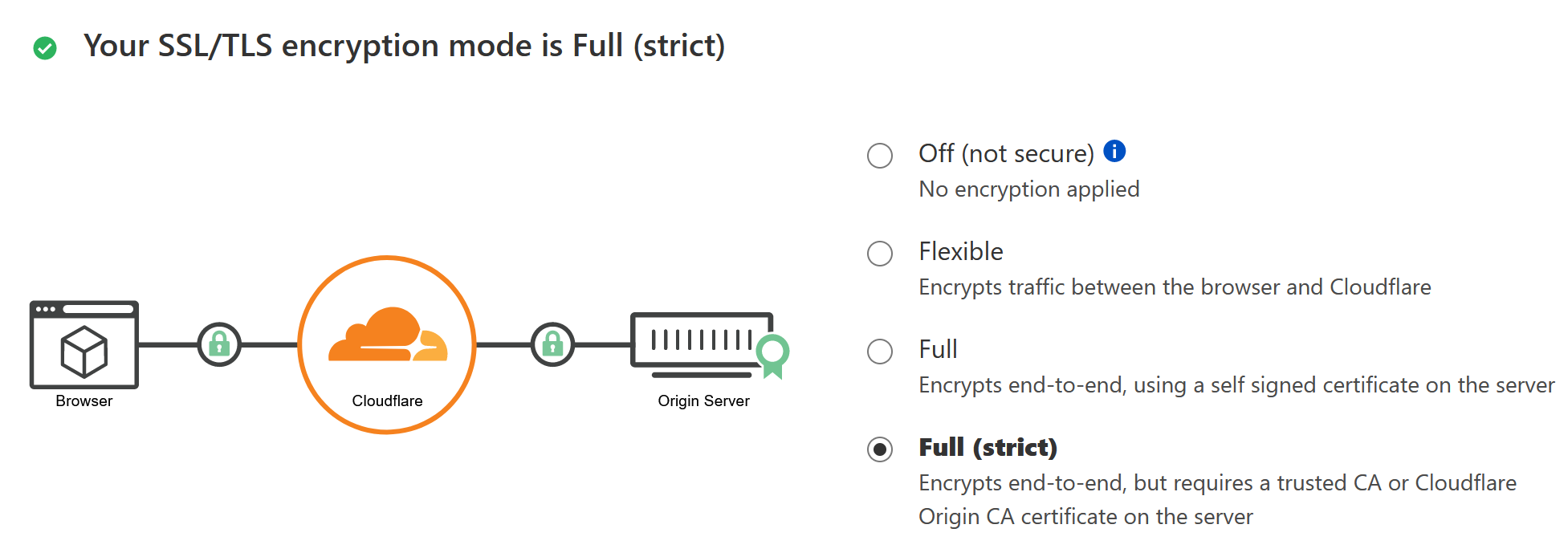
To see the loop instead of guessing, run curl -sIL https://example.com. It prints every Location header in the chain. Adding another force-HTTPS rule makes the loop worse, and clearing cookies won’t fix a loop that starts on the server.
These codes usually mean the server ran out of capacity or a timeout cut the request off. Note the code and the time, check the host’s status page, and send the host the log lines. Let them recommend memory or execution limits. Raising limits blindly can hide the problem or make it worse. Our guide to fixing a WordPress 503 error explains why.
Moving to a bigger server can hide the cause too. On r/woocommerce, a store with about 50 plugins timed out for roughly two months. Disabling every plugin brought it back, but the timeouts returned on reactivation. Commenters warned that a dedicated server would only mask a slow plugin or query. Query Monitor, a plugin that shows which components and database queries are slow, is a better next step than a bigger plan.
If the browser says the site can’t be reached, or a DNS lookup returns NXDOMAIN, the request never gets to WordPress. Check the A or CNAME records and the nameservers at your registrar or DNS provider against the values your host gives you. After a nameserver change, check that the old records were copied to the new provider. Then wait for the change to spread. Practitioners report waits of a few hours, and occasionally up to two or three days.
On WooCommerce, start with the basics in WooCommerce’s pages-not-displaying guide. Check that the Cart, Checkout and My Account pages exist and are assigned under WooCommerce settings. Save Settings > Permalinks without changing anything. Make sure cart and checkout are excluded from every cache.
For a spinning checkout, open the browser’s Console and Network tabs and find the first request that fails. Common blockers are JavaScript errors, optimisation plugins, a content security policy, consent tools, ad blockers and CDN features such as Cloudflare’s Rocket Loader and minification. A theme that leaves out wp_head() or wp_footer() can also stop payment scripts from loading.
One warning before you test: WooCommerce’s Health Check guide says troubleshooting mode doesn’t put your payment gateway into sandbox mode. A test order can take a real payment.
Renaming .htaccess, disabling all plugins, letting Recovery Mode pause something and rolling back an update are all ways to find the cause. Each one also has a cost. With every plugin off, your forms, checkout and security plugin are off too. A rollback can bring back a vulnerability the update closed. Once you’ve found the culprit, turn everything else back on one at a time and replace or update the component that failed.
Then confirm the site actually works, not just that a page appears. Log out and load the page that failed. Submit a form. On a store, check that an order record and payment status were created, not just that the confirmation screen showed. Purge the plugin, host and CDN caches so visitors stop seeing the broken copy.
Call your host if the database server is down, if 5xx errors keep coming back, if your account is suspended, or if you can’t reach a backup. Call whoever controls DNS or your CDN when the fault is in their system. Get a developer in these situations:
wp-config.php.Treat unfamiliar admin accounts, redirects to other sites or file changes nobody made as a security incident, not a loading problem.
When you hand it over, include the failing URL, the timestamps, recent changes, the log excerpt and the tests you’ve already run. Remove passwords and customer data first. If you’d rather describe the symptom in chat and have the logs read and the fix applied for you, SiteSelf’s agent does that work on your site using hosting (SSH) access and reports what it changed and checked: see getting your WordPress site working again.
Do both, in that order. Disabling all of them tells you quickly whether plugins are involved at all. Reactivating them one by one tells you which plugin it is. On a live store, the Health Check & Troubleshooting plugin’s troubleshooting mode lets you run the test in your own session while visitors still see the normal site.
Usually not. A working front end with a broken login points to a login, cookie, security plugin or redirect issue, not a site-wide failure. Our guide to fixing WordPress login problems sorts those by symptom.
Yes, and it’s the pattern practitioners report most often. Check the Recovery Mode email or the debug log for the plugin it names. Roll that plugin back only as a temporary measure, because the update may have fixed a security flaw.
Not by itself. The PHP version is set by your host, and your plugins and theme need to support it. You can see the current version under Tools > Site Health > Info > Server. If the log shows errors about deprecated or removed functions, update the component named in the error or ask the host which PHP versions it offers.
No. A site that loads slowly needs speed work: caching, fewer heavy plugins, better hosting. A site that returns an error needs repair. Mixing the two up leads to buying a bigger server for a broken plugin, or chasing errors that are really timeouts.
Troubleshooting
Most WordPress problems end up on the same few screens: a critical error, a blank page, a 500, a spinner that never stops. The screen tells you something broke. It doesn’t tell you which layer broke, and the fix depends on finding that out from the logs and testing one change at a time.
Read article ›Troubleshooting
“Updating failed” is the name of two different problems: the block editor could not save a post, or WordPress could not install a core, plugin or theme update. Find out which one you have and read the exact error before you change anything. Most fixes are small. Most of the damage comes from the wrong fix.
Read article ›Troubleshooting
When a WordPress page won’t update, the edit has usually saved and a cache is still serving the old copy. WordPress core has no page cache of its own, so the purge buttons live in your caching plugin, your host panel, your CDN and your page builder. Clearing one of them while another keeps the old copy is the most common reason the fix doesn’t work.
Read article ›Connect the site you already have, add your agent to Slack or Telegram, and tell it what you need.
Connect your siteStart with 500 free credits. No credit card needed.