Give your WordPress site its first task.
Connect the site you already have, add your agent to Slack or Telegram, and tell it what you need.
Connect your siteStart with 500 free credits. No credit card needed.
Most WordPress problems end up on the same few screens: a critical error, a blank page, a 500, a spinner that never stops. The screen tells you something broke. It doesn’t tell you which layer broke, and the fix depends on finding that out from the logs and testing one change at a time.
A WordPress site is several layers stacked together: core, the theme, plugins, PHP, the web server, the database, and one or more caches. When something breaks, you usually see one of a few generic screens, no matter which layer actually failed. “There has been a critical error on this website” can mean a plugin crashed, the theme doesn’t work with your PHP version, or memory ran out.
So the most common mistake isn’t a wrong fix. It’s treating the symptom as the diagnosis: assuming every 500 is a plugin conflict, every spinner is a caching problem, and a cleared cache means the problem is gone. This guide gives you the order of checks first, then the fix for each common symptom. If your site won’t load at all, our guide to why WordPress is not loading matches the exact message to its cause.
Write down the evidence, make a backup, then change one thing at a time. WordPress’s own handbook, WooCommerce’s docs and most hosts recommend the same order, because guessing destroys the clues you need.
wp-content/debug.log.If no log exists yet, turn on WordPress debug logging in wp-config.php. Keep on-screen display off on a live site so visitors never see file paths:
define( 'WP_DEBUG', true );
define( 'WP_DEBUG_LOG', true );
define( 'WP_DEBUG_DISPLAY', false );
Load the broken page again, then open debug.log. Look at the file path, not the wording. A path inside wp-content/plugins/some-plugin/ names your suspect. When you’re done, set WP_DEBUG back to false.
No public dataset ranks WordPress failures by how often they happen. The order below reflects how often each pattern comes up in WordPress.org support threads, WooCommerce documentation and hosting guidance. Plugin, theme and update conflicts top that list by a wide margin.
This is usually a PHP fatal error in a plugin or theme. WordPress’s common-errors handbook lists plugin conflicts, an incompatible theme or PHP version, exhausted memory and corrupted files as the usual causes.
Start with the Recovery Mode link if you got one, and deactivate the component it names. If you can’t reach wp-admin, connect by SFTP or the host’s file manager and rename only the suspect plugin’s folder in wp-content/plugins, for example to some-plugin-off. If the theme is the suspect, switch to a default theme. Our walkthrough on reading a WordPress fatal error covers each route in detail.
Once you know which plugin broke, decide what to do about the version. If the update caused the crash, roll back to the previous release with a tool such as WP Rollback, which reverts WordPress.org plugins and themes to an earlier version. Report the bug to the developer too. A rollback is a workaround. The faulty release is still a problem until the developer ships a patched one.
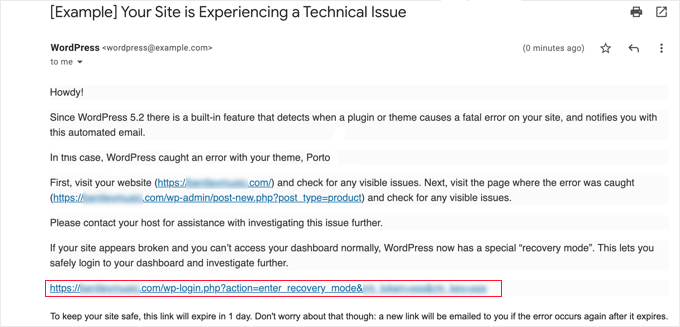
A 500 has more possible causes than any other message on this list: .htaccess, a plugin or theme, PHP limits, file permissions, the database, corrupted core files or the server itself. Read the host’s error log first, because it often names the file and line.
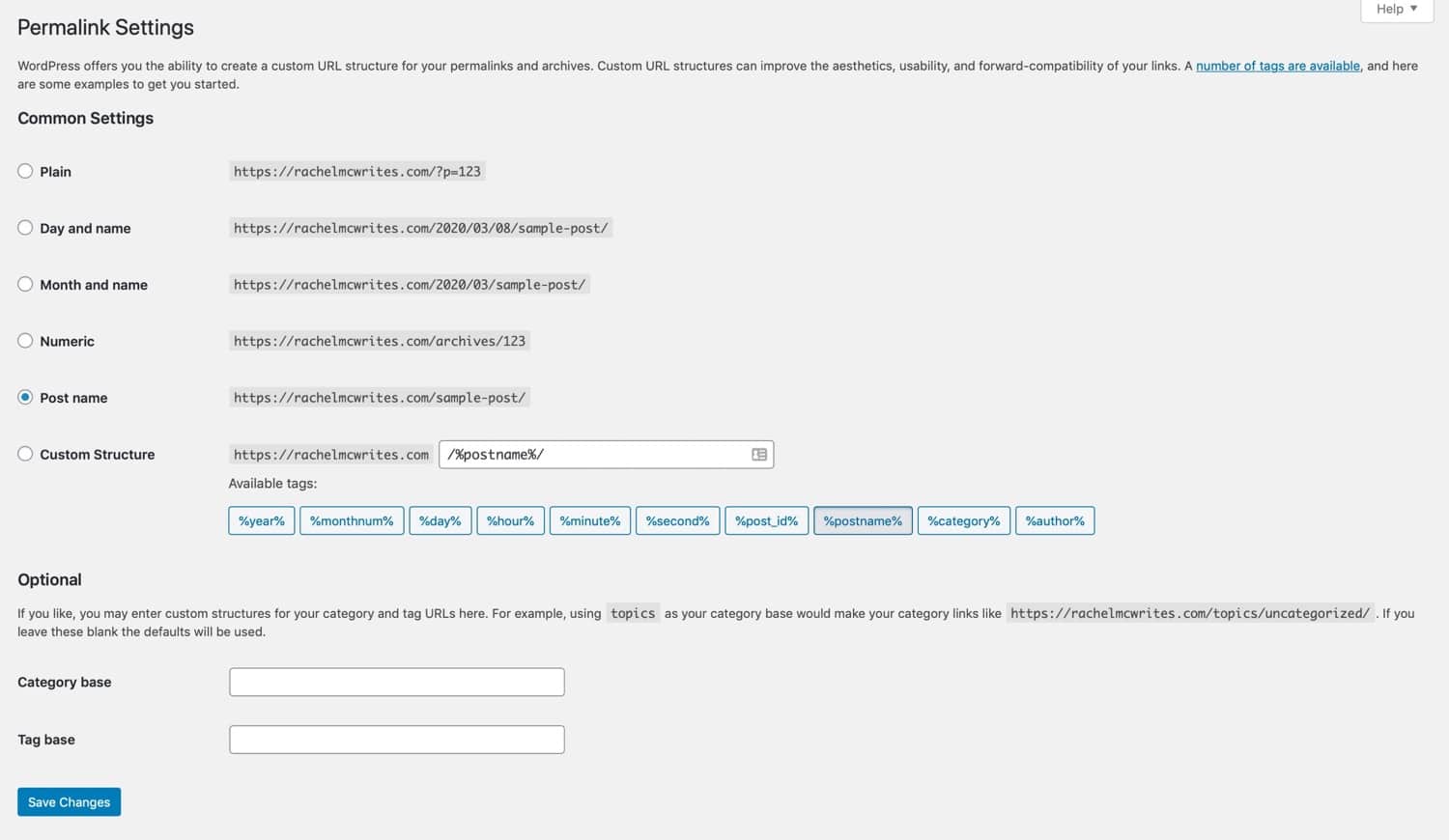
If the log suggests .htaccess, or says nothing useful, download a copy of the file, rename it to .htaccess-old and reload the site. If the site works again, go to Settings → Permalinks and click Save Changes to generate a clean file. Then add back any custom redirect or security rules one at a time from your copy. If the 500 doesn’t go away, the file wasn’t the cause, so put it back and continue with plugins, the theme and memory. Our server error 500 guide walks through the rest.
Match the fix to the log line. Raising WP_MEMORY_LIMIT in wp-config.php only asks for more memory. If the server sets a lower memory_limit, the server’s limit applies, and only your host can raise it. And if one plugin keeps using more memory after an update, extra memory just delays the next crash. Roll back that plugin or replace it.
WordPress’s handbook names three causes: wrong credentials in wp-config.php, problems with your web host such as a database server that is down or over quota, and, if neither explains it, a compromised site. Check the host’s status page first. If the database server is down, wait. Editing files while the host recovers only adds risk.
If the host is fine, compare DB_NAME, DB_USER, DB_PASSWORD and DB_HOST with the database details in your hosting panel. A recent password change on the hosting account often explains the error.
Caches confuse diagnosis in both directions. They can show an old page after you edit it, and they can keep showing an error after it’s fixed. On one WordPress.org thread, WP Super Cache kept serving the “Error establishing a database connection” screen to logged-out visitors after a brief server problem. Logged-in users never saw it, and only clearing the cache fixed it.
Check every layer: the browser, the cache plugin, the host’s server cache and any CDN. Then test in a private window while logged out. If the problem is still there after every layer is purged, the cache isn’t the cause, so troubleshoot the site itself. Our guide on a WordPress page not updating covers the save failures that look like caching.
The rewrite rules are broken. The content is still there. Go to Settings → Permalinks and click Save Changes without changing the structure. WordPress’s documentation explains that if .htaccess isn’t writable, WordPress shows you the rules to add yourself. In that case the save didn’t fix anything, even though the button worked.
If saving doesn’t help, ask your host whether mod_rewrite is enabled on Apache. Also check for a page that shares its slug with a custom post type. Don’t change the permalink structure to fix a 404. Those URLs are meant to be permanent, and changing them breaks every existing link and search result.
WooCommerce’s spinner documentation explains that the browser is usually waiting for a request, rejecting its response, or failing to finish the JavaScript that updates checkout. Open your browser’s DevTools, go to the Network tab, filter by Fetch/XHR and place a test order. Note the status code, how long the request took and the response. Then open WooCommerce’s logs at the same timestamp.
Three warnings from those docs matter more than any fix. Check Orders before anyone retries Place order, because the first attempt may have gone through. Don’t switch from the Checkout block to classic checkout as a first step. It can hide the real problem, and extensions support the two differently. And remember that a staging copy can still send real emails and fire webhooks.
Only when the site is already down, or when the test is invisible to visitors. Turning off every plugin is quick, but on a working store it also takes down checkout, forms and logins while you test.
WooCommerce’s conflict test is the careful version. Switch to a default theme, deactivate everything except WooCommerce and the extension that misbehaves, then reactivate plugins one at a time, repeating the steps that triggered the problem after each one. Two plugins can each work fine alone and fail together, so test suspect pairs both ways.
On a live site, run the test on a staging copy, or use the Troubleshooting mode in WordPress.org’s Health Check & Troubleshooting plugin. That mode disables plugins and switches the theme for your logged-in session only. It can’t disable must-use plugins, and it can’t reproduce a problem that only logged-out visitors see. Its directory listing also now warns that it hasn’t been tested with the latest three major WordPress releases. Test it on staging before you rely on it on a live site.
Stop when the evidence points to something you can’t change safely. Most failed self-fixes happen because the person kept going past one of these points:
Whoever takes it on, send them the exact error, what you were doing when it appeared, what changed recently, the relevant log lines, the affected URL, and what you expected compared with what happened. If you’d rather describe the problem in chat and have it handled, SiteSelf’s WordPress bug-fix work reads the error, makes the fix on your live site (code-level fixes need hosting access), and reports what changed and what it checked.
Switch to a default theme, then check .htaccess, then read the server error log. Look at memory, the database and the server before you go back to plugins. Also check for must-use plugins in wp-content/mu-plugins, because they keep running when you deactivate everything else.
Usually not first. A full restore puts back every file and database row from the backup date, so you lose any orders, comments and posts created since then. If one change broke the site, undo that one change. Our guide to restoring WordPress from backup covers when a full restore is the right call.
No. Skipped updates leave known security holes open, and a site that falls years behind ends up with one large, risky update instead of many small ones. Update one component at a time, with a fresh backup each time, and test login, forms and checkout after each update.
Yes, as long as WP_DEBUG_DISPLAY is false, so errors go to the log file and not the screen. WordPress recommends doing your debugging on a staging or development copy where you can. Turn it off when you finish, because the log can grow large and it contains file paths.
An update was interrupted and left a .maintenance file in the site root. Make sure no update is still running, delete the file by SFTP or the file manager, then run the update again. The interrupted update may have left a plugin half installed, so check that plugin too.
Not always. WordPress.com and self-hosted WordPress from WordPress.org have different accounts, features and support channels. File access, error logs and PHP settings belong to your host on a self-hosted site, which is why most fixes in this guide mention the hosting panel.
Troubleshooting
“WordPress not loading” describes a symptom. It doesn’t tell you the cause. A blank page, a database error, a redirect loop and a domain that won’t resolve each fail in a different place, so each needs a different fix. Work from the outside in: first check who can see the failure, then read the exact message, then the logs. Change something only after that.
Read article ›Troubleshooting
“Updating failed” is the name of two different problems: the block editor could not save a post, or WordPress could not install a core, plugin or theme update. Find out which one you have and read the exact error before you change anything. Most fixes are small. Most of the damage comes from the wrong fix.
Read article ›Troubleshooting
When a WordPress page won’t update, the edit has usually saved and a cache is still serving the old copy. WordPress core has no page cache of its own, so the purge buttons live in your caching plugin, your host panel, your CDN and your page builder. Clearing one of them while another keeps the old copy is the most common reason the fix doesn’t work.
Read article ›Connect the site you already have, add your agent to Slack or Telegram, and tell it what you need.
Connect your siteStart with 500 free credits. No credit card needed.