Give your WordPress site its first task.
Connect the site you already have, add your agent to Slack or Telegram, and tell it what you need.
Connect your siteStart with 500 free credits. No credit card needed.
There is no single WordPress theme updater. Your theme updates through the built-in dashboard updater, a ZIP replacement or a vendor’s license channel, and each one fails in its own way. The error message usually tells you which cause you have, and the green success message doesn’t tell you whether the site still works.
People type “theme updater” as if it were one tool. On most sites it means one of three different routes, and the route you use decides what can go wrong. A free theme from WordPress.org, a theme bought on ThemeForest and a theme your agency built can sit side by side in Appearance → Themes. Each one gets its updates from a different place.
This article explains how each route works, what its error messages mean, and what none of them check for you. If you just want the click-by-click routine, our guide to updating a WordPress theme without losing work covers that. This piece covers what happens underneath, which is what you need when the routine breaks.
Find out where the theme came from before you do anything else. That answer tells you which of the routes below applies.
| Route | Where it runs | What it depends on | How it usually fails |
|---|---|---|---|
| Built-in updater | Dashboard → Updates, Appearance → Themes, per-theme auto-updates | WordPress.org (or a registered update source), writable files, outbound connections, WP-Cron | Permissions, timeouts, disk space |
| ZIP replacement | Appearance → Themes → Add New → Upload Theme → “Replace current with uploaded” | The correct ZIP, with the same folder name as the installed theme | Wrong package, “Destination already exists” |
| Vendor channel | A license-activated updater, a vendor dashboard (such as Avada’s), or a marketplace tool | An active license registered to this domain, and the vendor’s servers | “Unauthorized”, vendor API timeouts, companion plugin version mismatch |
Two smaller categories sit on top of these. Update manager plugins from the WordPress.org directory schedule the built-in updater or control it item by item, but they don’t fetch anything new themselves. Agencies that distribute their own themes sometimes write custom update code that hooks into WordPress’s update check. That code is developer territory, and when it breaks, the fix belongs with whoever wrote it.
Premium themes are where people get caught out. Kinsta’s documentation notes that premium and custom themes may have no public update endpoint, so the host’s standard update tools can’t reach them. If your theme came with a license key, the built-in updater probably isn’t the route doing the work.
WordPress checks for new versions on a schedule and caches what it finds. That cached result is what puts the yellow notice in your dashboard. When you click Update, WordPress downloads the package, unpacks it into wp-content/upgrade, puts the site into maintenance mode by writing a .maintenance file to the site root, swaps the theme folder and removes the file again.
According to the core team’s announcement, since WordPress 6.3 the old version is moved to wp-content/upgrade-temp-backup/themes/ during a manual update. If the update fails, WordPress puts that copy back. If it succeeds, the copy is deleted. It is a safety net for a failed install, not a version archive.
Auto-updates use the same machinery without the click. WordPress.org’s auto-update documentation says you switch them on per theme from Appearance → Themes, and that the process runs twice a day. They rely on WP-Cron, which only fires when someone visits the site. On a quiet site, or one where cron is disabled, “enabled” can still mean nothing happens for a while.
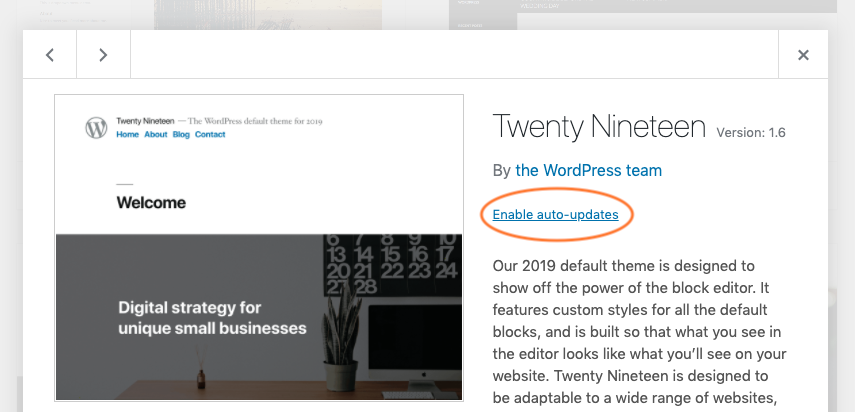
Themes and plugins share this whole system: the same screens, the same auto-update toggles, the same failure modes. A fix that works for one usually works for the other.
Retrying almost never fixes a failed theme update, because the cause is usually in the server or the license, not a bad moment. The errors below are listed roughly by how often they come up in vendor support forums and WordPress threads. That ordering comes from reading threads, not from measured data.
.maintenance behind. WP Engine’s guidance is to delete it from the site root over SFTP or SSH once the update has stopped, then clear the cache. Deleting it brings the site back but doesn’t finish the update, so check the version number afterward. Critical errors on premium suites often come from mismatched companion plugins. Avada’s FAQ says to delete Avada Core and Avada Builder and reinstall them from the Avada Dashboard.“Destination already exists” isn’t an updater failure. It means you uploaded a ZIP whose folder name matches an installed theme. Use “Replace current with uploaded” if the screen offers it. Renaming the folder inside the ZIP installs a second, separate theme. On block themes that can cost you work, because Site Editor customizations are tied to the theme’s identity. When an Ollie user moved from the GitHub copy to the WordPress.org release, it installed as a new theme rather than an upgrade. Also check what you’re uploading: marketplace downloads are often a bundle containing documentation and plugins, with the installable theme ZIP inside it.

If the update leaves a white screen rather than an error message, our guide to fixing a WordPress white screen walks through finding which file failed.
The updater reports whether files were replaced. It has no idea whether your header, product grid or checkout still look right. In practice, the more common pain is an update that “succeeded” and changed the site anyway.
header.php disappears. Customizations belong in a child theme, and our guide to theme customization that survives updates covers where each kind of change should live.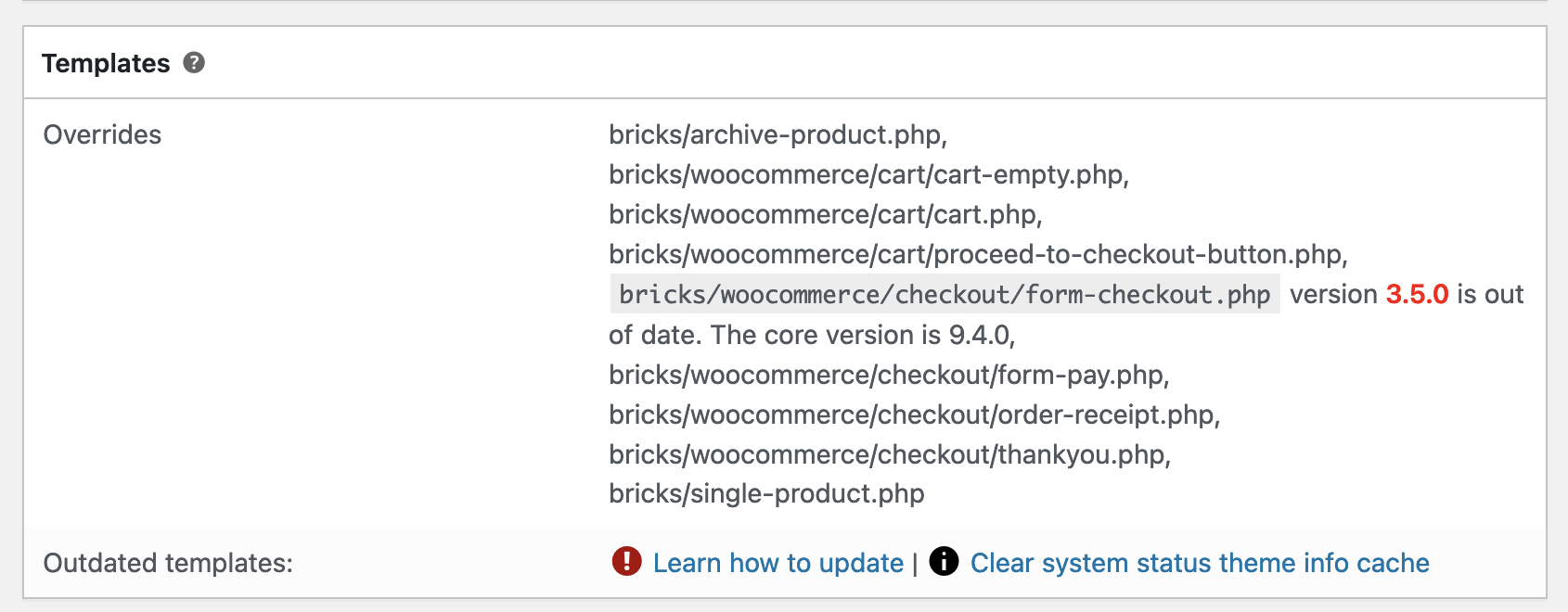
If something is still broken after the caches are clear, WooCommerce’s conflict test is the standard way to isolate it. Switch to a default theme, deactivate every plugin except WooCommerce and the extensions you need, reactivate them one at a time, and repeat the action that failed, with the browser cache bypassed each time.
It depends on the theme and what it’s attached to, and nobody has outcome data that settles it. A sensible split looks like this. Auto-update simple WordPress.org themes on sites where a broken layout costs little. Update premium themes, heavily customized themes and anything on a store by hand, after a backup. Apply security releases quickly either way.
The tradeoff is real on both sides. Waiting a few days lets other people find the broken releases first. Waiting for years builds a backlog that turns into a risky catch-up job, and leaves known holes open in the meantime. Auto-updates swap the second risk for the first: the update happens on time, but nobody is looking when it lands.
Rollback depends on the route, so sort it out before you update.
Updating a theme takes two minutes. Most of the time goes on everything around it: checking which route applies, reading the changelog, catching the outdated template, clearing three caches and then actually looking at the pages that matter. That’s why updates pile up, and why a two-minute job turns into an afternoon.
SiteSelf handles this as a request in chat. Example request: “Update the parent theme on the live site. Before you do, tell me whether the child theme overrides any WooCommerce templates that will be out of date. Afterward, check the homepage, one product page and the cart, and tell me what changed.”
The agent says what’s about to change and whether it can be undone, then runs the update. A theme update replaces files, so it needs hosting (SSH) access, not just the connector plugin. Afterward it fetches the pages you named and reports what it saw, including any error, and the work is recorded. That’s a fetch of each page, not a screenshot, a device test or a payment run through checkout. You still decide whether the result is right.
It has limits. It works on request and doesn’t watch the site, so it won’t notice an auto-update that misbehaves overnight. It can’t sign in to ThemeForest or any other vendor account, so moving a license to a new domain stays with you. Pages owned by Elementor, Divi or Beaver Builder are refused when the work starts, with the reason given. The same routine covers plugins, which is where most update work goes, and the page on WordPress update work shows how a full update cycle runs through chat.
WordPress picks how to write files based on who owns them. If the web server process can’t create files with the right ownership, it falls back to asking for FTP details. Tools → Site Health → Info → Filesystem Permissions shows which folders are writable, and your host can fix the ownership so the prompt goes away.
No. Leave the child theme active and update the parent. Files in the child theme stay untouched. Afterward, check any templates the child overrides, because the parent may have changed the originals they were copied from.
Usually the license isn’t active on this domain, or the vendor’s update check is timing out. Some premium themes never report to the built-in updater at all and only update through their own dashboard or a manual ZIP. Check the vendor’s documentation for which channel it uses.
Usually not, because Additional CSS is saved in the database, not in the theme files. Edits to the parent theme’s style.css are a different story: the update overwrites them. Move that CSS to a child theme or to Additional CSS before you update.
Its WordPress.org page warns that it hasn’t been tested with the last three major WordPress releases and may no longer be maintained. WordPress core now offers “Replace current with uploaded” when you upload a ZIP for an installed theme, which covers the main thing the plugin was for.
You can push the theme files. Pushing the whole database will overwrite orders placed since the staging copy was made. Test the update on staging, then run the same update on production, rather than copying the staging database over the live one.
Explainers
A WordPress case study tells you how one problem was fixed on one site at one moment. It doesn’t tell you what is wrong with your site. Before you borrow its fix, check the date, the versions and the cause it names, and don’t take one story as a sign of how common a problem is.
Read article ›Explainers
Almost any backup plugin can make a backup. The hard part is making sure that backup is complete, stored off the server, still running on schedule and able to restore a working site. Pick a plugin by how you will need to recover, test the restore, and keep the plugin itself updated.
Read article ›Explainers
A WP autoblogging plugin creates WordPress posts on a schedule, from a feed, an API or an AI model. When one stops publishing, the cause is usually cron, a bad feed or a timeout, not the plugin you picked. Google does not care that a post was automated. It cares whether the post is worth reading.
Read article ›Connect the site you already have, add your agent to Slack or Telegram, and tell it what you need.
Connect your siteStart with 500 free credits. No credit card needed.