Key takeaways
- Google ignores the meta keywords tag entirely, and WordPress post tags are a way to group posts, so filling either one with keywords changes nothing in search.
- Google builds the title link from several sources, the title element and on-page headings among them, so a title that disagrees with the H1 is the one most likely to be replaced.
- A meta description gets used as the snippet only when Google judges it the better summary. Otherwise Google writes a snippet from the page text.
- To keep a page out of Google, use a crawlable noindex. A robots.txt block stops Google from ever seeing the noindex.
- Check the rendered page source, not the plugin screen. Two SEO plugins, or a theme plus a plugin, can each print their own title and description.
Before anyone clicks, a search engine and a searcher learn most of what they know about a page from a few lines of HTML: the title, the meta description, the headings and a robots directive. None of these makes a page rank. What they do is describe the page, and the description works only when it matches what the page actually shows.
“Tag” means several things in WordPress, so check which one you mean. This article covers the HTML tags in a page’s head and body. If you meant the post tags in the editor sidebar, those organize posts for readers, and their SEO question is about archive pages. That’s covered in how WordPress tags affect SEO.
Which tags affect search, and which ones Google ignores
Six elements matter, and each has its own job. A seventh still sits in a lot of old themes and plugin fields, and it does nothing in Google.
| Tag | Where it shows | What it controls | Rule for writing it |
|---|---|---|---|
<title> | Browser tab, bookmarks, search title link | Names the page | One unique, descriptive title per page |
<meta name="description"> | Sometimes the search snippet | Summarizes the page | One distinct summary per important URL |
<h1> to <h6> | Visible headings | The page’s outline | One H1 for the main topic, levels nested in order |
alt on <img> | Screen readers, image search | Text alternative for the image | Describe what the image is for; decorative images get alt="" |
<link rel="canonical"> | Page head | Preferred URL among duplicates | Point to the one URL you want indexed |
<meta name="robots"> | Page head | Indexing and snippet rules | Use noindex only where you mean it |
<meta name="keywords"> | Page head | Nothing in Google | Leave it out |
Google’s page on meta tags Google supports says it doesn’t use the keywords meta tag at all. People still lose afternoons to it. WordPress.org support threads show owners filling in a plugin’s “focus keyphrase” box and expecting Google to read it. That field feeds the plugin’s own content checklist. It isn’t a tag Google acts on.
Why the title tag does the most work and still gets rewritten
The title is the strongest description you control. It names the page in the browser tab, in bookmarks and, usually, as the clickable line in search results. A vague title like “Services | Company” costs you in all of those places at once.
It isn’t a command, though. Google’s documentation on influencing title links explains that the displayed title is generated from several sources, the title element and on-page headings among them. If your title and your H1 describe two different things, Google has to choose, and it may not choose yours.
What holds up in practice:
- Lead with what the searcher looked for, so the meaning survives if the end gets cut off.
- Make every title unique across posts, pages, products and archives.
- Put the brand at the end on home and service pages, after the topic.
- Promise only what the page delivers. A title that oversells earns one click and a fast exit.
In WordPress, the site title under Settings → General is not the same as each page’s title tag. On most sites an SEO plugin writes the title tag from a template. Our guide to changing your WordPress site title explains which setting overrides which.
What a meta description controls, and what it doesn’t
The meta description affects how your result looks, not where it ranks. Google’s guide on writing meta descriptions says snippets come mainly from page content. Google uses your description when it judges that the description sums up the page better for that query.
Write it anyway. It’s the only version of the snippet you control. A description that works says what the page offers, who it’s for, where it applies and one concrete difference. For a plumber: “Emergency plumbing in Bristol for burst pipes and blocked drains, with the call-out fee quoted before we arrive.”
Google tends to replace descriptions that repeat the title word for word, are stuffed with keywords, or make claims the page contradicts, such as “open 24 hours” on a page whose hours say otherwise. On WordPress, also watch for templates that give every page in a section the same description. Twenty pages sharing one summary describe none of them.
How headings should be nested on a WordPress page
Headings are the page’s outline. Readers scan them to decide whether to stay, screen reader users jump between them, and search engines use them to understand how the content is organized. One H1 states the topic and matches the title’s intent. H2s mark the main sections and H3s sit under them.
H1  Emergency plumbing in Bristol
  H2  Services we handle
    H3  Burst pipe repair
    H3  Blocked drain clearance
  H2  Call-out pricing
  H2  Areas we cover
WordPress sites usually break this in three ways. The theme prints the page title as an H1 and the editor content adds another. A heading level gets picked for its font size, so the outline jumps from H2 to H4. Or a bold paragraph is styled to look like a heading and isn’t one. If you want a different size, change the style and keep the level.
The one-minute test: read only the headings, in order. If they tell the page’s story without the body text, the outline works. If they read like a list of labels, fix them.
Why alt text follows the image’s job, not a keyword
Alt text is written for people who can’t see the image. The W3C’s images tutorial sorts images by purpose. Informative images get a short description of what they show. Decorative images get an empty alt="" so screen readers skip them. Functional images, such as a linked logo or an icon button, get alt text that describes what happens when you click.
“Plumber repairing a copper pipe under a kitchen sink” helps a screen reader user and gives image search something to work with. “Plumber Bristol emergency plumber cheap plumber” helps nobody. Fill in the Alternative Text field in the Media Library or the image block. That’s where WordPress stores alt text.
When to use canonical and robots tags, and when to leave them alone
The canonical link tells search engines which of several URLs is the main one. WordPress and WooCommerce create duplicates without anyone trying: sorting parameters, tracking parameters, paginated copies. A product page at /shop/blue-widgets/ should carry that URL as its canonical, and so should /shop/blue-widgets/?sort=price. Google’s guide on specifying a canonical makes clear that Google picks the canonical URL itself and treats yours as a signal. So cut duplicates at the source where you can.
The robots meta tag is where one careless edit removes pages from Google. noindex keeps a page out of the index. nosnippet stops a text snippet from showing, which throws away the description you wrote. Use them deliberately: on thank-you pages, internal search results and staging copies, and not on pages you want found.
Two mistakes cause most of the damage:
- Using robots.txt to remove a page. Google’s documentation on blocking indexing with noindex says Google has to crawl a page to see its noindex. Block the URL in robots.txt and Google never sees the noindex. The URL can stay indexed anyway.
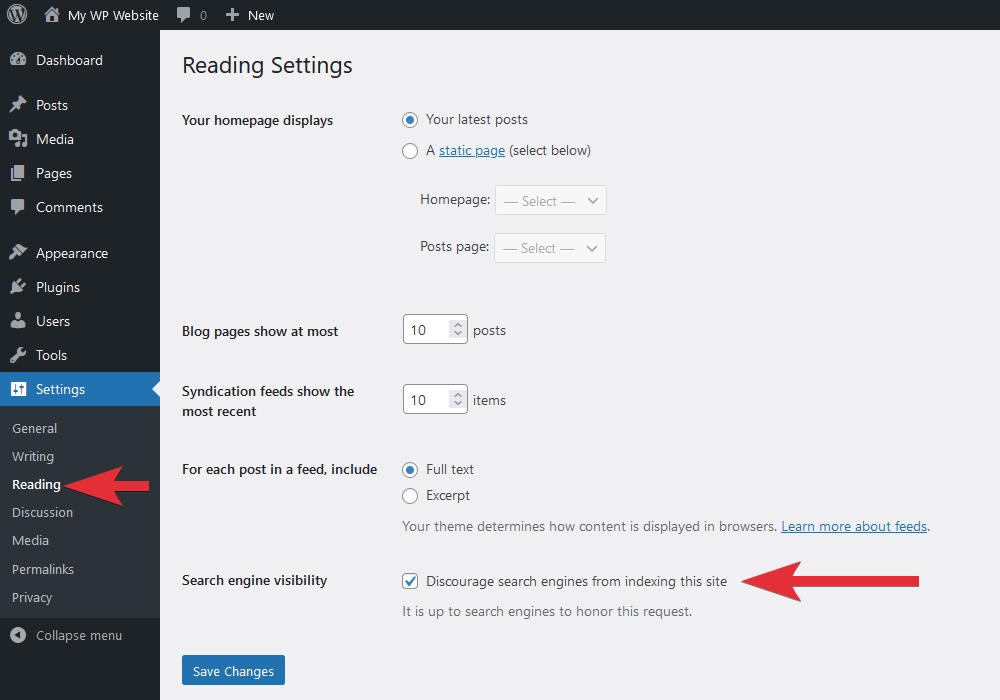
- A site-wide noindex nobody turned off. WordPress’s Reading settings documentation says the “Discourage search engines from indexing this site” box adds
noindex,nofollowto every page. Developers tick it during a build and forget it at launch. A host can also sendX-Robots-Tag: noindexas an HTTP header, which never appears in the page source. Our guide to checking a page’s Google ranking shows how to find it.
Why tags that disagree with the page lose
These tags aren’t points on a scoreboard that add up. Search systems compare the markup with the visible page, and when the two disagree, the visible page wins. Say a title promises “Free quote in 24 hours”, the description repeats it, and the page has no quote form and says replies take three days. Rewriting the tags again won’t fix that. Google will build its own title and snippet from what it can see.
Here is a typical service page before anyone works on it. The title is “Services | Harbour”, there is no meta description, the H1 says “Welcome”, there are no subheadings, three photos have empty alt text, and one link reads “click here”. The fixes don’t add a single keyword. They make every element describe the same subject:
- The title becomes “Emergency plumber in Bristol | Harbour Plumbing”.
- The description states the services, the area and the call-out fee policy, all taken from the page.
- The H1 becomes “Emergency plumbing services in Bristol”, which matches the title.
- H2s for burst pipes, blocked drains and pricing give the page an outline someone can scan on a phone late at night.
- Each photo gets alt text that says what it shows.
- “Click here” becomes “burst pipe repair service”, so both the reader and the crawler know where the link goes.
The result is a clearer description, not a guaranteed ranking. The page still competes with every other plumber in the city, and Google may still rewrite the title. Content, internal links and site structure carry the rest, which our guide to improving SEO performance covers.
How to check your tags on the rendered page
Check the page as a crawler sees it, not the settings screen you filled in. Plugin screens and actual output drift apart, and only the output counts.
- Open the live page logged out and view the source (Ctrl+U or Cmd+Option+U). Search for
<title,name="description",rel="canonical"andname="robots". - Count. You should find one title, one description and one canonical. Two of any of them usually means two SEO plugins, or a theme and a plugin, are both writing to the head. Keep one and switch off the other’s output.
- Read the robots value. Any
noindexshould be on purpose. Then check Settings → Reading for the Discourage box. - Check that the canonical points at this page’s own clean URL, not the home page or a staging domain.
- Count the H1s in the source and read the heading outline.
- Use URL Inspection in Search Console to see what Google fetched, including any header-level noindex.
Start with your three most important pages and write down every failure. Then fix the cause, whether that’s a duplicate plugin, a template default or a leftover checkbox, before you rewrite any text. If you’d rather send that list than work through it yourself, SiteSelf takes requests like this in chat, changes the titles, descriptions and plugin settings on your site, and reports what it changed and checked. See SEO changes handled through chat. For the wider setup, including sitemaps, permalinks and the plugin, see how to do SEO on WordPress.