Key takeaways
- Roles decide what a logged-in user can do. Give each person their own account with the lowest role that does the job, and remove it when the work ends.
- WooCommerce’s Shop Manager can manage settings, orders, refunds, coupons and customer details. Treat it as a store admin role, not a product-editing role.
- Private pages are visible to Editors and Administrators, not to Subscribers. Content-restriction plugins such as Members protect the post body, but titles, sitemaps and media file URLs can still be reached.
- noindex keeps a page out of Google but still lets visitors in. robots.txt controls crawling and can stop Google from seeing the noindex at all.
- A 403 Forbidden comes from the server or a security layer. “You do not have sufficient permissions” comes from WordPress capability checks. Each one needs a different fix.
A contractor gets an Administrator login to fix one form. Six months later the account still exists, the password lives in an old email thread, and nobody remembers why it was created. On most WordPress sites, that is what an access control problem looks like. It is rarely a dramatic breach. It is a permission that was never matched to the job.
This article is about WordPress specifically, not general security models like RBAC and ABAC. In WordPress, “access control” covers several separate mechanisms that people tend to treat as one. Each example below pairs a real goal with the control built for it, then shows where that control usually fails.
Which WordPress control fits which goal?
Start from what you are trying to stop. Each goal has its own control.
| Goal | The right control | The usual mistake |
|---|---|---|
| Limit what a logged-in person can do | Roles and capabilities | Handing out Administrator for a one-off task |
| Limit who can see specific content | A content-restriction or membership plugin | Using Private or a shared password as a members area |
| Keep a whole site or staging copy closed | Password protection at the host | Losing the protection after a deploy |
| Keep a page out of Google | A crawlable noindex | Blocking it in robots.txt |
| Keep content truly private | Real authentication (a login or password) | Relying on noindex or a hidden menu link |
The examples that follow walk through each row. If you need a refresher on what each default role can do, our guide to WordPress user roles explained covers them one by one.
Example 1: a contractor who needs to edit pages, not run the site
Give them their own account with the Editor role. Don’t give them yours, and don’t make them an Administrator. WordPress.org’s Roles and Capabilities documentation describes five default roles. Administrators have site-wide powers. Editors manage everyone’s posts and pages. Authors publish their own posts. Contributors write but cannot publish. Subscribers can only read.
The gap between Editor and Administrator is the one that matters. An Administrator can install plugins, change themes, add users and edit settings. Someone updating opening hours needs none of that. You change a role under Users → All Users.
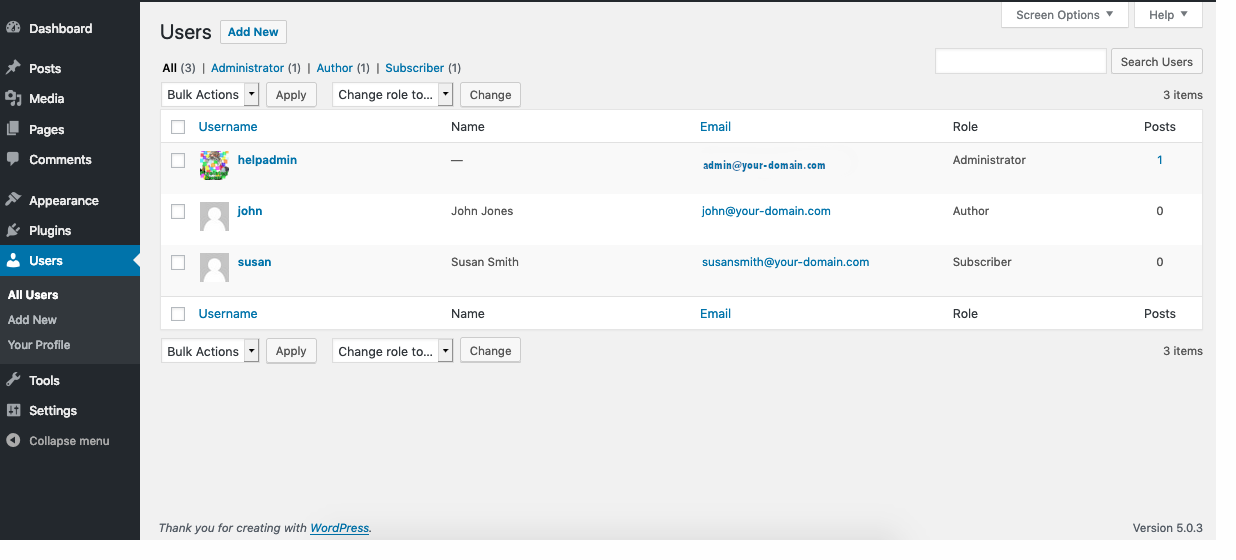
Three habits matter more than the exact role you pick:
- One named account per person. A shared login means you can’t tell who changed what, and you can’t remove one person without locking out everyone.
- Remove access when the work ends. On X, the WordPress developer Patrick Posner calls admin access a common “welcome gift” that outlives the reason it was given.
- Test before you trust. Log in as the new user and confirm the task works. Some settings live in theme options or plugin screens that Editors can’t reach. When that happens, find the specific capability that’s missing instead of promoting the account straight to Administrator.
Developers on r/smallbusiness make a fair point: plugin, theme and update work often does need admin-level access. The usual compromise is to do that work on staging, take a backup first, use a named account and remove it afterwards.
Example 2: a store employee who should see orders, not settings
Don’t reach for Shop Manager by default. WooCommerce’s documentation says Shop Manager can manage store settings, reports, products, orders, refunds, coupons and customer details. It can also edit posts and pages, and it can see user details for every role. In practice, it is a store admin.
For narrower jobs, such as “see the orders list” or “see sales reports but not customers,” you need a custom role. Role editors such as User Role Editor, Members or PublishPress Capabilities let you start from an existing role and remove capabilities. Expect some trial and error. One store owner on r/woocommerce removed the permissions and the Customers section still appeared.
There is also an edge case when Shop Managers edit other users. WooCommerce’s documentation for its Shop Manager role allowlist explains that the edit fails if the target user has any role that isn’t allowed. That includes users with several roles where only one is disallowed. The allowlist also doesn’t grant user-management capabilities on its own.
Example 3: content only members should see
This needs a plugin, because WordPress has no built-in way to restrict a page by role. Its two built-in options both look like members features, and neither one is:
- Private content is visible to Administrators and Editors, according to WordPress.org’s content visibility documentation. Subscribers can’t see it. Editors can see it and change its visibility.
- Password protected content uses one shared password. You can’t revoke one person’s access, and you can’t tell visitors apart. Our guide to password protecting a WordPress page covers what it is good for.
A content-restriction plugin lets you choose which roles can view a post. The Members plugin’s documentation says that if no roles are selected, anyone can view it. It also says the post author, anyone who can edit the post, and roles with the restrict_content capability can always see it.
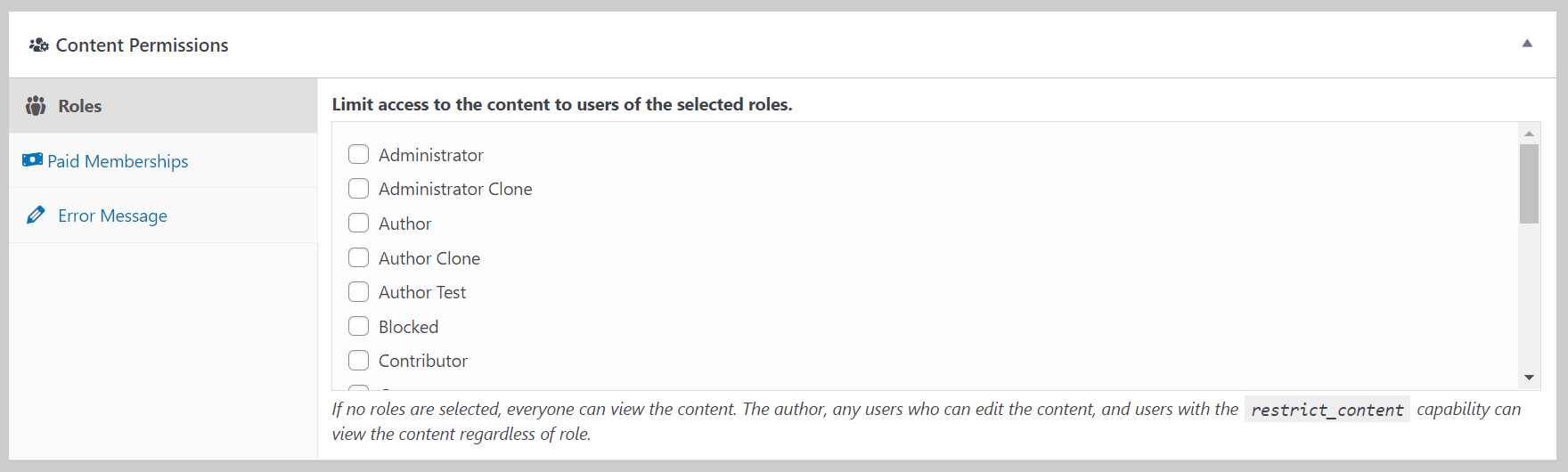
The bigger catch is what these plugins leave visible. They protect the post body. The title, featured image, menu entries, search results and sitemap entries can still show. So can uploaded files: a PDF in the Media Library has a direct URL that anyone with the link can open. Treat confidential files as a separate problem that needs file-level protection.
To test it, open the restricted page in a private window while logged out. Then check the sitemap, site search, the file URLs and /wp-json/wp/v2/posts. If the content shows up in any of them, the restriction has a gap.
Example 4: a staging site nobody outside the team should see
Protect the whole environment at the host, not page by page. Most managed hosts offer password protection that puts a login prompt in front of the entire site. A wrong or cancelled login returns 401 Unauthorized. Our guide to creating a WordPress staging site covers the setup itself.
Two deployment problems come up again and again in host documentation:
- The protection doesn’t travel with the site. Kinsta’s docs say
.htpasswdprotection doesn’t transfer when you push an environment, so you have to turn it on again at the destination. - The prompt keeps coming back. WP Engine’s support docs explain that loading assets from more than one domain can cause repeated prompts. Old domain references left over after a copy can make a correct password look broken. The fix is to load assets from one domain and correct the stale references.
Example 5: a page that should stay out of Google
This isn’t access control, and treating it like access control is how pages end up exposed. Google Search Central’s documentation says a noindex tag keeps a page out of search results only if Googlebot can crawl the page and see the tag. If you also block the page in robots.txt, Google never sees the noindex, and the URL can stay in results.
Neither one stops a person with the link. If the page has to be private, use a login or a password. Use noindex for pages that are fine to visit but shouldn’t show up in search.
Why the plugin doing the gatekeeping is part of the risk
Role editors, membership plugins and registration forms decide who gets in, so a bug in one of them opens the door. Patchstack’s State of WordPress Security in 2026 report names Broken Access Control as the most exploited vulnerability type in 2025. Patchstack is a security vendor, but the advice that follows from this doesn’t depend on its exact numbers: update access-control plugins quickly, and remove the ones you no longer use. Our overview of common WordPress security issues covers the rest of the maintenance side.
If you write custom code, the most common mistake is checking a broad capability when you need one tied to a specific object:
// Too broad: every logged-in Subscriber has 'read'
if ( current_user_can( 'read' ) ) { /* show private data */ }

// Checks this user against this specific post
if ( current_user_can( 'edit_post', $post_id ) ) { /* allow the edit */ }

// Every custom REST route needs a real permission_callback
register_rest_route( 'myplugin/v1', '/report/(?P<id>\d+)', array(
    'methods'             => 'GET',
    'callback'            => 'myplugin_get_report',
    'permission_callback' => function ( $request ) {
        return current_user_can( 'edit_post', (int) $request['id'] );
    },
) );
A nonce protects against forged requests. It isn’t a permission check. Hiding a menu item or button only changes what people see. Check permissions on the server for every sensitive action.
What “access denied” means, and where to look first
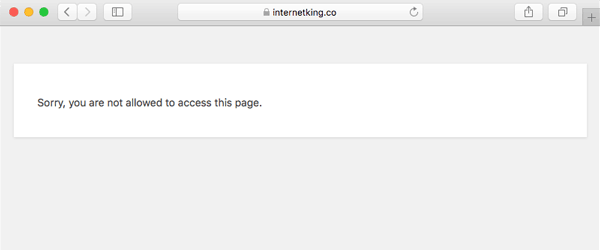
The exact wording tells you which layer refused the request. 403 Forbidden means the server, a security plugin or a firewall said no, sometimes before WordPress even loads. “Sorry, you are not allowed to access this page” or “You do not have sufficient permissions” means a WordPress capability check said no. Note the message and the URL, then work through the causes in roughly the order practitioners report them:
- A security or role plugin setting. In one wordpress.org thread, SG Security’s “Lock and Protect System Folders” caused a front-end 403. In another, a PublishPress Capabilities admin-menu restriction blocked the UpdraftPlus settings page for a custom role. Changing that one setting fixed both.
- .htaccess rules. Rename the file to test whether it’s the cause. Then regenerate a clean one by saving Settings → Permalinks.
- File permissions after a migration or restore. One user’s wp-admin directories came over as
750, and changing them to755restored access. The common defaults are 755 for directories and 644 for files, but check with your host. - The host’s firewall. If the server logs show “ModSecurity: Access denied with code 403,” WordPress settings won’t help. Ask the host to adjust the rule that caught the request.
- Broken roles or capabilities. If an Administrator has lost basic capabilities, it usually means the roles stored in the database are damaged. Back up the database before you change anything in it.
Change one thing at a time. If you can’t log in at all, our guide to WordPress login problems sorts the causes by symptom. If you would rather not trace the layers yourself, SiteSelf can work through a WordPress error and its fix on request, with hosting (SSH) access for the file and server checks.