Give your WordPress site its first task.
Connect the site you already have, add your agent to Slack or Telegram, and tell it what you need.
Connect your siteStart with 500 free credits. No credit card needed.
Editing WordPress in HTML starts with finding which layer owns the markup: post content, a block, a theme template, a WooCommerce template or a page builder. Content HTML is a five-minute job in the Custom HTML block. Template, store and file HTML have their own override paths, and editing in the wrong place gets you edits that vanish, get stripped or break the editor.
WordPress is not a folder of HTML files. Your content is stored in the database, and your theme is PHP templates (classic themes) or block HTML templates (block themes) that build each page when someone requests it. What you see in View Source or Inspect Element is that finished output. You can’t save changes back to it.
So before “how do I edit the HTML” comes “which part of the site produces this markup?” A snippet on one page, the site header, a WooCommerce cart layout and an Elementor section are four different jobs in four different places. Get the place right and most edits take minutes. Get it wrong and the change gets stripped on save, breaks the block, or disappears at the next update. If you only need to change page text, editing pages in the block editor covers it without touching markup.
Match the change to the layer that produces it. Choose the narrowest option that does the job: it is the easiest to test and the easiest to undo.
| What you want to change | Where to edit it | Risk |
|---|---|---|
| Add an embed or snippet to one post or page | Custom HTML block | Low |
| Adjust the markup of one existing block | Edit as HTML on that block | Low to medium (can break the block) |
| See or fix a whole page’s markup | Code editor | Medium |
| Header, footer, templates on a block theme | Site Editor (Appearance, then Editor) | Medium, applies site-wide |
| Header, footer, templates on a classic theme | Copy the PHP template into a child theme | High, needs file access |
| Shop, product or cart markup | WooCommerce template override or hooks | High |
| A page built in Elementor, Divi or similar | The builder’s own HTML widget | Depends on the builder |
| A script on every page | A header and footer plugin, or a child-theme hook | Medium |
PHP never goes in any of the content routes. It belongs in a plugin, a snippets plugin or theme code.
Use the Custom HTML block. It stores your markup in the post content, renders it on the page and has a preview. WordPress.org’s Custom HTML documentation describes the steps:
/html and choose Custom HTML.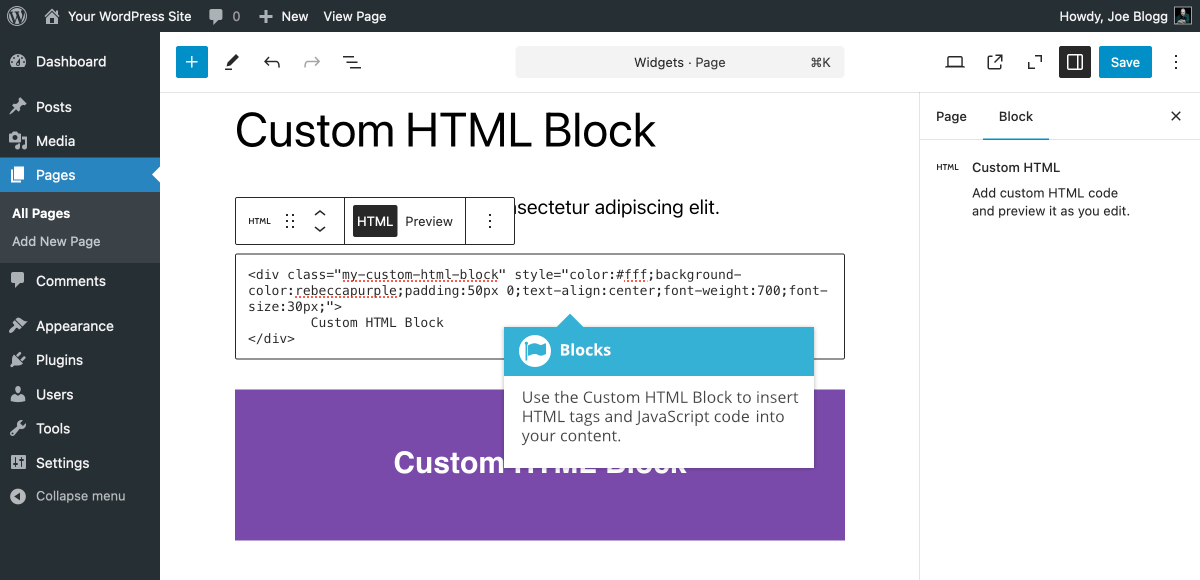
Two mix-ups cause most “my HTML shows up as text” reports. Paste markup into a Paragraph block and WordPress displays the code as visible text. The Code block does the same thing on purpose, because it is for showing code to readers. Only the Custom HTML block renders markup.
Don’t paste a full HTML document either. WordPress already outputs <!DOCTYPE>, <html>, <head> and <body>, so paste only the fragment you need.
The block has been changing. WordPress.org’s documentation says WordPress 7.0 added separate editing areas for CSS and JavaScript. A Make WordPress Core post on WordPress 7.1 describes putting regular editable blocks inside a Custom HTML block: the static markup stays fixed, and the inner blocks can be edited in place but not moved around. That is useful when a client should change the words but not the layout.
Select the block, open More options (the three dots in the block toolbar) and choose Edit as HTML. Make the change, then choose Edit visually to switch back. WordPress.org’s More options page warns that after your changes the editor may no longer recognise the original block. The next section covers what that looks like.
Open the editor’s More options menu at the top right, then Editor, then Code editor. You get the entire post as block markup, including the <!-- wp:paragraph --> comments that tell WordPress where each block starts and ends. Leave those comments alone. The Code editor is good for finding a stray tag. It is a poor place to write a page from scratch, and developers regularly complain that it normalises or strips markup they meant to keep. For hand-written layouts, use a Custom HTML block.
Sites running the Classic Editor plugin edit HTML in the Text tab above the content box. Switching back and forth between Visual and Text can rewrite or strip tags, so finish your HTML work in Text and save from there.
The block editor checks each block’s saved markup against the structure that block expects. If you edited a normal block’s HTML and it no longer matches, the editor shows this error. The live page often still looks fine. What breaks is your ability to edit that block visually.
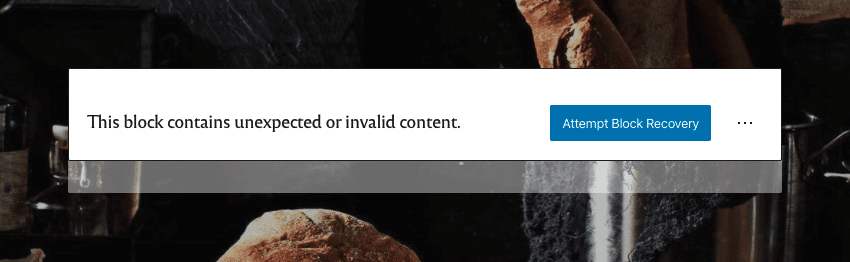
WordPress.org’s block error guide lists the recovery options. Each one gives something up:
Third-party block plugins make this worse. A WordPress.org support thread describes adding one paragraph inside an Advanced Columns container: the editor crashed, and neither recovery option kept the change. The rule that follows: if you plan to hand-write markup, start with a Custom HTML block instead of editing inside someone else’s block.
Usually WordPress removed it on purpose. On a self-hosted site, users without the unfiltered_html capability have disallowed tags stripped by wp_kses() when they save, as the Custom HTML documentation explains. On a normal single site, administrators and editors have that capability and authors and contributors do not. On WordPress.com, the support documentation limits script, style, iframe and link tags to plugin-enabled plans.
Pasting the same script again won’t help. Pick a supported route instead:
Widening wp_kses_allowed_html or giving untrusted users unfiltered_html works, and it also removes a security boundary. Anyone with that capability can put JavaScript on your pages. Save it for a last resort, done by someone who knows the risk.
Don’t do it in post content. Where you do it depends on your theme type.
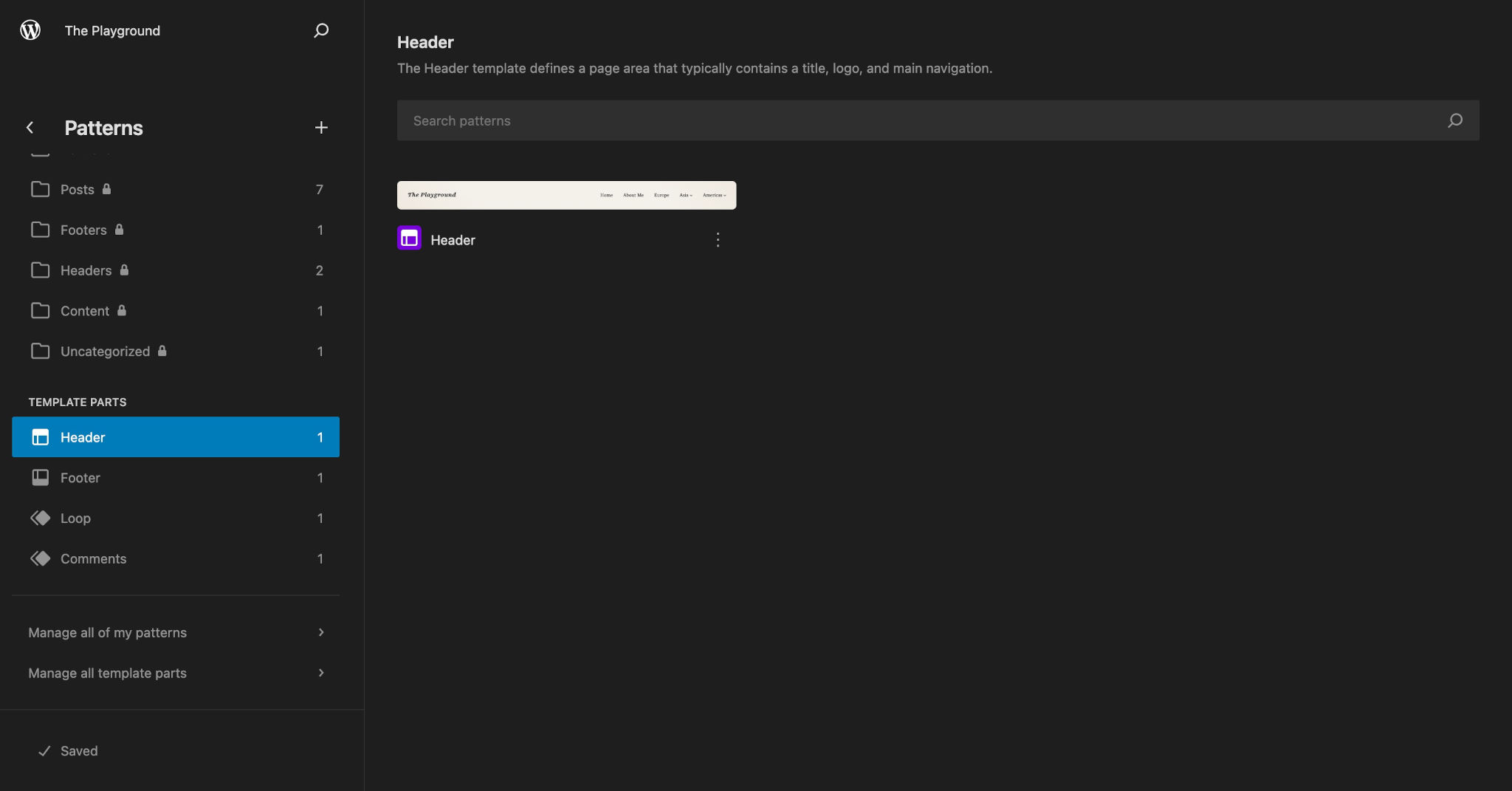
Block themes. If Appearance shows an Editor item, you have a block theme. WordPress.org’s Site Editor documentation says the Site Editor only appears when a block theme is active. The header and footer are template parts in there, and the Site Editor has its own Code editor. One trap catches developers: once someone saves a template in the Site Editor, WordPress stores that version in the database, and it overrides the parts/header.html file in the theme. Edit the file afterwards and nothing happens, with no error. Either make the change in the Site Editor, or reset the saved template so the file takes over again.
Classic themes. Copy header.php, footer.php or the page template from the parent theme into a child theme and edit the copy. If you edit the parent theme, the next theme update overwrites your change. Our guides to editing the WordPress footer and theme customization that survives updates go through both theme types step by step.
WooCommerce has its own override path, and it fails silently if you get it slightly wrong. WooCommerce’s template structure documentation says to copy the template into a woocommerce folder in your child theme, keeping the folder structure but dropping the templates folder:
wp-content/plugins/woocommerce/templates/cart/cart.php
becomes
wp-content/themes/your-child-theme/woocommerce/cart/cart.php
If the path is wrong, WooCommerce quietly uses its default template. If your theme contains a woocommerce.php file, you can’t override archive-product.php this way. Overrides also go stale: when WooCommerce changes a core template, it flags your copy as outdated, and an old copy can be missing hooks that newer extensions rely on. For small changes such as moving or removing an element, WooCommerce’s actions and hooks survive updates better than copying a whole template. Write down every override you make.
Then the builder owns the markup. It stores the layout in its own data, often JSON, and generates the HTML from that. Editing the output directly either does nothing or corrupts the builder’s data. Use the builder’s HTML widget or element for snippets, and change attributes like nofollow in the builder, menu or SEO plugin that adds them. Downloading the page source, editing it and uploading it over FTP never works on WordPress, builder or not.
Only with a backup, and ideally on a staging copy. WordPress’s Advanced Administration Handbook says the built-in Theme File Editor and Plugin File Editor save straight to the live site, don’t have advanced syntax checking or line numbers, and need the files to be writable (permission 604 at minimum). It recommends editing files offline in a text editor, never a word processor, which changes straight quotes into curly ones and breaks the code.
One missing semicolon in a PHP file can white-screen the site and lock you out of the dashboard. That is why many sites turn the editors off in wp-config.php:
define( 'DISALLOW_FILE_EDIT', true );Then edit over SFTP or your host’s file manager, in a child theme, with a copy of the original file saved. If a file edit has already taken the site down, follow our recovery steps for a white screen.
Check these in order before you touch the markup again:
People often “fix” markup that was already right and break it, when the real problem was a stale cache.
Check the live page, not the editor preview. Theme CSS, plugin output and caching all come after the editor. Look at it on a phone-sized screen, click every link and button you added, and make sure hand-written HTML stays accessible and crawlable. Use real <a href> links rather than clickable <div>s, real <button> elements, alt text on meaningful images and alt="" on decorative ones, and <label> elements on form fields. The W3C Nu HTML Checker catches unclosed tags and invalid nesting.
To undo a content edit, use revisions. WordPress.org’s revisions documentation explains that every saved draft or update is recorded. Open Revisions in the post settings sidebar, drag the slider to the version before your edit, compare the changes and click Restore This Revision. Revisions only cover post content. Template, WooCommerce and file edits need your backup or the saved copy of the original file.
Content HTML in one post is a reasonable job to do yourself. Stop when the change starts touching PHP files, WooCommerce templates, a script that keeps getting stripped, or a block error that recovery won’t fix. At that point you’re not editing HTML any more. You’re diagnosing, staging and testing, and a mistake takes down a live page. If you’d rather describe the change than find the layer, SiteSelf handles website edits through chat: content changes go through the SiteSelf Connector plugin, template and file changes need hosting access, and pages owned by a visual page builder are refused with the reason.
No. Inspect Element changes only the copy of the page in your own browser, and it resets when you reload. It is still useful for finding which element and CSS class you need, so you know where the real edit belongs.
No. WordPress doesn’t run PHP stored in post content. Put PHP in a snippets plugin, a small custom plugin or a child theme’s functions.php.
Usually a plugin conflict. In one WordPress.org support case, the option came back as soon as the GenerateBlocks plugin was deactivated. Check the browser console for errors, then deactivate plugins one at a time, on a staging copy if you have one.
You can add content HTML with the Custom HTML block on any plan. According to WordPress.com’s support documentation, script, style, iframe and link tags need a plugin-enabled plan, and theme file access depends on the plan too.
Use a child theme, or the Site Editor on a block theme. The next theme update overwrites parent-theme edits. Our guide to editing themes without losing work covers setting up a child theme.
It works, but it becomes hard to maintain. The next editor can’t change a heading without reading code, and nobody remembers what each block does. Use Custom HTML for snippets, and use patterns, templates or the 7.1 editable inner blocks when the structure should stay fixed.
How-to Tutorials
Adding a page in WordPress takes a minute: Pages, Add New Page, a title, some blocks, Publish. Getting visitors to it is a separate job. You have to add it to the menu, pick the right template, and on a store, assign it in WooCommerce. Each of those is its own step, and publishing does none of them for you.
Read article ›How-to Tutorials
You can embed a public PDF in WordPress without a plugin: use the File block, turn on “Show inline embed”, set a height and keep the download link. When an embed fails, the cause is usually the file URL, a cache, the page layout or a mobile browser, not the embed tool. Check the raw PDF URL before you switch plugins.
Read article ›How-to Tutorials
Editing a page in WordPress is four clicks until it isn’t. The hard part is knowing whether the thing you want to change lives in the page, in a template, in a pattern, in a page builder’s own data, or in WooCommerce. This walks through the edit itself, then the checks that tell you whether your change actually reached the live site.
Read article ›Connect the site you already have, add your agent to Slack or Telegram, and tell it what you need.
Connect your siteStart with 500 free credits. No credit card needed.