Give your WordPress site its first task.
Connect the site you already have, add your agent to Slack or Telegram, and tell it what you need.
Connect your siteStart with 500 free credits. No credit card needed.
In WordPress the favicon is called the Site Icon. On WordPress 6.5 and later you set it under Settings → General, and you don’t need a plugin or any code. Setting it is the easy part. Most of the time goes into getting browsers, caches and Google to show the new icon, and that goes faster when you find the cause before you start clearing things.
Changing a WordPress favicon is a settings task, not a coding one. You upload one square image and WordPress does the rest. Most of the trouble comes afterwards. The dashboard shows the new icon, but the browser tab, a colleague’s laptop or Google’s search results still show the old one.
This guide covers both parts: where the setting is in your version of WordPress, and how to work out why the new icon isn’t showing. For icons inside pages, such as menu icons, social icons and Font Awesome, see our guide to adding and fixing icons in WordPress.
WordPress calls the favicon the Site Icon, and its location depends on your WordPress version. WordPress.org’s Create a Favicon documentation puts it under Settings → General from version 6.5 onward. In versions 4.3 to 6.4 it is under Appearance → Customize → Site Identity. Many older tutorials and AI summaries still describe only the Customizer route, which is why people end up looking for a menu that isn’t on their screen.
Check two things before you start. Your WordPress version is shown in the Dashboard’s At a Glance box and on Dashboard → Updates. Your theme type matters too. If the Appearance menu shows Editor and no Customize, you have a block theme, such as Twenty Twenty-Four. Our guide to editing your WordPress homepage explains how to tell block and classic themes apart.
| Your setup | Where the Site Icon is set |
|---|---|
| WordPress 6.5 or later, any theme | Settings → General → Site Icon |
| WordPress 4.3 to 6.4 | Appearance → Customize → Site Identity → Site Icon |
| Block theme (alternative route) | Appearance → Editor → Site Logo block → “Use as site icon” |
| Older or specialist themes | Sometimes a separate favicon field in the theme’s own options panel |
Changing your header logo does not change your favicon. They are separate settings. The only place WordPress ties them together is the block-theme toggle covered below.
You need an administrator account and one image. WordPress.org recommends a square image of at least 512 × 512 pixels, preferably a PNG. If your logo includes small text, use the symbol or a single letter instead, because fine lettering turns to noise at tab size. You don’t need to make a favicon.ico file or edit a theme template. WordPress creates the smaller sizes and adds the tags to the page head.
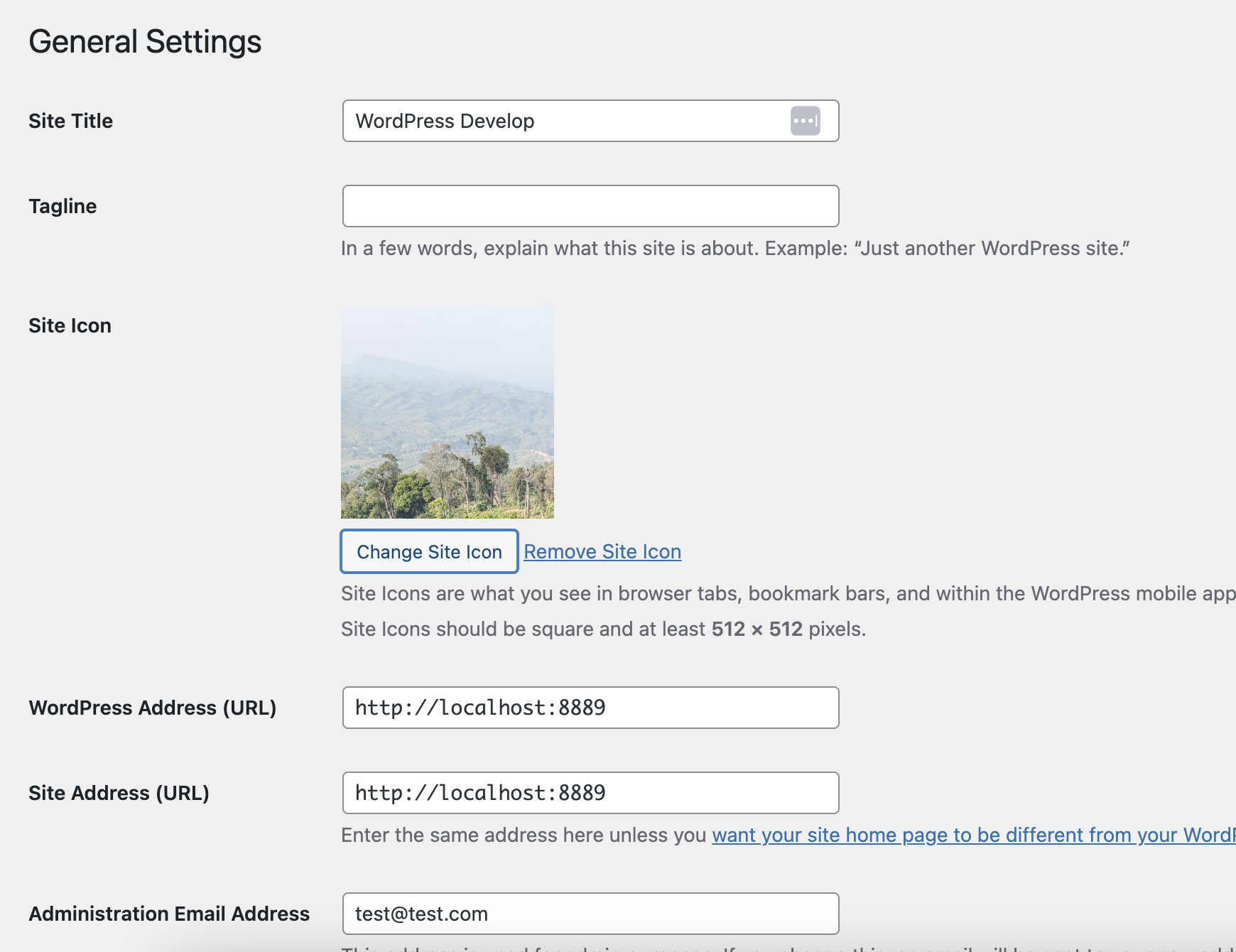
Uploading an image to the Media Library does not make it the Site Icon. Only the image chosen in this field is used.
Go to Appearance → Customize → Site Identity, click Select site icon, upload or choose the image, crop it if asked, and click Publish. Some themes hide or rename this panel. If yours does, check the theme’s documentation before you consider code.
WordPress.org’s Site Editor guide describes another route. Open Appearance → Editor, select the Site Logo block in your header, turn on Use as site icon in the block settings, and save. This makes your full logo the favicon as well. Many logos look poor at 16 pixels, so if you want a simpler mark for the tab, set it in Settings → General instead.
Open your site in a private window. The new icon should appear in the tab. To check the HTML, view the page source (Ctrl+U or Cmd+Option+U) and search for rel="icon". On a Site Icon setup, the tags point to files in /wp-content/uploads/ whose names usually start with cropped-, in several sizes. Each of those URLs should open your new image.
If you see that, WordPress has done its job. Anything still wrong is happening in a browser, a cache or Google, not in your settings.
The causes below are listed roughly by how often people report them. Check them in this order, and use the private-window test to decide where to look. Assuming it is “just cache” every time is how a ten-minute fix turns into a weekend.
Browsers cache favicons more aggressively than most page files, and an open tab may never request the icon again. If the private window shows the new icon and your normal window doesn’t, the site is fine. Stop changing settings. Hard-refresh, close and reopen the tab, or clear that browser’s cached images. Bookmarks and phone home-screen shortcuts can keep the old icon for longer.
If the private window also shows the old icon, check whether the page source points to the new file. If it still points to the old URL, the HTML is being served from a cache. Clear the layers in order: your caching plugin, then your host’s server cache, then any CDN in front of the site. Each one is cleared separately. Kinsta’s docs, for example, keep server, CDN and edge caching in the MyKinsta dashboard, apart from any plugin cache. Our guide to theme customization that survives updates covers the same cache order for theme changes.
If the source shows two sets of icon tags, or the tags point somewhere other than /wp-content/uploads/, another component is adding its own. Common sources are:
header.phpfavicon.ico left in the site root by a host or an earlier setupThe root file catches many people. One r/Wordpress user spent hours trying to get rid of HostGator’s default favicon.ico. To check for one, visit yourdomain.com/favicon.ico. If an old icon loads, delete the file or replace it, which needs file or hosting access.
The sources don’t agree on which tag a browser picks when there are several, so don’t count on one winning. Choose one method to control the icon and remove the others. Adding another manual tag on top usually makes the problem worse, as developers pointed out in an r/webdev thread on favicon tags.
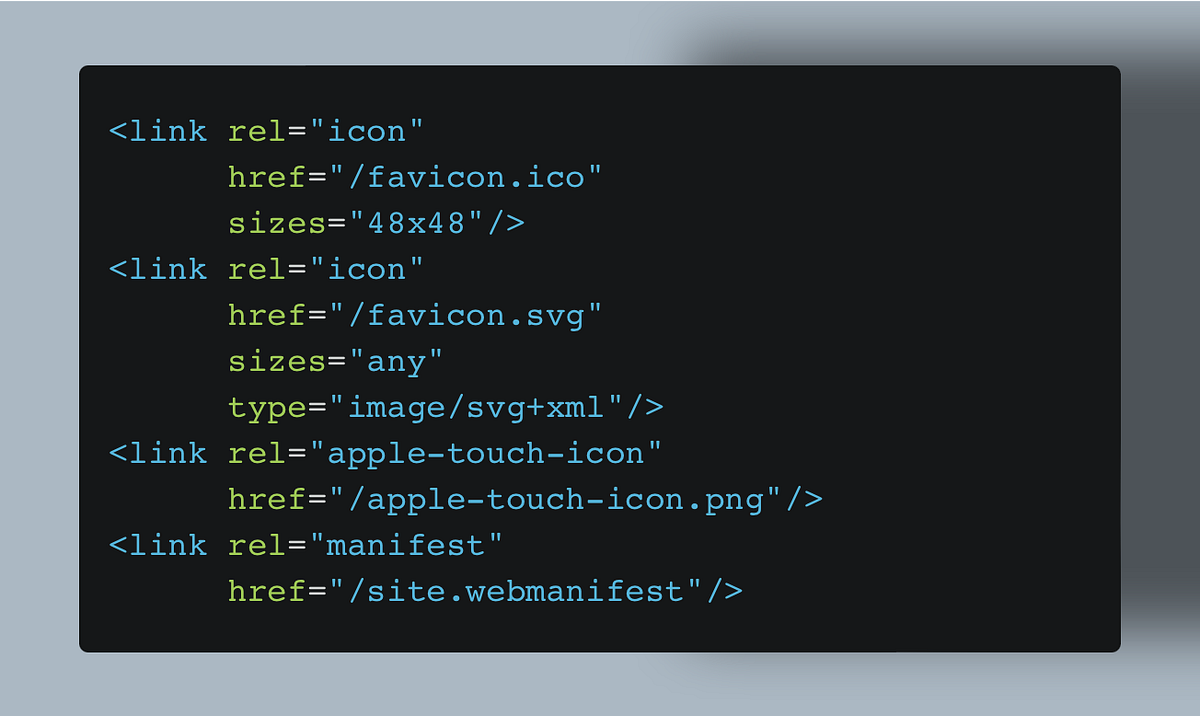
This one is rare. In a WordPress.org support thread, the admin showed the icon, but the live site linked to a generated file under /wp-content/uploads/ that returned a 404. To test for this, open each icon URL from the page source, or run curl -I on it and check for a 200 status. If you get a 404, remove the Site Icon, save, and upload the image again. That fixes most cases. Linking straight to an existing PNG with a manual tag also works, but WordPress stops managing the icon after that.
Google search results don’t preview your browser tab. Google picks up favicons on its own crawl schedule. Its favicon documentation requires a <link rel="icon"> in the homepage head, and Googlebot and Googlebot-Image must be able to crawl both the homepage and the icon. The icon needs a stable URL and must be square, at least 8 × 8 pixels, with more than 48 × 48 recommended. Google allows one favicon per hostname and says showing it isn’t guaranteed. A 512-pixel Site Icon meets all of these requirements.
Google also says updates can take several days to several weeks. In Search Console, use URL Inspection to request indexing of the homepage once. Google’s recrawl guidance says repeated requests for the same URL don’t make crawling faster. Threads on Reddit describe owners asking two or three times and still waiting more than two weeks. If you manage a client site, tell the client about the wait before they spot it themselves.
The core Site Icon gives you one icon, front end only, with no dark-mode variant. That’s enough for most sites. A plugin makes sense for a specific need. Favicon by RealFaviconGenerator creates full icon sets for desktop browsers, iPhone, iPad and Android. Custom Favicon covers admin dashboard icons, SVG icons and dark mode, but its WordPress.org listing warns that it hasn’t been tested with the latest three major WordPress releases. Whichever you choose, let one method control the icon.
The manual method still works: upload icon files to the site root, usually public_html, and add a head tag. SiteGround’s guide warns that edits to theme files can be lost when the theme updates, so put any tag in a child theme. Use this only when nothing else works.
Get help if the page source shows icon tags you can’t trace to any setting, if the fix needs access to the server’s root folder, or if a builder owns your header and you don’t know where it stores the favicon. Also ask whether hours of contractor time make sense. One r/woocommerce owner was billed three hours for a set of small changes that included a favicon, and a commenter estimated about 30 minutes. If the favicon is one part of a larger rebrand you’d rather hand off, SiteSelf handles that kind of work through chat. See our page on design changes to your existing site.
Not if you use the built-in Site Icon. WordPress generates PNG sizes and the tags. A root favicon.ico mostly matters for manual setups and for some feed readers and apps that request it directly. An old one left in the root can cause a conflict.
They are separate settings. Set the Site Icon in Settings → General, or on a block theme turn on “Use as site icon” on the Site Logo block if you want the logo to double as the favicon.
Block themes such as Twenty Twenty-Four don’t show the Customizer the same way. On WordPress 6.5 or later, use Settings → General, which is there whatever theme you use.
Yes. The Site Icon has been part of WordPress core since version 4.3 and needs no plugin or code. Plugins are only worth adding for extras like admin icons, dark-mode variants or full multi-device sets.
The core Site Icon is for the public site. Branding the dashboard needs a plugin that supports admin icons, such as Custom Favicon. Check its compatibility warning on WordPress.org before you install it.
How-to Tutorials
An “icon in WordPress” is usually one of two things: the site icon in the browser tab, or an icon inside your pages and menus. The site icon is a core setting that takes two minutes. Content icons fail quietly, usually because of a Font Awesome version conflict, and fixing them can mean a single toggle or a change to the server.
Read article ›How-to Tutorials
WordPress can put a password on any page without a plugin. Set Visibility to Password protected and click Update. The page is then hidden behind one shared password that the visitor’s browser remembers, which keeps casual visitors out but does not secure files, custom fields or confidential work.
Read article ›How-to Tutorials
An .htaccess 301 redirect is one line of Apache config. It shares a file with WordPress’s permalink rules, and it only works on servers that read that file. Check the server first, put your rules above the WordPress block, test with a 302, and let one layer handle HTTPS and www.
Read article ›Connect the site you already have, add your agent to Slack or Telegram, and tell it what you need.
Connect your siteStart with 500 free credits. No credit card needed.