Give your WordPress site its first task.
Connect the site you already have, add your agent to Slack or Telegram, and tell it what you need.
Connect your siteStart with 500 free credits. No credit card needed.
An “icon in WordPress” is usually one of two things: the site icon in the browser tab, or an icon inside your pages and menus. The site icon is a core setting that takes two minutes. Content icons fail quietly, usually because of a Font Awesome version conflict, and fixing them can mean a single toggle or a change to the server.
“Icon in WordPress” covers several unrelated jobs, and most bad advice comes from mixing them up. Each one has its own setting and its own ways of breaking:
Work out which one you mean first. The rest of this guide follows that order.
Upload a square image in the Site Icon field and save. You don’t need a plugin, and you don’t need to create a favicon.ico file. WordPress.org’s documentation recommends a square image of at least 512 x 512 pixels, with PNG as the preferred format.
Where the field lives depends on your version, so check which WordPress version you run before you follow a tutorial. Many older guides still point at the Customizer.
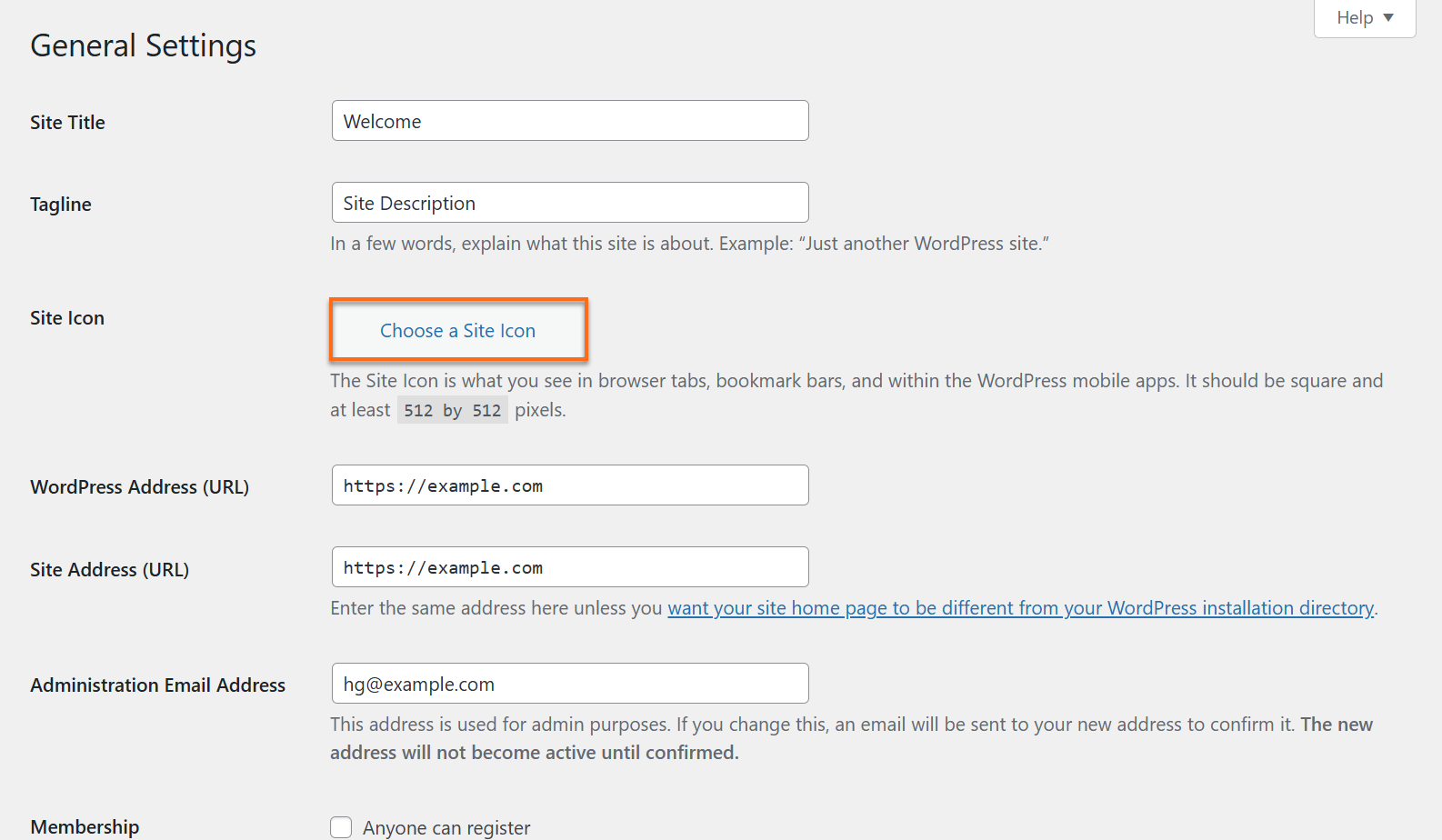 The General Settings screen provides a dedicated Site Icon option to upload and set your favicon directly without opening the Customizer. · Source: www.hostgator.com
WordPress asks for 512 pixels because it builds the smaller sizes that tabs, bookmarks and home-screen shortcuts need from that one image. The browser tab never shows a 512-pixel icon. Google’s minimum of 8 x 8 pixels is a separate rule for search results, so the two numbers don’t contradict each other.
The site icon and the site logo are separate settings. WordPress.org’s Site Logo block documentation explains that the logo appears on your pages and the site icon appears in the browser. Changing the logo or a featured image does nothing to the tab. WooCommerce’s Storefront theme keeps them apart too: both sit under Customizer > Site Identity as separate fields, and there is no separate “WooCommerce favicon” setting.
Usually a cache is still serving the old version. Check the URL first, though, because clearing a cache won’t fix a broken file. Work through these checks in order:
rel="icon". Open the URL in its href in a new tab. You should see your image. If you get a 404, a blank page or your homepage, the file is the problem, not the cache.header.php can output its own icon that competes with core. And if a favicon plugin was supplying the markup and you deactivate it, the icon disappears with it.A WordPress.org support thread from June 2026 shows why step 2 comes before step 4. The icon showed correctly in the admin but not on the live site, and the poster had already tried every cache. The cropped image file the markup pointed at didn’t exist. The same order applies to any change that doesn’t appear. Our guide to why a WordPress change isn’t showing walks through the cache layers in more detail.
Google has its own rules and its own timing. Google Search Central’s favicon documentation asks for the following:
<link rel="icon"> tag on the homepage.After that, Google has to recrawl the homepage, which it says can take days to weeks. You can ask for a recrawl with the URL Inspection tool in Search Console. Google also says that meeting the rules doesn’t guarantee the icon will appear.
WordPress’s Site Icon output meets these rules by default. The usual problems are a robots.txt rule or security plugin that blocks the image, or an icon swapped repeatedly while you wait. Each new upload gets a new URL, which works against Google’s request for a stable one.
Use the smallest tool that does the job. For social profile links, core WordPress has a Social Icons block. Add it from the block inserter, pick each network, and paste the profile URL.
For general icons in the block editor, search the inserter for “Icon”. Depending on your version and theme, a core block may appear. If it doesn’t, The Icon Block plugin adds a single block containing the WordPress icon library of 290+ SVG icons, and it also accepts your own SVG.
For icons beside classic menu items, the Menu Icons by Themeisle plugin adds an icon picker to Appearance > Menus. It supports Font Awesome, Dashicons and image icons. On a block theme, open the Navigation block in the Site Editor and select an individual item to see which visual options your theme offers.
Two judgments save trouble later. An icon should support a label, not replace it: a phone icon next to “Contact” helps, but a phone icon on its own makes visitors guess. And pick one icon library for the whole site. A Font Awesome set in the menu, a builder’s set in the footer and Dashicons in a widget look inconsistent, and each extra library is another thing that can break after an update.
The icon font is either not loading or not matching the markup. Font Awesome failures rarely produce an error message. You see empty boxes, question marks, the wrong symbol, or some icons working while others don’t. These causes, ranked by how often they come up in support forums (a rough ranking, not a measurement), cover most cases.
The theme or plugin updated, but cached CSS still points at the old font files. Purge every cache layer. If you use a page builder, regenerate its CSS too. In Elementor that is under the plugin’s Tools screen.
The theme loads one Font Awesome version and a plugin loads another, and the incomplete stylesheet wins. In one WordPress.org thread, an events plugin’s Font Awesome stylesheet overrode the Avada theme’s. Installing a third Font Awesome loader makes this worse. Find out which stylesheets actually load, keep one, and use the conflict detection in the official Font Awesome plugin to find the others.
This is common after a migration. Open DevTools (F12), go to the Network tab, reload, and filter for woff. A 404 on a .woff2, .woff, .ttf or .eot file means the path is wrong or the file didn’t make the move.
Font Awesome changed its class prefixes between versions 4, 5 and 6, so old markup can point at icons that no longer exist under that name. When the Elementor icon problem in a WordPress.org thread came up, support suggested regenerating CSS, clearing caches and turning on Load Font Awesome 4 Support. Also check that the icon is in your edition: a Pro icon won’t render on the Free set.
Fonts served from a CDN need a CORS header. WP Rocket’s documentation lists the console error to look for: “Access to Font has been blocked by CORS policy: No ‘Access-Control-Allow-Origin’ header is present on the requested resource.” A message saying the header “contains multiple values” means the rule was added in two places. Fixing either one means editing .htaccess or the NGINX configuration.
Builders have their own icon-loading options. Elegant Themes’ guide to fixing broken icons in Divi points at its Dynamic Icons setting, and Elementor has options for how it loads icon assets.
Change one thing at a time and recheck. If you change five things and the icons return, you won’t know which change fixed it. Practitioners also warn against site-wide fixes such as a global font rule. Other icons depend on the font settings you would be overriding, so target the broken element instead. If an update triggered the problem, rolling the plugin back is a reasonable stopgap until a fixed release ships. Our guide to plugins that stop working covers that process.
Keep Dashicons in the admin. WordPress’s developer resources describe Dashicons as the official icon font of the admin since 3.8, and the project no longer accepts icon requests. Developers still use it for custom post type menu icons, but it won’t gain new symbols for your public pages.
For new front-end work, SVG is where WordPress is heading. WordPress 7.1, scheduled for August 19, 2026, adds a public Icon Registration API. Justin Tadlock’s hands-on tutorial on the WordPress Developer Blog shows a developer registering an SVG collection once and using it from PHP, the REST API and the editor. Most site owners will see this indirectly, as themes and plugins adopt it.
WordPress doesn’t accept SVG uploads by default, for good reason: an SVG file can carry script. Keep sanitisation on. Use a plugin or the core API that cleans SVG markup rather than switching off the restriction site-wide.
Accessibility rules apply to content icons, not to the favicon. There are two cases:
<a href="/cart/" aria-label="View cart">
  <svg aria-hidden="true" focusable="false">...</svg>
</a>

<img src="divider-star.png" alt="">
W3C’s images tutorial says a purely decorative image should have an empty alt="". Leave the attribute out entirely and some screen readers read the file name aloud instead. Font Awesome’s accessibility documentation explains how its own markup hides decorative icons with aria-hidden="true", which matters when a theme outputs Font Awesome for you.
The site icon, block icons and cache purges are owner-level work. Hand the job off when the fix moves into territory where a mistake breaks more than one icon:
Before you change templates, read up on theme customization that survives updates.
If you would rather describe the icon problem than trace it yourself, SiteSelf takes design changes on your existing site through chat. It needs hosting (SSH) access for theme and font-file fixes, and it refuses pages owned by Elementor, Divi or Beaver Builder and tells you why.
Not for a standard favicon. Core WordPress has handled the site icon since 4.3. A plugin only helps if you want a hand-tuned set for every platform, and then it has to stay active, because its markup goes when the plugin goes.
Yes, if it reads at 16 pixels. A wide logo with a company name usually doesn’t. Crop to the symbol alone or make a simplified square version.
The source image is too small or too detailed. Upload at least 512 x 512 pixels and simplify the design so it survives being scaled down.
That pattern points at a version mismatch. Either two versions are loaded, or your markup uses icon names or prefixes from a different version than the one loading. Check the Elements tab in DevTools to see which classes the broken icons use.
WordPress blocks SVG uploads by default, so use a PNG for the site icon. A PNG at 512 x 512 meets both WordPress’s and Google’s requirements.
Check the licence of each set. Some free icons need attribution or restrict commercial use. Font Awesome Free and the WordPress icon library publish their licence terms.
How-to Tutorials
In WordPress the favicon is called the Site Icon. On WordPress 6.5 and later you set it under Settings → General, and you don’t need a plugin or any code. Setting it is the easy part. Most of the time goes into getting browsers, caches and Google to show the new icon, and that goes faster when you find the cause before you start clearing things.
Read article ›How-to Tutorials
WordPress can put a password on any page without a plugin. Set Visibility to Password protected and click Update. The page is then hidden behind one shared password that the visitor’s browser remembers, which keeps casual visitors out but does not secure files, custom fields or confidential work.
Read article ›How-to Tutorials
An .htaccess 301 redirect is one line of Apache config. It shares a file with WordPress’s permalink rules, and it only works on servers that read that file. Check the server first, put your rules above the WordPress block, test with a 302, and let one layer handle HTTPS and www.
Read article ›Connect the site you already have, add your agent to Slack or Telegram, and tell it what you need.
Connect your siteStart with 500 free credits. No credit card needed.