Give your WordPress site its first task.
Connect the site you already have, add your agent to Slack or Telegram, and tell it what you need.
Connect your siteStart with 500 free credits. No credit card needed.
Where you customize a WordPress 404 page depends on your theme. Block themes use the Site Editor’s 404 template, classic themes use 404.php in a child theme, and a plugin can turn an ordinary Page into the error page. Whichever route you take, the page still has to return a real 404 status code, and it does nothing to fix the broken URLs that send people there.
Most WordPress themes ship a 404 page that says something like “Oops! That page can’t be found.” and not much else. Replacing it takes minutes once you know which part of your site controls it. Most failed attempts go wrong because they edit the wrong part.
“Customize 404 page” covers two jobs. One is design: what a visitor sees when a URL doesn’t exist. The other is status: what the server tells browsers and Google. This guide covers both, because a polished 404 page that sends the wrong status code is worse than the stock one.
First, work out what kind of theme you run. Open Appearance in the dashboard. If you see Editor, you have a block theme. If you see Customize, Widgets or Menus, you have a classic theme. When a tutorial’s menu path doesn’t match your dashboard, it was usually written for the other kind of theme.
| Your setup | Where the 404 lives | Code needed |
|---|---|---|
| Block theme | Appearance > Editor > Templates > 404 | No |
| Classic theme | 404.php in a child theme | Some PHP |
| Elementor Pro | Templates > Theme Builder > Error 404 | No |
| Any setup | A plugin that assigns an ordinary Page | No |
One approach doesn’t work at all: publishing a normal Page titled “404”. WordPress gives it a URL like /404/ and does nothing else with it. It only becomes the error page if a plugin or a template tells WordPress to use it. If you’re not sure which template files your theme actually uses, our guide to editing themes without losing work shows how to find out.
Block themes keep the 404 page as a template you edit with blocks. You don’t need a plugin or any code.
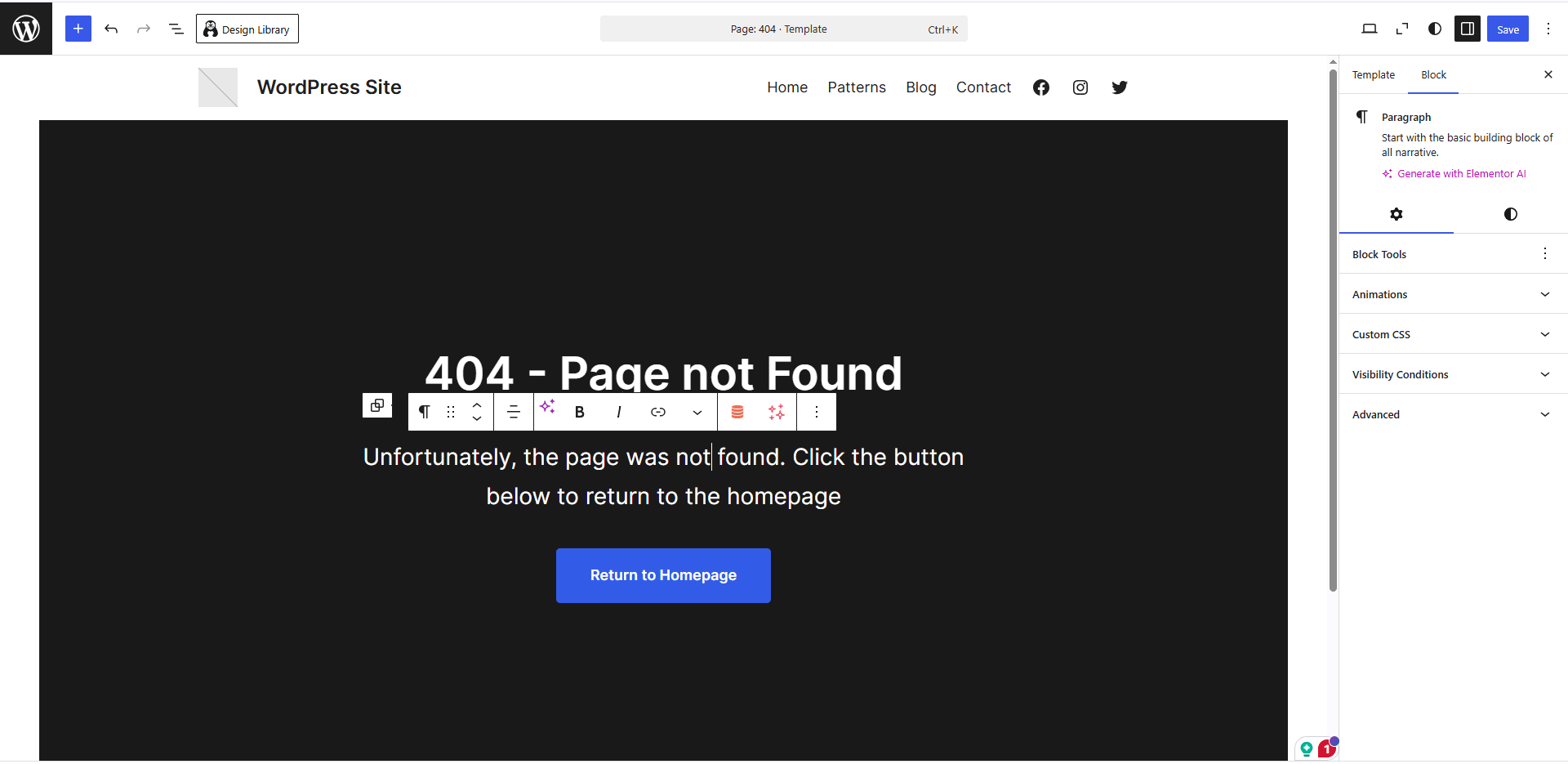
One detail catches developers out. Once you save a template in the Site Editor, WordPress uses that saved version instead of the theme’s file. According to the Theme Handbook, a saved template takes priority, so editing the theme’s 404.html afterwards changes nothing on screen. To go back to the file, reset the template from the Templates list. Learn WordPress has a short lesson on personalizing your 404 template if you want a walkthrough.
Classic themes use a PHP file. WordPress’s template hierarchy looks for 404.php and falls back to index.php if it doesn’t exist. Don’t edit the parent theme’s copy, because the next theme update overwrites it. Put your version in a child theme. Our guide to theme customization that survives updates covers setting one up.
A minimal version looks like this:
<?php get_header(); ?>
<main id="primary" class="site-main">
  <h1>Page not found</h1>
  <p>This page has moved or never existed. Search the site or start from one of these pages.</p>
  <?php get_search_form(); ?>
  <ul>
    <li><a href="<?php echo esc_url( home_url( '/' ) ); ?>">Home page</a></li>
    <li><a href="<?php echo esc_url( home_url( '/services/' ) ); ?>">Our services</a></li>
  </ul>
</main>
<?php get_footer(); ?>
Some themes keep the visible text somewhere else. In one wordpress.org support thread, the Hestia theme’s 404.php only called a theme action, and the site owner couldn’t find where “Oops!” was coming from. If your 404.php contains no text, check the theme’s options panel. You can also replace the file entirely in your child theme. If you’d rather describe the page than build it, SiteSelf handles design changes to your WordPress site like this one. It needs hosting access for a 404.php edit, and it doesn’t edit templates owned by Elementor, Divi or Beaver Builder.
A plugin lets you design the 404 as a regular Page in the block editor, without touching theme files. Smart Custom 404 Error Page, maintained by NerdPress, is the most widely installed option. Its WordPress.org listing shows more than 100,000 active installs.
Its listing notes three things. It doesn’t work with the “Plain” permalink structure. It sends a proper 404 status and creates no redirects. And by default, visiting the assigned Page directly returns a 404 too, so test with a made-up URL, not the Page’s own address. The changelog records a security fix in version 11.4.8 in October 2024, after NerdPress took over the plugin. Check “Last updated” and “Tested up to” before you install it.
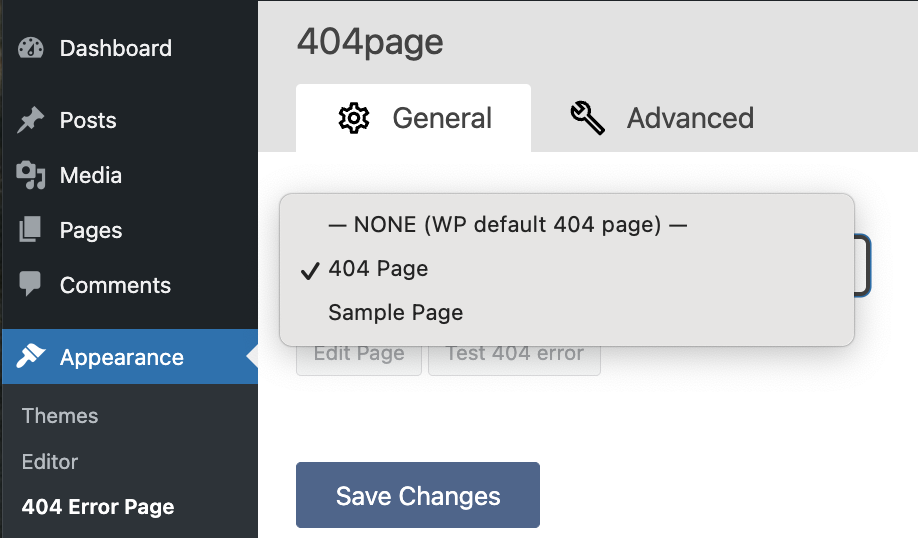
Not every “404 plugin” does the same job. Some redirect missing URLs somewhere else instead of showing a page with a 404 status. Read what the plugin does before choosing it.
Elementor’s documented route is Templates > Theme Builder > Error 404. Elementor’s help center says this needs Elementor Pro. Design the template, publish it, and set its display condition to 404 pages. A draft template, or one without that condition, never appears. The official route doesn’t exist in free Elementor. The plugin method above works with any setup.
Google’s Search Central guidance recommends a clear, friendly message, your site’s usual look and navigation, and links to popular content or the homepage. It also suggests a way to report the broken link. Practitioners add a search box near the message and ask you to keep the page light.
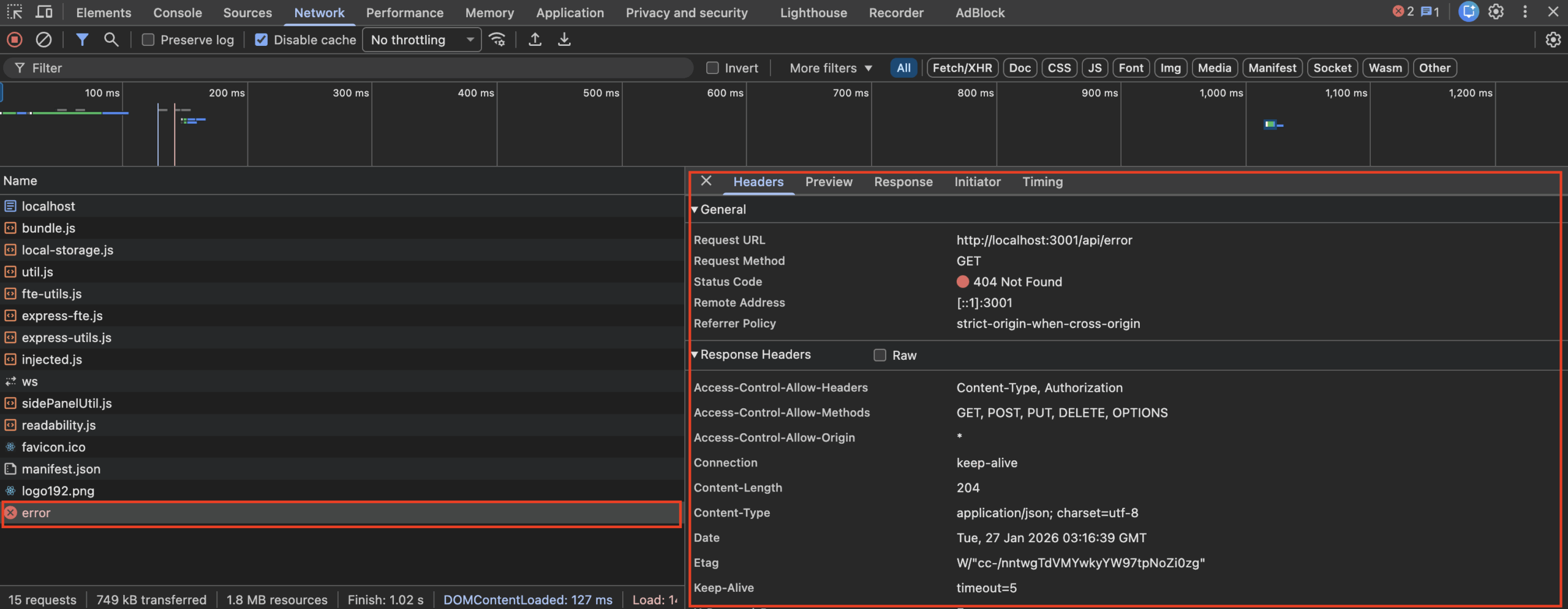
Open a URL that can’t exist, such as yoursite.com/this-page-does-not-exist-123. Don’t test with the assigned Page. Check that your design shows up, then check the status code. In a terminal, run:
curl -I https://yoursite.com/this-page-does-not-exist-123The first line should say 404. You can also open your browser’s developer tools, go to the Network tab and reload the page. If it says 200, you have a problem. Google defines a page that says “not found” but returns 200 as a soft 404, and it flags blank or nearly blank pages the same way. Google’s guidance is plain: a custom 404 page should still return HTTP 404.
These causes are ranked roughly by how often they come up in WordPress docs and support threads. Start at the top.
Only when there is a real replacement. Google’s guidance is to return 404 when content is gone, 410 when it was removed on purpose and won’t come back, and 301 when it moved to a clear replacement. A discontinued product can point to its successor or its category. An old article can point to the updated version.
Redirecting every missing URL to the homepage is the mistake practitioners warn about most. Google may treat those redirects as soft 404s, and visitors land somewhere that has nothing to do with what they clicked. Avoid redirect chains and timed “meta refresh” redirects too. For URLs you never replaced, a helpful 404 page is the honest answer.
WooCommerce stores need two extra checks. WooCommerce’s permalink docs say the product base must not clash with the category or tag bases. Old product URLs return 404 after a permalink change unless you redirect them.
No. The Site Editor on a block theme or 404.php in a child theme does the job without one. A plugin is worth it if you want to design the page as an ordinary Page and never touch theme files. If you go that way, check that the plugin is still maintained.
Only if the file is in a child theme. Theme updates overwrite edits to the parent theme’s files. Site Editor changes are stored in the database, so theme updates don’t replace them.
Not through Theme Builder, which requires Elementor Pro. A plugin that assigns an ordinary Page as the 404 works with any theme or builder. You can also write a 404.php in a child theme.
Export the list from Search Console or a crawler and match each old URL to its new one where one exists. Bulk-import 301s for those. Let everything without a real replacement return 404 or 410. A custom 404 page makes the leftovers less painful for visitors, but it doesn’t remove them.
That’s the default behavior of Smart Custom 404 Error Page. The plugin has a setting to turn it off. Either way, test with a URL that doesn’t exist on your site.
How-to Tutorials
For one “find us” location, a Google Maps embed pasted into a Custom HTML block needs no plugin and no API key. Plugins earn their place when you need several markers, a store locator or a map in a classic widget area. When a Google-powered plugin map shows a grey box, the cause is almost always the API key, the Google Cloud project, billing or the referrer settings. The theme is rarely the problem.
Read article ›How-to Tutorials
A WordPress homepage can be a static page, a feed of your latest posts, a block theme template, a classic theme file or a page builder layout. Each one is edited in a different place. Find out which one your site uses first and the edit itself is quick. Skip that step and you can spend an hour changing something visitors never see.
Read article ›How-to Tutorials
Updating a WordPress theme takes one click under Dashboard, then Updates. Nearly everything that goes wrong comes from the site around that click: custom code edited into the parent theme, a license tied to the wrong domain, file permissions, or no way back. Answer three questions before you update and most failures never happen.
Read article ›Connect the site you already have, add your agent to Slack or Telegram, and tell it what you need.
Connect your siteStart with 500 free credits. No credit card needed.