Key takeaways
- “Multi site” can mean three things: task tracking inside WordPress, a dashboard for separate installs, or a WordPress Multisite network. Figure out which one you’re dealing with before you pick a tool.
- Test a shared plugin update on one low-risk site first, then roll it out in waves ordered by what breaks if it goes wrong. WooCommerce’s conflict test is the procedure to use when something fails.
- Maintenance dashboards save time. FatLab, an agency with 200+ sites, reports routine maintenance dropping from 30 to 60 minutes per site per month to 15 to 30. A dashboard still can’t tell you whether a form or checkout works.
- Keep an access register: who controls hosting, the domain and admin accounts for each site. One wordpress.org user was stranded with an expired SSL certificate after their Multisite administrator disappeared.
- “Done” should mean three things: the change was made, it was checked, and you know how to undo it. Without all three, the next incident costs an hour of detective work.
It’s Monday, and three requests arrive within an hour. A store needs a security plugin updated before Friday’s promotion. A clinic needs a landing page live by Wednesday. A bakery’s enquiry form has been losing leads since Saturday. All three need the same developer, and none of them is hard on its own.
That’s the real problem with running several sites. Each task belongs to one site, but the people doing the work are shared across all of them. Every hour spent on one site is an hour another site was counting on. This article covers the coordination layer: one queue, shared rollouts, access and reporting. Choosing tools is covered in our guide to managing multiple WordPress websites.
Which “multi site” problem are you actually managing?
People use the phrase for three different setups, and each one needs a different answer.
- Tracking projects and tasks inside WordPress. Plugins such as Project Manager by weDevs, FluentBoards and UpStream add boards and task lists to the admin area. They organise work. They don’t touch your other sites.
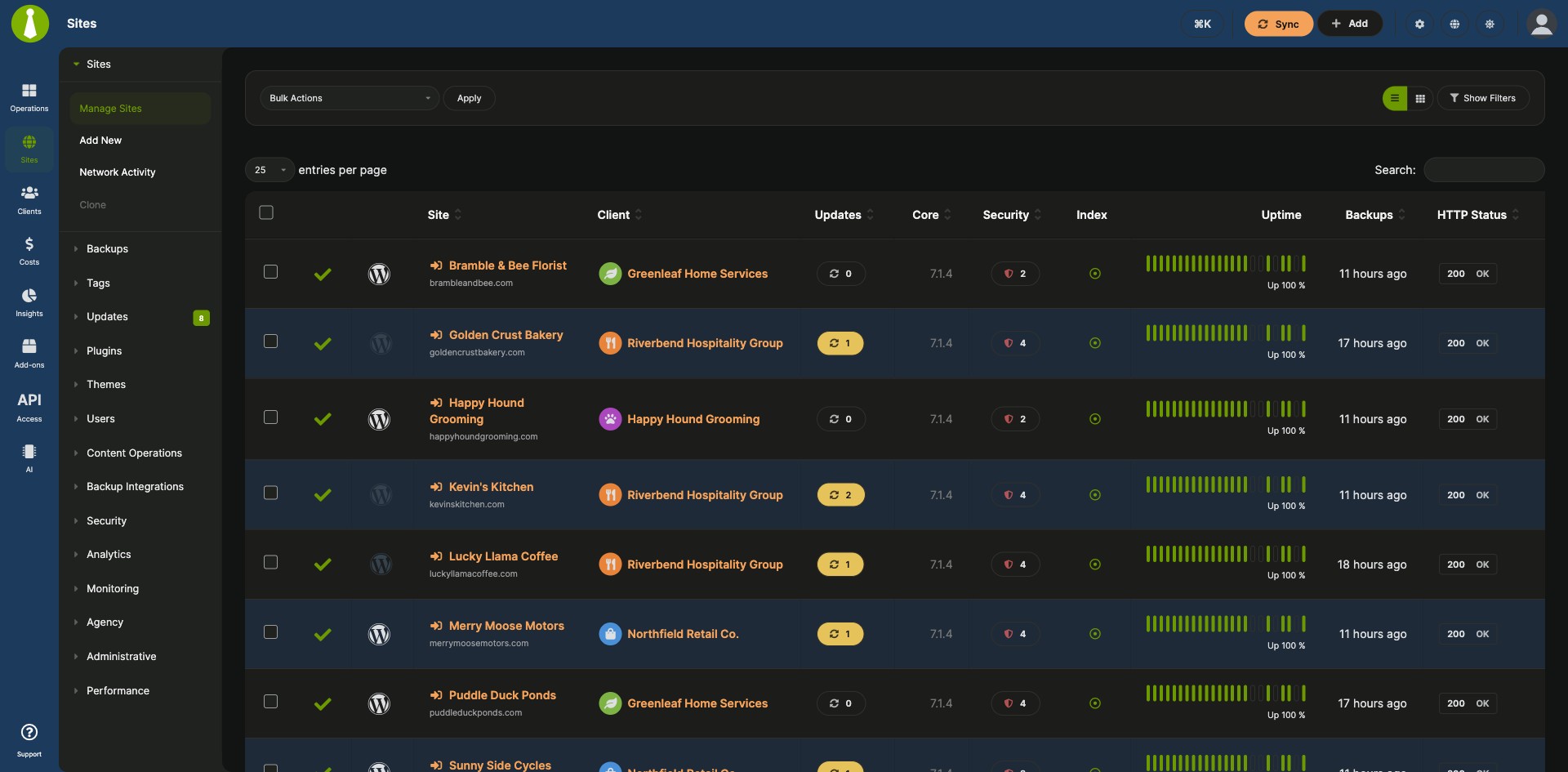
- Maintaining several separate sites from one place. Dashboards such as MainWP, ManageWP and InfiniteWP connect to each site through a small connector plugin and run updates, backups and reports in bulk.
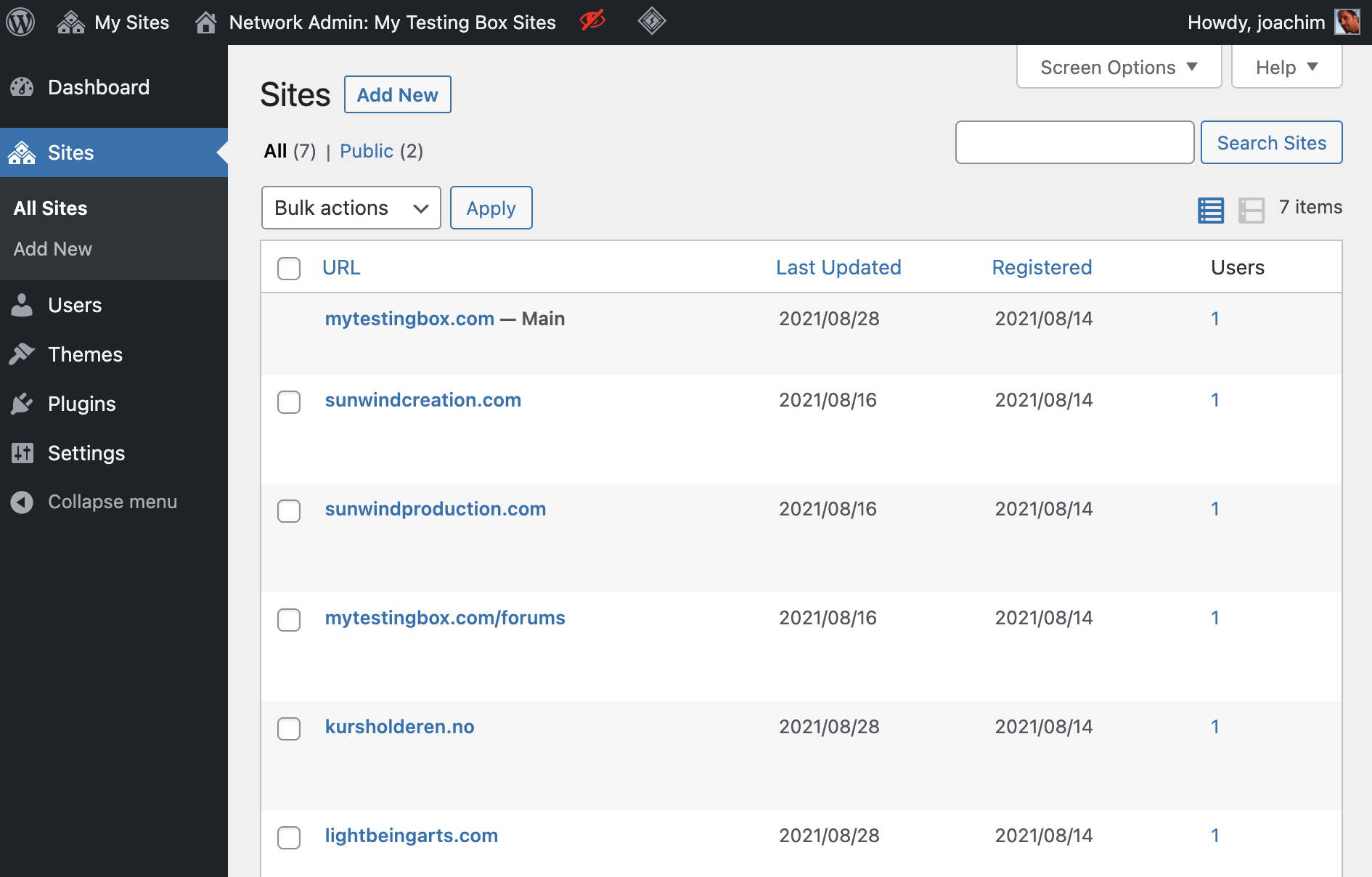
- WordPress Multisite. One installation runs a network of sites that share code, plugins, themes and users. Our explainer on what a multi site website is covers when that fits.
Most owners and agencies are in the second situation, and some are in the third. In either case the work still needs coordinating: who does what, in which order, on which site, and how you know it worked. The rest of this article covers that coordination.
Why one queue beats a separate list for each site
With five separate to-do lists, nobody sees the conflicts until two sites book the same person for the same afternoon. One queue makes those conflicts visible early. It only works if every item in it carries enough context to be safe. Set it up in this order:
- List every site with its owner, host, next deadline and how it earns money. “Takes bookings” or “sells online” tells whoever does the work what to check afterwards.
- Tag every task with its site. A task without a site tag is how a change ends up on the wrong client’s site.
- Write down anything two sites share. That includes a plugin, a theme, a host, a person or a deadline. A security plugin update that runs on four sites is one portfolio task, not four separate ones.
- Give shared people a weekly capacity and don’t book all of it. If one reviewer covers three sites, that’s one person with three queues. When every hour is booked, one emergency on one site pushes back planned work on the other three.
- Order the week by what breaks, not by who asked first. A broken enquiry form that’s losing leads comes before a font change, even if the font request is older.
- Define “done” as three things: change made, check run, undo noted. A task closed as “plugin updated” leaves the next person guessing what was tested and how to reverse it.
Two signals tell you whether the queue is healthy. Every task has a site tag. And nothing stays blocked for more than a few working days before someone escalates it. Counting total tasks hides both problems.
How to roll out a shared plugin update without breaking five sites
A shared update can break several sites at once. A plugin that looks low-risk on a brochure site can break a cart on a store, because it loads scripts on the checkout page. Use the same routine every time:
- Pick a representative site and test there first, ideally on a copy. Our guide to creating a WordPress staging site covers how to make one. Choose the site with the least to lose, such as one with no checkout and no booking form.
- Roll out in waves ordered by what breaks. Brochure and blog sites go first. Stores and anything that takes bookings go last, each with its own check.
- Check the pages that earn money, not just the homepage. On a store, place a test order with a discount code. On a clinic, submit the booking form. A test on the bakery site supports the rollout, but it can’t prove the store’s checkout still works.
- Decide your pause rule before you start. For example: “If any wave breaks a form or checkout, stop and roll back that site.” Set the rule in advance, before you’re tempted to bend it in the middle of a rollout.
If something does break, use WooCommerce’s guide to testing for plugin and theme conflicts, even on sites that aren’t stores. On a staging copy, switch to a default theme, deactivate the other plugins, then reactivate them one at a time and repeat the action that failed each time. Don’t do this on a live store, because customers will see every step.
Multisite changes the risk. A plugin update applies to every site that uses it at once, because the network runs one version of it. You can’t run the update in waves across sites. Your representative test has to happen on a staging copy of the whole network.
What a maintenance dashboard proves, and what it doesn’t
Dashboards are the standard answer once you have more than a handful of sites. MainWP Child, the connector for MainWP, has over 700,000 active installations according to its WordPress.org listing. FatLab, an agency managing 200+ sites, reports that routine maintenance dropped from 30 to 60 minutes per site per month to 15 to 30 once it used management platforms and bulk operations. That’s one agency’s figure, not a benchmark.
A green “online” status means the server answered. It doesn’t tell you whether a form sends or an order completes. Treat the dashboard as the place you schedule updates, and the post-update checks as the proof they worked.
When a site drops off the dashboard, read the error before you change any security settings. MainWP’s documentation on connection test status codes explains what each result means. A 403 usually points to a firewall, and a 404 to a missing or inactive Child plugin. The fix is a narrow exception for the dashboard, not switching security off. One cause catches teams with staging sites: MainWP documents that pushing a live site to staging, or staging to live, overwrites the mainwp_child_pubkey value in wp_options. That breaks the connection again after every sync unless you exclude that key from the sync.
Who holds the keys to each site?
Most portfolios have no written list of who controls what. Keep a one-page access register with a row per site and these columns:
| Column | What it answers |
|---|---|
| Hosting account owner | Who can restore a backup or reach the files if WordPress is down |
| Domain and DNS owner | Who can renew the domain or point it somewhere new |
| Administrator accounts | Named people only, no shared logins |
| Who can publish | Separate from WordPress role names, which don’t map cleanly to who is allowed to approve |
| Open exceptions | Each workaround with an owner and an expiry date |
Our breakdown of WordPress user roles shows what each role can do by default. Write down who is actually allowed to approve changes, because the role names won’t tell you.
The worst case shows why this matters. In a wordpress.org support thread, a site owner whose site sat inside someone else’s Multisite network explained that the network administrator had stopped responding. They had no server access, their SSL certificate had expired, and the site was often offline. Separate installs don’t remove that risk. They do make it visible: each site has a host, and the register says who holds it.
Multisite also makes some decisions hard to undo. WordPress’s Tools Network screen documentation says the address format you choose (subdomains or subdirectories) can’t simply be changed later. Moving a site out of a network takes real work. Ben Ryan, who runs a WordPress maintenance business, estimates 3 to 6 hours per site. If the sites have different owners, decide the structure at the start instead of paying to separate them later.
Keep conversations per site and the report for the whole portfolio
A single shared channel for every site breaks down in a predictable way. A note about one client’s staging site lands above another client’s launch approval, and by Thursday nobody can find what was agreed. Use three channels, each with one job:
- A thread per site for requests, decisions and approvals. Write each request with the page, the change and the result you want.
- A weekly digest listing only blocked items, items due this week and anything that touches two or more sites.
- Direct messages for emergencies only. Copy any decision made there back into the site thread the same day.
The weekly report fits on one page. Give each site one line: status, last change, checks run. Add a section that names every site a shared change touched. Then list open exceptions with their owners and expiry dates. Sort the sites by what breaks if something goes wrong, not by who complained loudest. If you already run a WordPress website care plan, fold this review into the same weekly slot so it doesn’t become a second meeting.
Two weeks in, test whether it works. Ask the person in charge of the portfolio which site is blocked and why. They should be able to answer in one sentence without opening a tool. If they can’t, fix the report before you add another site.
What changes when an agent does the work on each site
Most of the cost in a multi-site portfolio sits around the work, not in it. Changing six words on a pricing page shouldn’t need a ticket, a developer, a reviewer and a deployment window. Yet that’s often what happens when one person’s calendar has to cover every site.
SiteSelf takes on the per-site part. You describe the change in chat or from Telegram. The agent makes it on the live site, fetches the changed page to check it, and reports what it changed and what it checked. Before it acts, it tells you what’s about to change and whether you can undo it, and what it did is recorded. The request, the check and the result end up in one place, which is what your site thread was trying to hold together.
Example request: “On the bakery site, the enquiry form on the Contact page hasn’t sent anything since Saturday. Find out why, fix it, and tell me what you changed.”
The agent looks at the form plugin’s configuration and the page, works out what changed, makes the fix and reports back in plain language: the cause, the change, whether it can be undone, and the result of fetching the Contact page afterwards. Settings and content work go through the SiteSelf Connector plugin from the WordPress.org directory. If the fix is in code or files, the agent needs hosting (SSH) access to that site.
There are limits. The check is a fetch of the page and a written report, not a test across devices or a real submitted enquiry, so you still send a test message yourself. Pages built with Elementor, Divi or Beaver Builder are refused at the moment of work, with the reason. Nothing runs unattended: the agent works when you ask, so it won’t spot Saturday’s broken form on its own. The queue, the access register and the weekly report are still yours to keep. What changes is how much of the week each small fix takes. If you run a few sites for your own business, here’s how SiteSelf handles website updates for small businesses. Cost is on the pricing page.