Key takeaways
- WordPress Multisite shares code, plugins and administration, not store data. WooCommerce says each network store runs on its own tables, and MainWP says its Dashboard was not designed for Multisite networks.
- Put unrelated client sites on separate installs with a dashboard. Use Multisite for related sites that one team runs with the same design and plugins.
- “Updated successfully” does not mean the site still works. One agency reports update problems about once in every 20 updates on high-traffic sites, so check forms and checkout after every batch.
- Multisite faults usually start outside WordPress, in DNS, virtual hosts, rewrite rules or SSL. Dashboard faults start with the connection, and MainWP’s status codes point to the cause.
- Give every person and every tool its own scoped access, and write down who removes it and how.
The spreadsheet has fourteen rows, one per site, with columns for host, WordPress version and who holds admin. Three password cells are blank because the person who set them up left last year. One site still runs a plugin version that was retired in the spring, and nobody is sure which of the fourteen share a theme.
Portfolios built one site at a time usually end up like this. Each site made sense on the day it was added. Nobody wrote down the shared decisions that would have kept the sites consistent. So you have fourteen sites you can log into but can’t change with confidence.
Multi site management is the work of fixing that. The dashboard is the easy part. The hard part is deciding what should be the same on every site, what is allowed to differ, and what evidence you need before a change counts as finished on every site.
Which kind of multi-site setup are you actually running?
“Multi site” covers two architectures that behave very differently. Most of the expensive mistakes start when people mix them up. Our explainer on what a multi site website is covers the definitions in depth. Here is the short version.
WordPress Multisite runs several sites inside one installation. They share core files, plugins, themes and a single Network Admin. Separate installations are independent WordPress sites, each with its own files and database. You connect them to a management dashboard such as MainWP or ManageWP so you can update and back them up from one screen.
| Setup | What is shared | What a bad shared update can reach | Fits |
|---|---|---|---|
| WordPress Multisite | Core, plugins, themes, the network user list | Every site on the network | Related sites run by one team: locations, brands, language versions |
| Separate installs plus a dashboard | Only the dashboard | The sites you chose to update | Independent clients, or sites that need different plugins |
| Separate stores plus a sync tool | The product and order data you choose to sync | Each store on its own | Stores that need shared products or stock |
Two points from official documentation settle most arguments. First, WordPress’s handbook page on preparing a network warns that the sites in a network are separate, and that Multisite may not suit sites that need to share data or users. Second, WooCommerce’s documentation says each store on a Multisite network uses its own database tables and runs as an independent store. Network activation shares the plugin, not the products, carts or orders. If you need shared stock, WooCommerce’s Products and Orders Sync connects separate stores through the REST API, and it does not need Multisite at all.
The rule also works the other way round. MainWP’s documentation says its Dashboard was not designed for managing Multisite networks and that MainWP does not officially support them. If you connect subsites anyway, installing or deleting a plugin affects the whole network. Manage a network from Network Admin and separate installs from a dashboard. Don’t put one inside the other.
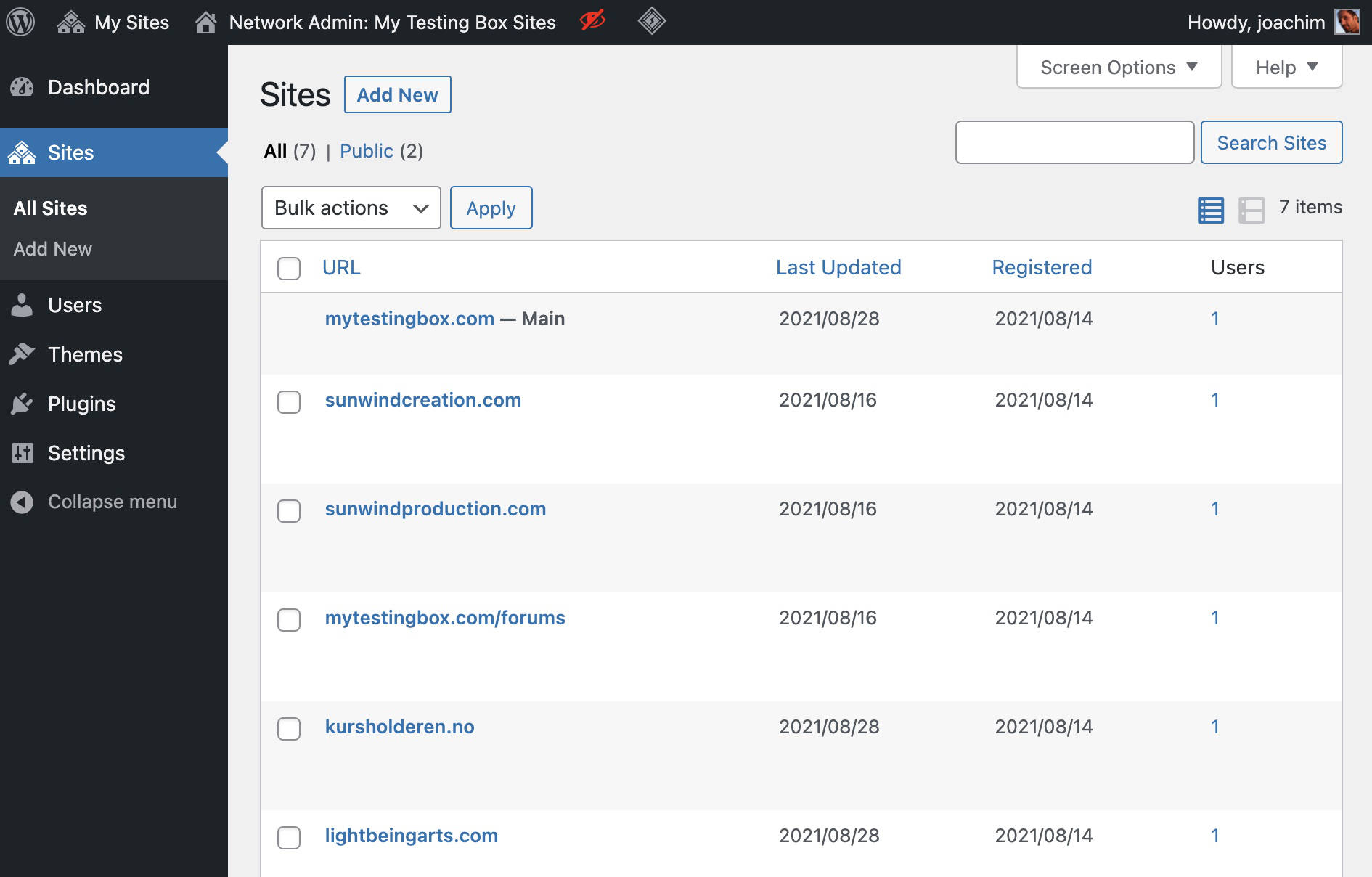
Agency practitioners on Reddit and the WordPress.org forums mostly agree. Unrelated client sites belong on separate installs because isolation, client handover and different plugin needs all point that way. Multisite is worth it when the sites share an owner, a design, a plugin set and an editorial team. Our guide to what a multi site manager manages covers the tools for each setup.
What should be the same on every site, and what should stay local?
Before the next shared change, write it down in three columns. The first is what you decide once for the whole portfolio. The second is what each site decides for itself. The third is what you check on each site afterwards.
| Area | Decided once | Decided per site | Checked after each change |
|---|---|---|---|
| Core and plugin versions | Approved plugin list and update window | Timing for sites with custom code | Login, forms and checkout still work |
| Theme and design | Base theme, fonts, spacing | Logo, brand colours, page layouts | Mobile layout and contrast on key templates |
| Business details | Brand name, legal wording | Address, hours, currency, language | Footer and contact page match that site’s own data |
| User accounts | Role definitions, password rules | Named editors for each site | Each person sees only their own sites |
| SEO defaults | Title and description patterns | Page titles, local terms | No new broken links or missing titles |
| Backups | Retention and restore-test schedule | Timing for busy stores | A restore has been tested on a copy |
The first column is where you save time. The second protects facts that are correct because they differ, such as a store in another currency or a branch with its own opening hours. Teams often skip the third column, yet it is the only one that shows whether the change worked.
A variation that breaks a shared rule is an exception. Give each exception a named owner, a reason and an expiry date. Otherwise, within a year it becomes the new rule without anyone deciding it should. A franchise that pushes a “global” footer without that list can overwrite nine sets of opening hours along with the one legal line it meant to change.
Why one admin login across every site is the shortcut that hurts most
If one account has administrator rights everywhere, a single mistake reaches every site. That mistake might be a stolen password, the wrong browser tab or a script pointed at the wrong domain. Give each person and each tool only the role it needs, and only on the sites where it needs that role.
- Writers get Editor or Author on the sites they write for, not Administrator everywhere. WordPress user roles explained lists what each role can do by default.
- Each connected tool gets its own application password, created in the Application Passwords section of Users → Profile. When you revoke one, only that tool loses access.
- A named person removes access when someone leaves or a contract ends, and records the removal.
- Hosting and SSH access stays with a small, named group.
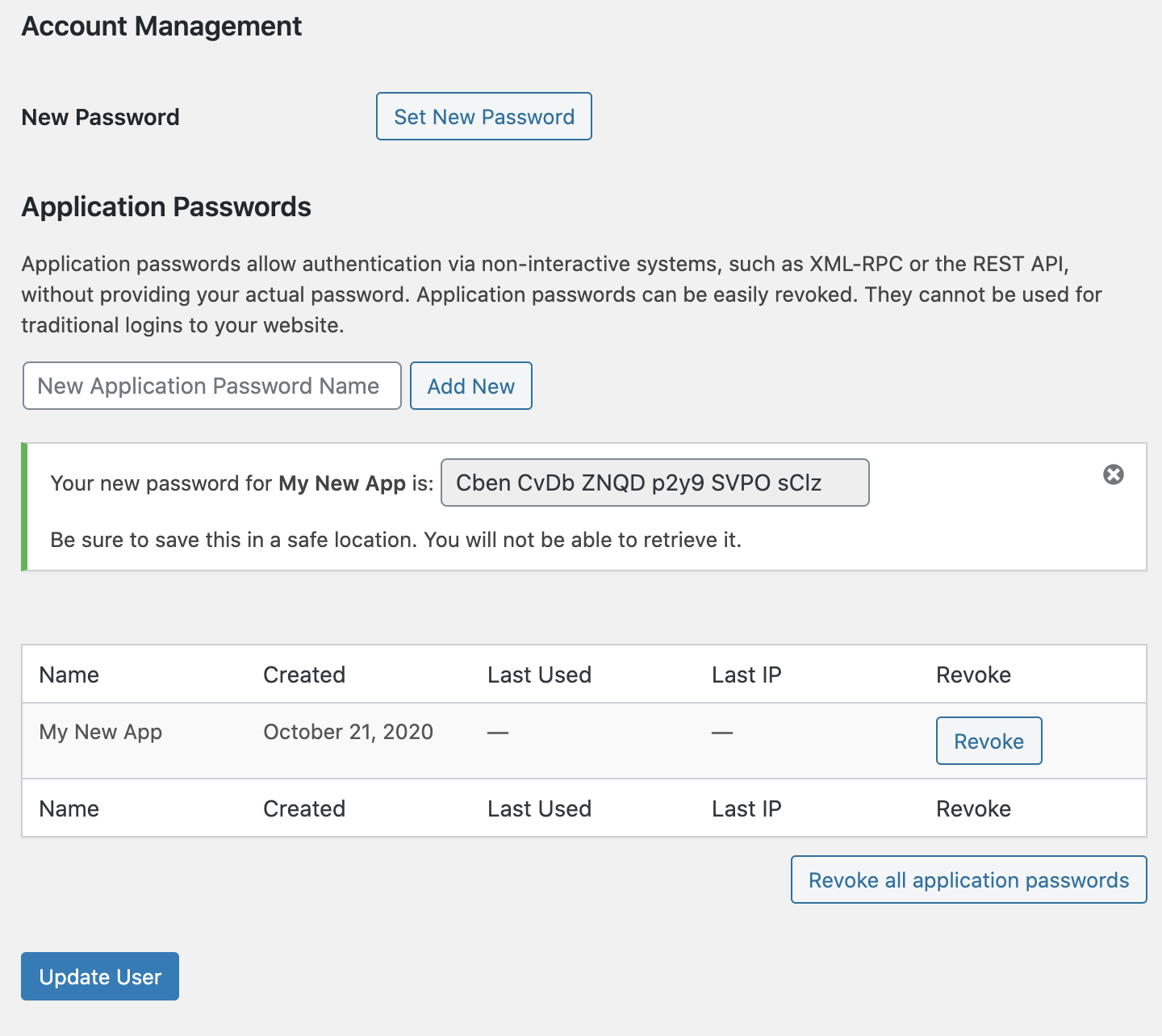
Multisite works a little differently. WordPress’s network administration handbook says only the Super Admin can install plugins and themes. Site administrators have narrower powers. A user account exists once for the whole network, but its role is set separately on each site. That suits a central team. It frustrates a client who expects to install their own plugins.
How to roll out an update across many sites without breaking one
The lesson agency threads repeat most is that “updated successfully” does not mean the site survived. WordPress can report a clean plugin update while a form stops sending or a header collapses. One agency owner on r/WordPress said update problems hit about once in every 20 updates on high-traffic sites. At that rate, one round of updates across 40 sites would break about two of them, and you need to find those before a customer does.
- Sync and take stock. Refresh the dashboard’s data before you check what needs updating. MainWP’s docs say to sync sites first. Note which sites run custom code or a store.
- Read the changelog. Flag any update that touches checkout, forms, login, caching or payments.
- Test on staging first. A copy of your most complex site catches most conflicts. Our guide to creating a WordPress staging site covers the setup.
- Back up, and confirm the restore works. MainWP’s backup documentation recommends testing both backups and restores on a staging site. A backup that has never been restored is a hope. Our piece on where backup plugins fail explains why.
- Update in small batches. Start with a few low-traffic sites, then widen. MainWP gives the same advice for rolling out backups: start with a small representative group, and check completion, server load, disk space and bandwidth before expanding.
- Check what customers use. Test login, contact forms, cart and checkout, search, navigation and one page per template.
- Record everything, and stop at the first failure. Note the site, the change, what you checked and how to roll it back. If any check fails, pause the rollout.
Small batches are the whole point. A bad update on three sites costs an afternoon of fixing. The same update on thirty sites is an incident.
Why uptime checks and scans are not the same as “working”
An uptime monitor tells you the server answered. It does not tell you whether the quote form sends or checkout takes payment. In an r/webdev thread, a freelancer with 11 client sites asked how to know nothing was silently broken. Replies suggested error tracking with Sentry and scripted end-to-end tests with Playwright or Puppeteer for the pages that make money.
The same caution applies to accessibility reports across a portfolio. The W3C’s guidance on choosing evaluation tools says tools cannot check every part of accessibility automatically and can give misleading results, so human judgment is still needed. A clean scan across all your sites tells you what to look at next. It is not a certificate.
Checking is also where the hours go. One shop on r/WordPress, with about 250 clients and two employees, said a full day covered only 20 to 30 site checks. A dashboard saves you clicks. It does not do the checking, and the checking is where most of the time goes.
Where multi-site setups usually break, and where to look first
On a Multisite network, start at the hosting layer
A subsite that returns 404, a mapped domain that never loads or a redirect loop usually comes from DNS, the web server’s virtual host settings, rewrite rules or SSL coverage. WordPress itself is rarely the cause. A plain “The requested URL was not found on this server” page often means the request never reached WordPress. Check these in order:
- DNS points the domain, or the wildcard subdomain, at the server.
- The server sends that host name to the WordPress install, not to a separate document root.
- The site address under Network Admin → Sites matches the domain.
- The SSL certificate covers every domain, not only the main one.
- The rewrite rules match your web server. Apache .htaccess rules do nothing on Nginx.
Sometimes logins fail on a mapped domain with “ERROR: Cookies are blocked or not supported by your browser.” Check the domain mapping entry and clear your cookies before you touch any code. WordPress’s domain-mapping handbook offers a COOKIE_DOMAIN line for this error. Forum reports show that same line fixing one setup and breaking another, so check your host’s guidance first.
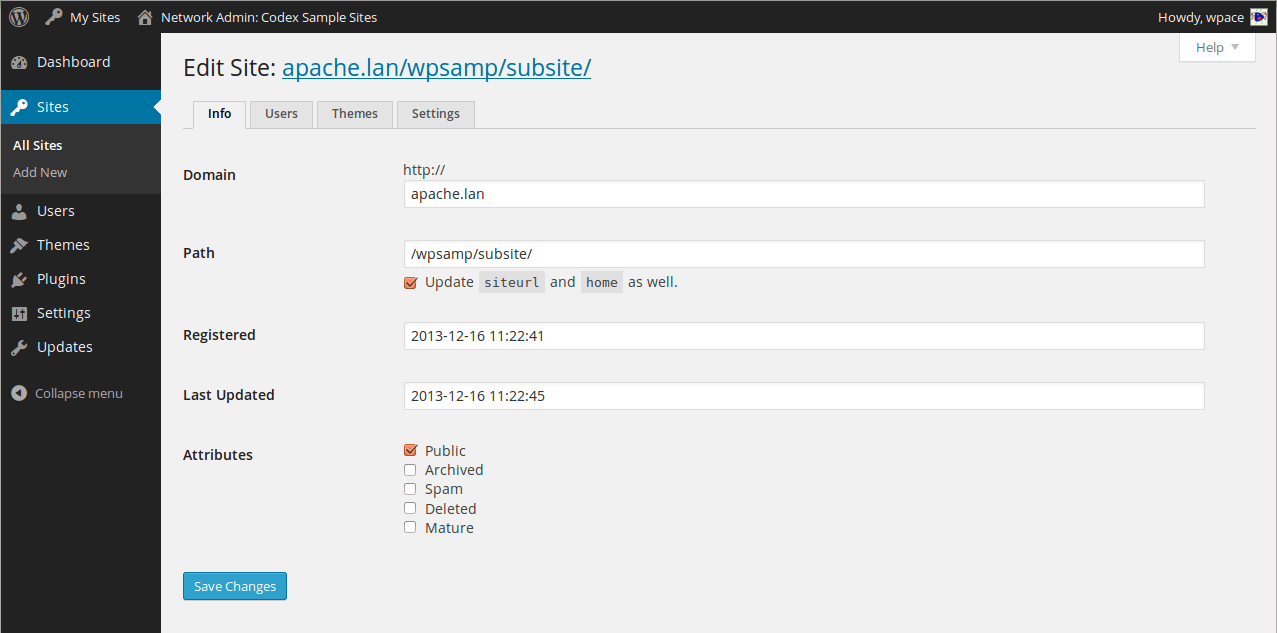
Network-activated plugins are the next suspect. In one WordPress.org support thread, WP Activity Log on a network of about 60 subsites pushed page loads past 20 seconds. A plugin that loops over every subsite gets slower with each site you add.
With separate installs, the connection is what breaks
When a dashboard loses contact with a site, run its connection test and read the status code. MainWP’s reference maps 403 to a firewall block, 404 to a missing or inactive Child plugin and 415 to a security layer rejecting the request. The usual fixes are to reconnect after a URL change, ask the host to fix an invalid certificate, or allow-list the dashboard’s IP address. MainWP warns against switching off the firewall or SSL verification as a permanent fix. That trades a connection problem for a security problem.
How the work changes when an agent does it
Most changes across a portfolio are small. The process around them is not. Each one means a ticket per site, someone to log in fourteen times, someone to check the result, and a note that the fifth store was different. SiteSelf is an AI agent for existing WordPress sites. You tell it what needs doing through chat or from Telegram. It does the work on the live site, checks the result and reports what changed and what it checked. Agencies running client portfolios can see how this works on the page for agencies managing client sites.
Example request: “On the four UK stores, add a notice above the cart: ‘Order by 18 December for delivery before Christmas.’ Leave the Ireland store alone, its carrier has a different cutoff.”
What the agent would do: before each change, it says what is about to change and whether it can be undone. It adds the notice on the four named stores and leaves the fifth untouched. Then it fetches each changed cart page and reports in plain language what it found. Everything it did is recorded, so “did we update that one?” becomes something you look up, not something you have to remember.
What access it needs: a text notice is content and settings work, so the SiteSelf Connector plugin from the WordPress.org directory is enough. A plugin or theme update changes files, so it needs hosting (SSH) access to each site.
What it cannot do: today, verification means fetching the changed page. It is not a screenshot, a device test or a test order, so place one test order yourself on the store that matters most. If a cart page is owned by Elementor, Divi or Beaver Builder, the agent refuses the change when it reaches that page and tells you why. Publishing does not wait in an approval queue, and nothing runs unattended. There is no monitoring and no scheduled check. Work happens when you ask for it. Pricing is credit-based and is on the pricing page.